TR7500E_Manual_en_v28.pdf - 第179页
C h a p t e r 3 A O I A T P G F u n c t i o n i n s t r u c t i on T R 7500 U S E R M A N U AL 1 72 l T h e d e f a u l t s o f w i n d o w a r e [ T o p C a m e r a ] , [ T op s i d e li gh t ] a n d [ V o i d W i n d o…
Chapter 3 AOI ATPG Function instruction
TR7500 USER MANUAL
171
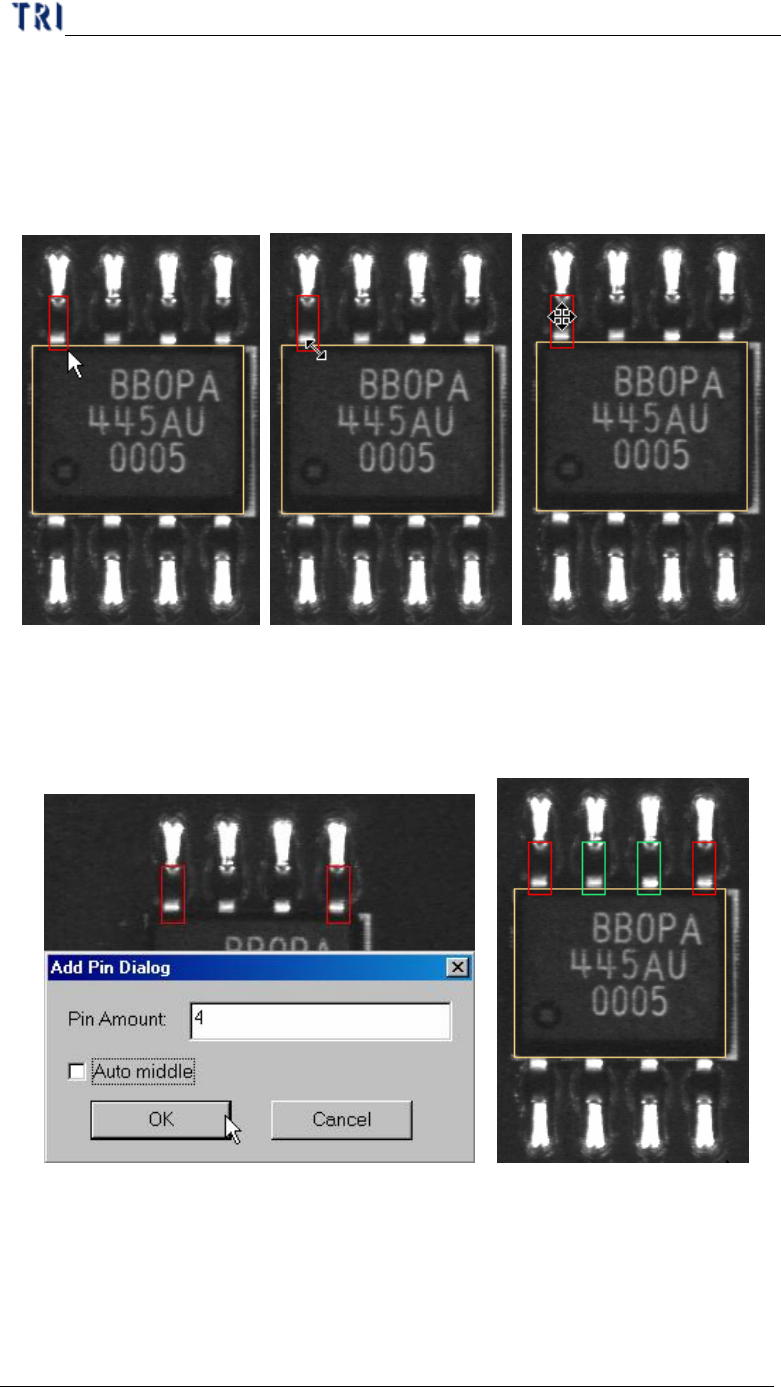
initial position of clicking must be at the same side with IC pin against body
window because system judges the position of IC pin by initial clicking. If you
create a pin at left side of body then move it to top side, the system will make
mistakes later.
l You can adjust the size and position to match the IC lead.
l If you select 2 pins and press [Pin], the following dialog will be appeared. You
can input total number of pins and press [OK]. The system will create the pins by
interpolation. When you check [Auto middle] the all pins will move against the
middle of body.
10.4.3. Window
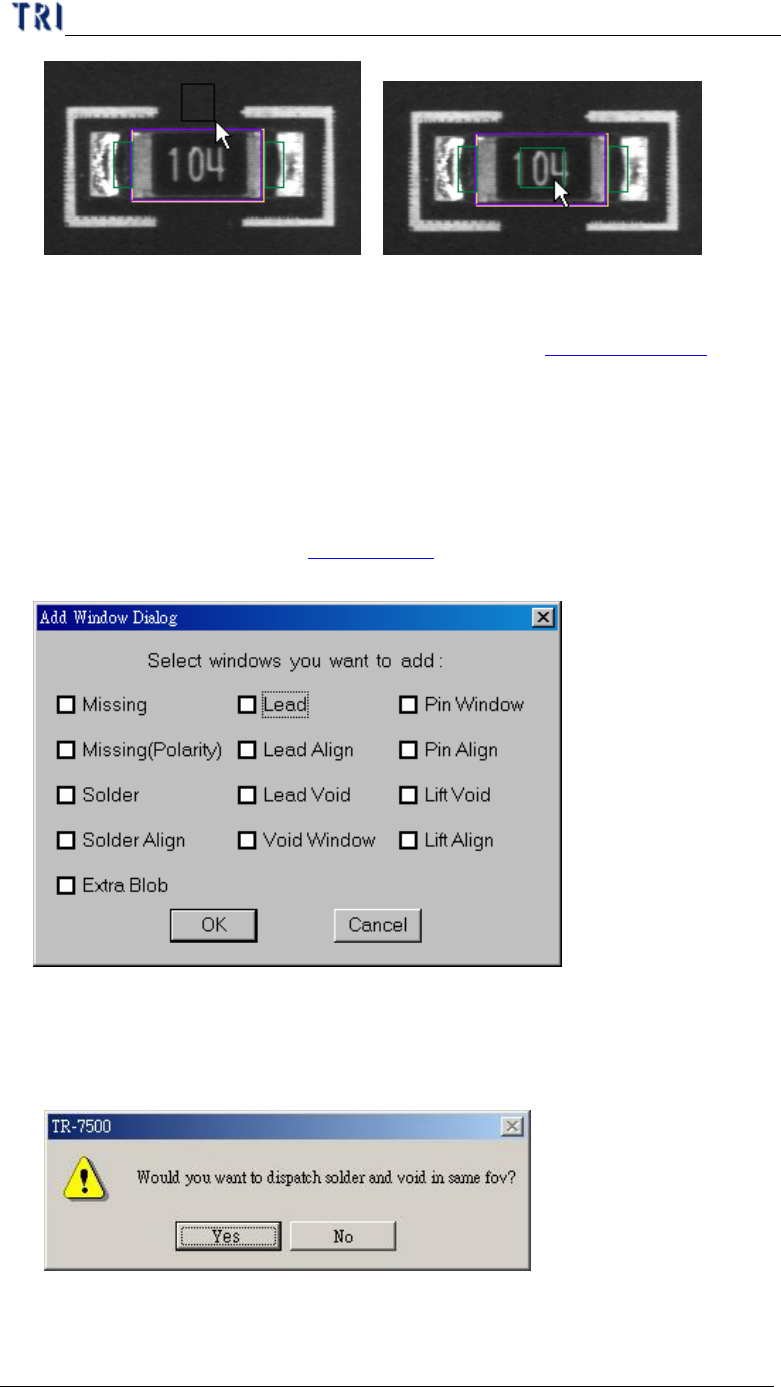
l You can click and drag by mouse to create a pin box after pressing [Window].
Then move the window to correct position.
Chapter 3 AOI ATPG Function instruction
TR7500 USER MANUAL
172
l The defaults of window are [TopCamera], [Topsidelight] and [Void Window].
You can click on [Property] to change the settings (See Chapter 3 10.7.2. )
10.4.4. All Window
l Check windows that you need and the windows can create at the same time.
Missing and Missing(Polarity) are created on the body box. Solder, Lead, Lead
Void, Pin Window and Lift Void are created on the pin boxes. Align is created to
cover all pins. You can go to Chapter 3 11. To see the principle of inspection
window.
l When selecting [Solder] and [Void Window] at the same time and pressing [OK],
you can select whether you want to arrange Solder and Void windows at the same
FOV.
10.4.5. Polarity Pair
Chapter 3 AOI ATPG Function instruction
TR7500 USER MANUAL
173
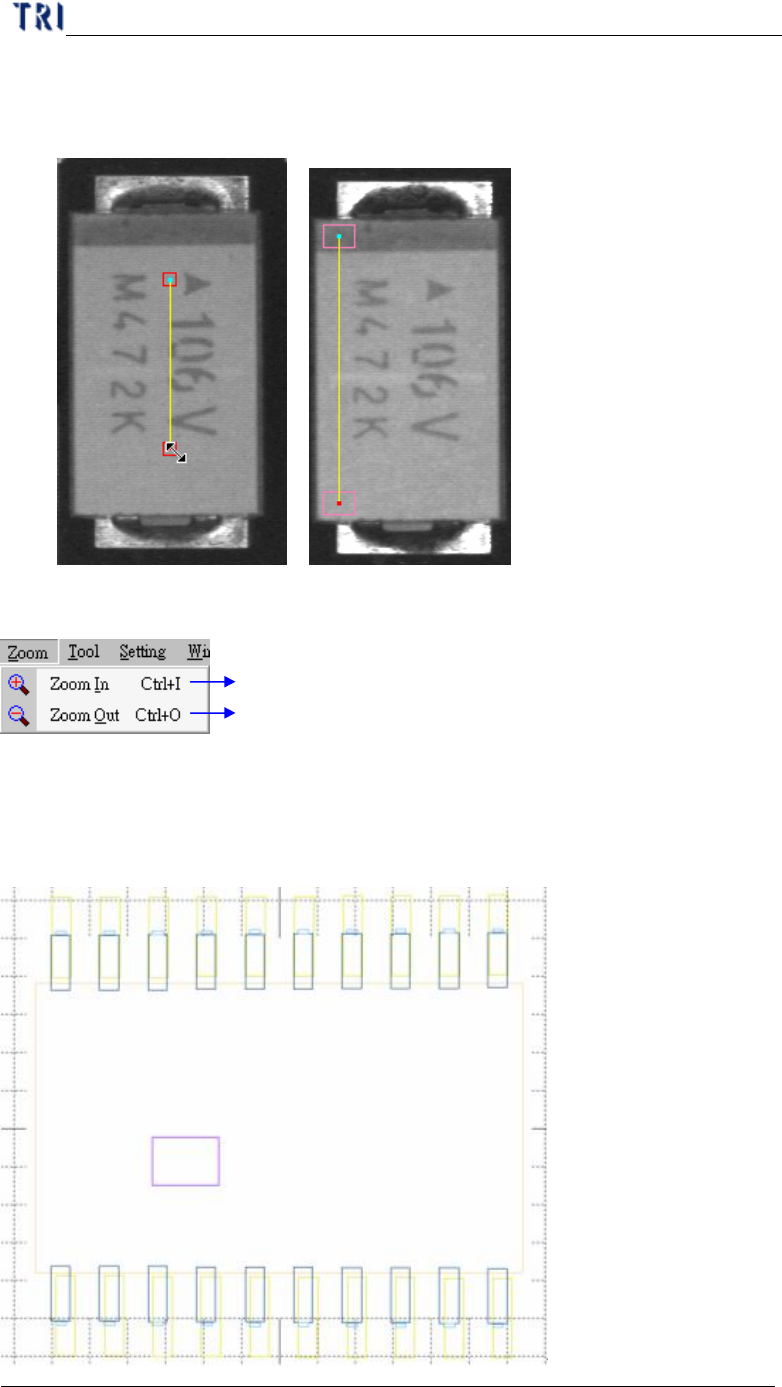
l A pair of windows will be created after click on [Polarity Pair]. You should move
them to different position with variation of gray level. System will show polarity
fail if the gray level of two windows is reverse.
10.5. Zoom
Magnified the component inspection box outline
Reduced the component inspection box outline
10.5.1. Zoom In
l It will show the enlarged windows by drawing frame after press [Zoom In]. The
windows enlarge10% when press [Zoom In] once.