TR7500E_Manual_en_v28.pdf - 第55页
C h a p t e r 1 AO I S t a nd a r d P r o j ec t Cr ea t i on T R 7500 U S E R M A N U AL 48 ( 8) G o t o n e x t s t e p . ( 9) W a r n i ng m e s s a g e f o r c l o s e t h e w i n d o w s . 9 . FOV V e rify ( 1) C l …
Chapter 1 AOI Standard Project Creation
TR7500 USER MANUAL
47
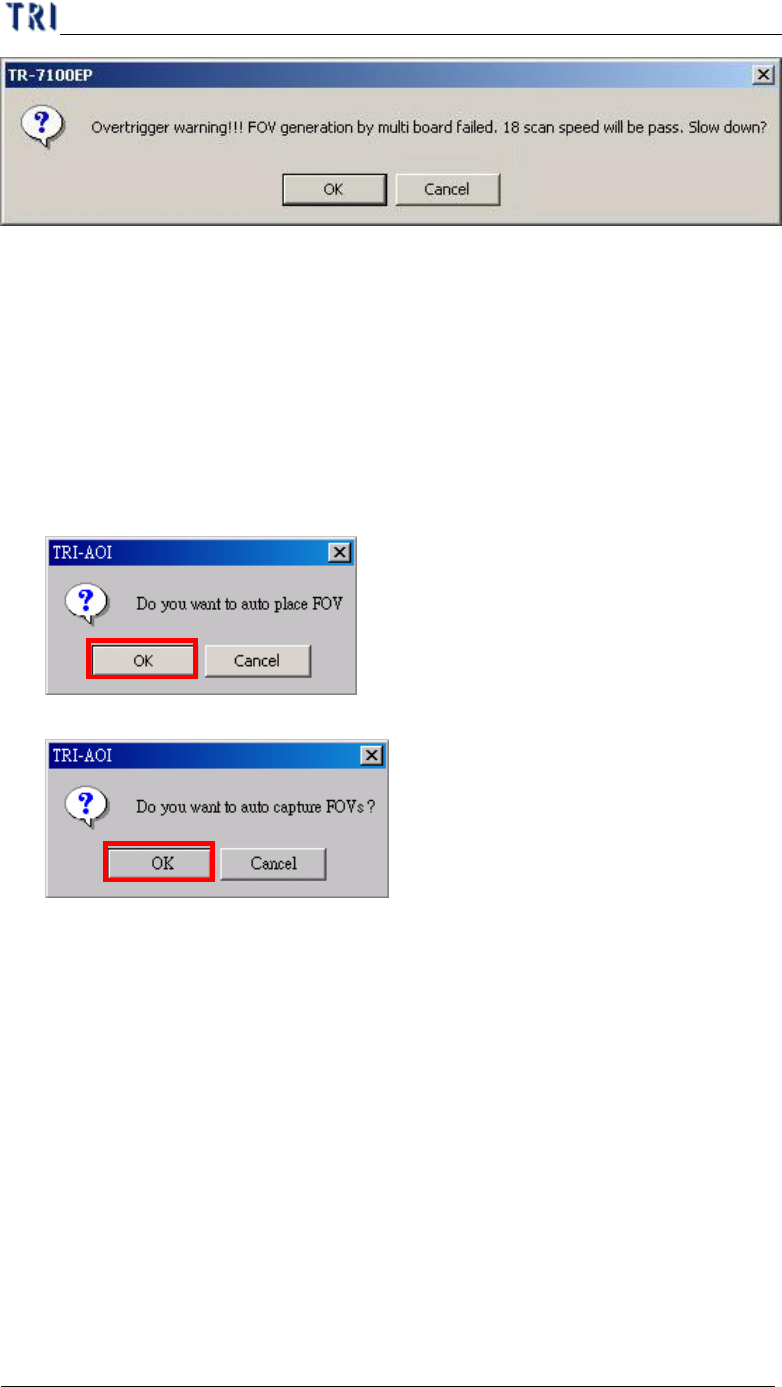
a. Selecting [OK] means scanning and inspecting the panel with the lower
speed that system suggests. The FOV will be arranged originally, but the
inspection time will be longer.
b. Selecting [Cancel] means scanning and inspecting the panel with the
original speed, but the arrangement of FOVs will be set as a panel. That is
you can’t apply the parameters [by set] in project.
c. Review the Library of the component that is laid on the edge. Try to reduce
the size of inspection box and see if the problem will be solved.
(5) Warning message for auto place inspection FOV.
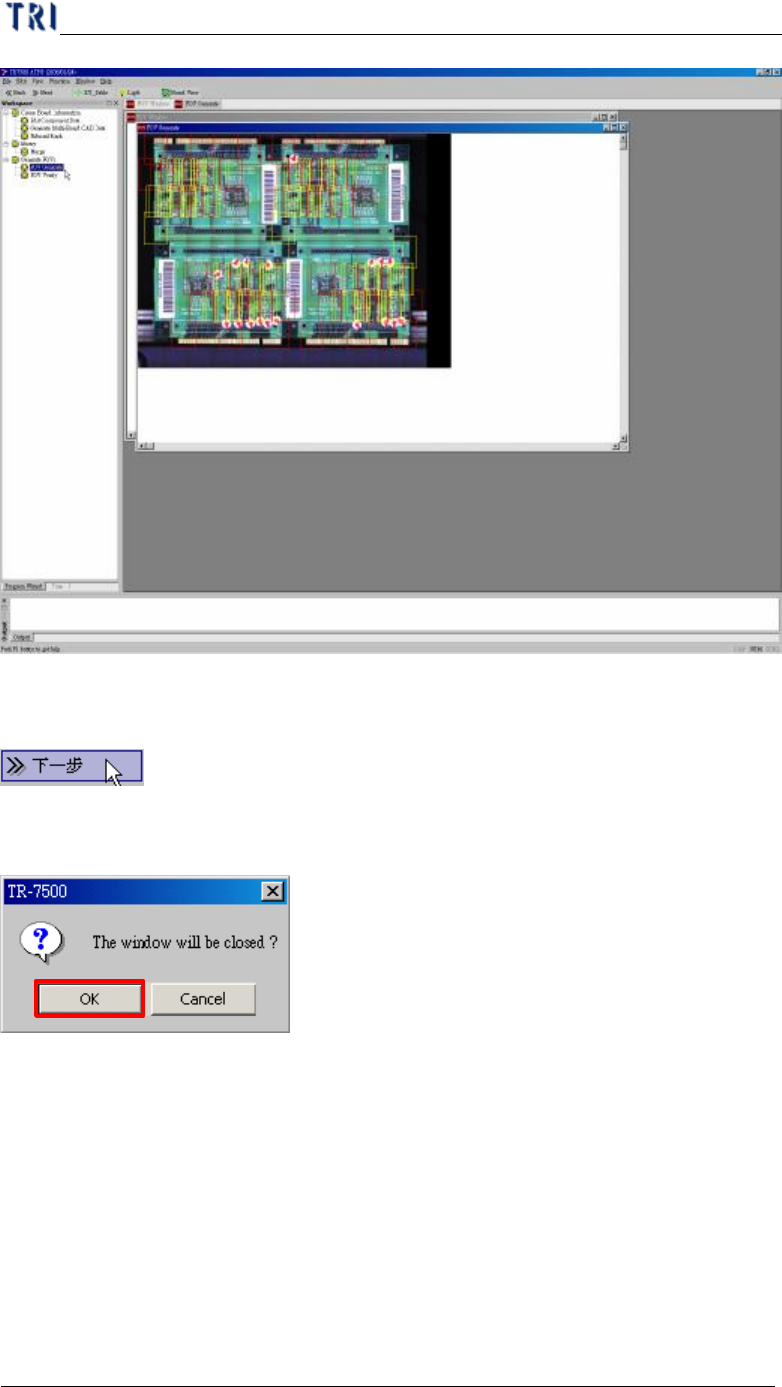
(6) Creating the panel FOV image.
(7) Display the every FOVs’ position in the panel.
Chapter 1 AOI Standard Project Creation
TR7500 USER MANUAL
48
(8) Go to next step.
(9) Warning message for close the windows.
9. FOV Verify
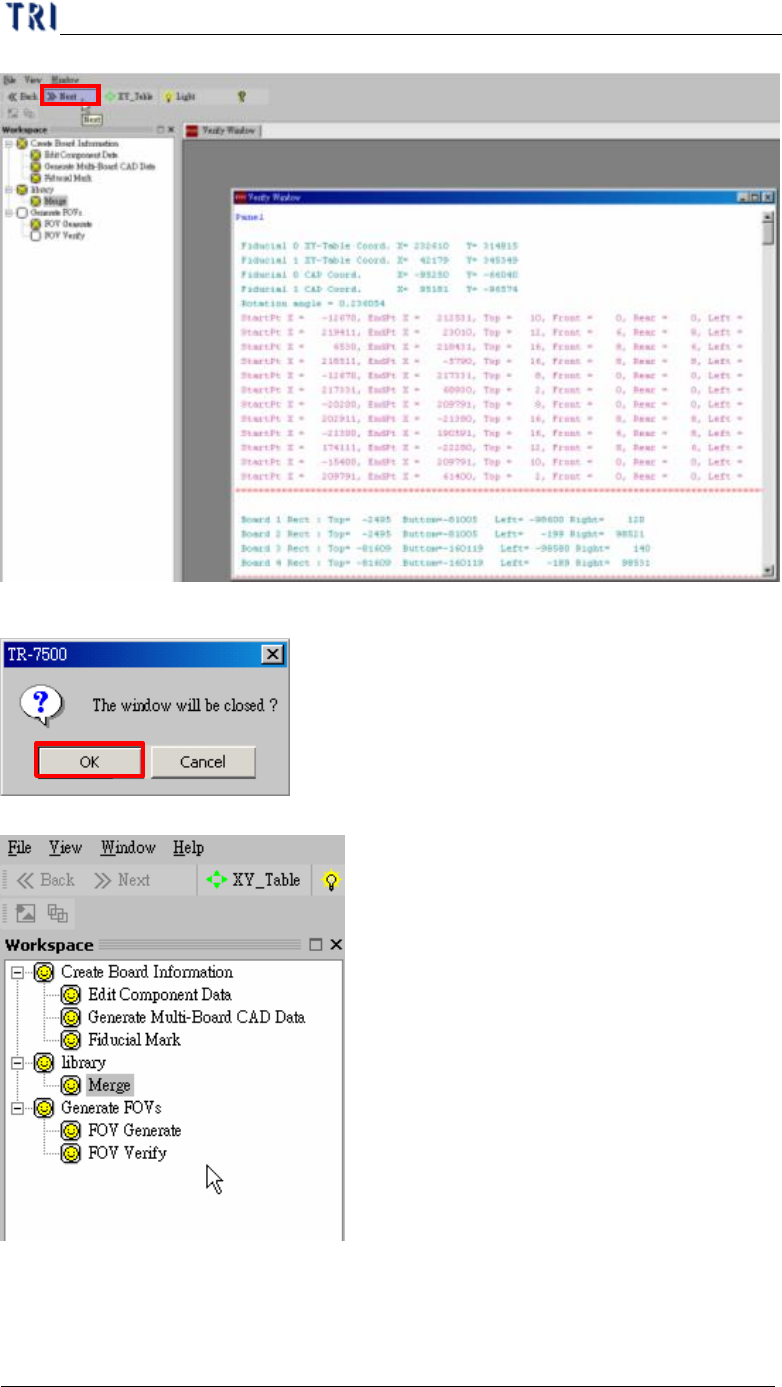
(1) Click the next button and go to next FOV verify process.
Chapter 1 AOI Standard Project Creation
TR7500 USER MANUAL
49
(2) Warning message windows for close the current display windows.
(3) When the all processes are finished, close the window to go to next train process.
10. Train
(1) Press [Train] to enter train dialog.