TR7500E_Manual_en_v28.pdf - 第46页
C h a p t e r 1 AO I S t a nd a r d P r o j ec t Cr ea t i on T R 7500 U S E R M A N U AL 39 ( 8) S e t t h e li g h t i ng f o r t h e s ec o n d f i du c i a l m a r k . W h e n t h e s h a p e o f f i d u c i a l m a …
Chapter 1 AOI Standard Project Creation
TR7500 USER MANUAL
38
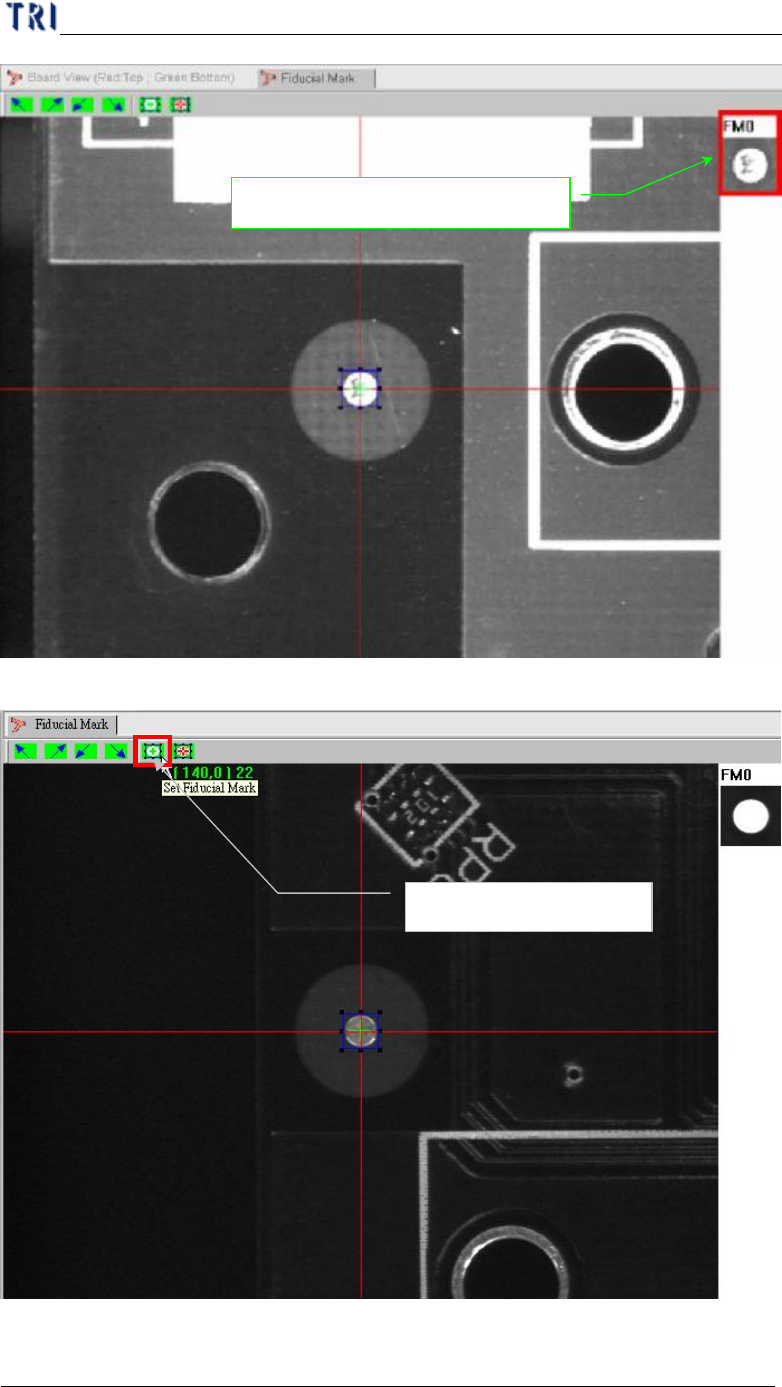
(6) Press [Set Fiducial Mark] icon to set the second fiducial mark.
(7) Input fiducial component name or choose “No CAD”.
Setting fiducial 1 mark
Image for the first Fiducial Mark
Chapter 1 AOI Standard Project Creation
TR7500 USER MANUAL
39
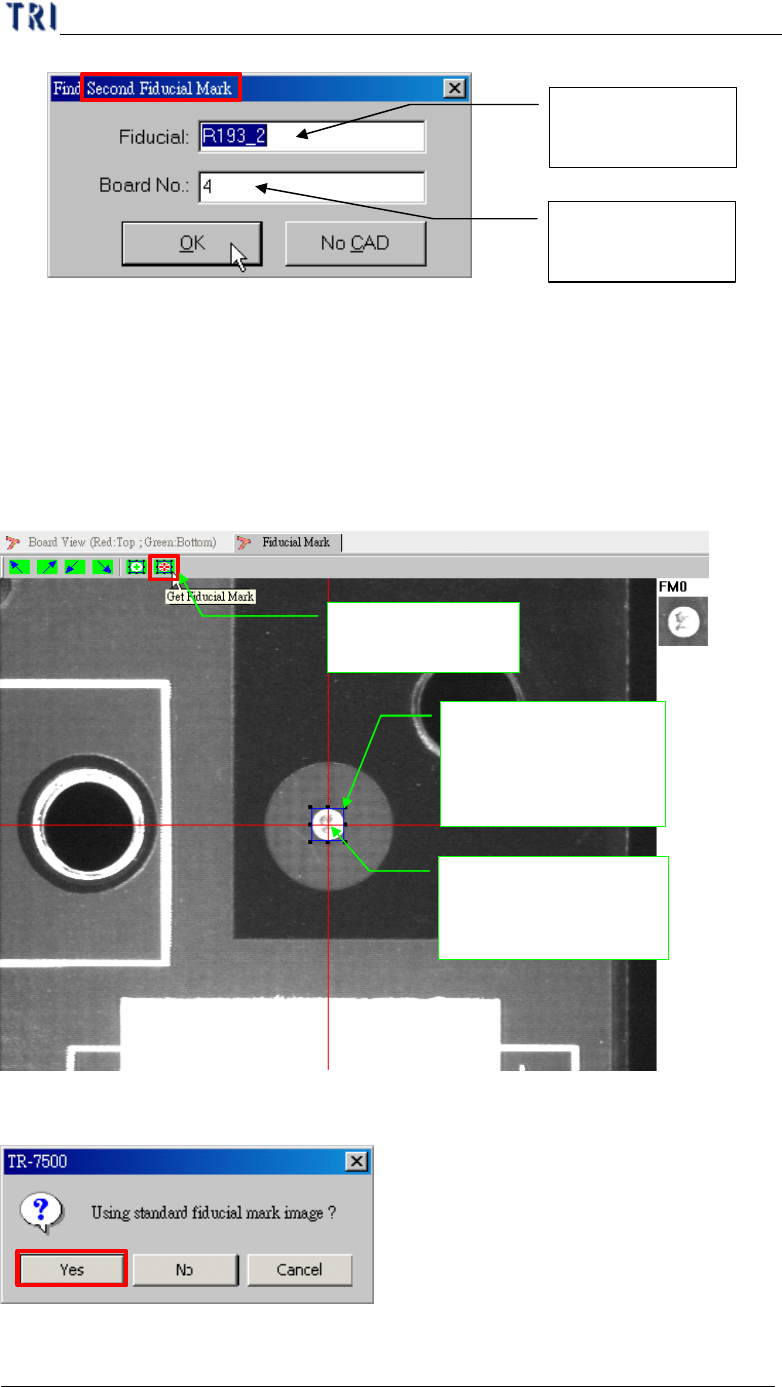
(8) Set the lighting for the second fiducial mark. When the shape of fiducial mark is
not clear under the current lighting, you can adjust the lighting manually. Press
the [Light] button then the [Lighting Control Editor] window appears. Select the
[Fiducial1] item and adjust the lighting then press [Save] to finish the setting.
(9) Press [Get Fiducial Mark] icon to get the second fiducial mark coordinates.
3. Push the button the
fiducial mark
1. Moving the component
to the screen center (cross
red line point)
2. Adjust the blue frame
for assistant user
adjustment; pad can near
the center closely
(10) Choose if you want to use the standard fiducial mark image.
Input component
name
Input component
in which board
Chapter 1 AOI Standard Project Creation
TR7500 USER MANUAL
40
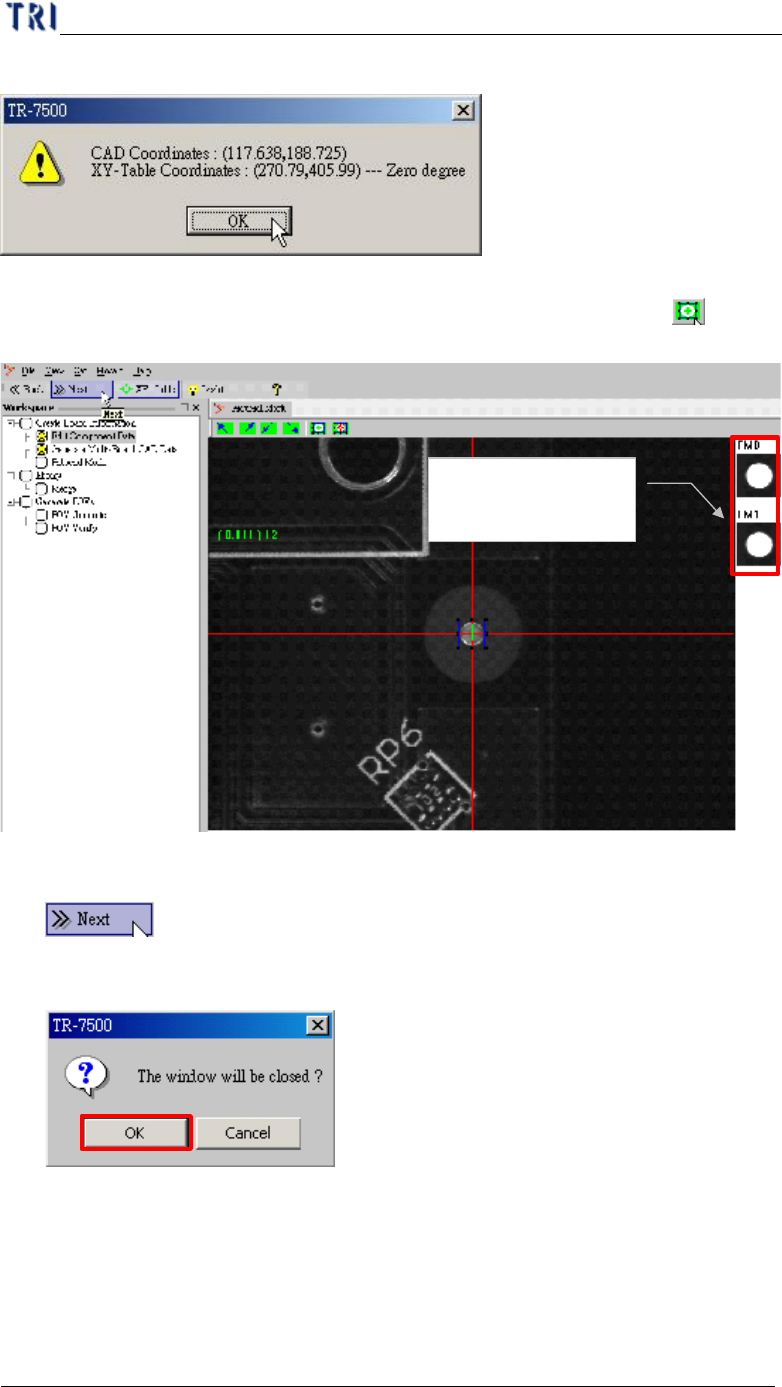
(11) Display fiducial mark 1 coordinates.
(12) The finished images of two fiducial marks are shown at the right side of the
active window. If you are not satisfied with the images, pressing the [ Set
Fiducial Mark] to train the images again.
(13) Press [Next]
(14) Displays the message below. Press [OK].
(15) Select [Yes] to starting to set board 1 size.
Fiducial marks are
displayed here.