TR7500E_Manual_en_v28.pdf - 第20页
C h a p t e r 1 AO I S t a nd a r d P r o j ec t Cr ea t i on T R 7500 U S E R M A N U AL 13 ( 3) S e tt i ng b o a r d r o t a t i o n a n g l e f i r s t . ( 4) S e tt i ng f i r s t c o m po n e n t f o r a n g l e d …
Chapter 1 AOI Standard Project Creation
TR7500 USER MANUAL
12
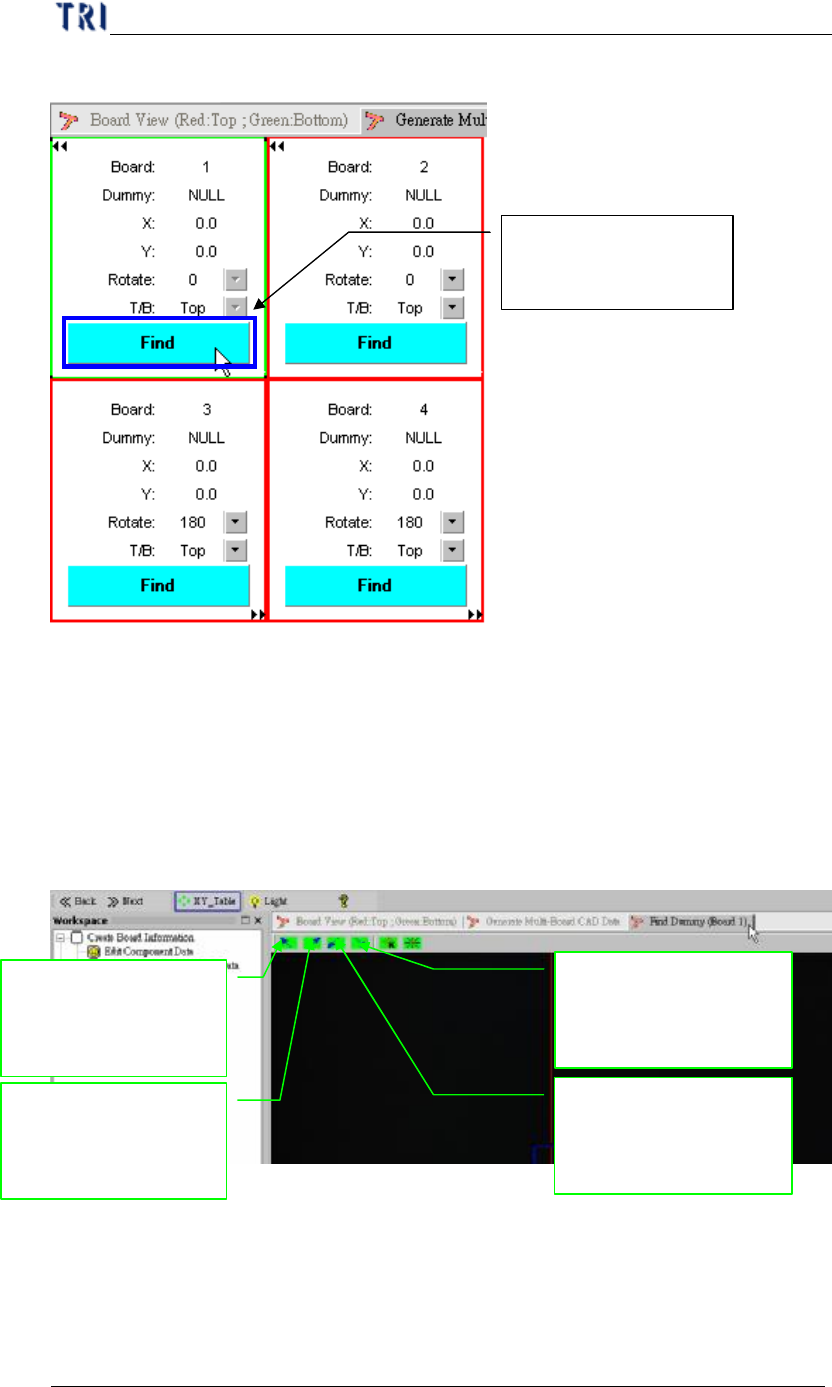
4.2. Setting board 1 first
4.3. Get Board Rotation angle
l Setting board rotation angle in board 1.
l You can get the board angle from two component on the board, that two
component have max distance is better for board angle detection.
(1) Main frame display.
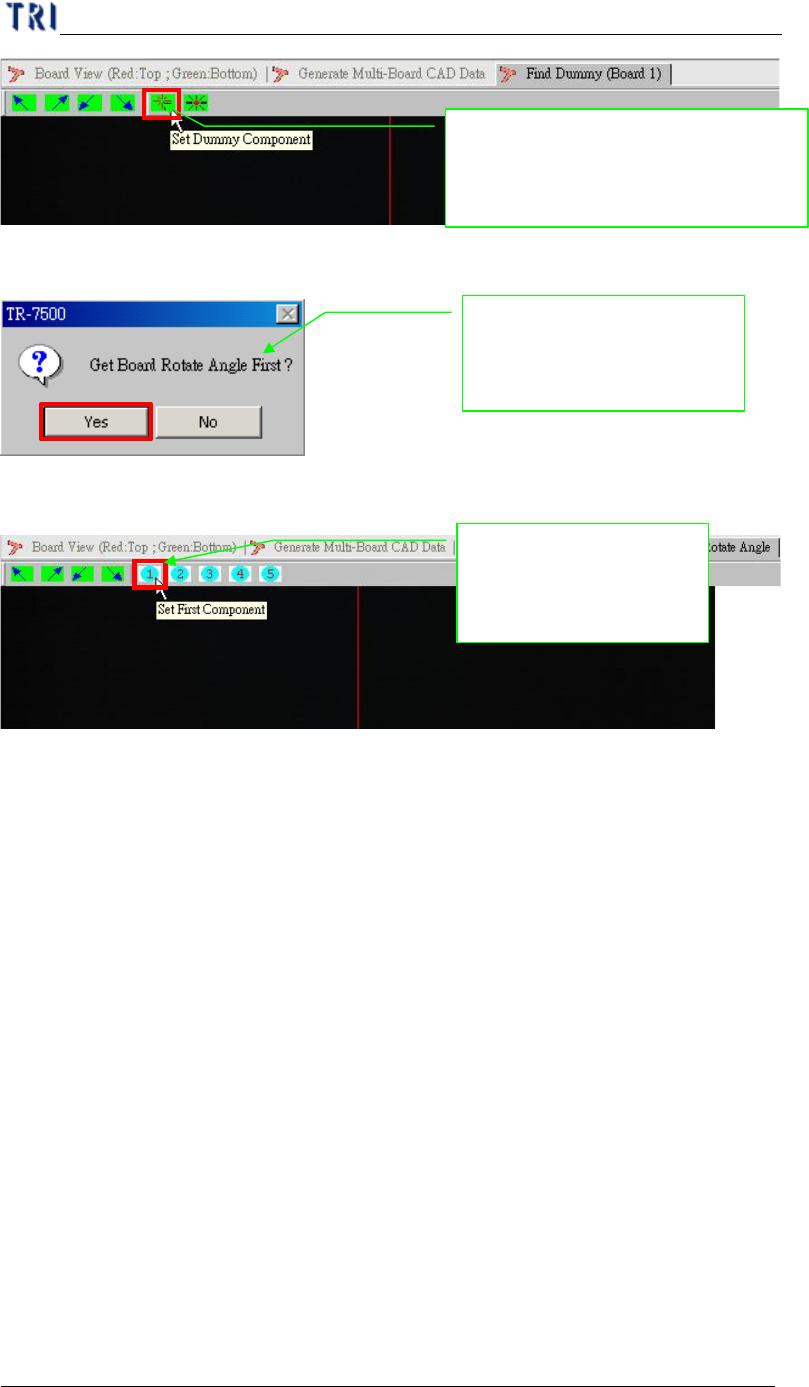
(2) Set dummy component.
Setting board 1 with
CAD relationship
Moving Camera
lighting to upper-left
position of panel
Moving Camera
lighting to
upper-right position
Moving Camera
lighting to lower-left
position of panel
Moving Camera
lighting to lower-right
position of panel
Chapter 1 AOI Standard Project Creation
TR7500 USER MANUAL
13
(3) Setting board rotation angle first.
(4) Setting first component for angle detection.
Push the button set dummy
component first for board angle and
board reference position setting
System show warning
message that need to setting
board rotation angle first
Setting the board first
component position for
board angle detection
Chapter 1 AOI Standard Project Creation
TR7500 USER MANUAL
14
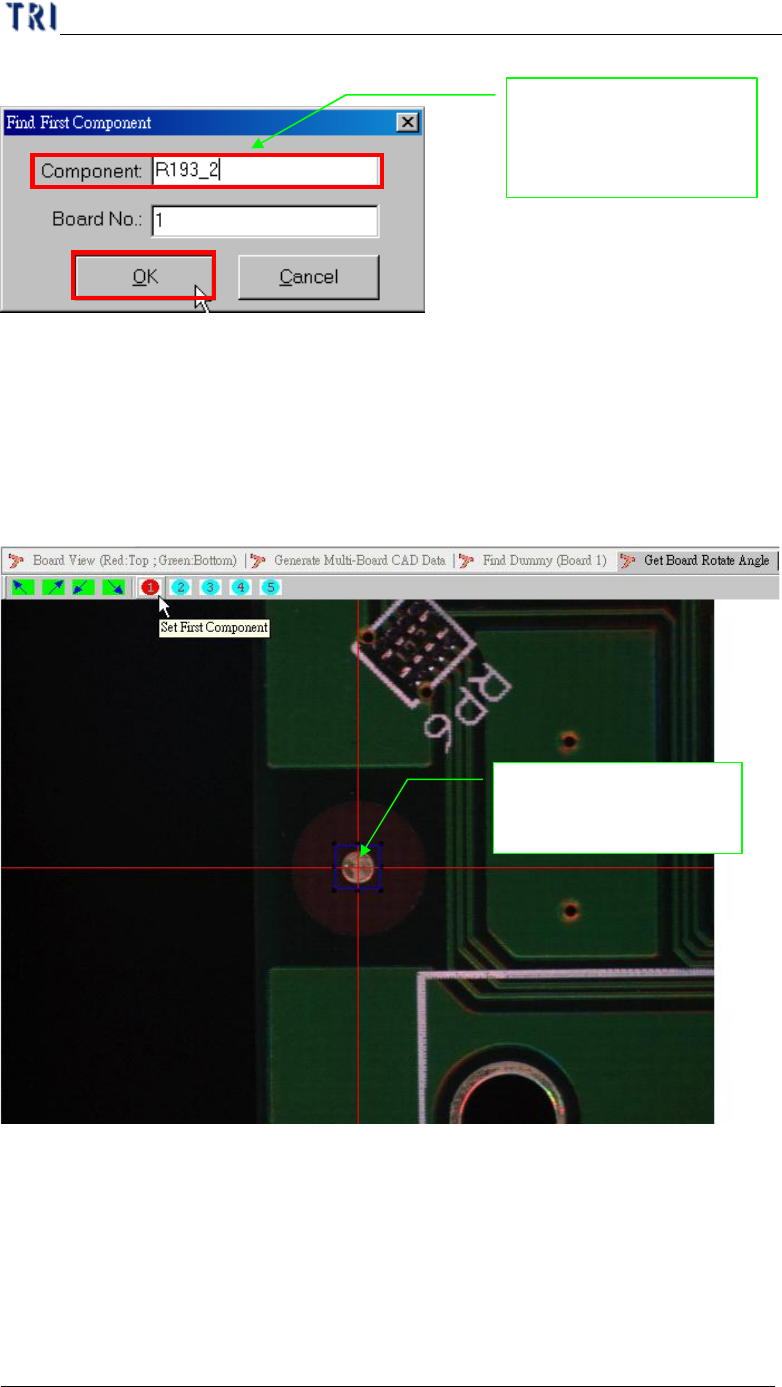
(5) Input reference component name.
(6) Moving camera to center of the component. You can use [Motion Control]
function to move camera to specific direction and distance or click right button
of mouse on image zone to move camera to the clicking position. You can adjust
the size of blue frame to suit the specific component. That you can find the
center easily.
Inputs the board first
component name for
position find
Moving camera to
center of the component