TR7500E_Manual_en_v28.pdf - 第88页
C h a p t e r 2 M a nu a l B a r i n t r o d u ce T R 7500 U S E R M A N U AL 81 4.7.3. I nt e r f ace I nt r odu c t i o n
Chapter 2 Manual Bar introduce
TR7500 USER MANUAL
80
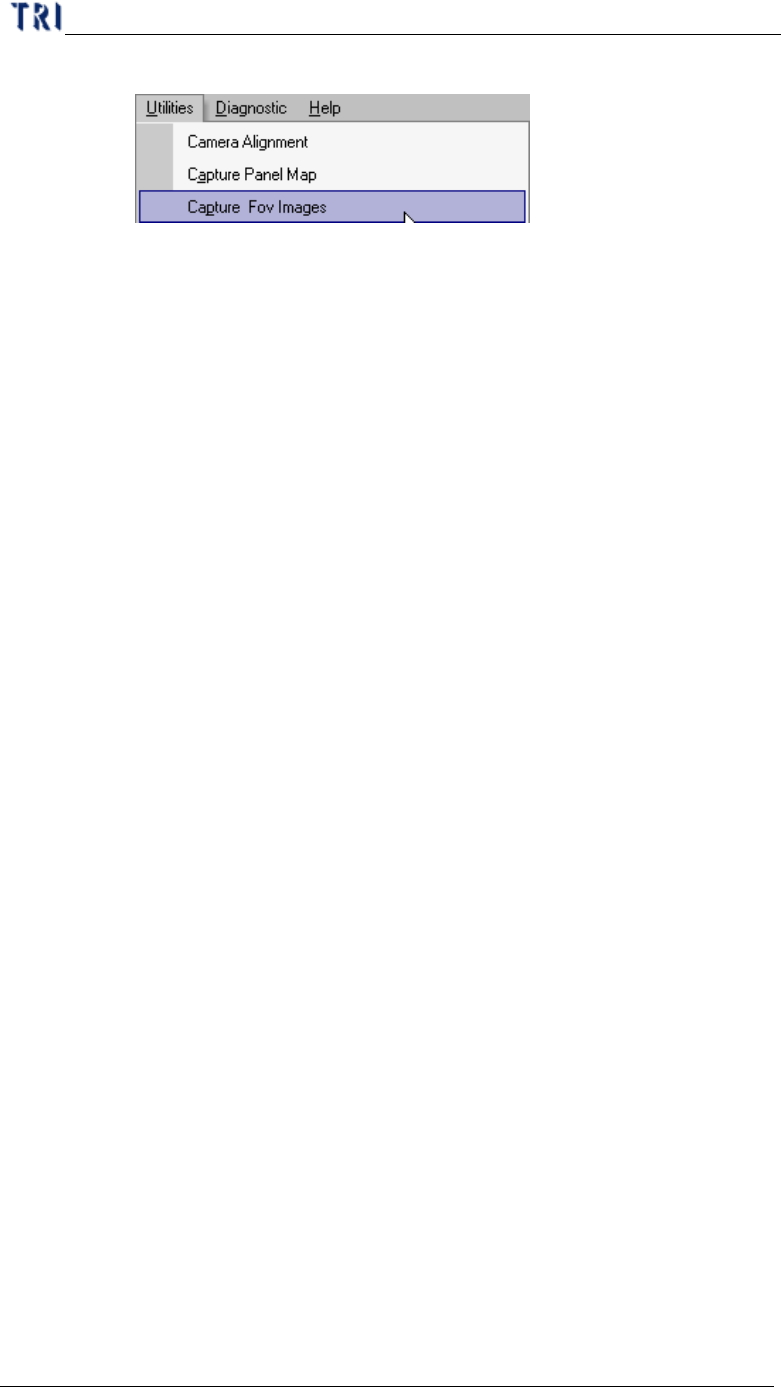
Step5. Close [Train] dialog then press [Utilities/Capture FOV Images].
Step6. Reopen train dialog to edit the new FOV.
4.6. Delete FOV
l It is only enabled in train dialog.
l When you elect [Delete FOV], it will show panel map and real time FOV image.
There are two ways to delete FOV.
n You can click on the position where you want to delete FOV on panel map
and the camera will move to the position to grab image. Confirm the image
then press [Delete]. If it’s multi-board module the system will delete FOV to
the relative position.
n Click the around position on panel map. You can press [Prev.] or [Next] to
find the FOV you want to delete. If it’s multi-board module the system will
delete FOV to the relative position.
l Delete FOV Steps:
Step1. Press [Program/Delete FOV]
Step2. Select objective FOV then press [Del]
Step3. You can delete other FOVs
Step4. After you finish delete FOVs press [Program/Delete FOV] again.
Step5. Close [Train] dialog then press [Utilities/Capture FOV Images].
4.7. Non CAD
4.7.1. Objective
When the user doesn’t have the CAD data to inspect, this function can get the position
of components the CAD coordinate by handle.
4.7.2. Start Up
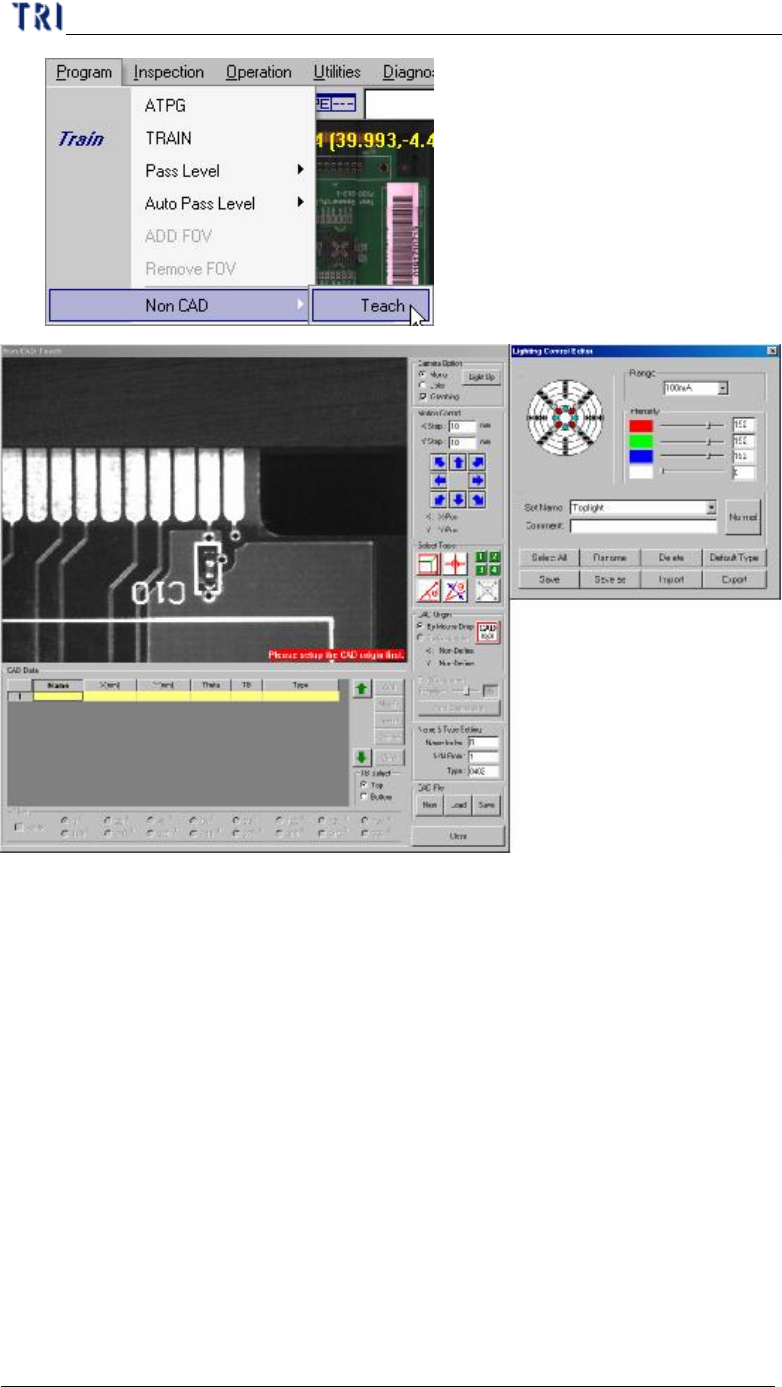
Select [Program/Non CAD/Teach]
Chapter 2 Manual Bar introduce
TR7500 USER MANUAL
81
4.7.3. Interface Introduction
Chapter 2 Manual Bar introduce
TR7500 USER MANUAL
82
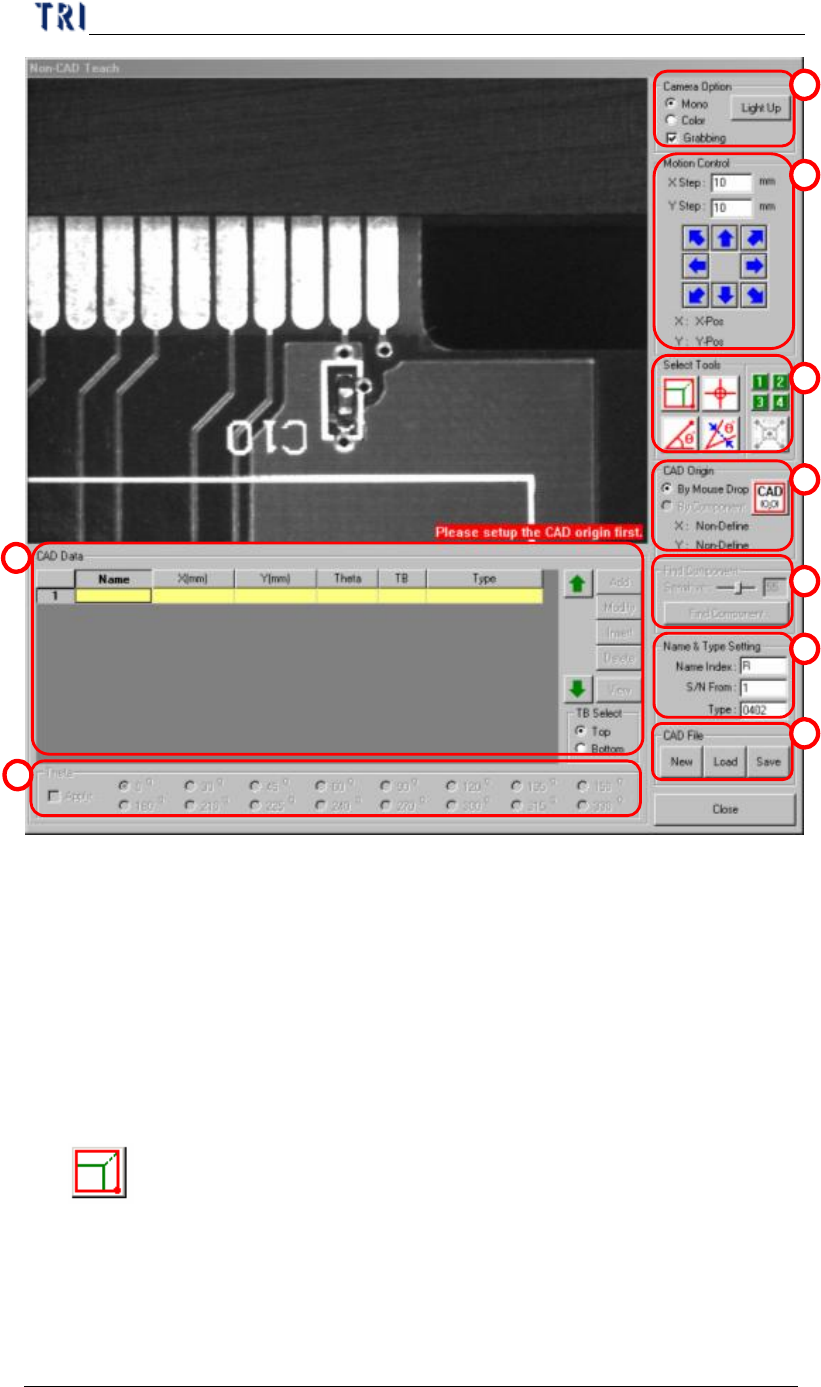
(1) Camera Option - Check [Grabbing] to capture real time image. You can select
[Mono] to see gray image or [Color] to see color image. Press [Light Up] to set
the lighting.
(2) Motion Control - You can use the function to move camera to specific
direction and distance or right click mouse on the image area to move the camera
to specific position.
(3) Tool - You can use these tools to create CAD file.
l
Box tool
n It’s a tool to define the coordinates of components. Press the button then a
box tool present. The box can be moved, rotated and resized by mouse. The
system will set the center of box as the component center.
1
2
3
4
5
6
7
8
9