TR7500E_Manual_en_v28.pdf - 第160页
C h a p t e r 3 A O I A T P G F u n c t i o n i n s t r u c t i on T R 7500 U S E R M A N U AL 1 53 l P r e ss t o c a p t u r e F O V i m a g e s ac c o r d i ng t o t h e ca l c u l a t i o n . 8 . M oti on Con tro l l…
Chapter 3 AOI ATPG Function instruction
TR7500 USER MANUAL
152
5.2. Mosaic
l You can press the function to get panel map here.
6. Library
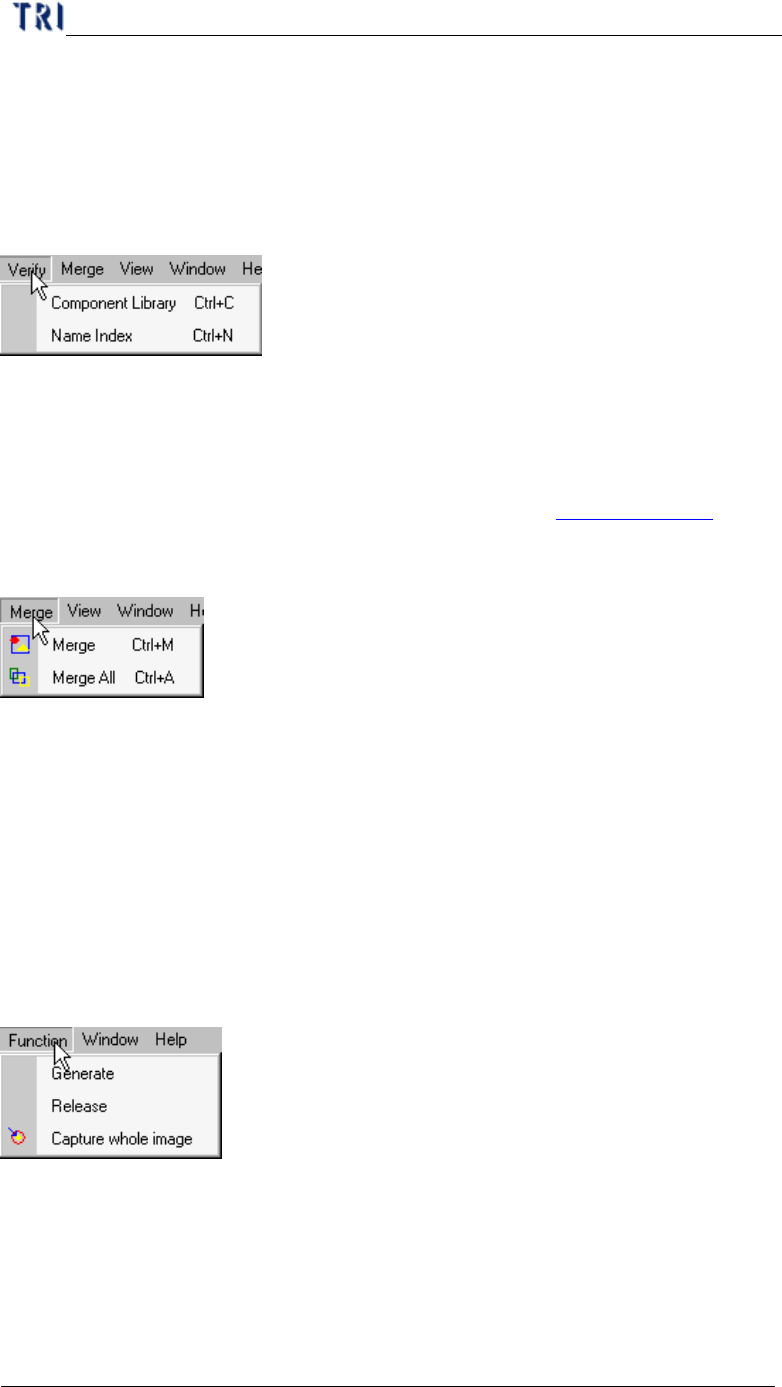
6.1. Verify
6.1.1. Component Library
l Select to enter the [tune] field.
6.1.2. Name Index
l You can select to open [Name Index] window. Pleas see Chapter 3 6.1.2. .
6.2. Merge
l Merge means for all components on PCB the system copy all inspection boxes to
every component according the type.
6.2.1. Merge
l Merge the selected type.
6.2.2. Merge All
l Merge all types.
7. FOV Generate
7.1. Function
7.1.1. Generate
l Press then system will recalculate the deploy of FOVs.
7.1.2. Release
l Clear the data calculated before.
7.1.3. Capture whole image
Chapter 3 AOI ATPG Function instruction
TR7500 USER MANUAL
153
l Press to capture FOV images according to the calculation.
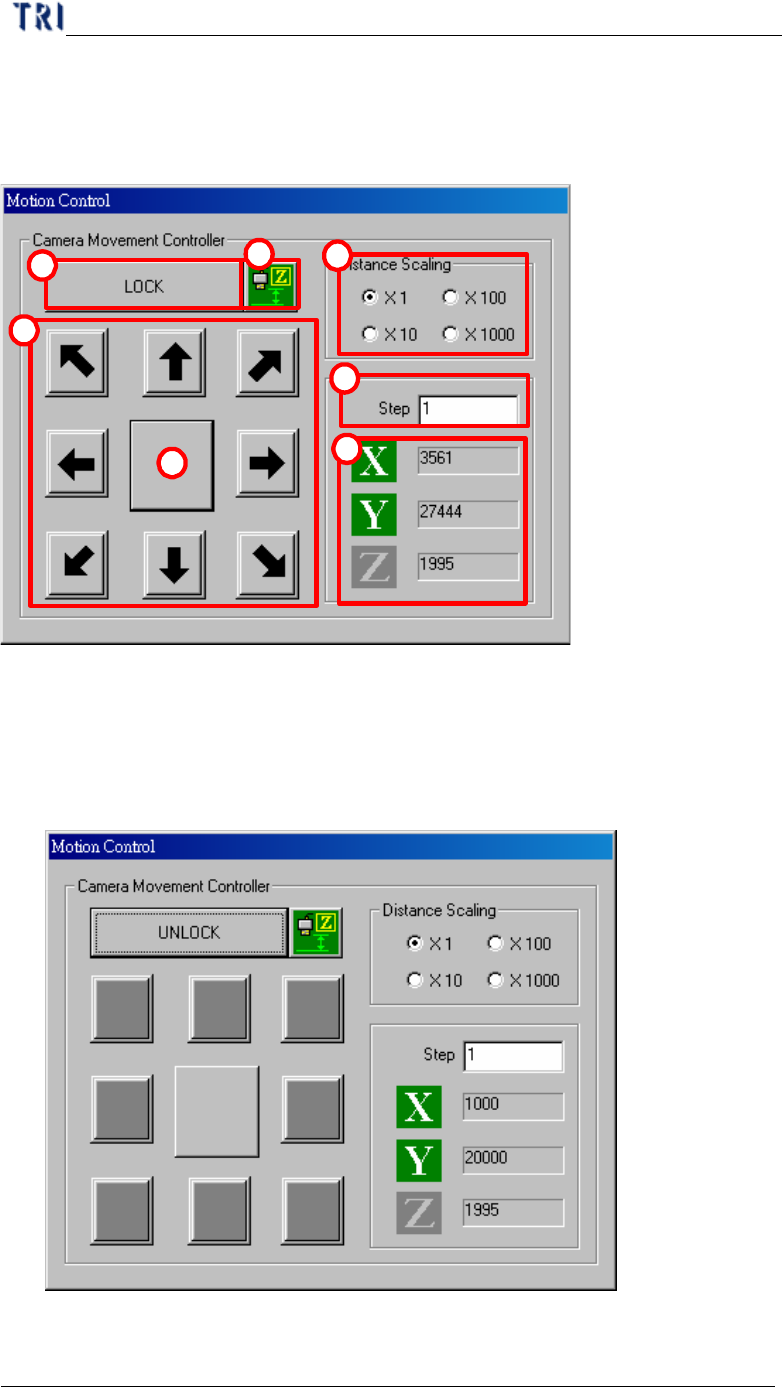
8. Motion Controller
1
2
3
4
5
6
7
(1) Distance Scaling–Choose the moving magnification of step.
(2) Step–Input the moving scale (pulse) of X-Y Table.
(3) X, Y– Means the coordinate of camera on X-axis and Y-axis.
(4) Lock/Unlock button– Press to lock the moving of X-Y Table.
(5) Arrowheaded button– Press to move Table to the corresponding direction. For
Chapter 3 AOI ATPG Function instruction
TR7500 USER MANUAL
154
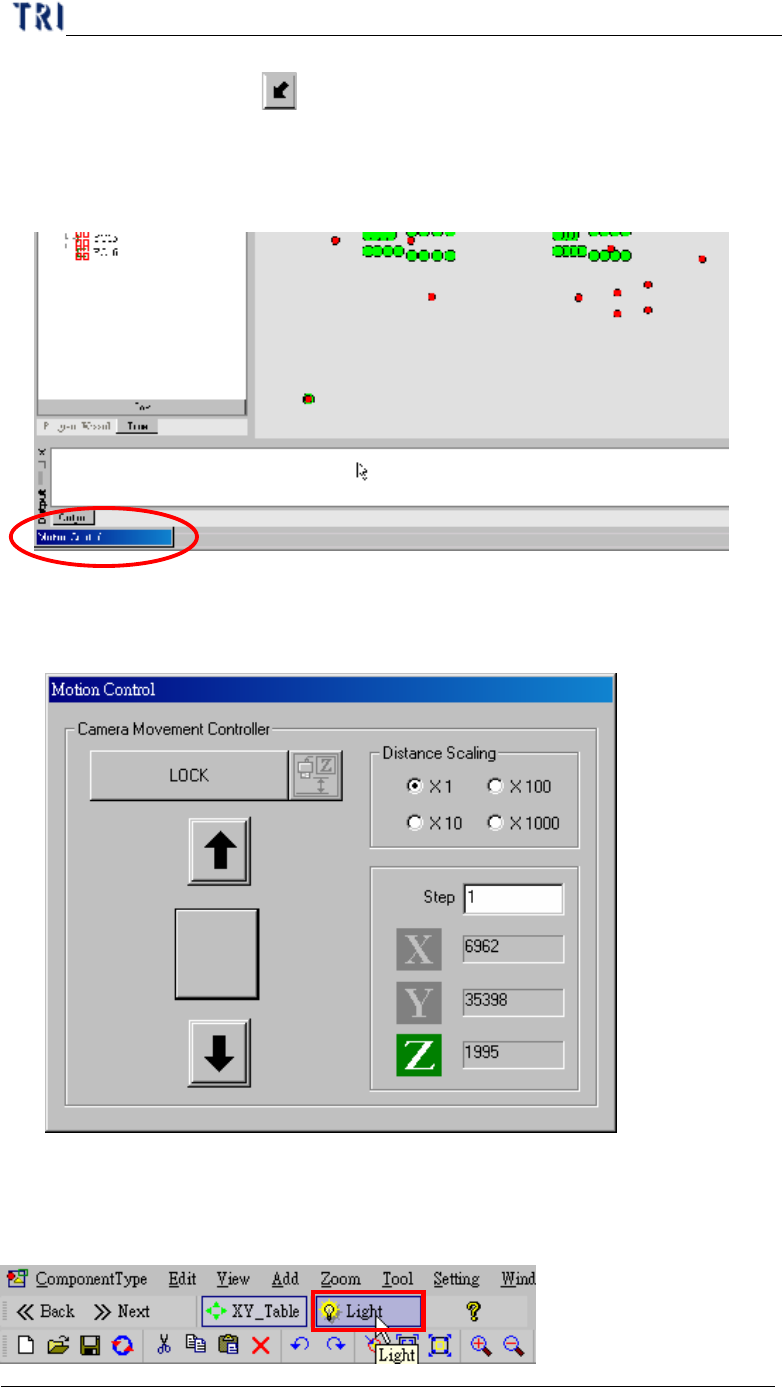
example you can press
to move the camera to left-front side with specific
pulse (“Step” multiplied by “Scaling”).
(6) Central block– Press to minimize the motion control box. You can double click
it to represent the box.
(7) Z adjusting button–After pressing this button, the motion control dialog is
changed as the following. Do not propose using this function at present.
9. Light adjustment