TR7500E_Manual_en_v28.pdf - 第155页
C h a p t e r 3 A O I A T P G F u n c t i o n i n s t r u c t i on T R 7500 U S E R M A N U AL 1 48 l Y ou ca n s e t t h e n umb e r o f c o l u mn s a n d R o w s a g a i n h e r e . 3.1.2. G e t R o t a t e A ng le l …
Chapter 3 AOI ATPG Function instruction
TR7500 USER MANUAL
147
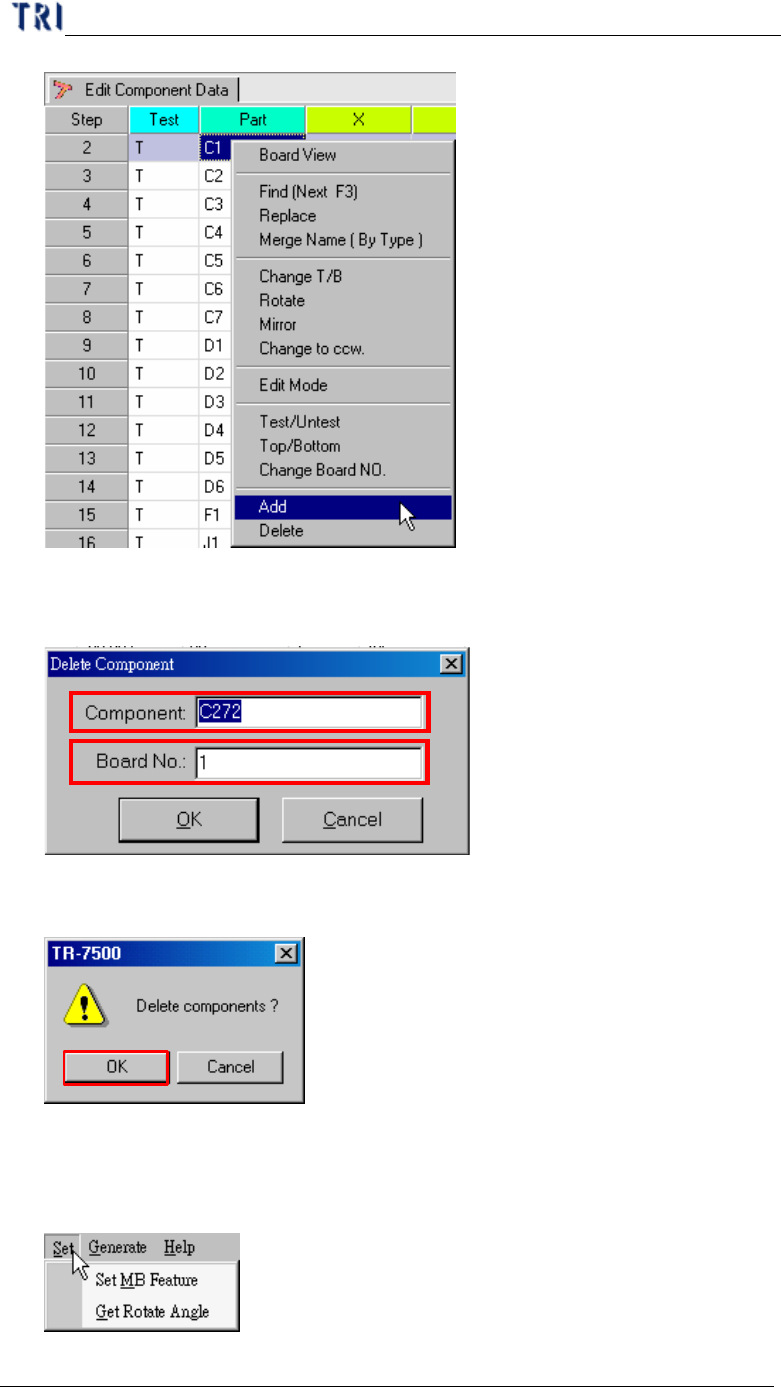
l For single component input the component type name and board number that
will be deleted.
l If there are several components selected, the system will show the confirmed
dialog.
3. Generate Multi-Board CAD Data
3.1. Set
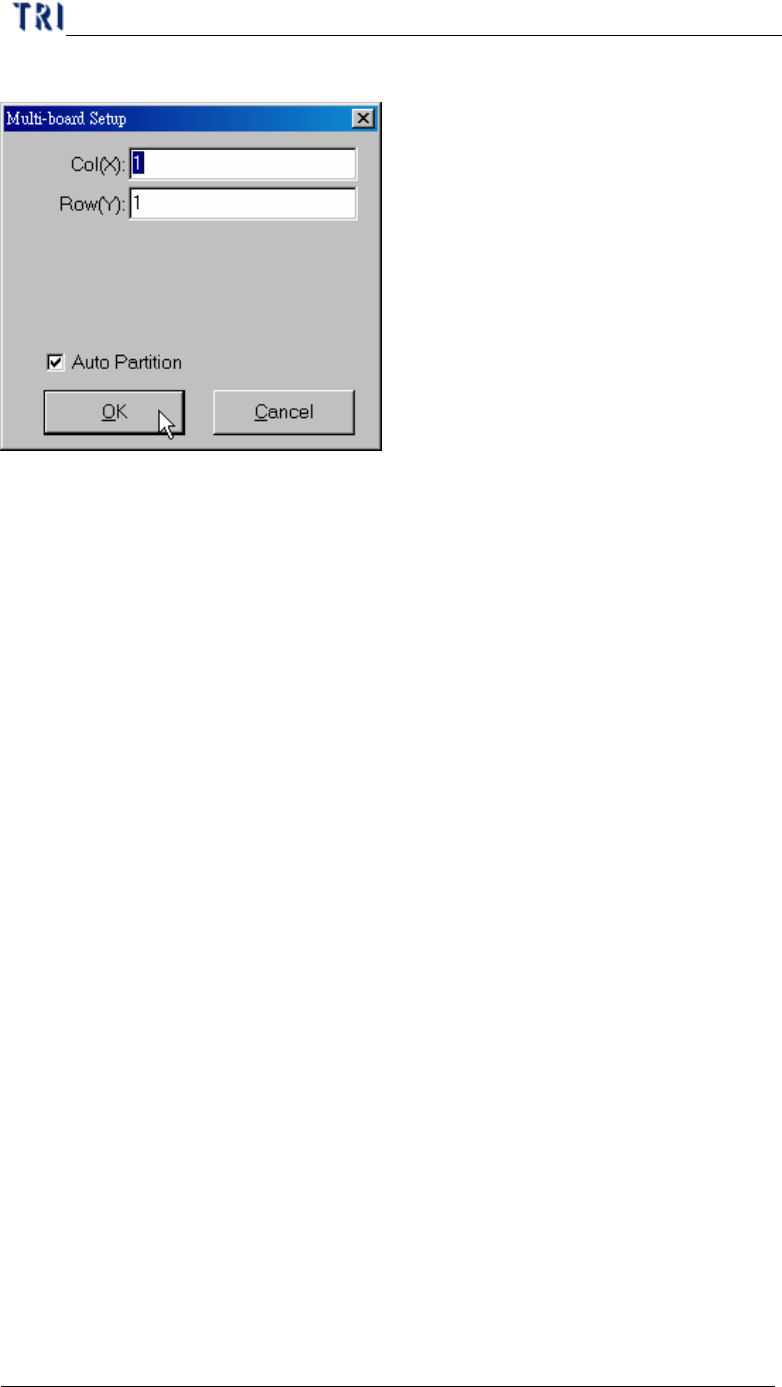
3.1.1. Set MB Feature
Chapter 3 AOI ATPG Function instruction
TR7500 USER MANUAL
148
l You can set the number of columns and Rows again here.
3.1.2. Get Rotate Angle
l You can calculate the board rotate angle again here.
3.2. Generate
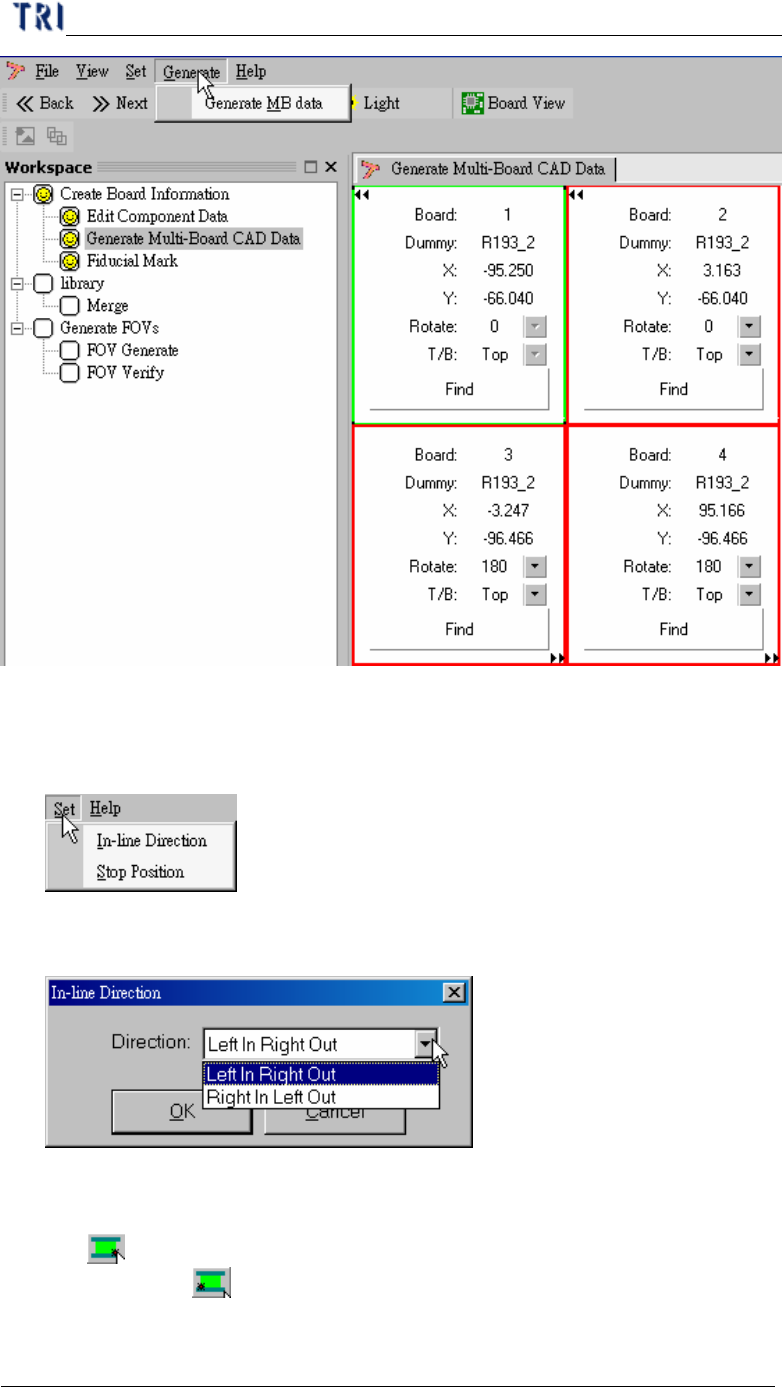
3.2.1. Generate Multi-board Data
l You can press the item to generate multi-board data after finishing finding
dummy components for every board. The data also can generate automatically
when you go to [Next].
Chapter 3 AOI ATPG Function instruction
TR7500 USER MANUAL
149
4. Get Board Rotate Angle, Find Dummy Component Position
4.1. Set
4.1.1. In-line Direction
l Set the board-in direction
4.1.2. Stop Position
l Set the stop position of board. If the direction is [Left in Right Out] you should
use to set the low-right corner of PCB; if the direction is [Right in Left Out]
you should use to set the low-left corner of PCB.