TR7500E_Manual_en_v28.pdf - 第272页
C h a p t e r 4 T r a i n d i a l og f u n c t i on T R 7500 U S E R M A N U AL 2 65 6 . 1 5 . W e i gh t i ng l W h e n c h e c k i n g [ M o n o ] o r [ R G B ] , t h e i m a g e i n M u l ti - F u n c t i o n W i n d …

Chapter 4 Train dialog function
TR7500 USER MANUAL
264
6.12.6. Set image
l Grab the image in multi-function window into the image area.
6.13. Find FOV by Type/Name
6.13.1. Type
l Input or select a type as a condition.
6.13.2. Name
l Input or select a name as a condition.
6.13.3. Trained
l Select to set trained component as a condition.
6.13.4. UnTrained
l Select to set untrained component as a condition.
6.13.5. Test
l Select to set test component as a condition.
6.13.6. UnTest
l Select to set untest component as a condition.
6.13.7. Single Void/Pin
l Select to find the single [Void] or [Pin] window in order to find the FOV that
need to add [Warp].
6.13.8. Previous
l Press the button the system will find the previous FOV according to the above
conditions.
6.13.9. Next
l Press the button the system will find the next FOV according to the above
conditions.
6.14. Change FOV
6.14.1. Previous
l Review the previous FOV.
6.14.2. Next
l Review the next FOV.
6.14.3. OK
l Close the [Train] dialog.
Chapter 4 Train dialog function
TR7500 USER MANUAL
265
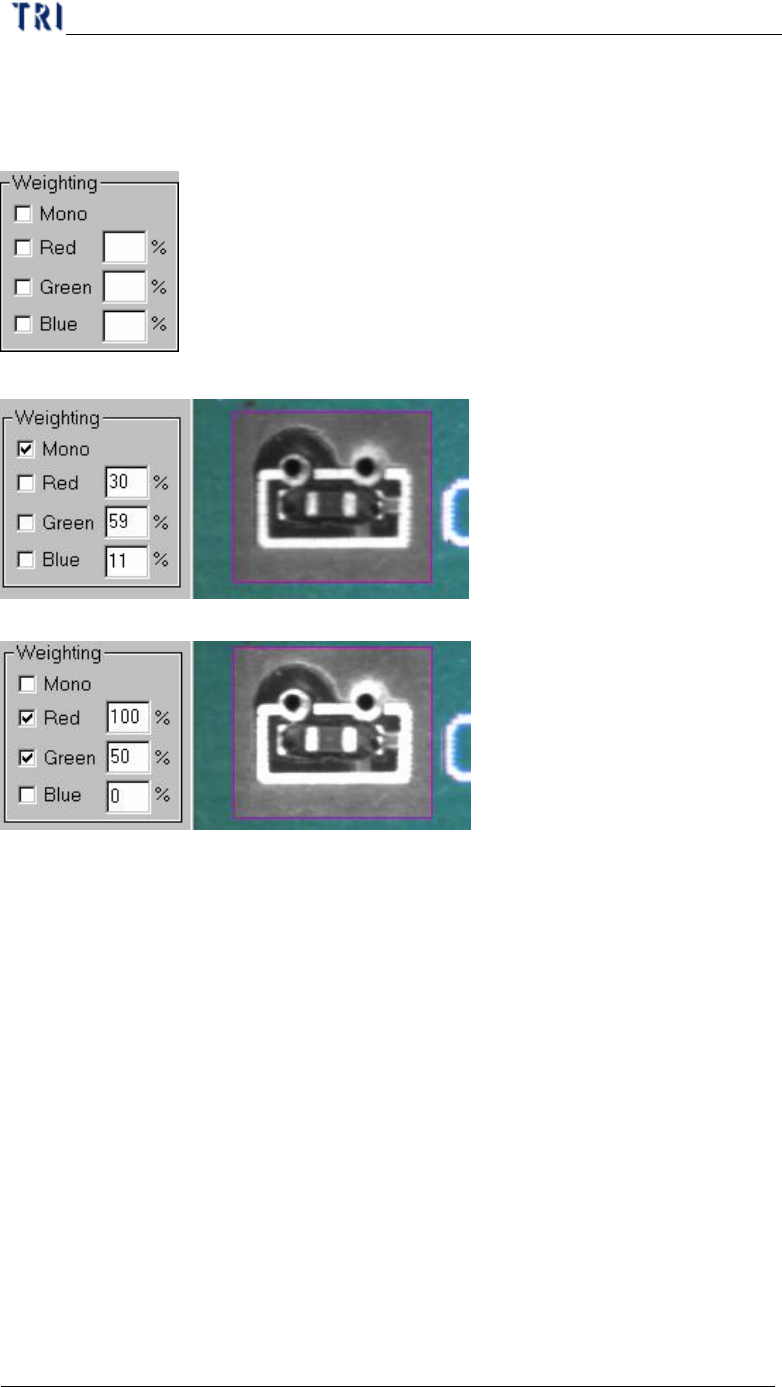
6.15. Weighting
l When checking [Mono] or [RGB], the image in Multi-Function Window displays
according to the setting. This is using for user's reference.
l Select [Mono]
l Select [Red] and [Green]
Chapter 5 Inspection dialog function
TR7500 USER MANUAL
266
Chapter 5 Inspection dialog function
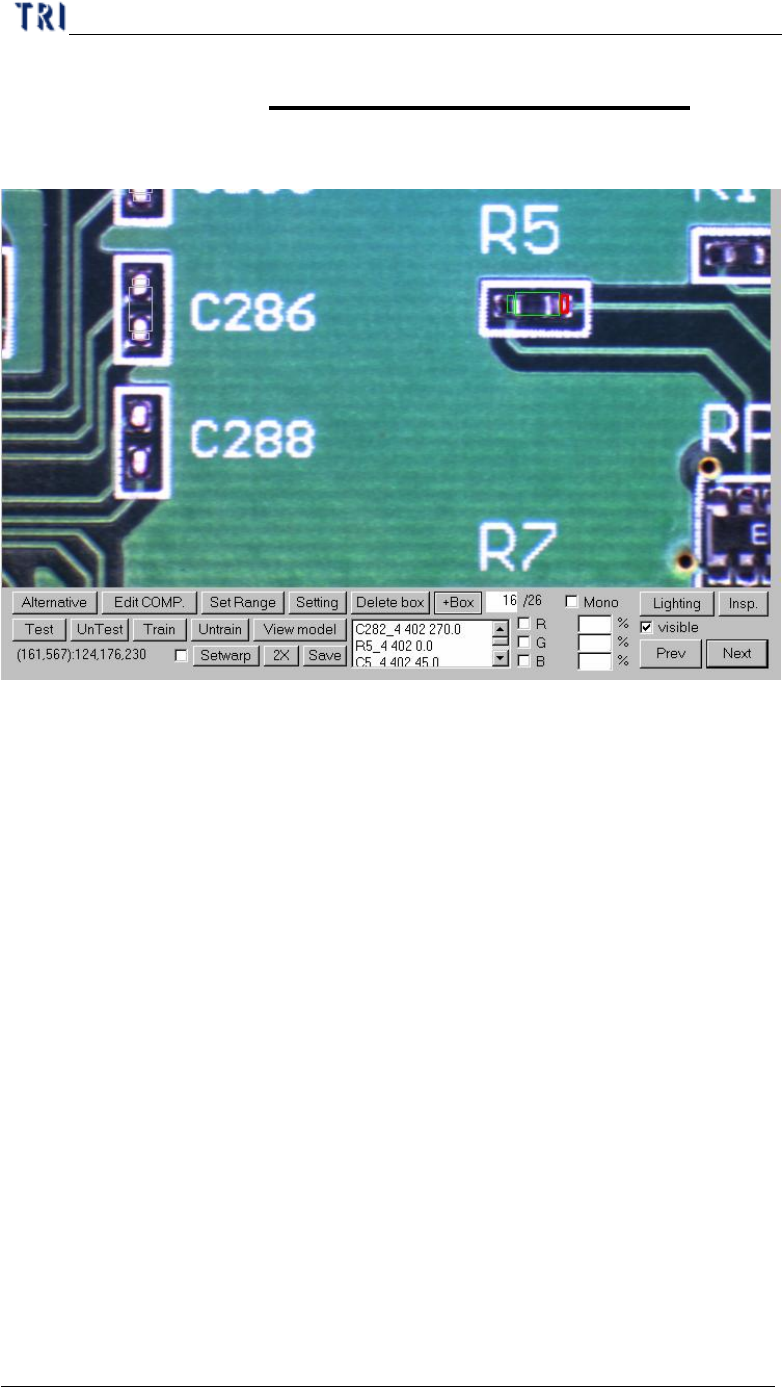
1. Image diagram function
l Alternative – Add an alternative to component.
l Edit COMP. – Edit component name and angle.
l SetRange – Set search range for a inspection box
l Setting – Set the pass level
l Delete box – Delete selected box
l +Box – Add one box to selected component.
l Test/UnTest – Set selected box as test or untest
l Train/UnTrain – Train inspection or set trained box as untrained.
l View model – Review the standard images
l Setwarp/Delwarp – Set or delete [Warp].
l 2X – Show the double size of FOV image. The display area is the multi-function
location and the image is reviewed for test.
l Save – Save the image to the folder.
l Lighting – Change the lighting to inspect.
l Insp. – Inspect the current FOV.
l Visible – Selecting this is to display the inspection boxes.
l Mono/R/G/B – Let the image in Multi-Function Window displays according to
the setting.
l Prev/Next – Go to the next or previous failed FOV.