TR7500E_Manual_en_v28.pdf - 第99页
C h a p t e r 2 M a nu a l B a r i n t r o d u ce T R 7500 U S E R M A N U AL 92 [T h e t a ] a n d t h e s e l e c t i n g t o o l . l I n s e r t - Y o u c a n s e l ec t a po s i t i o n t h a t y o u w a n t t o i n …
Chapter 2 Manual Bar introduce
TR7500 USER MANUAL
91
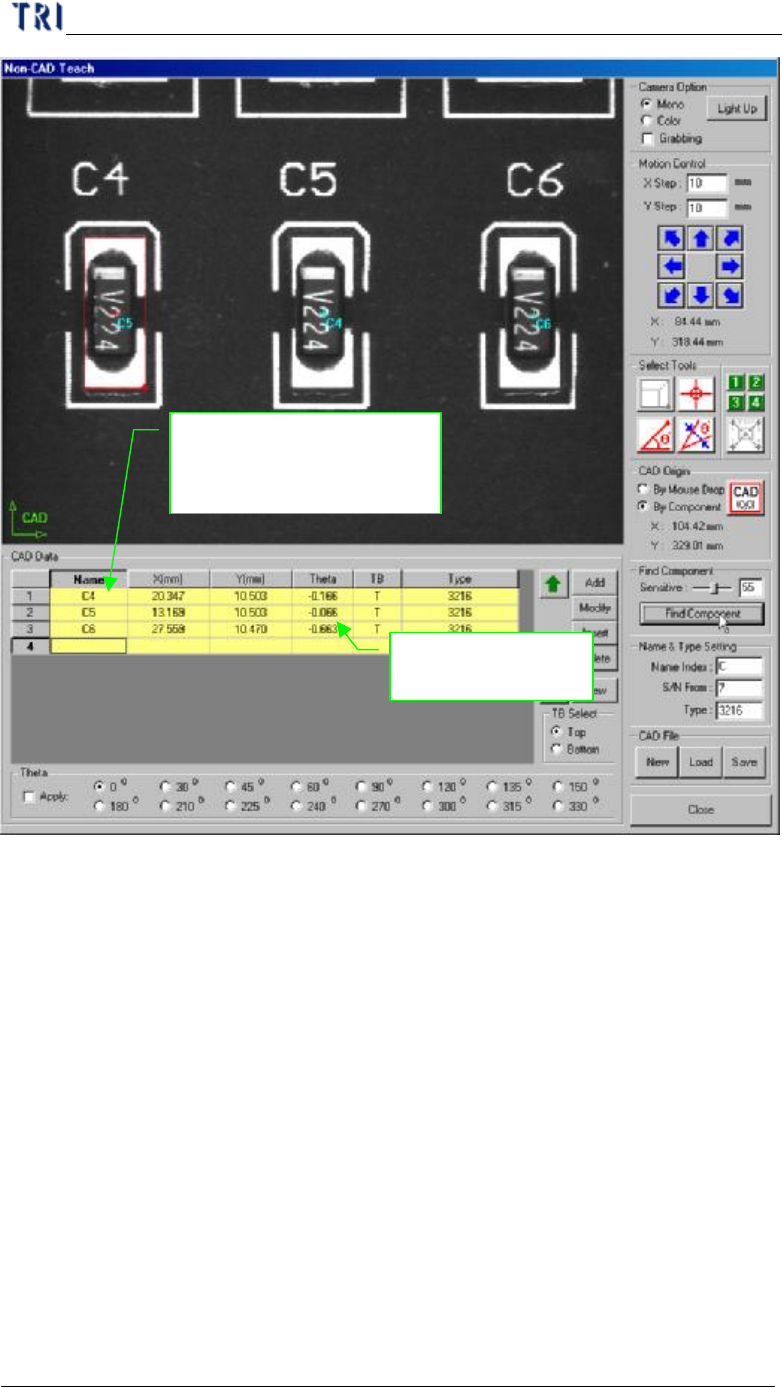
Result:
The component,
that has enough similarity,
will be set.
You can modify
the name or angle.
(6) Name & Type Setting - You can set [Name Index], [S/N From] and [Type]
here for a new component.
(7) CAD File - You can [New], [Load] or [Save] AOI file. [New] means to create
a new AOI file and the current setting will be clear. [load] means to open a saved
AOI file. [Save] means to save the current AOI file to specific path.
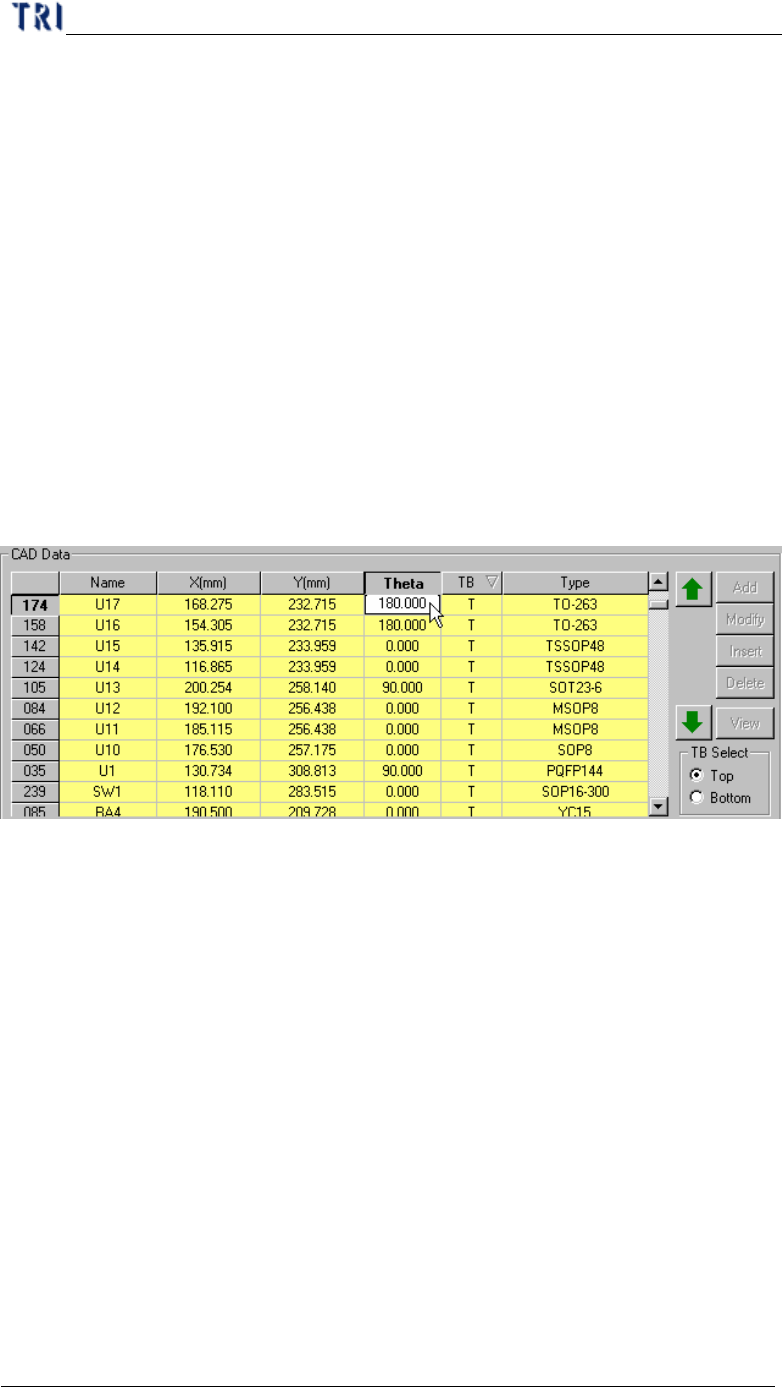
(8) CAD Data - The component data will be listed at the field. You can edit the
CAD data here.
l Add - Press the button and the system will create a component into CAD
file according to [Name&Type Setting], [TB Select], [Theta] and the
selecting tool.
l Modify - You can select a component first and press [Modify] then the
system will change the data according to [Name&Type Setting], [TB Select],
Chapter 2 Manual Bar introduce
TR7500 USER MANUAL
92
[Theta] and the selecting tool.
l Insert - You can select a position that you want to insert a component
data at component list first and press the button to add a component
according to [Name&Type Setting], [TB Select], [Theta] and the selecting
tool..
l Delete - Select a component at component list first and press [Delete] to
delete it.
l View - Select a component at component list first and press [View] .
Then the camera will move to the location of the component.
l TB Select - You can select whether the component on top or bottom side
here.
l Arrowhead button - You can select a component first and press top or
down arrowhead to move the sequence of it.
l CAD table - You can double click on the field and edit the data directly.
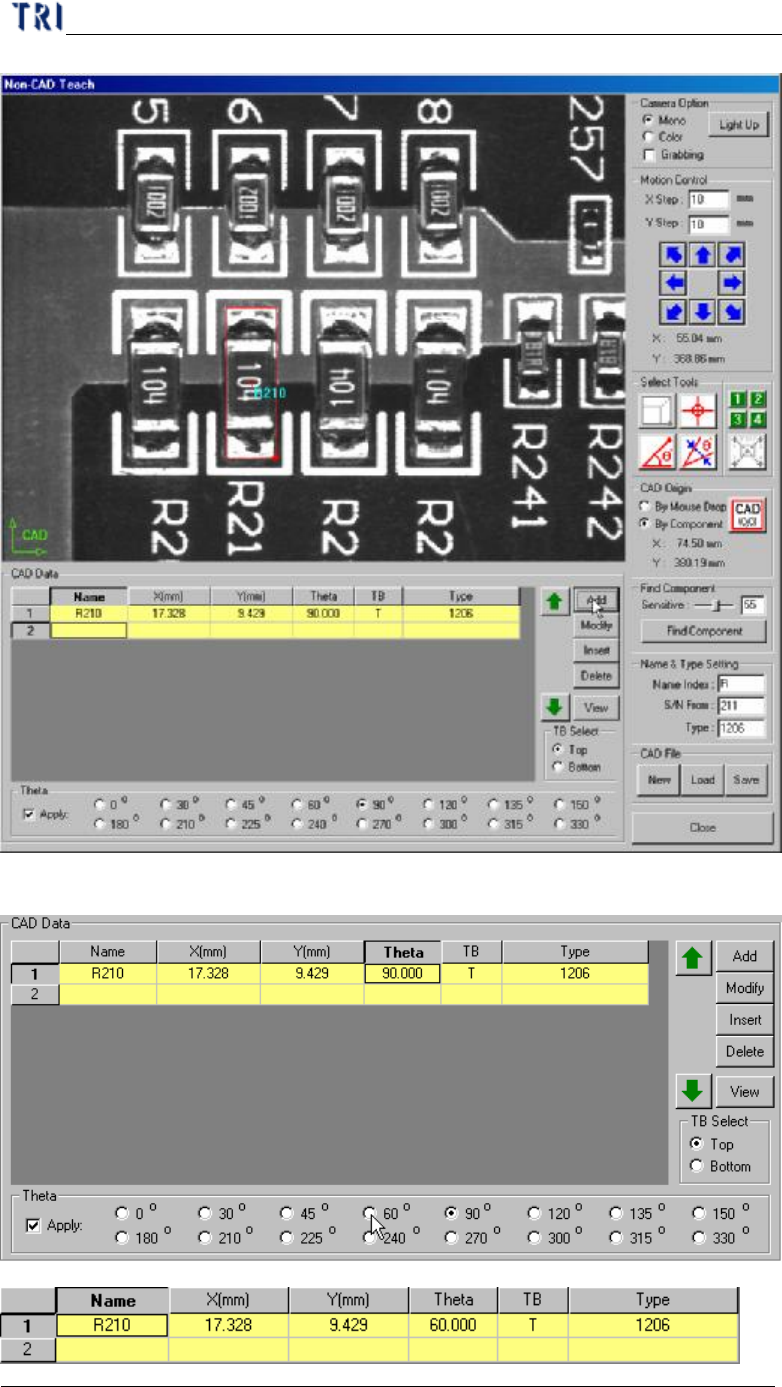
(9) Theta - It’s a tool to define the angle of components.
l When you use box tool to create a component you can check [Apply] and
select an angle to add [Theta] data at one time. If you don’t check [Apply]
the default of theta is zero.
Chapter 2 Manual Bar introduce
TR7500 USER MANUAL
93
l You can select a [Theta] field and select an angle to change the data directly.