TR7500E_Manual_en_v28.pdf - 第9页
C h a p t e r 1 AO I S t a nd a r d P r o j ec t Cr ea t i on T R 7500 U S E R M A N U AL 2 i s p a r t s . a s c f il e f r o m F A B M A S TE R p r o g r a m , y o u ca n u s e t h e F A B M a s t e r t o t r a n s f e…
Chapter 1 AOI Standard Project Creation
TR7500 USER MANUAL
1
Chapter 1 AOI Standard Project Creation
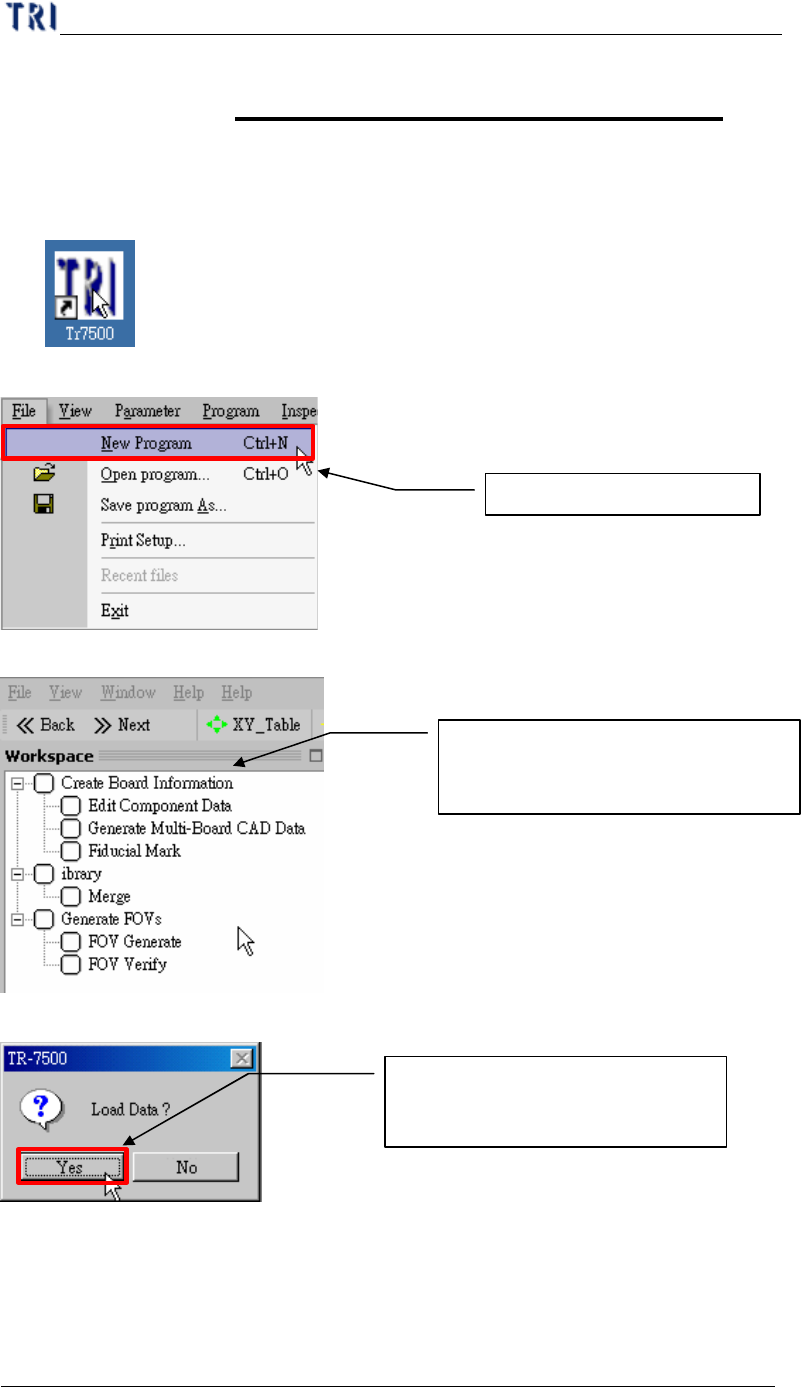
1. Project creation & Start with ATPG
(1) Double click on the shortcut of TR7500E main program.
(2) Create a new project file.
(3) ATPG step is appeared.
(4) Confirm loading CAD file dialog window.
2. Create Board information
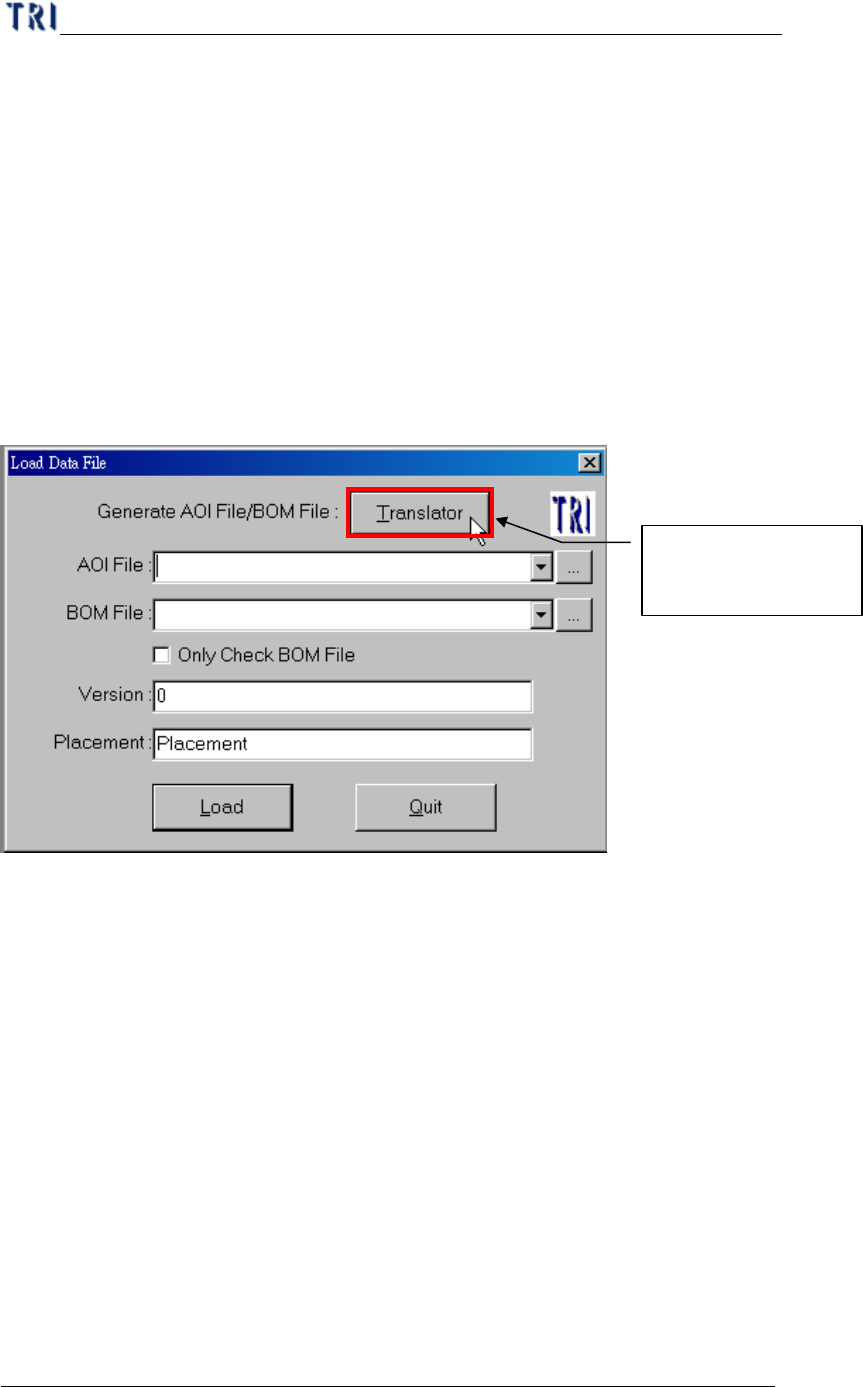
For a new program you should create an AOI file (*.aoi) first for TR7500E to
read. There are two types of converters built inside, FABMaster and Default. If there
Create a new project file
Loading CAD file for Translator
(ATPG process)
From Top to Bottom (step by step)
creating a new project file in ATPG
Chapter 1 AOI Standard Project Creation
TR7500 USER MANUAL
2
is parts.asc file from FABMASTER program, you can use the FABMaster to transfer
from ASC files to AOI file. Or you may collect data for all components including
component name, x and y value, rotation angle, and type of component and save them
as TXT files. Then transfer from the saved TXT file to an AOI file by DEFAULT
translator The “Component Name” field must be the characters, figures or symbols
which can be typed directly on the keyboard. The “Type” field must be the characters
or figures which can be typed directly on the keyboard or under line symbol (“_”).
The system will be unable to display or save in the correct content when the content is
not correct.
(1) Translate a CAD to an AOI file.
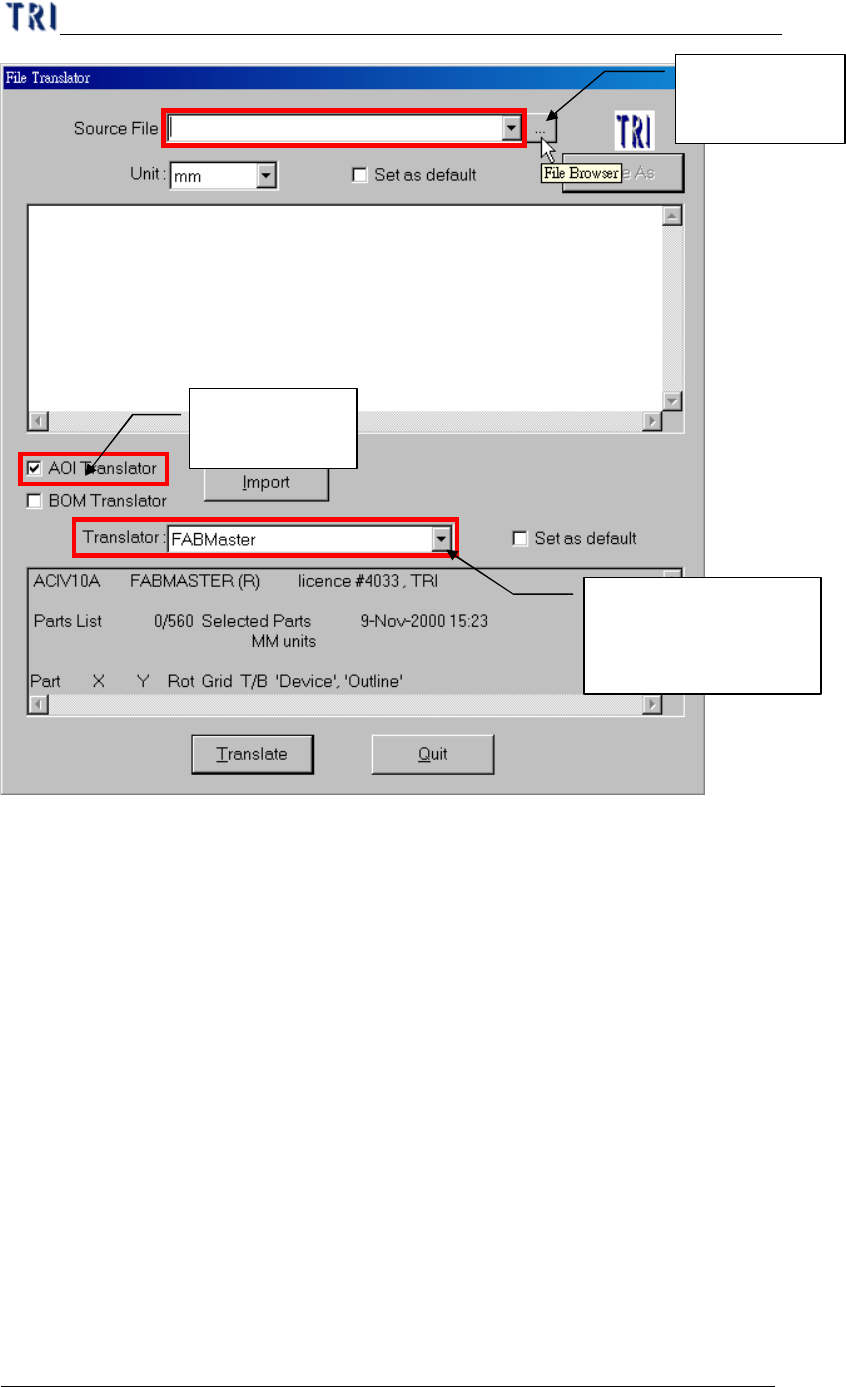
(2) Browse CAD file path.
CAD file translation
by Translator
Chapter 1 AOI Standard Project Creation
TR7500 USER MANUAL
3
(3) Input CAD file
Browse CAD
file path
Selecting AOI
translator
Types of different
Translator for varies
SMT machine vendor