TR7500E_Manual_en_v28.pdf - 第249页
C h a p t e r 4 T r a i n d i a l og f u n c t i on T R 7500 U S E R M A N U AL 2 42 n B y T y p e – a p p l y t h e t y p e n a m e t o t h e c o m po n e n t s w i t h s a m e t y p e . n B y B o a r d – a pp l y t h e…
Chapter 4 Train dialog function
TR7500 USER MANUAL
241
images has not been limited, but you can just add to the image for one of the
standard images of this component carefully.
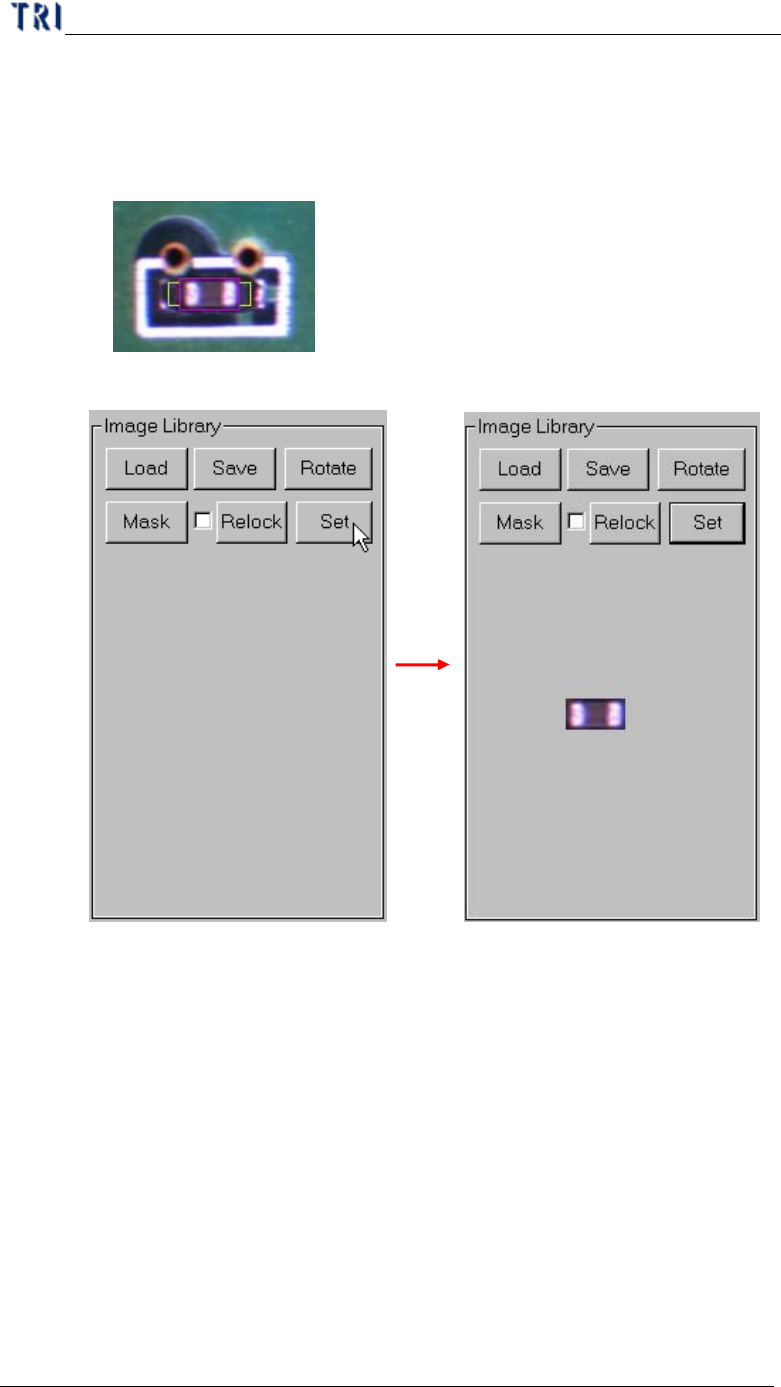
l Setting Steps
Step1. Move the multi-function box to the alternative image.
Step2. Press [Set] button.
Step3. Press [+Alternative] and select the applied rules.
Step4. You can press [View Model] to review the all alternative images.
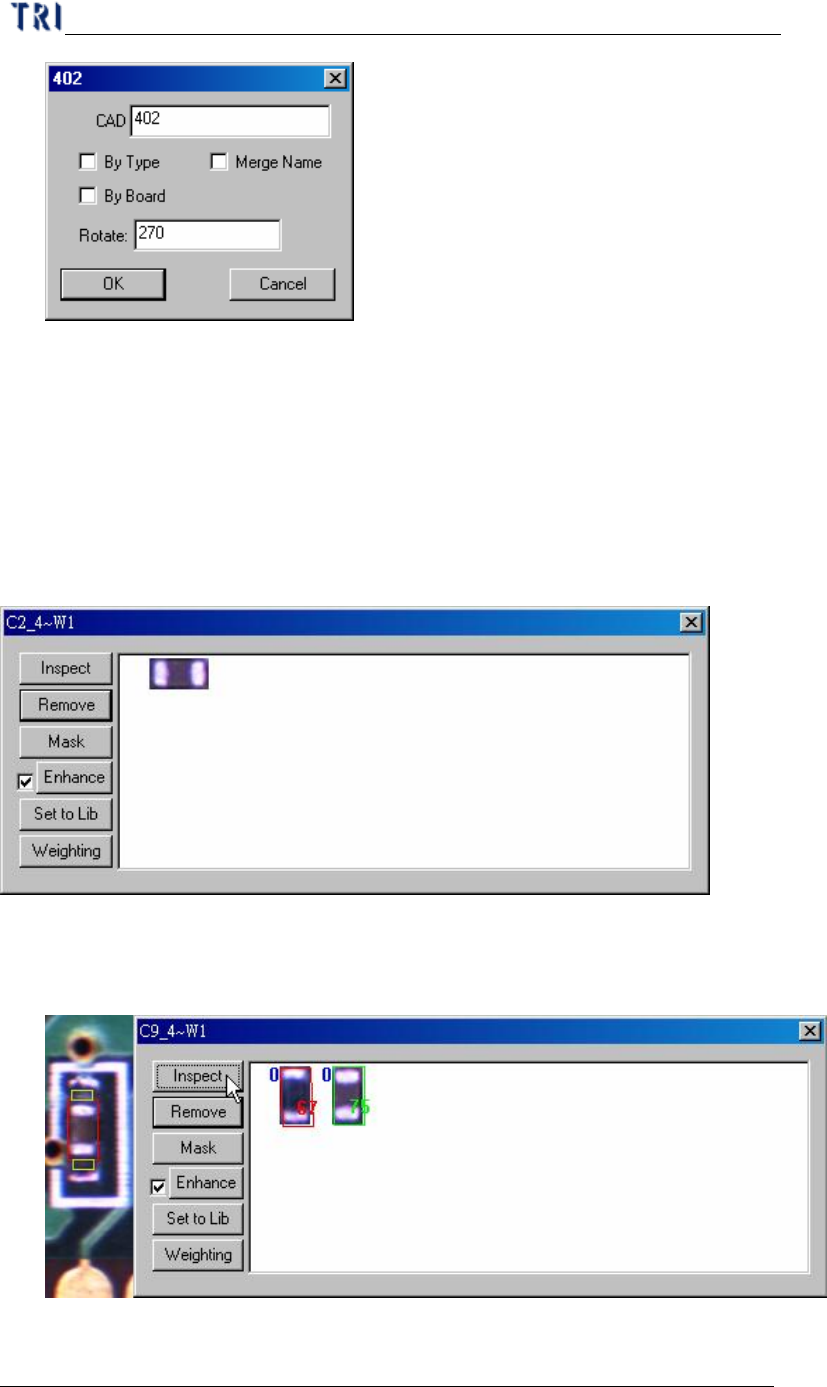
6.2.5. EditComp
l Edit the component type and angle. When the inspection boxes of this
component are on more than one FOV, you can’t change the Rotate Angle here.
Chapter 4 Train dialog function
TR7500 USER MANUAL
242
n By Type – apply the type name to the components with same type.
n By Board – apply the type name or rotate angle to the same components on
multi-board.
n Merge Name – The initial character(s) of component combine with original
name to form the new type name.
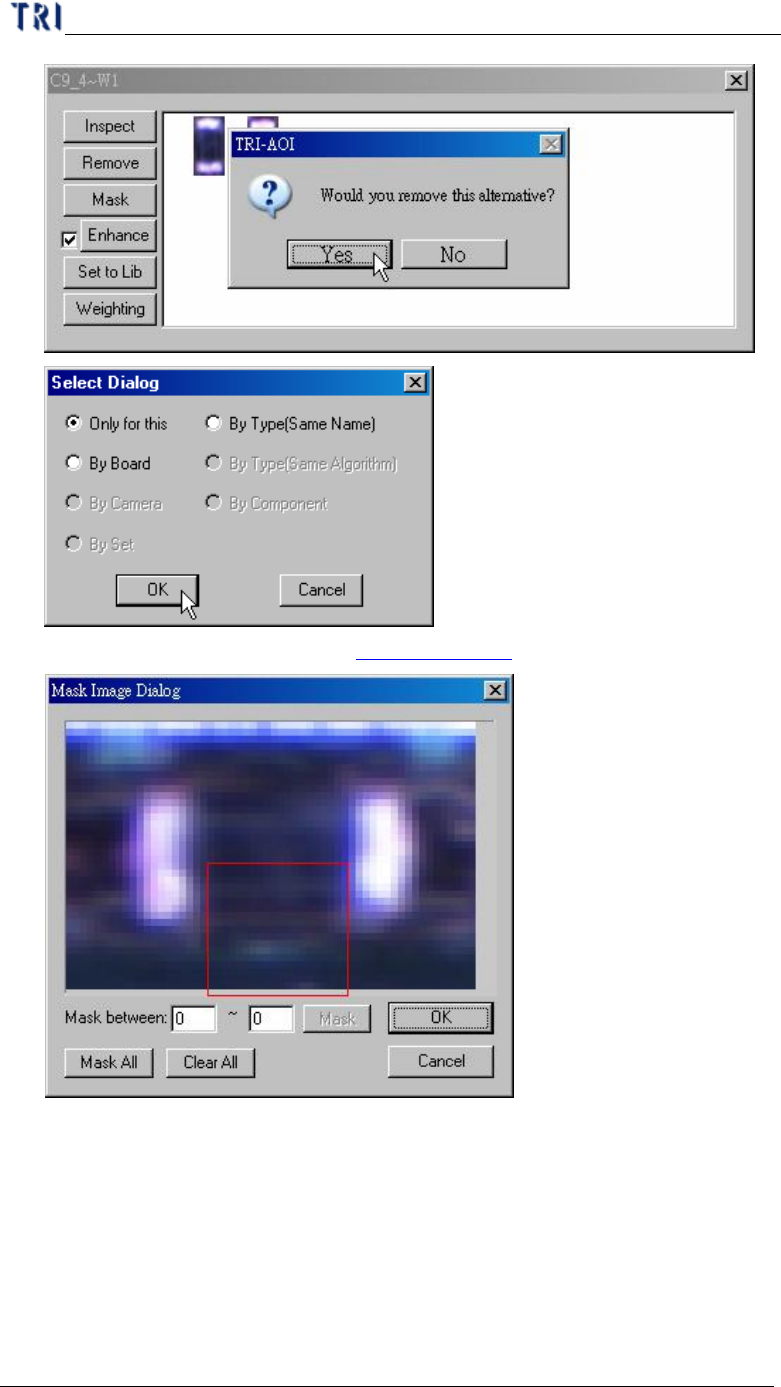
6.2.6. View Model
l You can review the standard images here or modify the images.
n Inspect – Review the similarity between standard image and the image that
wait measuring. The blue figure of the upper left corner represents the
number of times of the enhancement.
n Remove – Remove the selected image.
Chapter 4 Train dialog function
TR7500 USER MANUAL
243
n Mask – Mask the image. See Chapter 3 10.7.2. for reference.
n Enhance – You can enhance the brightness and contrast for alternative
image. Unselect the check box to recover the original image.