TR7500E_Manual_en_v28.pdf - 第94页
C h a p t e r 2 M a nu a l B a r i n t r o d u ce T R 7500 U S E R M A N U AL 87 e s t a b l i s h e d t h e i c o n i s c h a ng e d t o g r e e n a n d t h e o r i g i n i s m a r k e d a s b l u e i c o n . T h e r e …
Chapter 2 Manual Bar introduce
TR7500 USER MANUAL
86
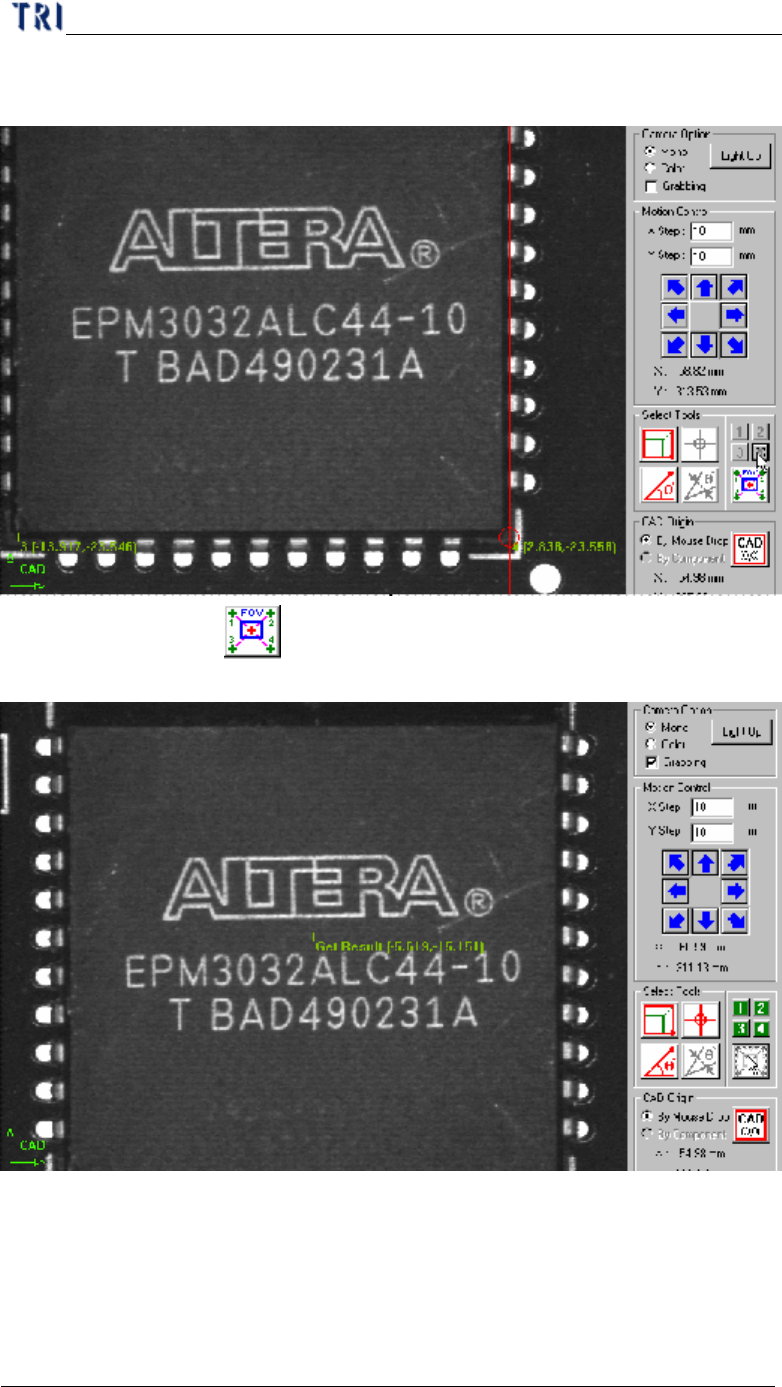
Step2. Move the cross line tool to other corners and press [2], [3] and [4]
button respectively to get the coordinates with the same method.
Step3. Press button and the system will calculate the component
center automatically.
Step4. Press [Add] to add the component after input relative information.
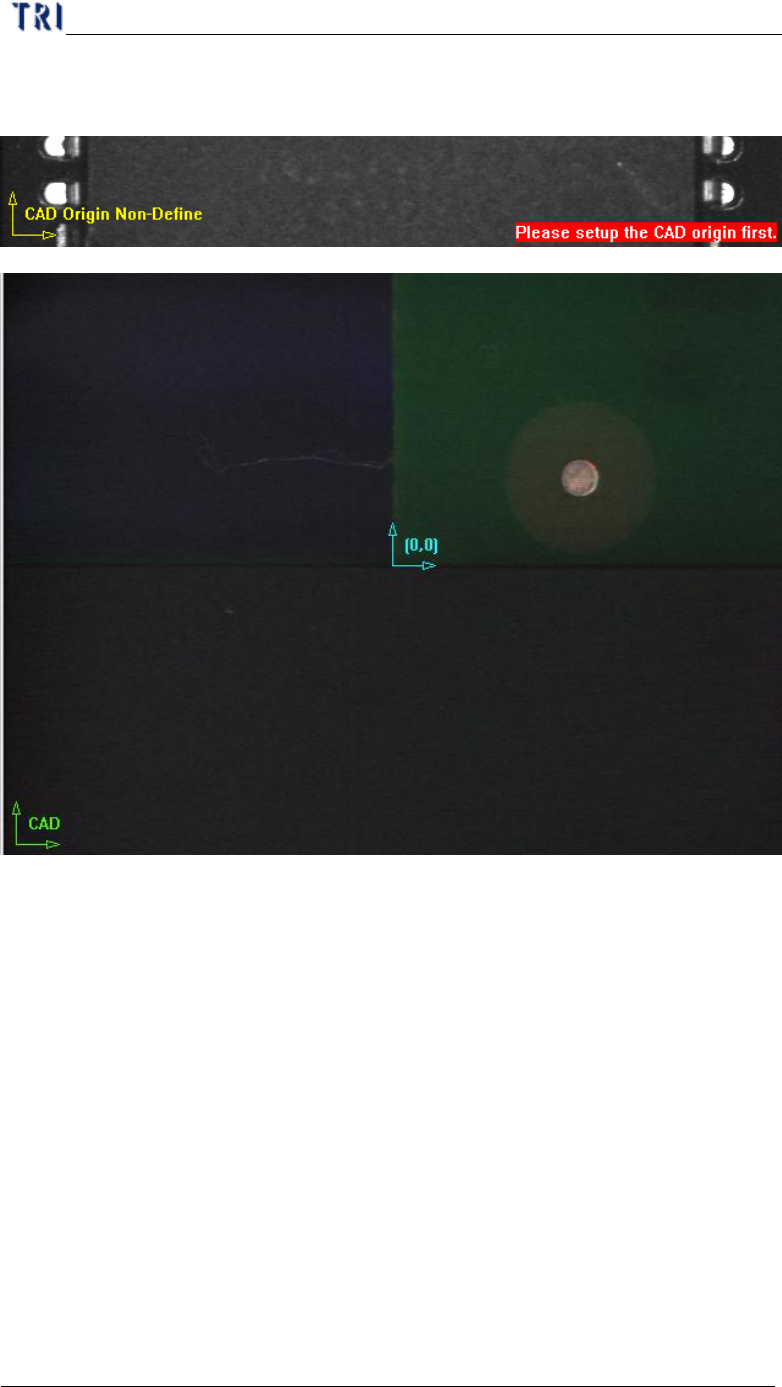
(4) CAD Origin - You should set the origin first for reference before building the
component CAD data. A yellow right angle icon will flash at lower-left corner to
remind you if you don’t set the origin yet. If the origin has already been
Chapter 2 Manual Bar introduce
TR7500 USER MANUAL
87
established the icon is changed to green and the origin is marked as blue icon.
There are two ways to set origin.
l By Mouse Drop - You can use the method when editing a new CAD file.
Move box or cross line tool to the position which you want to set on then press
[CAD(0,0)] and the system will record the coordinates of the origin.
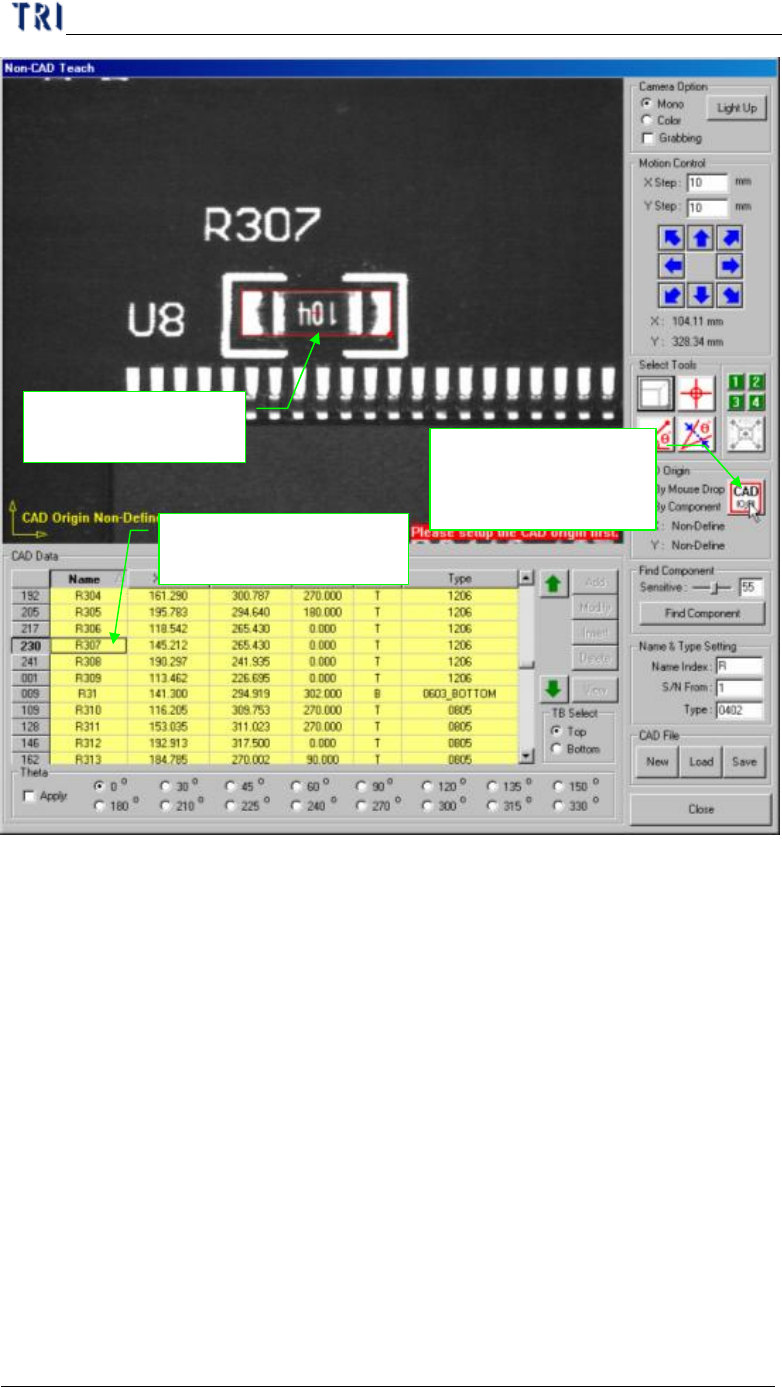
l By Component - You can use the method when loading an existing AOI file
for continuous editing. Select a component at component list field and move a
tool to the component center. Press [CAD(0,0)] button then the system will
record the coordinates of the origin.
Chapter 2 Manual Bar introduce
TR7500 USER MANUAL
88
1. Use box tool to set
the component
3. Select [By
Component] then
press [CAD(0,0)]
2. Select the component
in the table