TR7500E_Manual_en_v28.pdf - 第253页
C h a p t e r 4 T r a i n d i a l og f u n c t i on T R 7500 U S E R M A N U AL 2 46 S t e p 3. S e l e c t t h e r u l e s t o a pp l y t h e s e t ti ng . S t e p 4. F i n i s h a d d i n g a n i n s p e c ti o n b o x…
Chapter 4 Train dialog function
TR7500 USER MANUAL
245
6.2.7. Delete Box
l Select an inspection box then press [Delete Box] to delete it.
6.2.8. Add 1 Box
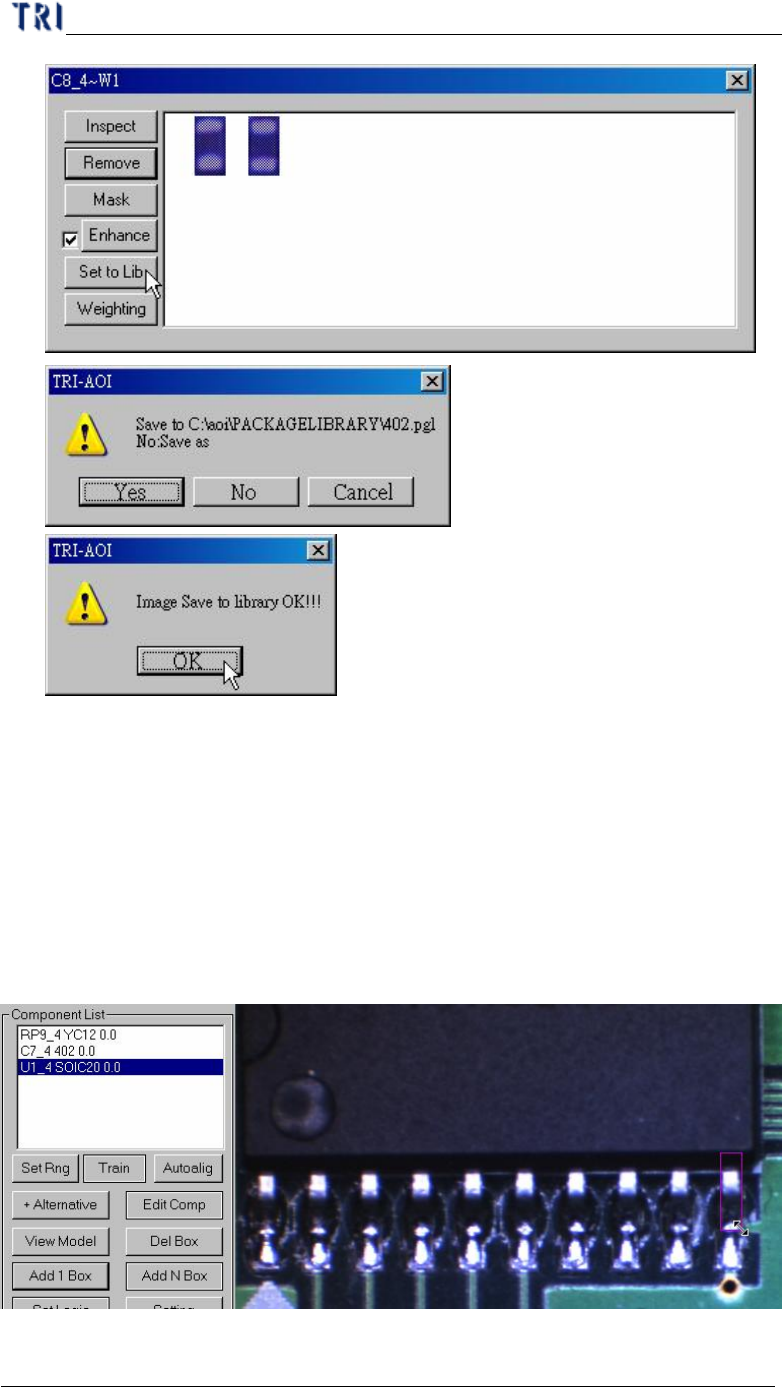
l Press the button to add an inspection box for the selected component.
l Setting Steps
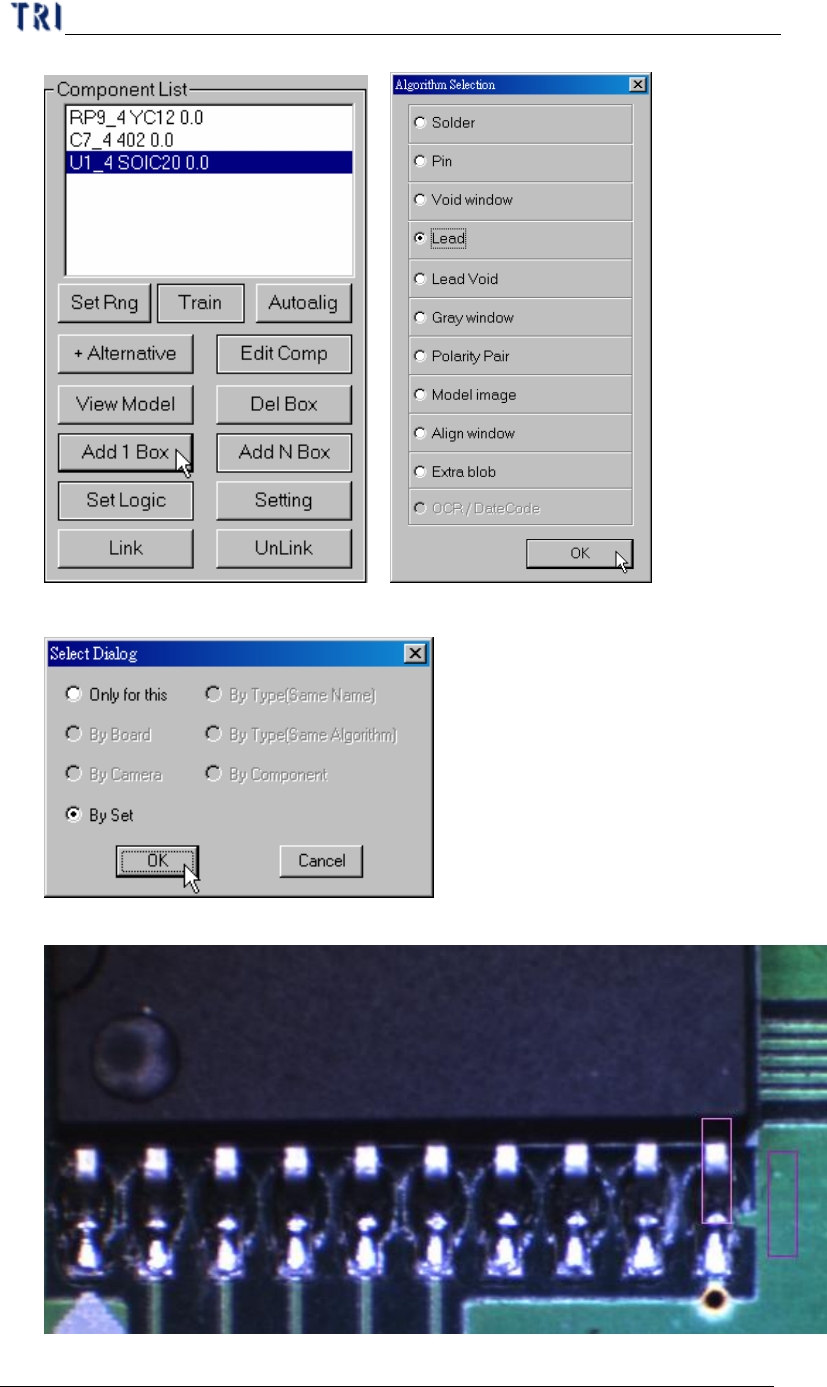
Step1. Select a component and adjust the multi-function window to the size and
position of inspection box wanting to add.
Step2. Press [Add 1 Box] button and select the inspection algorithm.
Chapter 4 Train dialog function
TR7500 USER MANUAL
246
Step3. Select the rules to apply the setting.
Step4. Finish adding an inspection box.
Chapter 4 Train dialog function
TR7500 USER MANUAL
247
6.2.9. Add N Box
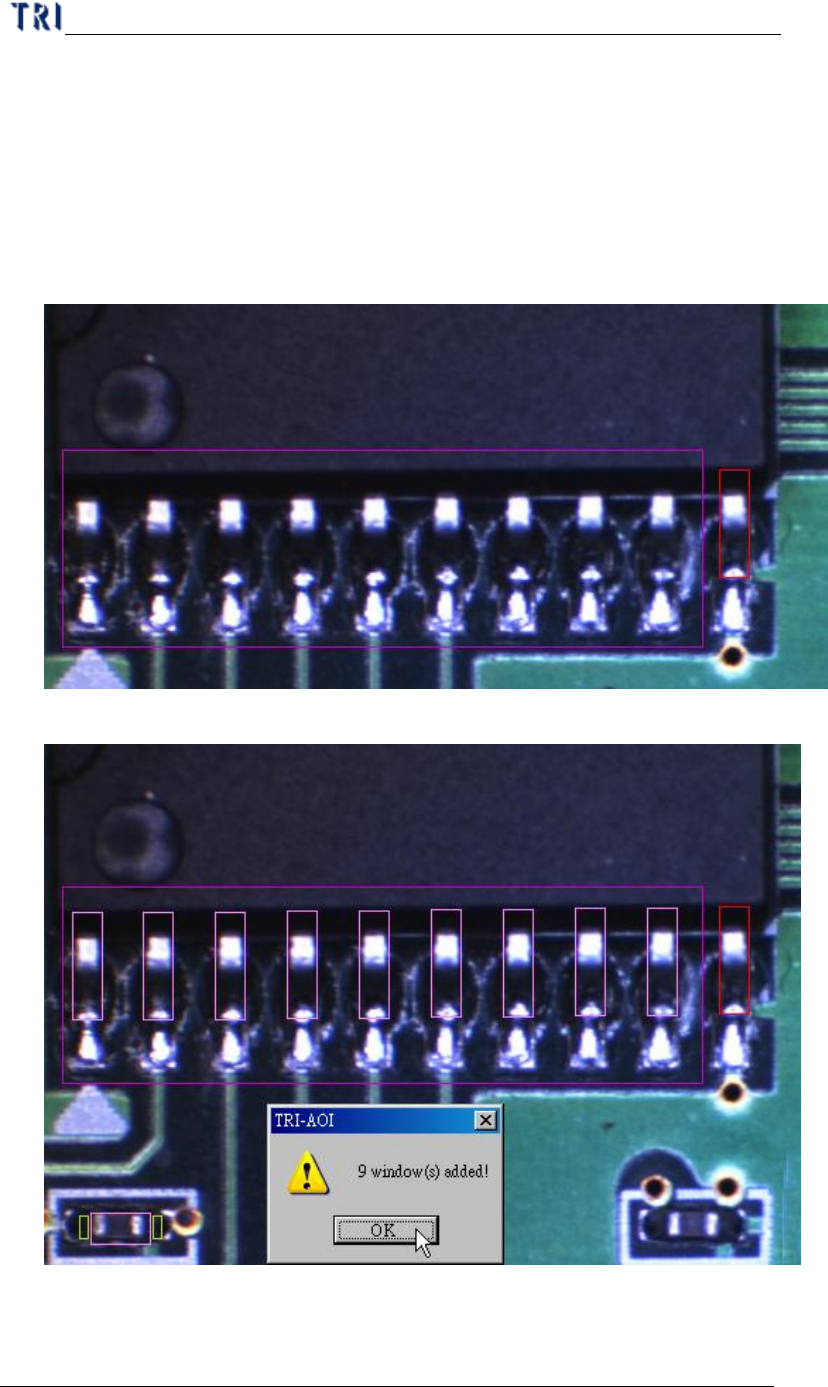
l Select a box first as the standard image and the system will search in the
multi-function window to find the similar image and add inspection boxes.
l Setting Steps
Step1. Select an inspection box as the standard and adjust the multi-function
window to cover the objective area.
Step2. Press [Add N Box] to finish the setting.
l Create the other linked boxes in the meanwhile – If there are some inspection