TR7500E_Manual_en_v28.pdf - 第236页
C h a p t e r 4 T r a i n d i a l og f u n c t i on T R 7500 U S E R M A N U AL 2 29 5 . 1 . T ool s l R i g h t c li c k o n t h e i m a g e t o s h o w t h e t oo l s . ( 1) V i e w l H i d e A l l B o x e s – S e l e …
Chapter 4 Train dialog function
TR7500 USER MANUAL
228
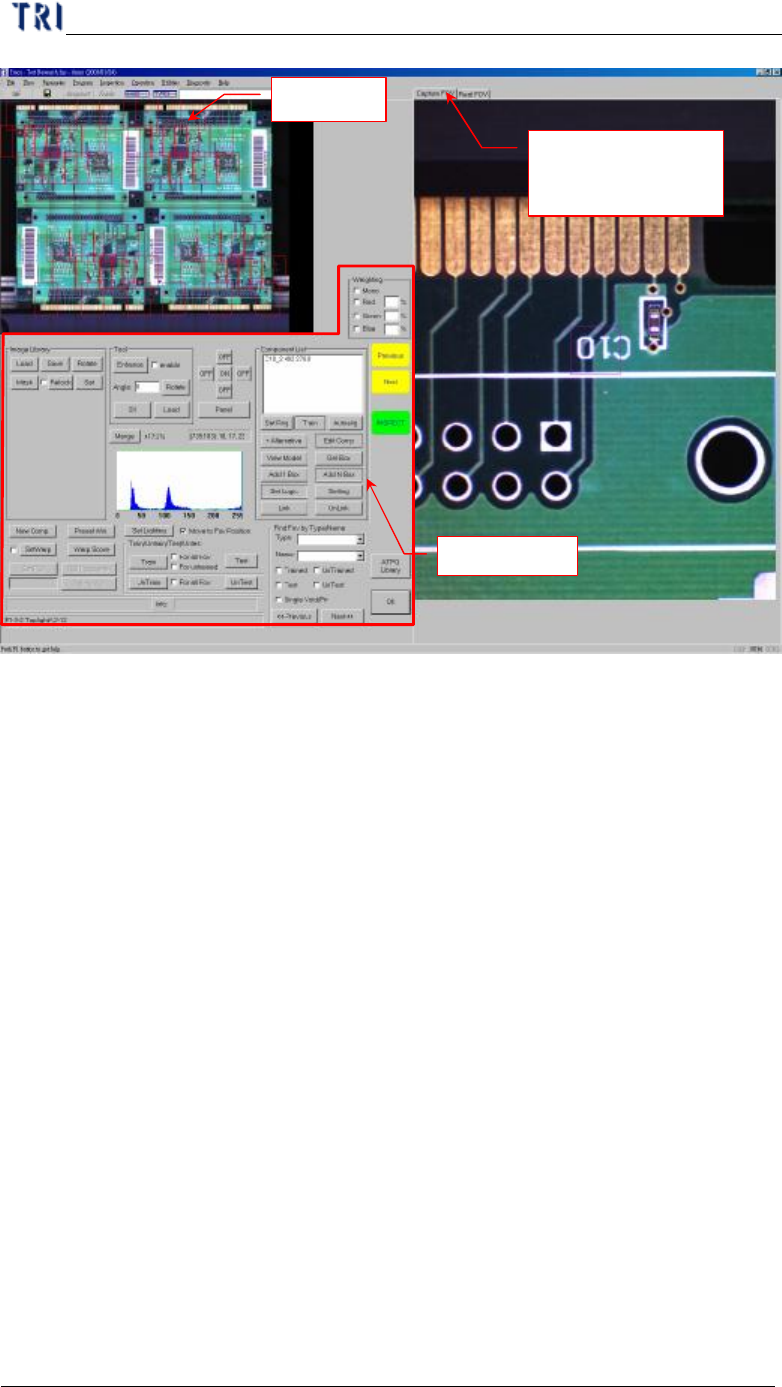
3. Board view
l The position of FOVs display here and you can select the camera you want to
review.
l You can click on the FOV area and the real time image and saved FOV image
will change to the selected FOV.
4. Real FOV
l Select [Real FOV] page then it displays the real time image. You can click on
panel map or right click on the image to move camera to capture image.
5. Capture FOV
l Select [Capture FOV] page then it displays the FOV image that system captures
before.
l If the component type that you click on has different groups, the group of the
component that you click will shows at the lower right corner.
Panel Map
Display saving FOV
image and real time
image
Function Area
Chapter 4 Train dialog function
TR7500 USER MANUAL
229
5.1. Tools
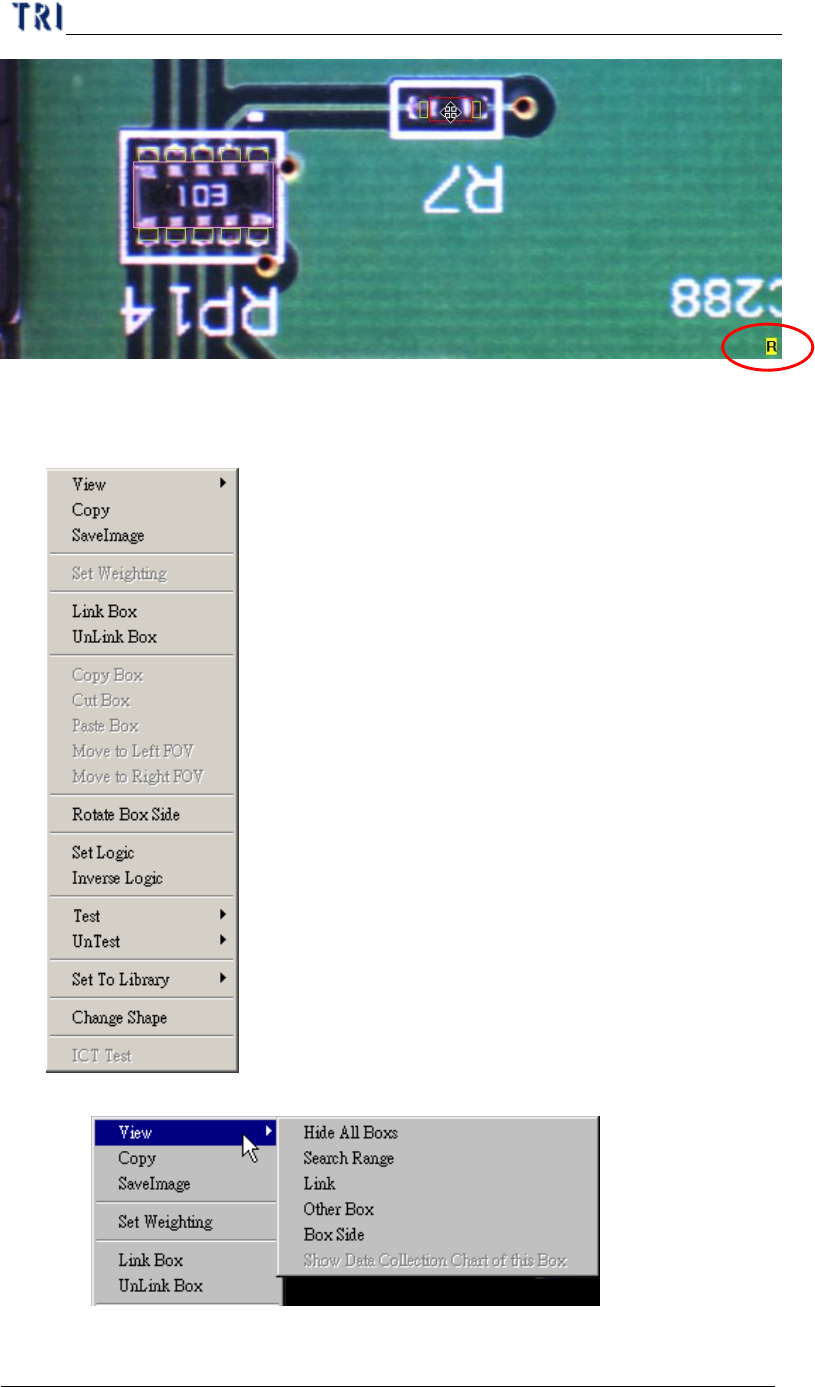
l Right click on the image to show the tools.
(1) View
l Hide All Boxes – Select this to hide all boxes on FOV image.
Chapter 4 Train dialog function
TR7500 USER MANUAL
230
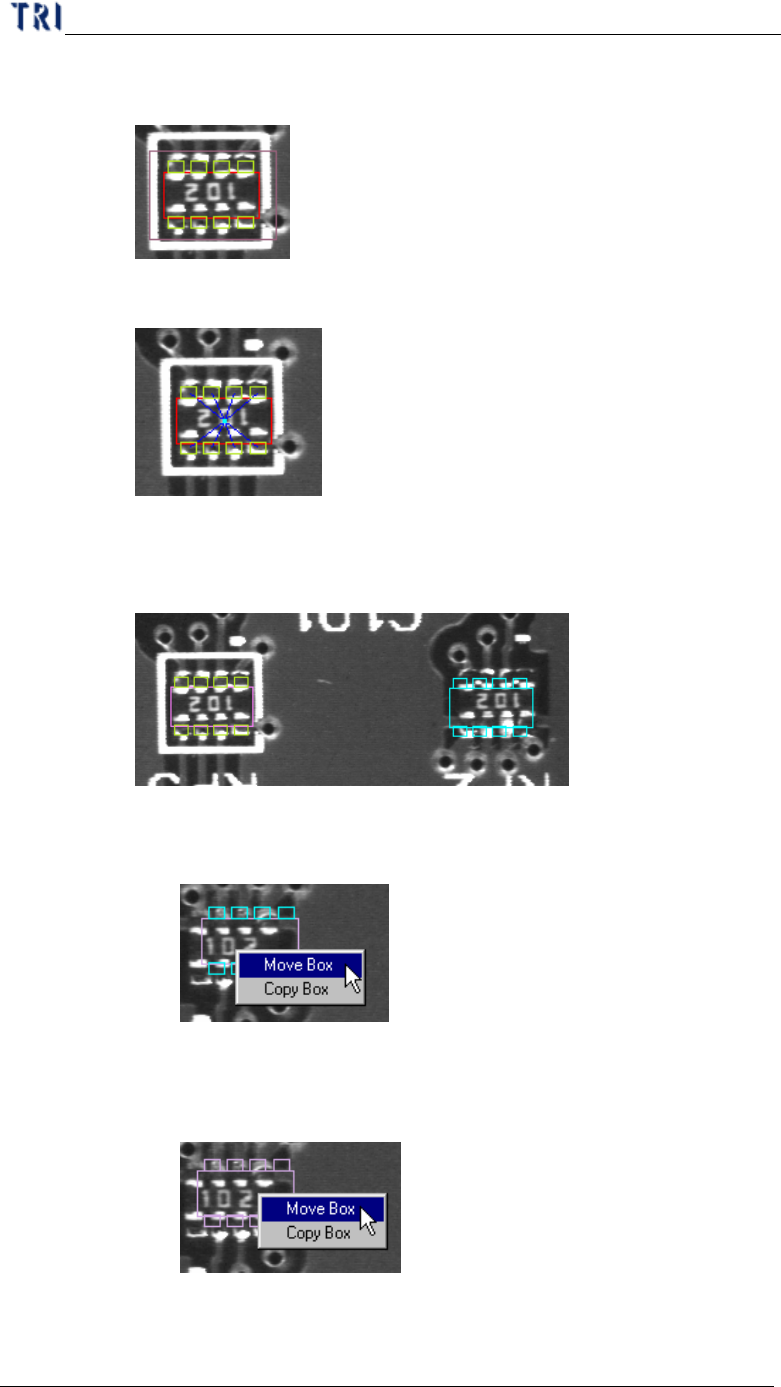
l Search range – Select to show the search range of inspection box that
is a kind of model image box.
l Link – Select to show the links between inspection boxes.
l Other Box – Select to see the inspection boxes which is in other FOVs
to inspect.
n Right click on the blue box to move the inspection box to the
current FOV.
n You can click right and left button at the same time on the
objective component then you can move all inspection boxes of
the component to the FOV.
l Box Side – Show directionality of the pins with small circle. The
correct direction is shown as the following. If the direction is wrong,