TR7500E_Manual_en_v28.pdf - 第82页
C h a p t e r 2 M a nu a l B a r i n t r o d u ce T R 7500 U S E R M A N U AL 75 S t e p 3. I n p u t 5 i n [ D i ff . ] f i e l d a n d p r e ss [ S e t T h i s T y p e ] . T h e s y s t e m w i l l s u b t r a c t 5 f …
Chapter 2 Manual Bar introduce
TR7500 USER MANUAL
74
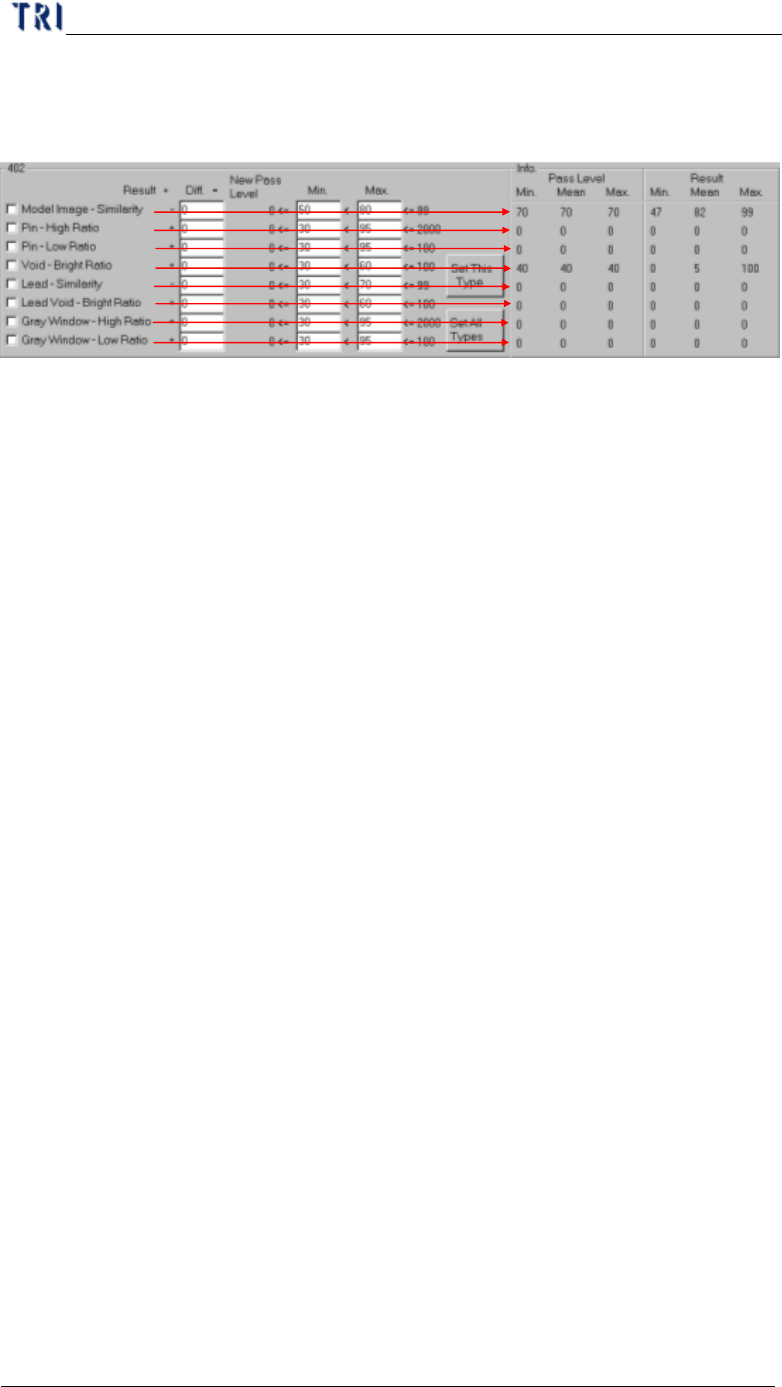
n Result Mean – The average of result for all components in the selected type.
n Result Max. – The maximum of result for all components in the selected
type.
l Check the kind of inspection boxes then press [Set This Type] or [Set All Types]
to change the parameters following the conditions.
n Check area – Check the parameter you want to set.
n Diff – Input the number you want to increase or decrease. The system will
plus or subtract the number form average result for all components and set
the number as new pass level.
n Min., Max. – Give new parameter a range in order not to create an
unsuitable value. If the calculated parameter is smaller than [Min.] value the
system will modify the parameter as [Min.] value; if the calculated
parameter is bigger than [Max.] value the system will modify the parameter
as [Max.] value.
n Set this type – Calculated the check parameters to selected type.
n Set all types – Calculated the check parameters to all types.
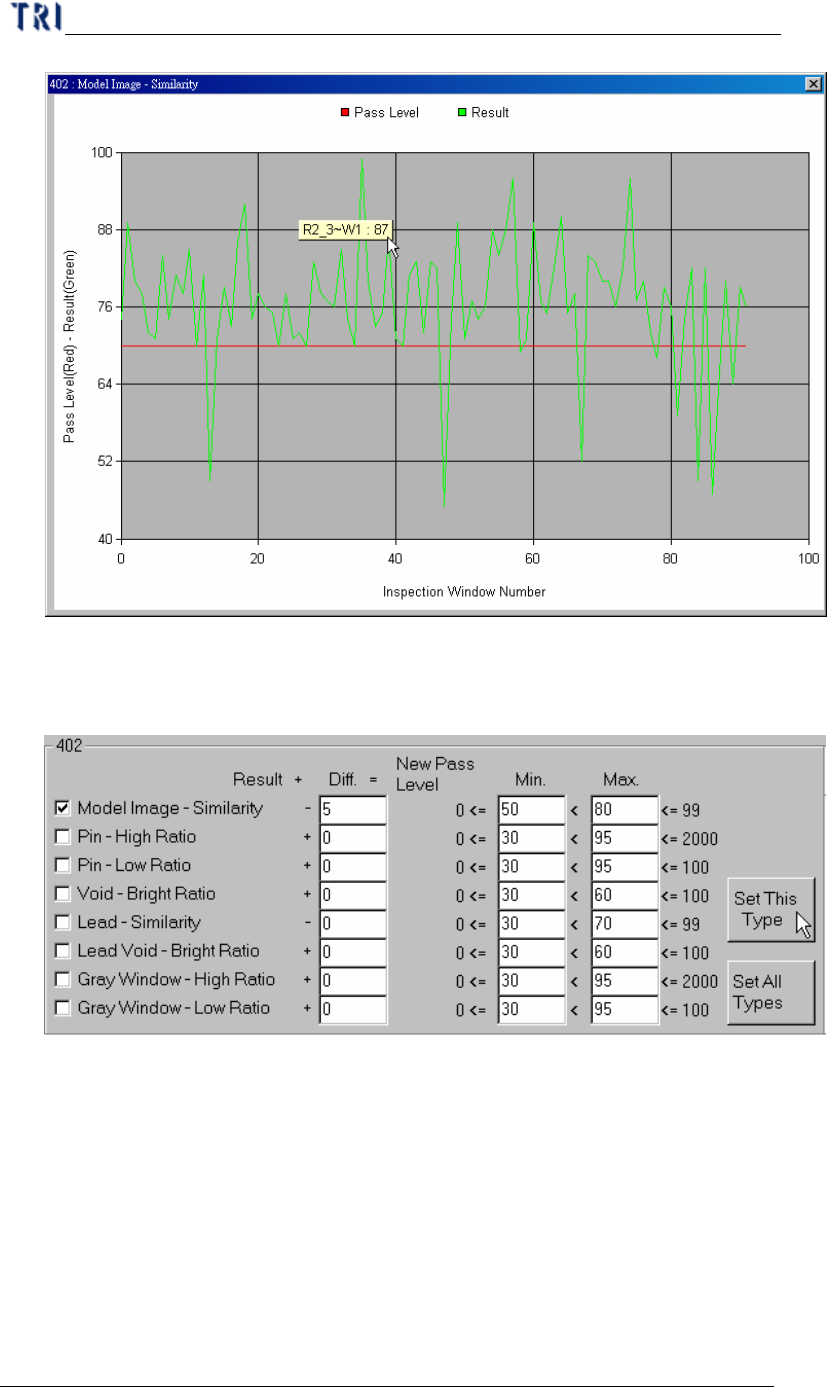
l Take [Model Image-Similarity] of 402 for example. The steps are as followings.
Step1. Check [Model Image-Similarity]
Step2. Take [Performance Curve] and [Info.] area for reference and decide the
new difference.
Chapter 2 Manual Bar introduce
TR7500 USER MANUAL
75
Step3. Input 5 in [Diff.] field and press [Set This Type]. The system will
subtract 5 from the average of every component in [402] type
separately. The result will be set as new pass level.
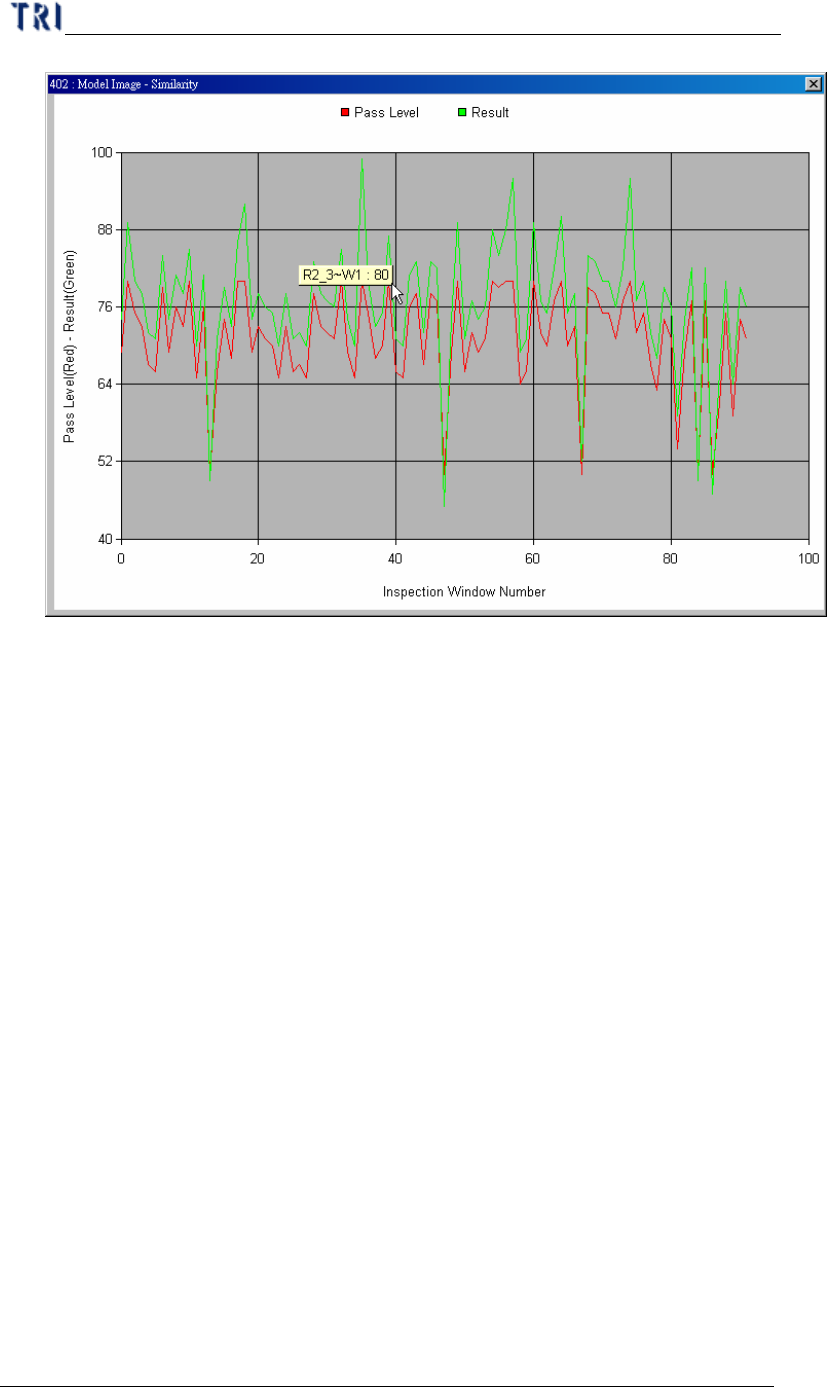
Step4. You can see curve again to review the change.
Chapter 2 Manual Bar introduce
TR7500 USER MANUAL
76
l Save – Press to save the table as a text file. The file name is [typeSetting.txt].
4.3.2. By Component Name
l Press the item then you can see the component list window. The window list all
pass level and inspection result for every component. 0 means the component
don’t have that kind of inspection box. You can double click on the objective
component and change the parameters. You also can check or uncheck the square
item to test or untest the component.