TR7500E_Manual_en_v28.pdf - 第168页
C h a p t e r 3 A O I A T P G F u n c t i o n i n s t r u c t i on T R 7500 U S E R M A N U AL 1 61 10 . 1 . C o m p o n e n t T y p e C r ea ti ng a n e w c o m po n e n t t y p e L o a d i n g e x i s ti ng c ompo n e …
Chapter 3 AOI ATPG Function instruction
TR7500 USER MANUAL
160
jointing of solder, etc..
10. Edit Component Library
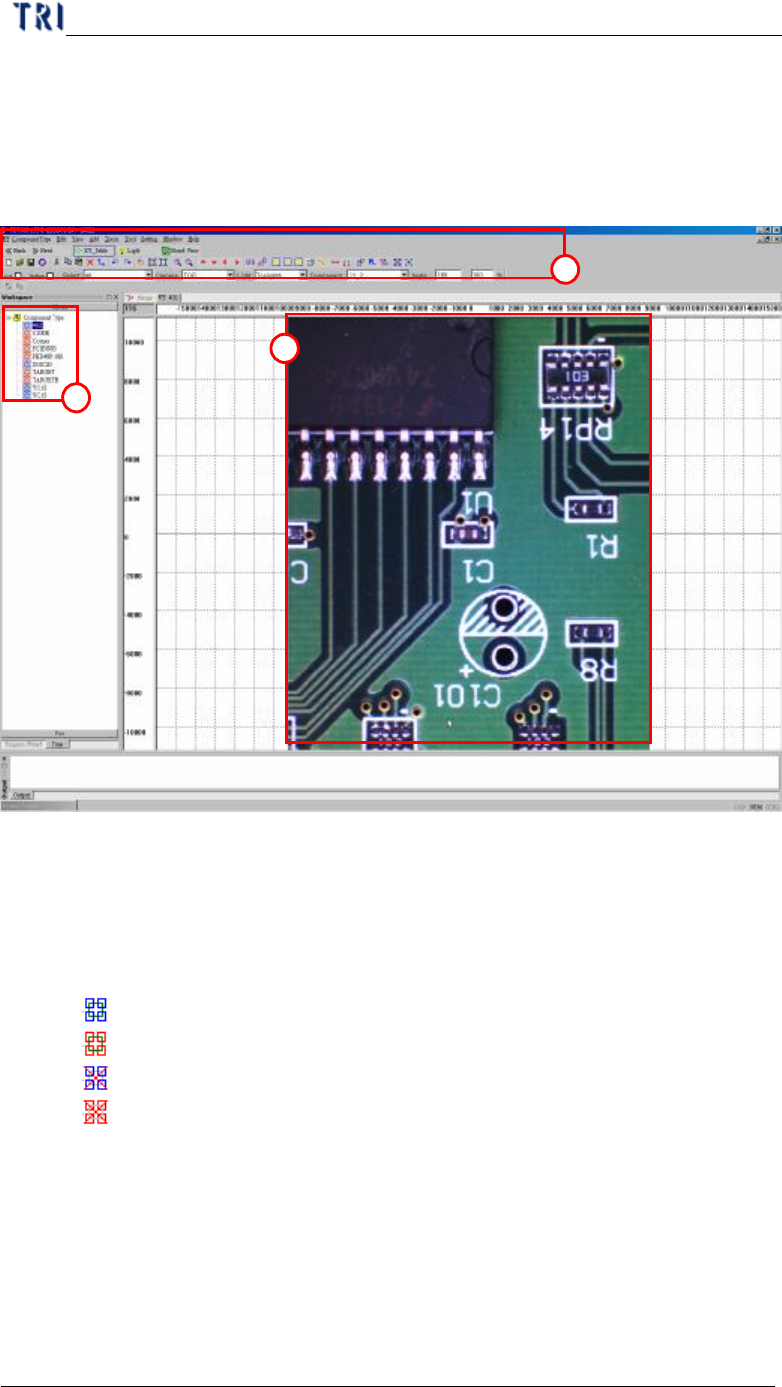
l Edit Main Frame
(1) Toolbar – Listing all tools to create library. The tools are explained below
section.
(2) Type List – Listing all types of components on this PCB. The icons mean as the
followings.
l – The type has at least one inspection box and has been saved.
l – The type has no inspection box and has been saved.
l – The type has at least one inspection box and has not been saved.
l – The type has no inspection box and has not been saved.
(3) Image Zone – Arranging inspection boxes and creating library here. You can use
mouse (clicking and dragging) to select boxes.
2
1
3
Chapter 3 AOI ATPG Function instruction
TR7500 USER MANUAL
161
10.1. Component Type
Creating a new component type
Loading existing component type
Saving component type
Saving component type to specified target path or type
Closing all component type frame
Search for the component
Rotate component angle
10.1.1. New
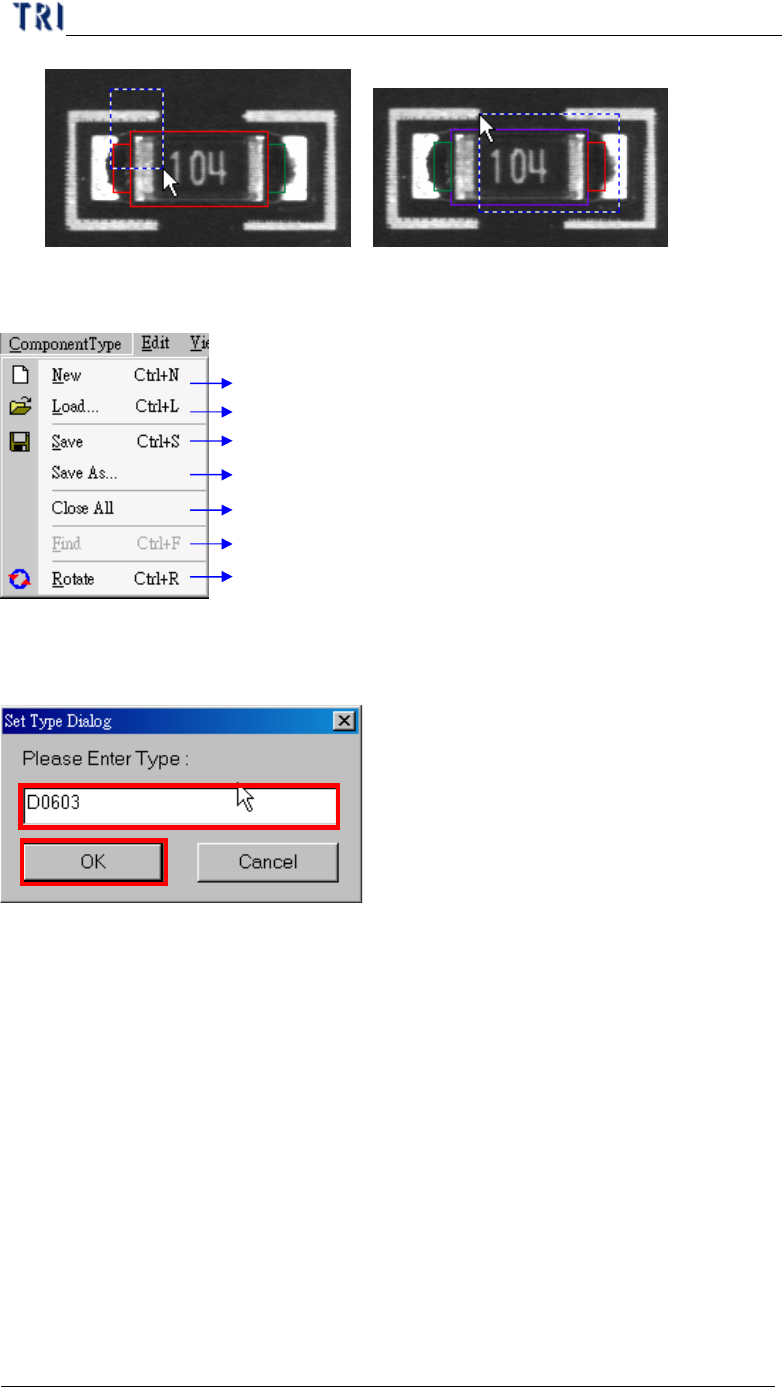
l You can use this function to create a new type and edit its library.
10.1.2. Load..
l Loading existing library to current component from packagelibrary folder. It will
load all information except image.
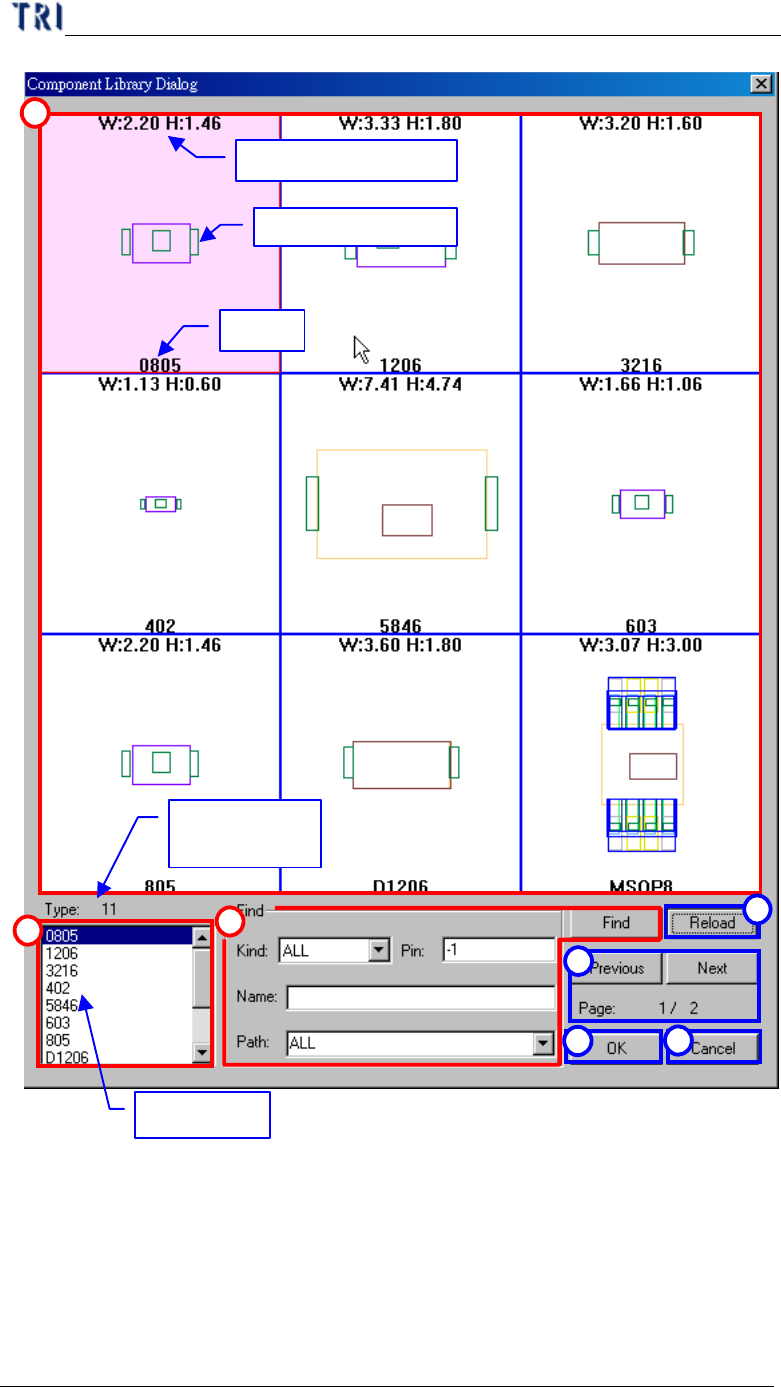
10.1.2.1 The detailed explanation of loading library
Chapter 3 AOI ATPG Function instruction
TR7500 USER MANUAL
162
Width and height
Library drawing
Type
All type list
The number
of type
3
2
4
5
6
7
1
(1) Sketch area– Show information of library including size of body, drawing of
library by type.
(2) Type list– List all types in library folder
(3) Find area– You can input conditions then press “Find” button to search the
library.