FLEXLINE-CAD_INM.pdf - 第107页
A- 10 6.2 Field definition s creen Next, specify the field position and perform def inition. 6.2.1 S pecify ing the fiel d position At the position where each field is separat ed, enter a v ertical line to divide fields.…
A-9
6. Placement Section
Next, the screen to define placement data is displayed.
6.1 Section definition screen
Move the scroll bar provided on the right side of "File display" downward by clicking it. Then, the
placement data screen is displayed.
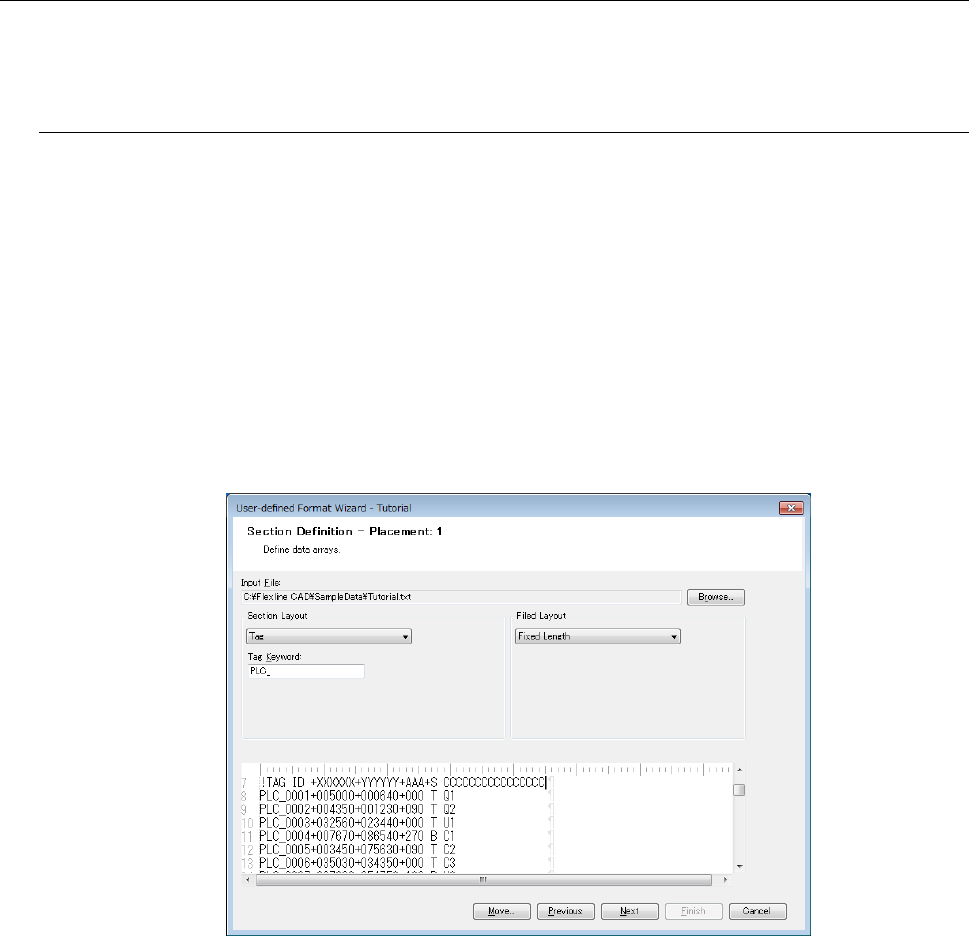
● Section layout
From the "Section Layout" list, select "Tag" and enter "PLC" in "Tag Keyword."
(Because the characters of "PLC" exist in the line of placement data)
● Field layout
From the "Field Layout" list, select "Fixed Length."
Figure A-12 Section Definition screen (placement)
Click the "Next" button.
A-10
6.2 Field definition screen
Next, specify the field position and perform definition.
6.2.1 Specifying the field position
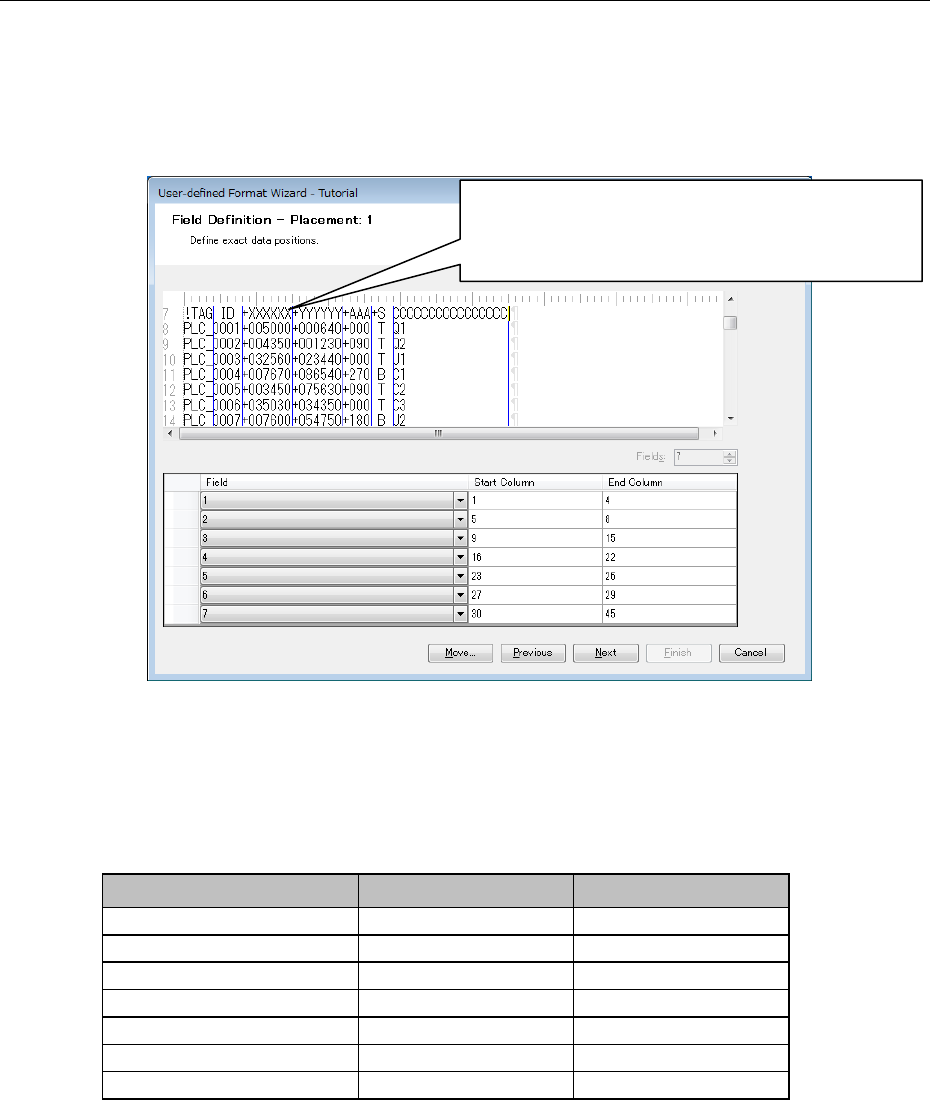
At the position where each field is separated, enter a vertical line to divide fields.
Figure A-13 Field definition screen (placement)
In the "Field" text box, a new created field is displayed.
In this example, there are seven fields as shown below:
Check whether the column numbers are correct or not.
Data
Start column
End column
!TAG
1
4
5
8
+XXXXXX
9
15
+YYYYYY
16
22
+AAA
23
26
+S
27
29
CCCCCCCCCCCCCCC
30
45
For entering a vertical line, click once on the screen
(on the column to be separated). If the vertical line is
wrongly entered, click on the vertical line once again
to delete it.
A-11
6.2.2 Defining the field
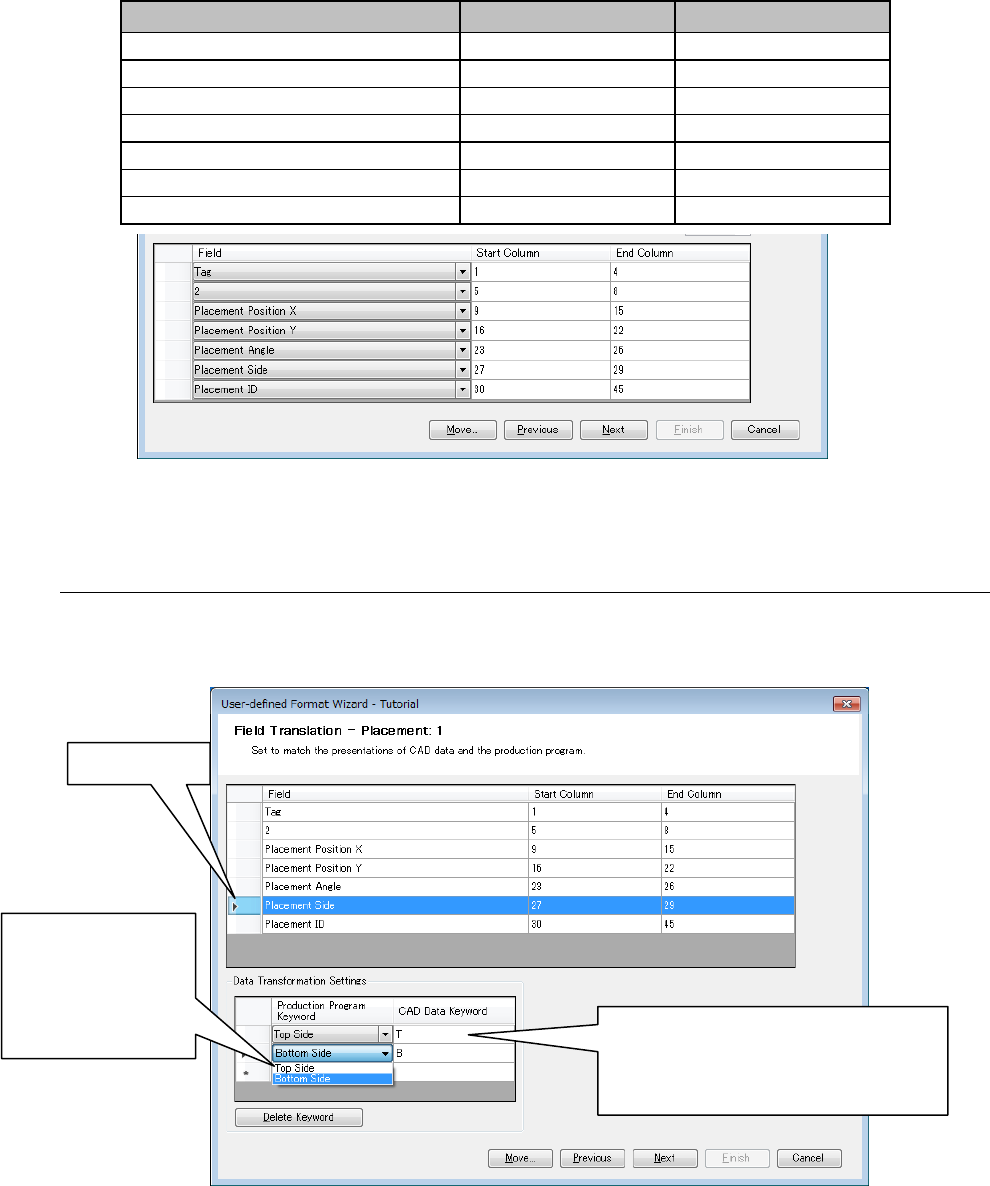
Next, each of these fields must be correlated so that Flexline CAD can recognize it. Click the
cell of a field and select the field from the displayed list.
In this example, the fields are as shown below:
Field
Start column
End column
Tag
1
4
(Does not need to be defined)
5
8
Placement position X
9
15
Placement position Y
16
22
Placement angle
23
26
Placement side
27
29
Placement ID
30
45
Figure A-14 Placement data fields
6.3 Field Translation screen (definition of placement side)
In the placement data of CAD data, the placement side is distinguished between T" and "B."
Now, define the "T" as the top side and "B" as the bottom side.
Figure A-15 Field Translation screen
Click the "Next" button.
①
Click here.
②
Click the cell of
"Production
program
keyword" and
select "Top
side."
③
Enter the "T" in the cell of "CAD data
keyword." Likewise, for the lower
column, select "Bottom side" in
②
and enter the "B."