FLEXLINE-CAD_INM.pdf - 第30页
25 4.2 Exiting Flex line CAD *1 Select the "File" - "Exit Flexline CAD" on the main screen, or click the "x" button pr ovided in the upper right par t of the title bar . After that , when th…
24
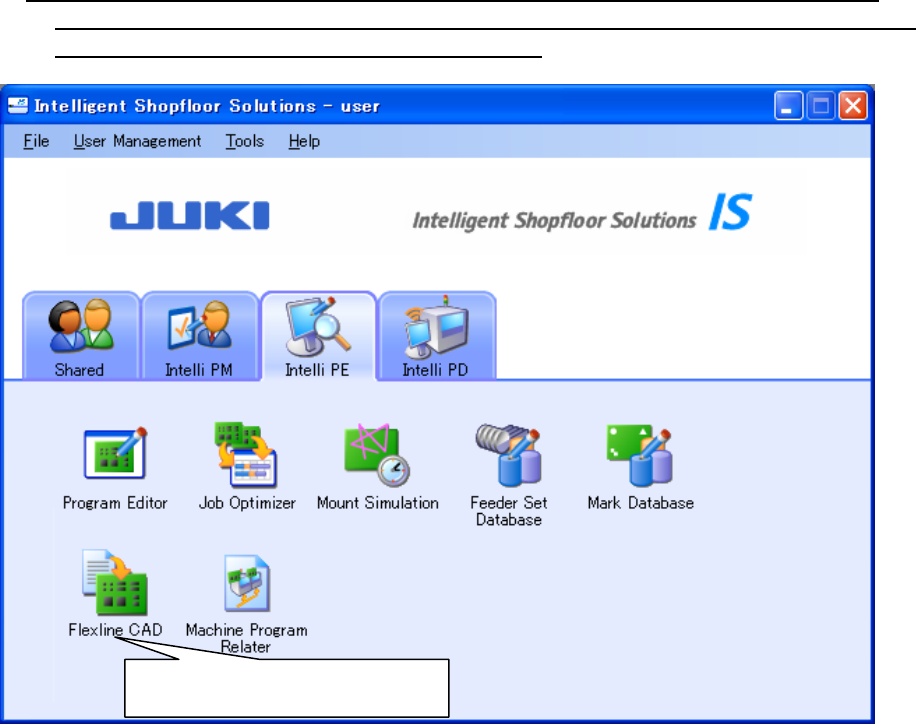
(3) When JUKI production support system or the like is installed in the PC, the icon of Flexline
CAD is displayed on the Data creation tab or the Intelli PE tab of the launcher. Double-click this
icon or press the "Enter" key in the selected status. *1
Figure 4-1-3 Starting Flexline CAD from the IS launcher
* Flexline CAD starts, and the Flexline CAD logo appears briefly. Then, the main screen
appears.
*1 Enabled with the Version 6.00 or later only. (Some functions may be enabled with the latest version
only.)
Double-click this icon or press the
"Enter" key in the selected status.
25
4.2 Exiting Flexline CAD *1
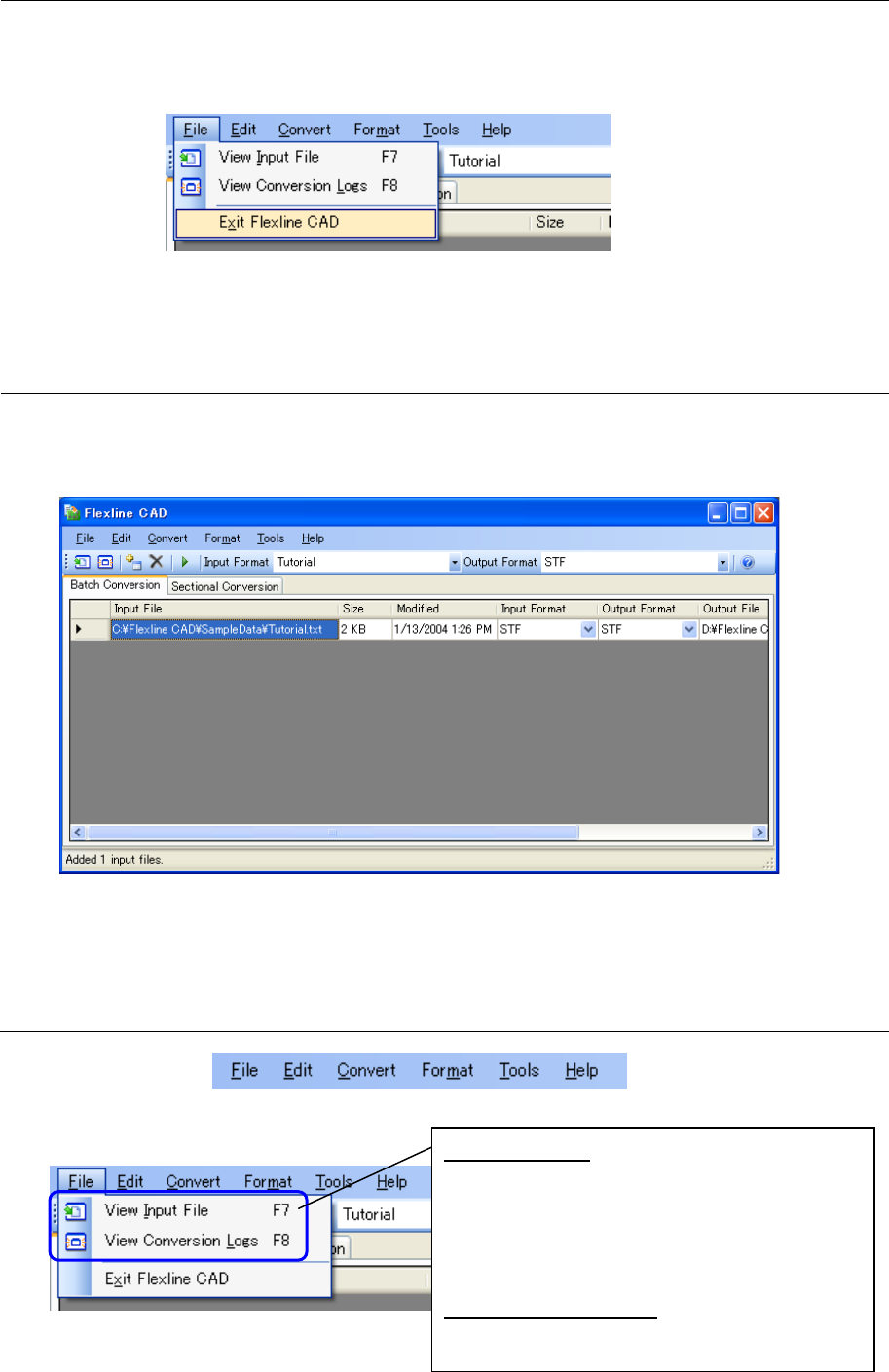
Select the "File" - "Exit Flexline CAD" on the main screen, or click the "x" button provided in the
upper right part of the title bar. After that, when the exit confirmation message is displayed, click
the [Yes] button.
Figure 4.2-1 "Exit Flexline CAD" menu
*1. The screen displayed with the Version 5.10 or earlier is different from that with the Version
6.00 or later.
4.3 Screen configuration of Flexline CAD *1
This section describes operations on the screen.
After Flexline CAD is booted up, the main screen is displayed to enable operations for
conversion.
Figure 4.3-1 Main screen of Flexline CAD (batch conversion mode)
*1. The screen displayed with the Version 5.10 or earlier is different from that with the Version
6.00 or later.
4.3.1 Menu bar of Flexline CAD
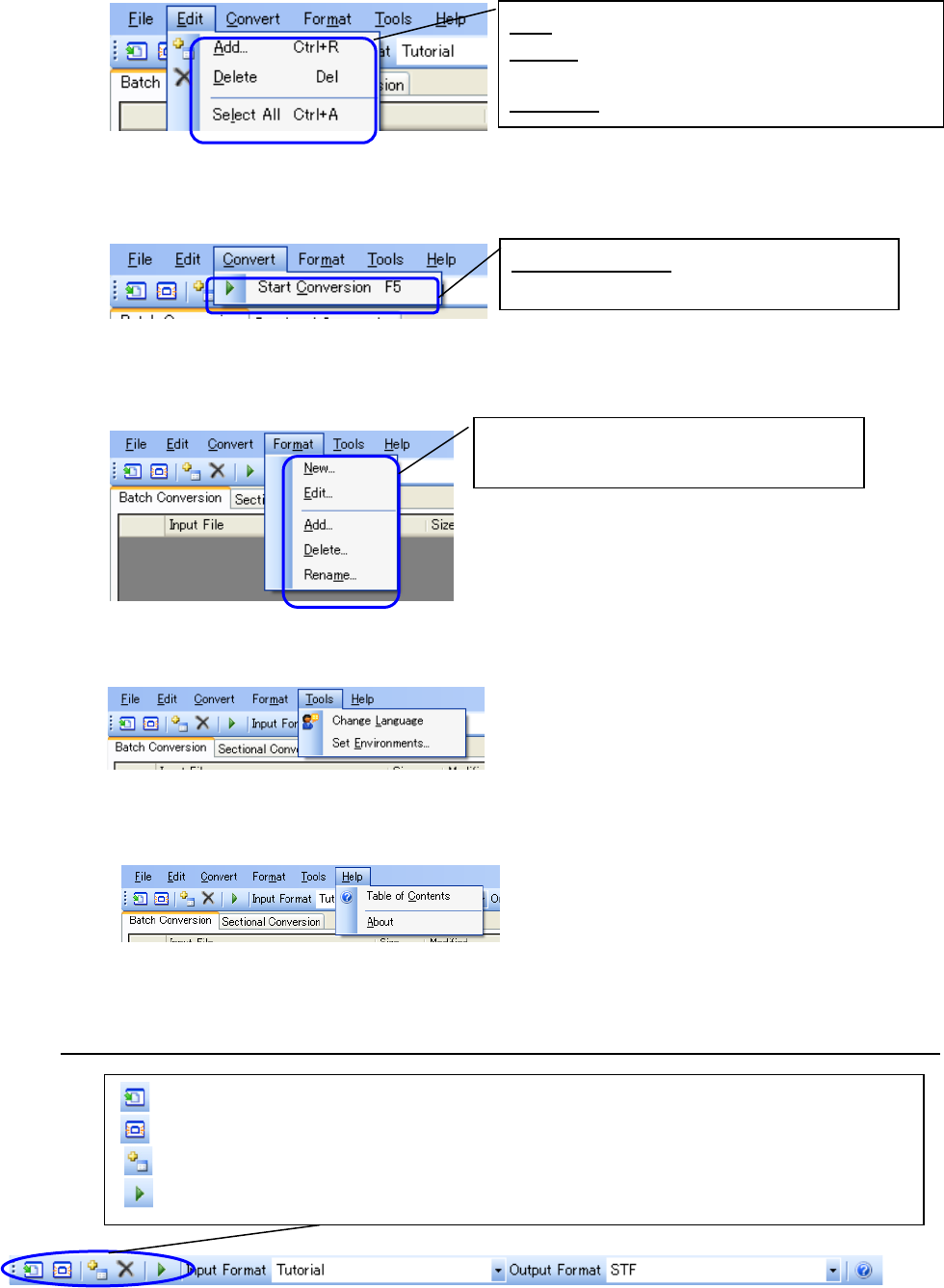
Figure 4.3.1-1 Menu bar of Flexline CAD
(1) File Menu
Figure 4.3.1-2 "File" menu
View Input File:
The input file of the line selected in the file
table is displayed by the application related to
the file extension.
Displays the input of the line selected in the file
table with the application related to the file
extension.
View Conversion Logs:
Displays the conversion logs.
26
(2) Edit menu
Figure 4.3.1-3 "Edit" menu
(3) Convert menu
Figure 4.3.1-4 "Convert" menu
(4) Format menu
Figure 4.3.1-5 "Format" menu
(5) Tool menu
Figure 4.3.1-6 "Tool" menu
(6) Help menu
Figure 4.3.1-7 "Help" menu
4.3.2 Flexline CAD's Tool Bar
Figure 4.3.2-1 Tool bar of Flexline CAD
(View input file): Displays the input file by the application related to the file extension.
(View conversion log): Displays the conversion log by the application related to the file extension.
(Add input file): Adds the input file to the file table.
(Start conversion): Starts conversion for the selected file table.
Add: Adds the input file to the file table.
Delete: Deletes the input file on the line selected
in the file table from the file table.
Select All: Selects all the line of the table.
Start Conversion: Starts conversion for the
selected file table.
Creates an input format newly, and edits,
adds, and deletes an input format.