FLEXLINE-CAD_INM.pdf - 第29页
24 (3) W hen JUKI production support sy stem or the like is i nst alled in the PC, the icon of Flexl ine CAD is displ ayed on t he Data creation t ab or the Intelli PE tab of the launcher . Double - click this icon or pr…
23
Chapter 4 Trying to Start Flexline CAD
4.1 Starting Flexline CAD
The following two methods are available:
• Turn on the power supply of the personal computer. Then, Windows is booted up.
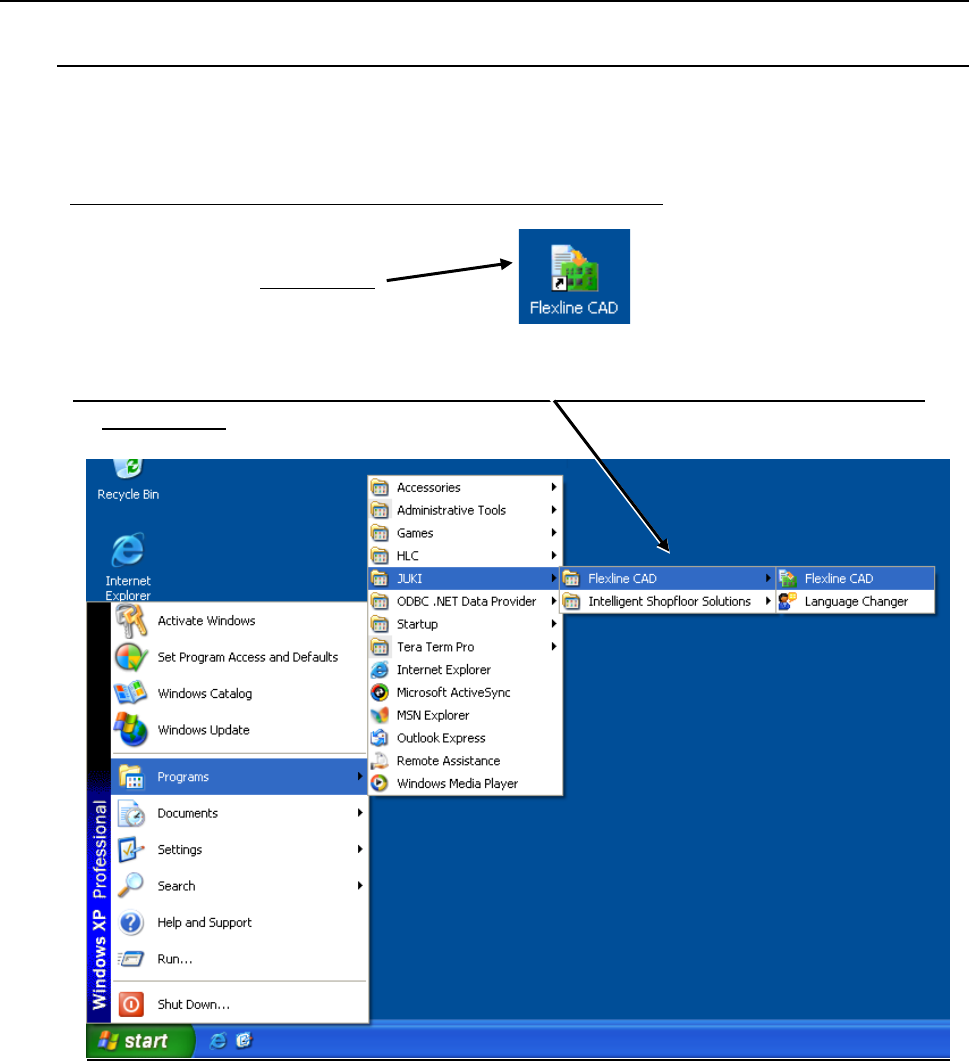
(1) Double-click the Flexline CAD icon provided on the desktop.
Double-click
Figure 4.1-1 Desktop icon of Flexline CAD
(2) From the ”Start" menu, select the "Programs" - "JUKI" - "Flexline CAD" - "Flexline CAD"
command. *1
Figure 4.1-2
*1 Enabled with the Version 6.00 or later only. (Some functions may be enabled with the latest
version only.)
24
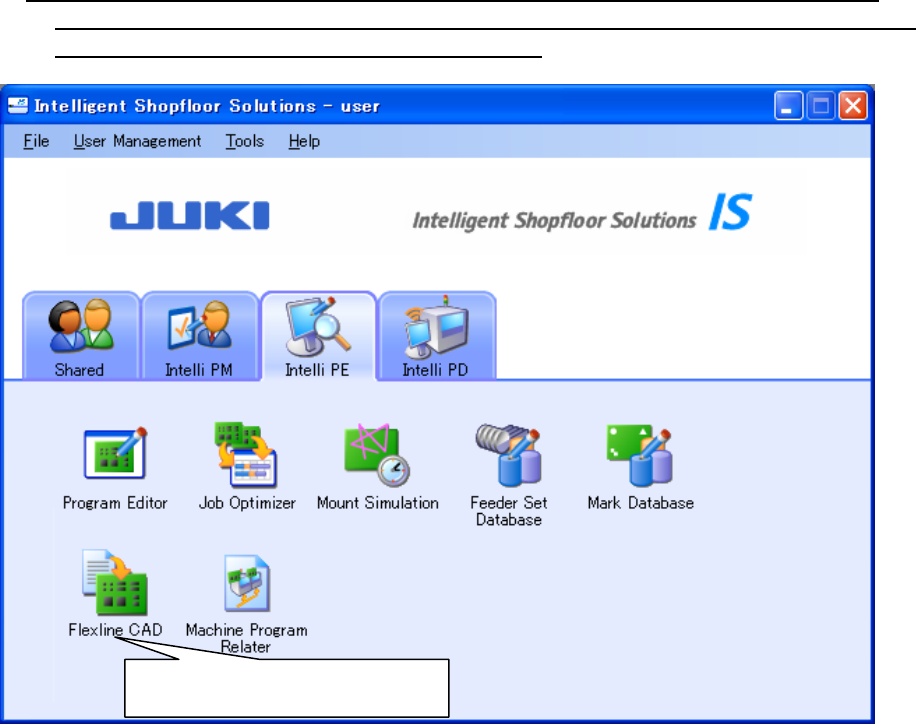
(3) When JUKI production support system or the like is installed in the PC, the icon of Flexline
CAD is displayed on the Data creation tab or the Intelli PE tab of the launcher. Double-click this
icon or press the "Enter" key in the selected status. *1
Figure 4-1-3 Starting Flexline CAD from the IS launcher
* Flexline CAD starts, and the Flexline CAD logo appears briefly. Then, the main screen
appears.
*1 Enabled with the Version 6.00 or later only. (Some functions may be enabled with the latest version
only.)
Double-click this icon or press the
"Enter" key in the selected status.
25
4.2 Exiting Flexline CAD *1
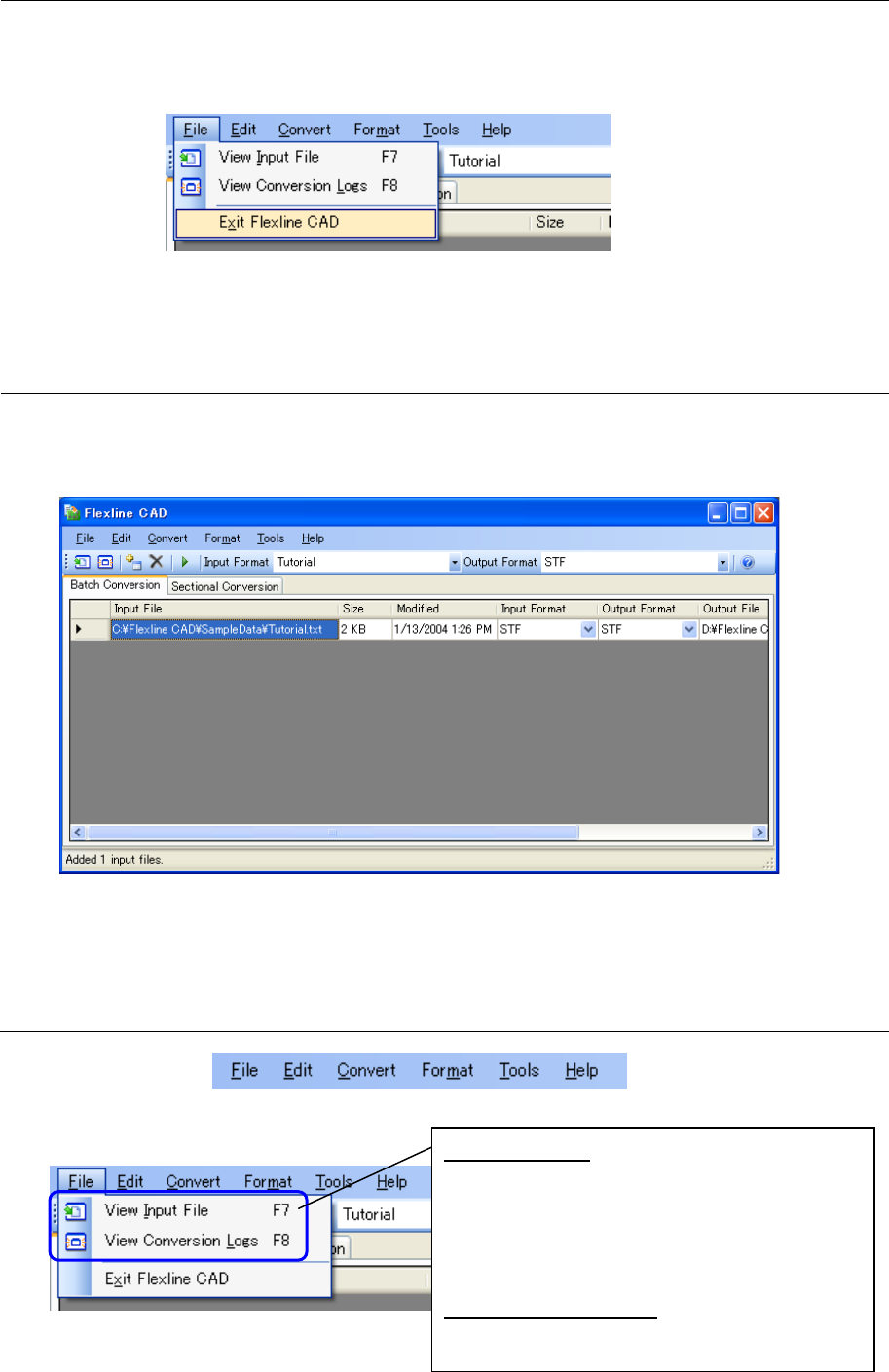
Select the "File" - "Exit Flexline CAD" on the main screen, or click the "x" button provided in the
upper right part of the title bar. After that, when the exit confirmation message is displayed, click
the [Yes] button.
Figure 4.2-1 "Exit Flexline CAD" menu
*1. The screen displayed with the Version 5.10 or earlier is different from that with the Version
6.00 or later.
4.3 Screen configuration of Flexline CAD *1
This section describes operations on the screen.
After Flexline CAD is booted up, the main screen is displayed to enable operations for
conversion.
Figure 4.3-1 Main screen of Flexline CAD (batch conversion mode)
*1. The screen displayed with the Version 5.10 or earlier is different from that with the Version
6.00 or later.
4.3.1 Menu bar of Flexline CAD
Figure 4.3.1-1 Menu bar of Flexline CAD
(1) File Menu
Figure 4.3.1-2 "File" menu
View Input File:
The input file of the line selected in the file
table is displayed by the application related to
the file extension.
Displays the input of the line selected in the file
table with the application related to the file
extension.
View Conversion Logs:
Displays the conversion logs.