FLEXLINE-CAD_INM.pdf - 第13页
8 3.2 Delet ing (uninstalli ng) old vers ion Flexl ine CAD In case older Flexline CAD than Flexline C AD version 6.0 is inst al led on y our PC, delete (uninstall) the old v ersion Flexline CAD according to t he followin…
7
Chapter 3 Install
3.1 Environment required to use Flexline CAD
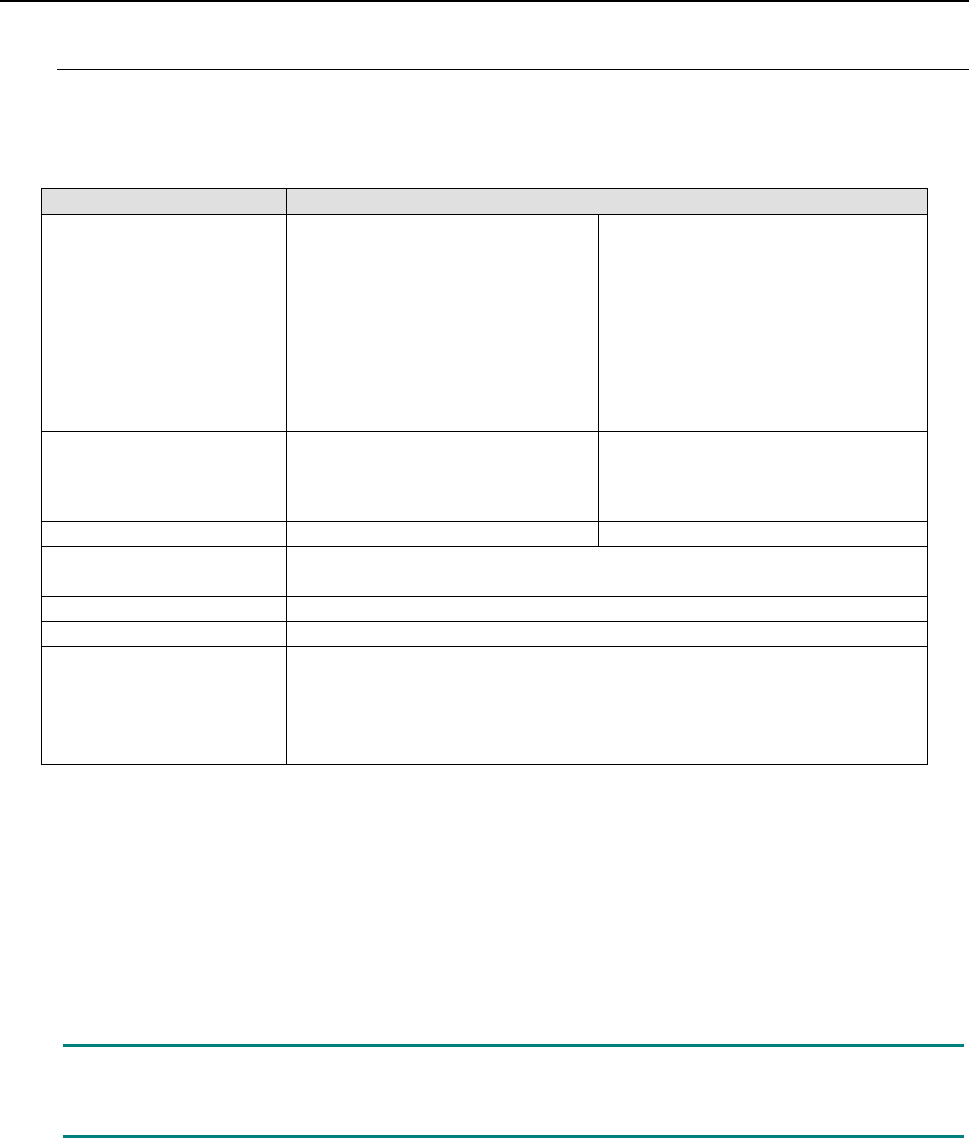
For using Flexline CAD, the following hardware devices and software are required.
Table 3.1-1 Operating environment
Recommended
Operating system
Microsoft Windows 95/98/NT *2
Microsoft Windows ME *5
Microsoft Windows 2000
Professional Service Pack 4 *5
Microsoft Windows XP Professional
Service Pack 2 or higher
Microsoft Windows Vista Business
Service Pack 1 or higher
Microsoft Windows 7 Professional
(32-bit version) *1
Microsoft Windows 7 Professional
(64-bit version)
Microsoft Windows 10 Pro (32-bit
version) *4
Microsoft Windows 10 Pro (64-bit
version) *4
Processor
Intel Pentium processor 3.2 GHz or
higher *1
(Intel Pentium Processor 1.3 GHz or
higher *2)
Intel Core2 Duo 2.40 GHz or higher
RAM
(256 MB or more *2)1 GB or more*1
(4 GB or more *3) 2 GB or more
Available hard-disk space
1 GB or more *1
(200 MB or more *2)
CD drive
Required
Display
Resolution of 1024 x 768 or more
Interface
Mouse
Keyboard
D-sub 25pin parallel port (conforming to Centronics) (*When using a parallel
type protect module)
USB 1/1/2.0/3.0 (*When using a USB type protect module)
* Intel, Pentium and Core2 Duo are trademarks of Intel Corporation in the U.S.A. and other countries.
* Microsoft, Windows 7, Windows Vista, Windows XP, Windows 2000, Windows ME, Windows NT, Windows 98 and
Windows 95 are trademarks of Microsoft Corporation in the U.S.A. and other countries.
*1 Enabled with the Version 6.00 or later only. (Some functions may be enabled with the latest version only.)
*2 Enabled with the Version 5.10 or earlier.
*3 When Microsoft Windows 7 Professional (64-bit version) or Microsoft Windows 10 Pro (64-bit version) is used
*4 Enabled with the Version 16.00 or later only. (Some functions may be enabled with the latest version only.)
*5 Enabled with the Version 15.00 or
earlier.
Note: If multiple applications are simultaneously started when using Flexline CAD,
operations may not be performed normally. Close applications other than Flexline CAD
in advance.
8
3.2 Deleting (uninstalling) old version Flexline CAD
In case older Flexline CAD than Flexline CAD version 6.0 is installed on your PC, delete
(uninstall) the old version Flexline CAD according to the following procedure:
1. Select the "Add and delete program" command from the "Control panel" menu.
2. On the "Add and delete programs" screen, select "Flexline CAD" and click the "Delete"
button.
3. A message to confirm the deletion of Flexline CAD is displayed. Then, click the "Yes"
button.
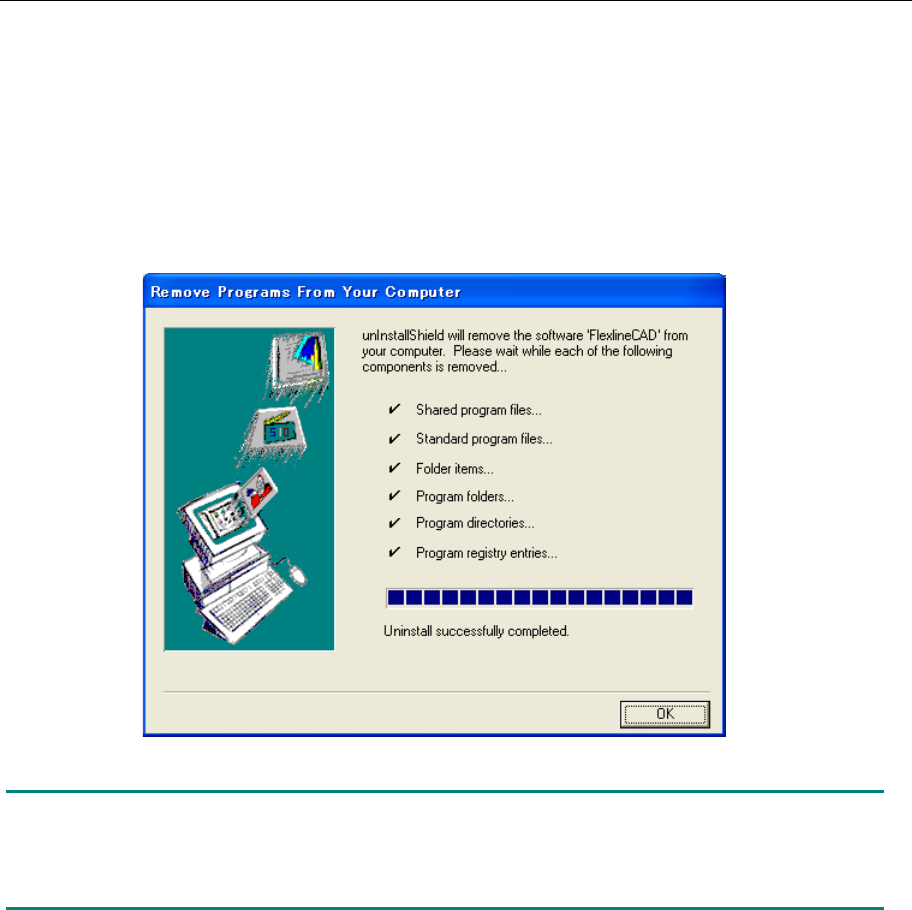
4. The progress of deletion is displayed. After completing deletion, click the "OK" button.
Figure 3.2-1 Completion of Flexline CAD deletion
Note: The created user-defined format is not deleted but remains in the Formats folder of
Flexline CAD install folder. Install the new Flexline CAD in the same folder as the old version
Flexline CAD or install the new Flexline CAD in another folder, and then add the user-defined
format.
9
3.3 Installing Flexline CAD
Install Flexline CAD according to the following procedure:
Before installation, quit all applications that are running.
To install Flexline CAD, the administrator privilege is required (you have to log in the system
with the user name having the user privilege, and only alphanumeric characters can be used as a
user name).
(If you create a new user name to which the administrator privilege is given, be sure to create it
with alphanumeric characters only.)
Check to see if there is no 2-byte character in the environment variable TEMP. (You can check
the environment variable by selecting the [System Properties] command, and then the [Advanced
settings] command.)
Before installing Flexline CAD, remove the Sentinel Super Pro USB key.
3.4 Installing Flexline CAD
*1
Install Flexline CAD according to the following procedure:
1. Insert the Flexline CAD install CD into the CD drive.
2. Open the "Flexline CAD" folder in the CD drive and execute "setup.exe" to start the
Flexline CAD installer.
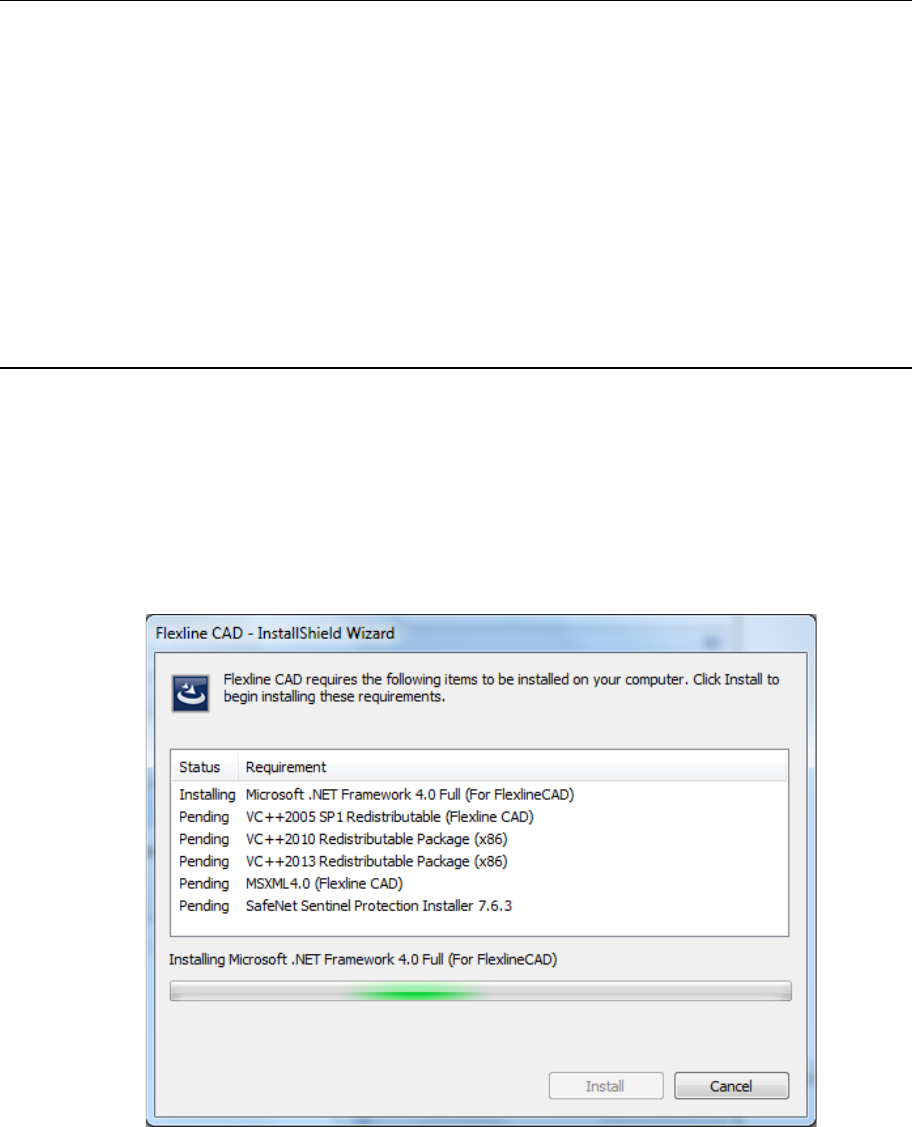
3. The following dialog box appears if your PC does not have installed the requirements.
Click the [OK] button to begin the installation. See the next page and following pages
for details.
Fig. 3.4-1 Requirements to be installed
*1 The screen displayed with the Version 5.10 or earlier is different from that with the Version
6.00 or later.