FLEXLINE-CAD_INM.pdf - 第80页
75 8.4 Component data scree n Figure 8. 4 - 1 Component dat a 8.4.1 Deleting component data Figur e 8.4.1 - 1 Deleting com ponent dat a NOTE : W hen the linked placem ent dat a is not deleted even if the component recor …
74
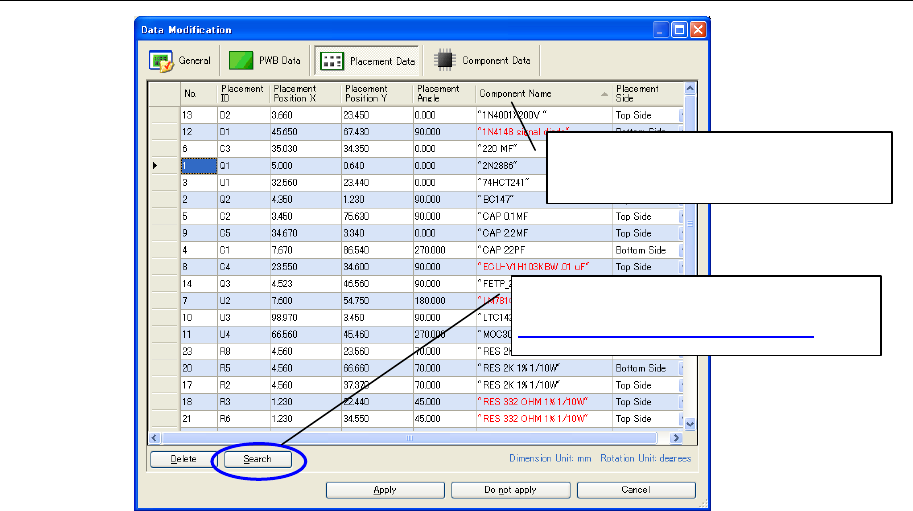
8.3.2 Sorting placement data
Figure 8.3.2-1 Sorting placement data
Click the column header to start sorting.
*
To make a display in the original order,
use the "No." column for sorting.
Searching placement data: For searching,
perform the same operations as those for
"8.2.5.2 Searching the circuit layout."
75
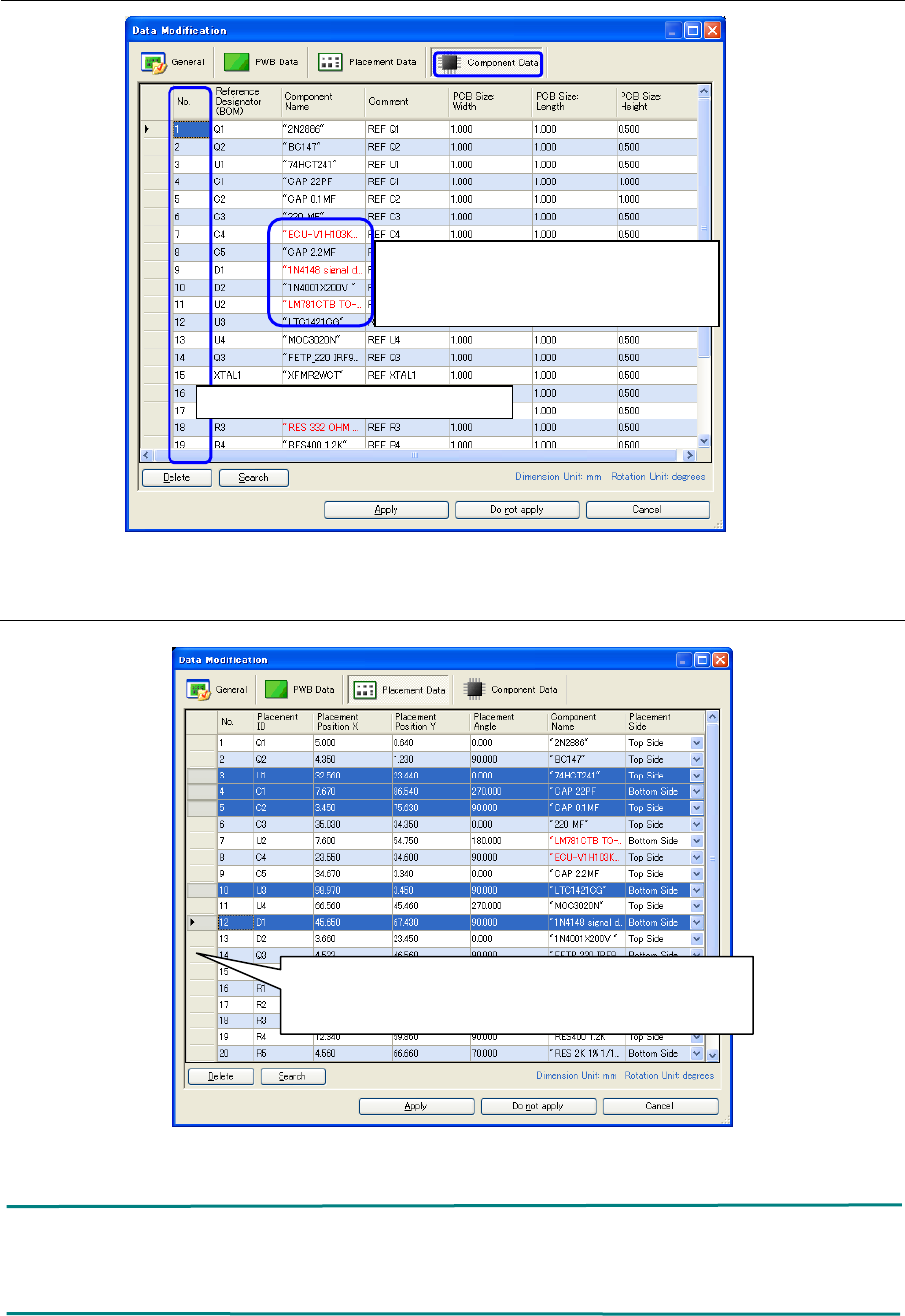
8.4 Component data screen
Figure 8.4-1 Component data
8.4.1 Deleting component data
Figure 8.4.1-1 Deleting component data
NOTE:
When the linked placement data is not deleted even if the component record is deleted, the
component data name is output to the output file but its contents are a null character string.
Click on the line header pressing the Ctrl key or Shift key
to select multiple lines.
Then, click the "Delete" button.
The "No. column" cannot be edited.
When the component name exceeds
the upper limit of the output format, this
name is displayed in red.
76
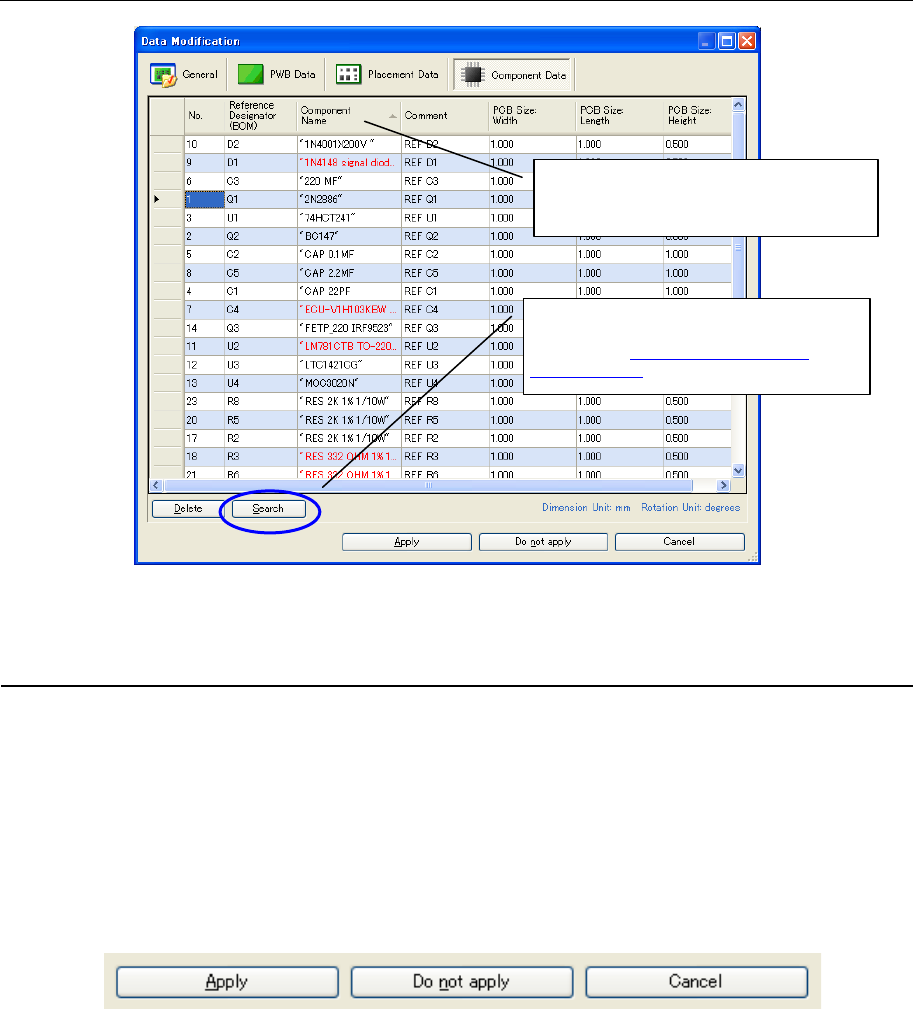
8.4.2 Sorting component data
Figure 8.4.2-1 Sorting placement data
8.5 Finishing the data modification dialog box
From each screen of General, PWB data, component data, or placement data, click one of the
"Apply", "Do not apply", and "Cancel" buttons.
When the "Apply" button is clicked, the modified contents are incorporated and transformation is
performed continuously.
When the "Do not apply" button is clicked, the modified contents are not incorporated and
transformation is performed continuously.
Figure 8.5-1 Data modification dialog box finishing buttons
Click the column header to start sorting.
*To make a display in the original order,
use the "No." column for sorting.
Searching component data: For
searching, perform the same operations
as those for "8.2.5.2 Searching the
circuit layout."