FLEXLINE-CAD_INM.pdf - 第39页
34 6.3 Converti ng CA D data Execute either one of the following operations of (1) and (2). (1) Select the " Conv ert" - "S tart conv ersion" Figure 6. 3 - 1 "Convert " - "S t art conv …
33
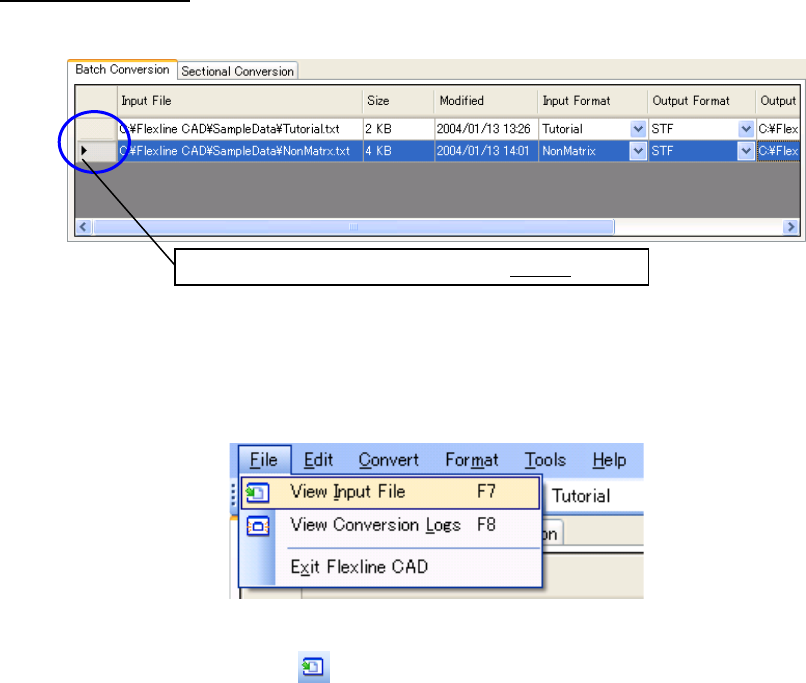
Displaying Input File
Select the line header of the line to be displayed. The selected line color is reversed.
Figure 6.2-7 Selecting a file
After specifying the line to be displayed, execute one of the following operations of (1) and (2).
(1) Select the "File" - "View Input File" menu.
Figure 6.2-8 “File”- “View Input File” menu
(2) Click "View Input File" ( ) of the tool bar.
The selected file is displayed by the application related to the file extension.
Select the line to be displayed with this header.
34
6.3 Converting CAD data
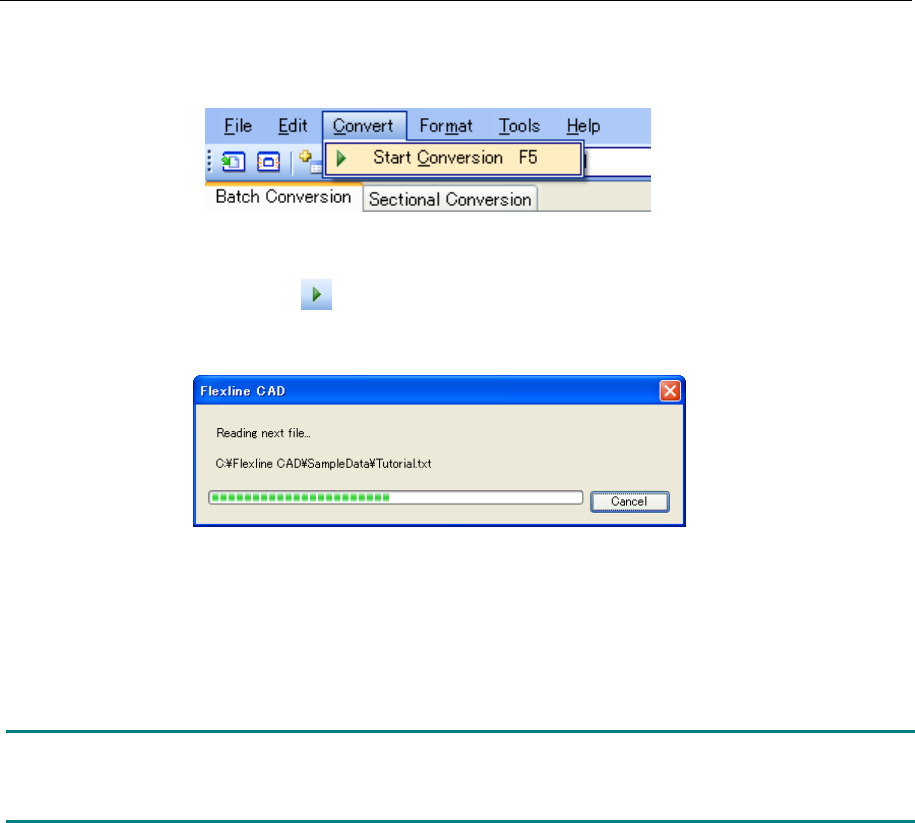
Execute either one of the following operations of (1) and (2).
(1) Select the "Convert" - "Start conversion"
Figure 6.3-1 "Convert" - "Start conversion" menu
(2) Click "Start conversion" ( ) of the tool bar.
Conversion is started and a dialog box to indicate the progress of conversion is displayed.
Figure 6.3-2 Progress status dialog box
The converted file is saved into the path specified in "Output file" of the file table. (The output
file saving destination and the output file name can also be changed. However, its explanation
is omitted.)
Note: If the decimal-place digits of the numeric value set in CAD data are different from the
corresponding unit of the output format, conversion is performed according to the unit of
numeric value of the corresponding model of the output format.
35
6.4 Viewing Conversion Logs *1
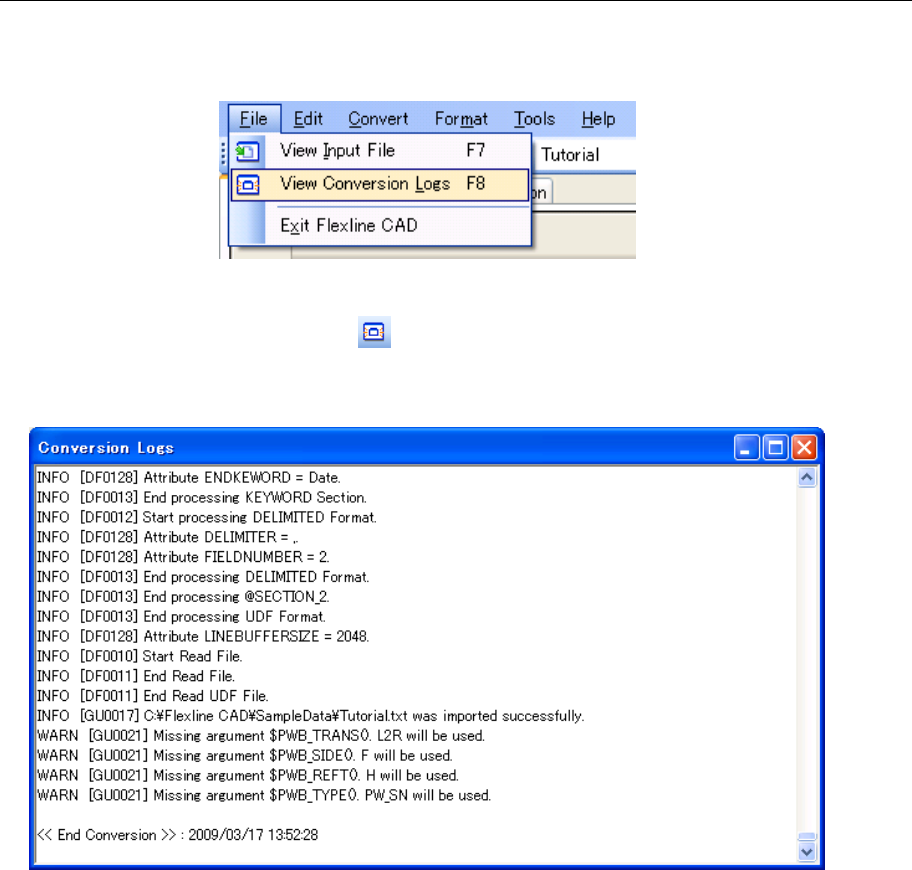
Execute one of the following operations of (1) and (2).
(1) Select the "File" - "View Conversion Logs" menu.
Figure 6.4-1 “File”- “View Conversion Logs” menu
(2) Click the "View Conversion Logs" ( ) of the tool bar.
The last line of the conversion logs is displayed on the “Conversion Logs” screen.
Figure 6.4-2 “Conversion Logs” screen
While viewing the “Conversion Logs” screen, you can operate the Flexline CAD.
If you convert data while viewing the “Conversion Logs” screen, the conversion logs are updated
automatically and the last line of the conversion logs is displayed.
*1. The screen displayed with the Version 5.10 or earlier is different from that with the Version 6.00
or later.