FLEXLINE-CAD_INM.pdf - 第87页
82 9.2 Display setti ng screen *1 Set the items to be displayed on t he Flexline C AD screen. *1 The screen displayed with t he V ersion 5.10 or earlier is different from that with the V ersion 6.00 or later . 9.2.1 Gene…
81
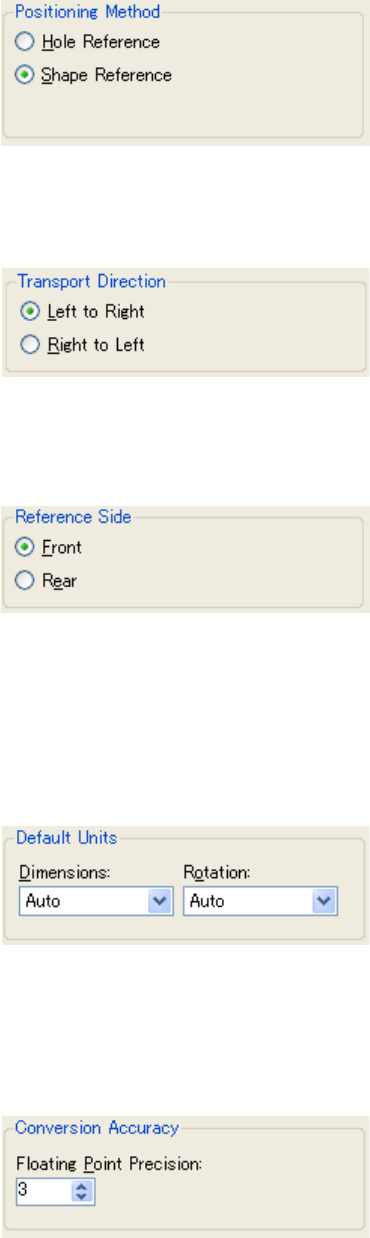
Positioning Method
The default positioning method for the output production program is set.
Figure 9.1.3-4 Positioning Method
Transport Direction
The default transport direction for the output production program is set.
Figure 9.1.3-5 Transport Direction
Reference Side
The default reference side for the output production program is set.
Figure 9.1.3-6 Reference Side
Default Units
The default units of the size and the rotation for the output production program are set.
When the format is newly created with the user definition wizard, the unit specified here is
displayed for the unit of reduced scale of the PWB and the placement. Moreover, the unit
specified here is selected for the unit of displaying the data change dialog box.
Figure 9.1.3-7 Default Units
Conversion Accuracy
The number of decimal point effective digits of the output production programs is set. The
number of decimal point effective digits specified here is displayed for the data displayed in
the data change dialog box.
Figure 9.1.3-8 Conversion Accuracy
82
9.2 Display setting screen *1
Set the items to be displayed on the Flexline CAD screen.
*1 The screen displayed with the Version 5.10 or earlier is different from that with the Version
6.00 or later.
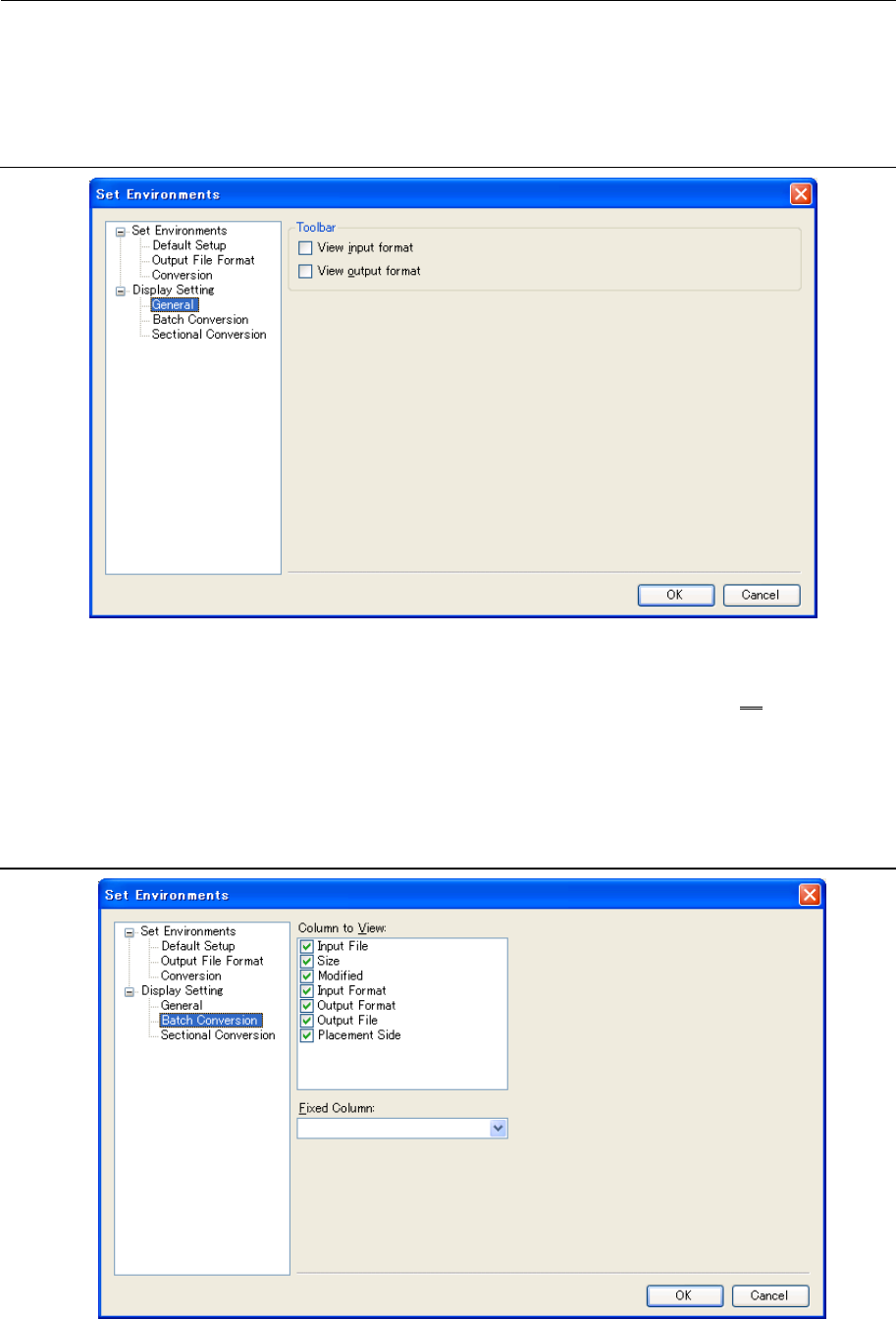
9.2.1 General Display Setting screen
Figure 9.2.1-1 “Display Setting”-“General”
Toolbar
Specify whether to display the “View Input Format” and “View Output Format” as on a toolbar,
which displays the list for selecting a format.
The list displayed on the toolbar is the same as the one used when specifying the "Default
Format" in Section 9.1.1 "Default Format/Folder setting screen".
9.2.2 Batch Conversion file table display setting screen
Figure 9.2.2-1 "Display Setting" - "Batch Conversion"
83
Column to View
The columns checked in the list are displayed and non-checked columns are not displayed.
The "Input file" column must always be displayed. For this reason, the check mark is not
removed by clicking.
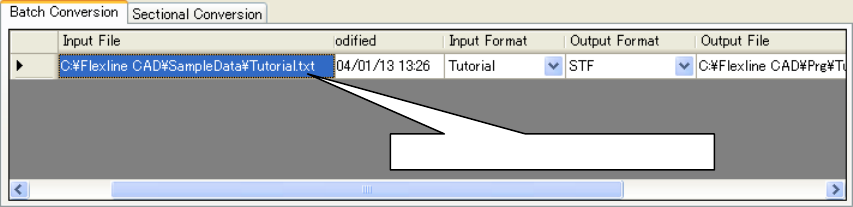
Fixed Column
On the batch conversion file table, a horizontal cross bar is displayed. Set the column that is
fixed by horizontal scrolling. At the default, no fixed column is set. Accordingly, all the columns
are scrolled by horizontal scrolling.
Figure 9.2.2-2 Batch Conversion file table (when the "Input column" is a fixed column)
The "Input file" column is not scrolled.