FLEXLINE-CAD_INM.pdf - 第75页
70 8.2.4 Dimension Setup s creen (Non - matrix Circuit) W hen the "Do not use" is selected in the "BO C type" in the basic sett ings, the BOC mark position is not displayed. W hen the format support s…
69
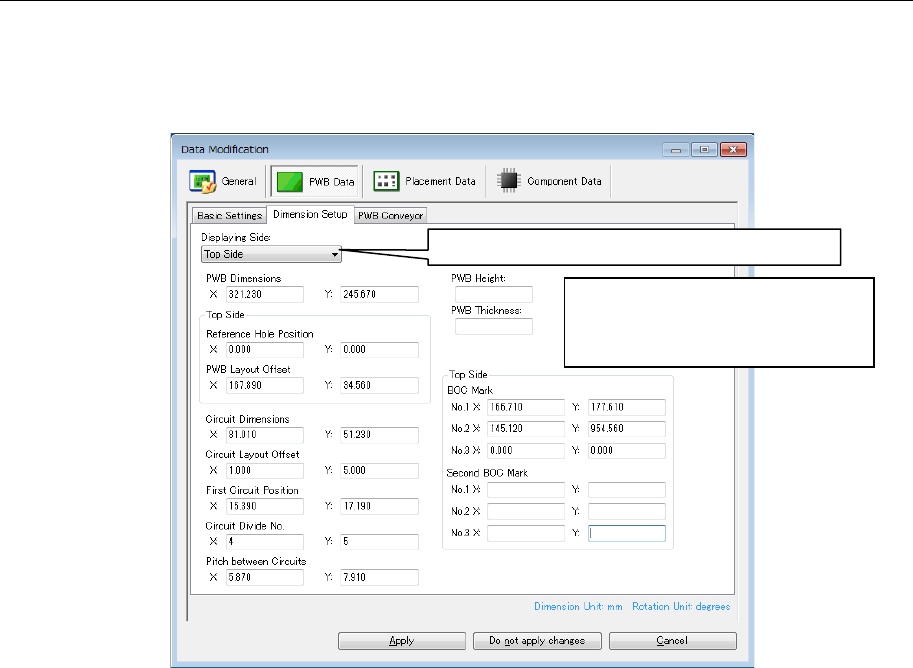
8.2.3 Dimension Setup screen (Matrix Circuit)
When the "Do not use" is selected in the "BOC type" in the basic settings, the BOC mark
position is not displayed. When the format supports the second BOC mark, the BOC mark
position and the second BOC mark position are displayed.When the "Do not use" is selected
in the "Bad Mark Type" in the basic settings, the bad mark position is not displayed.
Figure 8.2.3-1 Dimension Setup of PWB data (Matrix Circuit)
The PWB top/bottom side display is switched.
When the number of circuits
exceeds the upper limit on the
output format, the number of circuit
divisions is displayed in red.
70
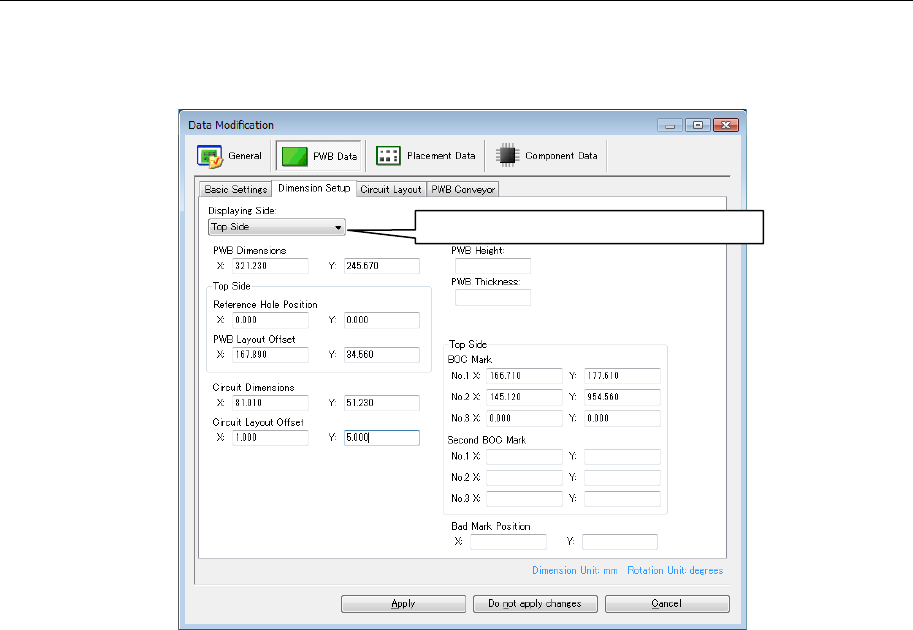
8.2.4 Dimension Setup screen (Non-matrix Circuit)
When the "Do not use" is selected in the "BOC type" in the basic settings, the BOC mark
position is not displayed. When the format supports the second BOC mark, the BOC mark
position and the second BOC mark position are displayed. When the "Do not use" is selected
in the "Bad Mark Type" in the basic settings, the bad mark position is not displayed.
Figure 8.2.4-1 Dimension Setup of PWB data (Non-matrix Circuit)
The PWB top/bottom side display is switched.
71
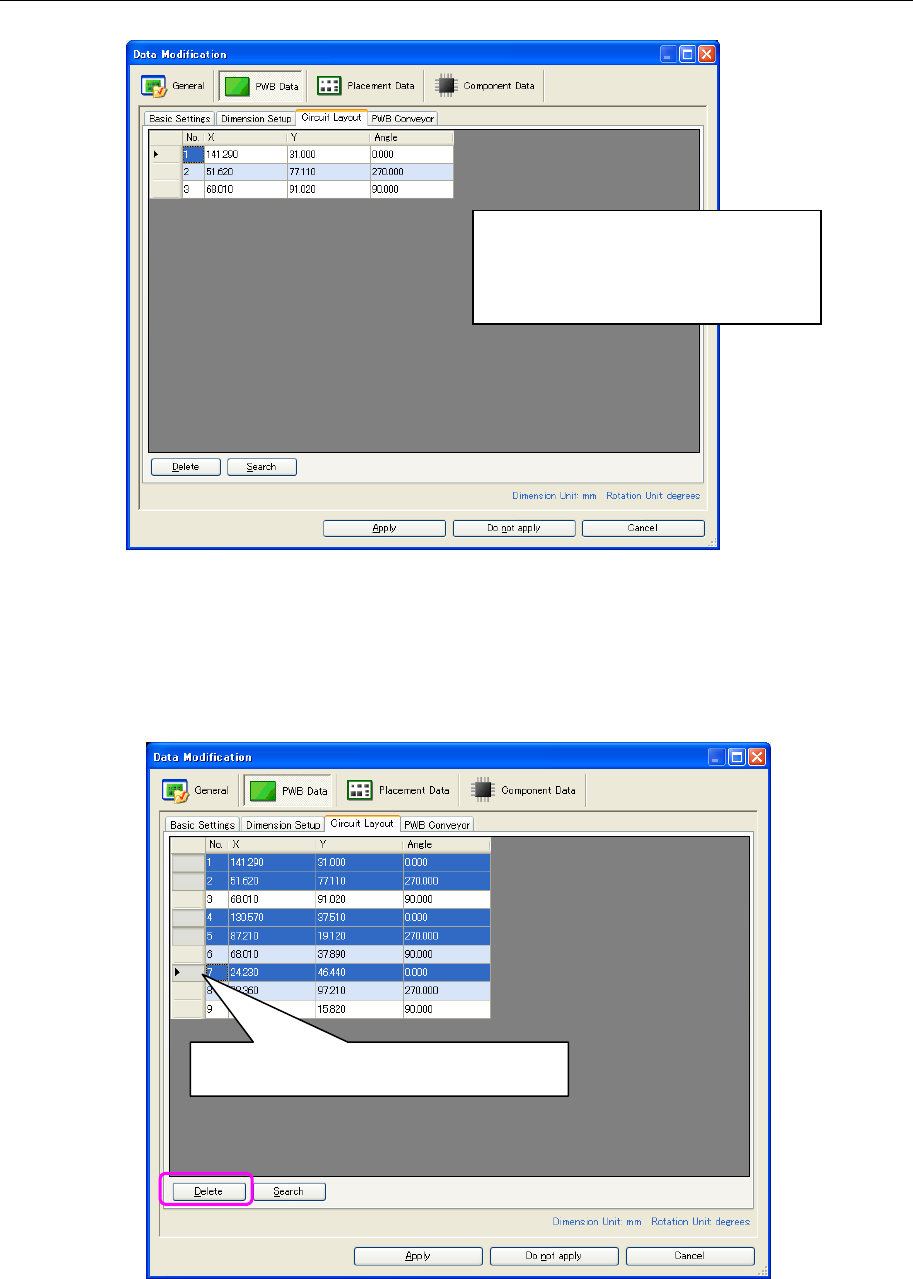
8.2.5 Circuit Layout screen (Non-matrix Circuit)
When the "Non-matrix Circuit" is selected, the "Circuit Layout" tab is displayed for selection.
Figure 8.2.5-1 Circuit Layout of PWB data
8.2.5.1. Deleting the "Circuit Layout"
Click the line header of the circuit layout table and select the data line (record) to be deleted.
Then, click the [Delete] button.
Figure 8.2.5.1-1 Deleting the "Circuit Layout"
When the number of circuits exceeds
the upper limit on the output format, the
circuit position and angle are displayed
in red.
* The "No." column cannot be edited.
To select multiple lines, click the line header
while pressing the Ctrl key or Shift key.