FLEXLINE-CAD_INM.pdf - 第28页
23 Chapter 4 Trying to St art Flexline CAD 4.1 St ar ting Flex line CAD The following two methods are available: • T urn on the power supply of the personal computer . Then, W indows is booted up. (1) Double - click the …

22
3.6 Deleting (uninstalling) Flexline CAD
Delete Flexline CAD according to the following procedure:
1. S
elect the "Add and delete programs" command from "Control panel menu”.
2. From the "Add and delete programs" screen, select the "Flexline CAD" icon and click t
he
"Delete" button.
3. A message to confirm the deletion of Flexline CAD is displayed. Then, click the "Yes
"
but
ton.
4. The progress of deletion is displayed. Flexline CAD is deleted.
3.7 Deleting (uninstalling) the driver for the protect module
Even if the Flexline CAD has been deleted (uninstalled), the driver for the protect module is not
deleted (uninstalled).
To update Flexline CAD into a new version, it is not necessary to delete the driver for the protect
module. However, when deleting the driver for the protect module, execute the following
procedures:
1. Select the "Add and delete programs" command of the "Control panel” menu.
2. From the "Add and delete programs" screen, select "Sentinel Protection Installer" ic
on and
c
lick the button.
3. A message to confirm the deletion of the driver is displayed. Then, click the "Yes" button.
4. The progress of deletion is displayed. The driver for protect module is deleted.
3.8 Troubleshooting
3.8.1 Flexline CAD does not start up when the protect module is connected to
the PC.
If the message “E4401200 The Flexline CAD protect module is not connected to the local PC.
Flexline CAD will exit.” appears on the screen although the protect module is connected to the
PC, and Flexline CAD does not start up, follow the procedure described below.
1. Disconnect the protect module from the PC.
2. Select “Add or Remove Programs” on the “Control Panel.”
3. Select “Sentinel Protection Installer” on the “Add/Remove Programs” screen, and then
click the “Delete” button.
4. Select “Device Manger” on the “Control Panel.”
5. Select “SafeNet USB SuperPro/UltraPro” from the “Universal Serial Bus controllers”
displayed on the “Device Manger” screen, and then click the “Delete” button.
6. Put a check mark to the “Delete the driver software for this device” option on the “Confirm
Device Removal” screen, and then click the “OK” button.
7. Open the “Downloaded Installations” folder of the “My Documents” folder with the
Explorer, and then search for a file with the “Sentinel Protection Installer.”
8. Delete a file(s) whose extension is “.msi” of the searched files.
9. Execute “setup.exe” of the “FlexlineCAD,” and then install the driver of the protect module
again.
10. Restart the Operating System (OS).
23
Chapter 4 Trying to Start Flexline CAD
4.1 Starting Flexline CAD
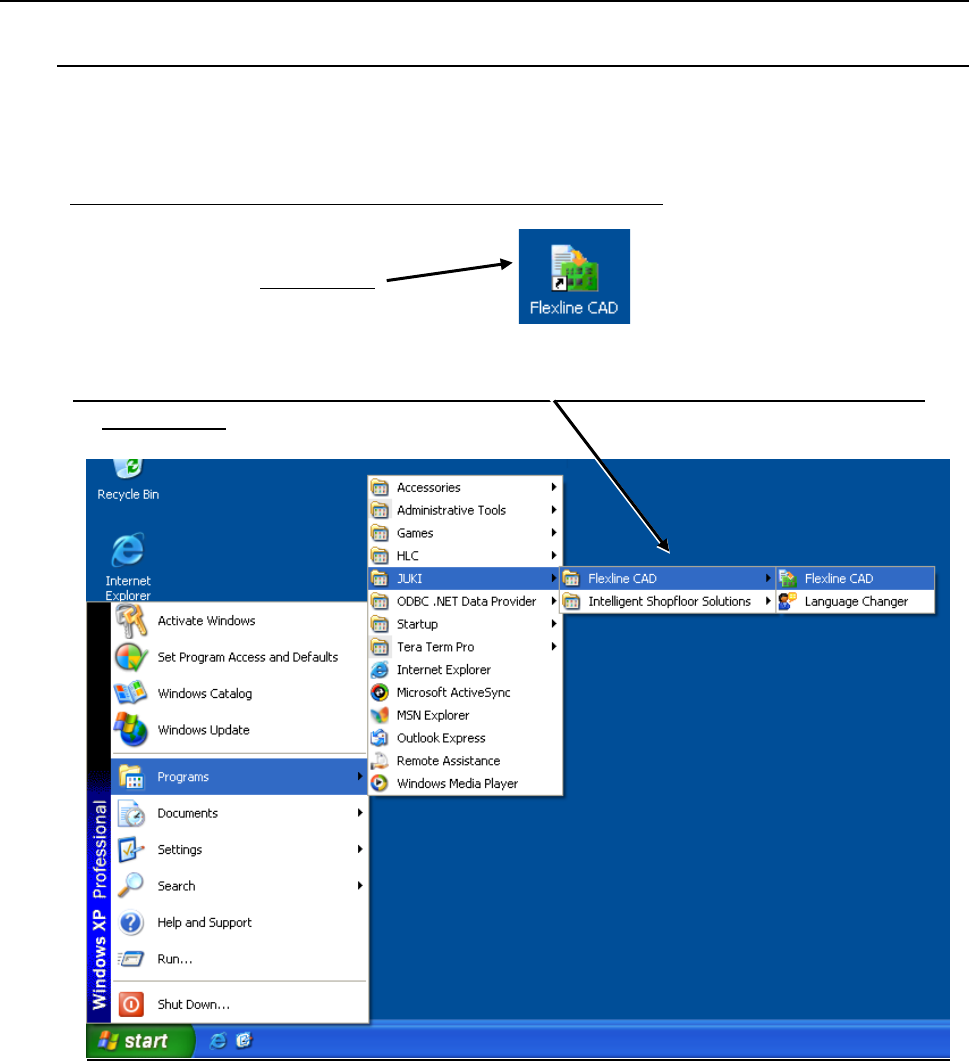
The following two methods are available:
• Turn on the power supply of the personal computer. Then, Windows is booted up.
(1) Double-click the Flexline CAD icon provided on the desktop.
Double-click
Figure 4.1-1 Desktop icon of Flexline CAD
(2) From the ”Start" menu, select the "Programs" - "JUKI" - "Flexline CAD" - "Flexline CAD"
command. *1
Figure 4.1-2
*1 Enabled with the Version 6.00 or later only. (Some functions may be enabled with the latest
version only.)
24
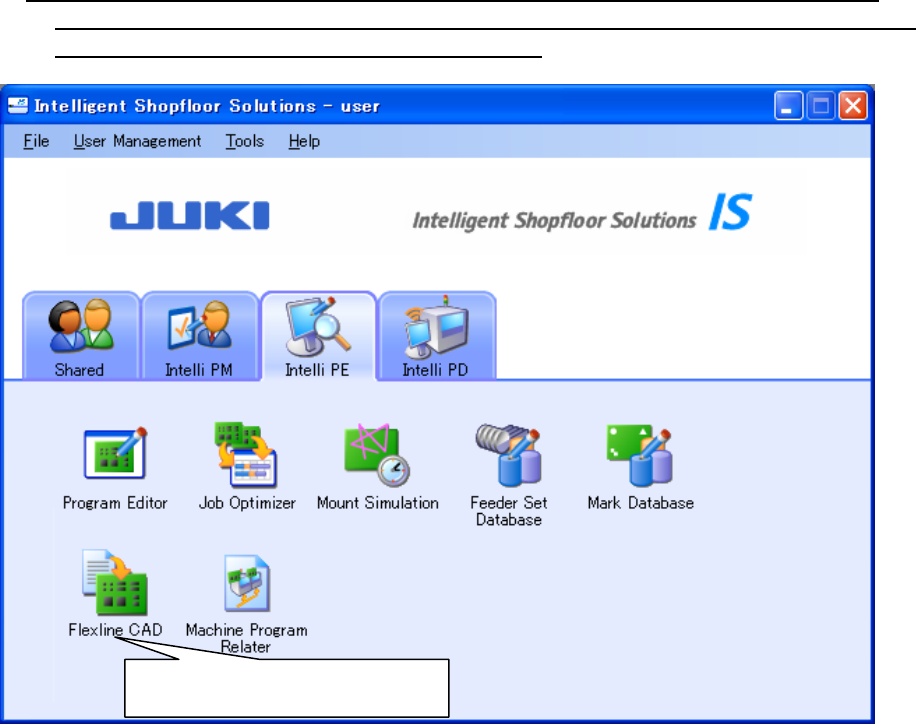
(3) When JUKI production support system or the like is installed in the PC, the icon of Flexline
CAD is displayed on the Data creation tab or the Intelli PE tab of the launcher. Double-click this
icon or press the "Enter" key in the selected status. *1
Figure 4-1-3 Starting Flexline CAD from the IS launcher
* Flexline CAD starts, and the Flexline CAD logo appears briefly. Then, the main screen
appears.
*1 Enabled with the Version 6.00 or later only. (Some functions may be enabled with the latest version
only.)
Double-click this icon or press the
"Enter" key in the selected status.