FLEXLINE-CAD_INM.pdf - 第16页
11 5. Enter or confirm the customer information, and click the [ Next] button. Fig. 3.4 - 3 Entering the c ustomer informatio n 6. Select an inst all destination of Flexli ne CAD and click the [Next] button. For changing…
10
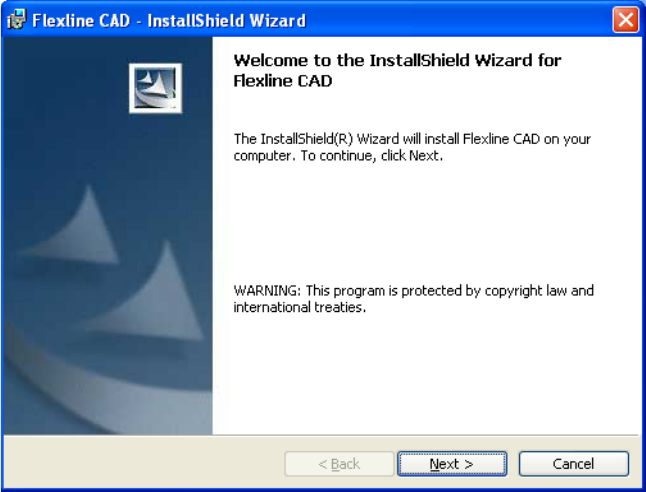
4. Click the [Next] button to continue installing Flexline CAD.
Fig. 3.4-2 Starting installation
11
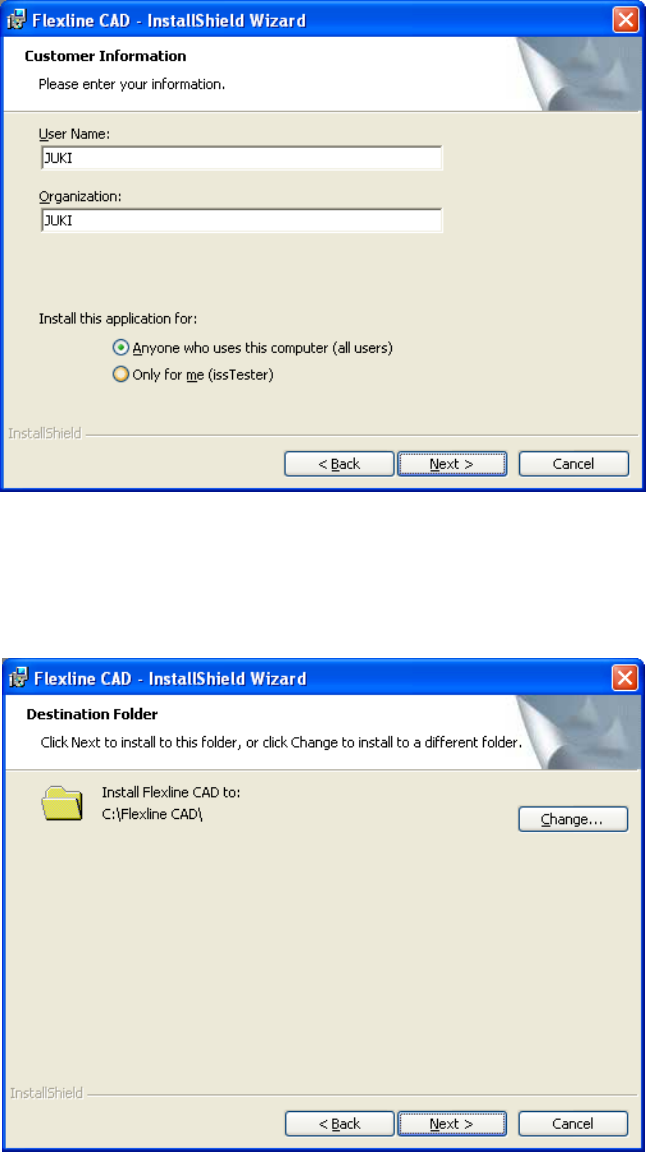
5. Enter or confirm the customer information, and click the [Next] button.
Fig. 3.4-3 Entering the customer information
6. Select an install destination of Flexline CAD and click the [Next] button. For changing
the install destination, click the [Change] button and then select another install
destination.
Figure 3.4-4 Selecting install destination
12
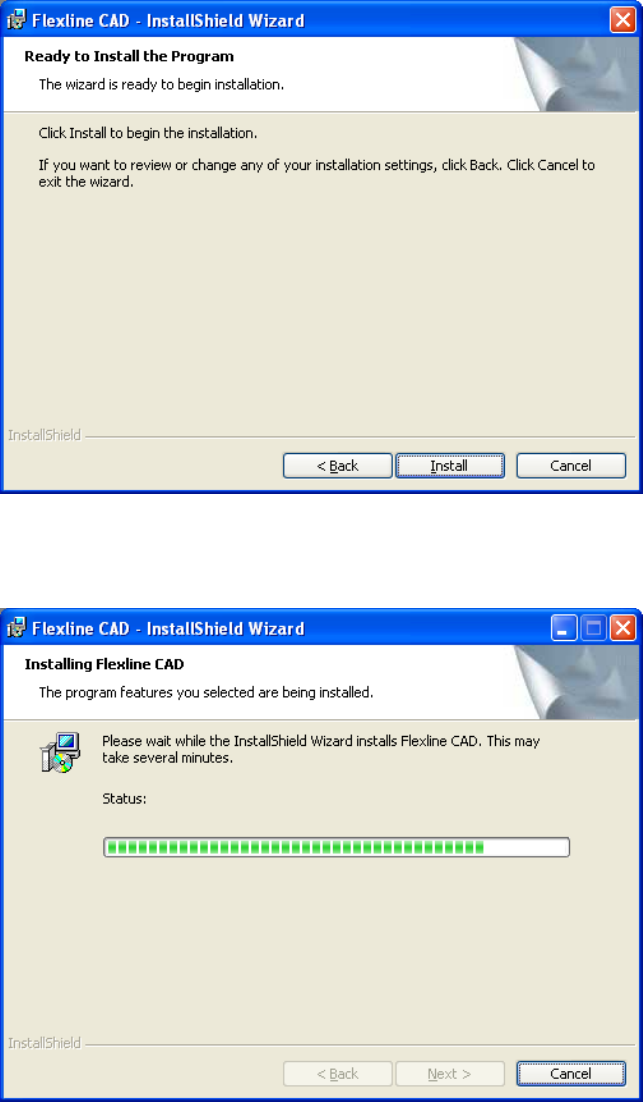
7. Click the [Install] button to start installation.
Figure 3.4-5 Checking installation
8. The progress of installation is displayed.
Figure 3.4-6 Display of the progress of installation