FLEXLINE-CAD_INM.pdf - 第12页
7 Chapter 3 Inst all 3.1 Environm ent requi red to use Fl exli ne CA D For using Flexline CAD , the following hardw are devices and softw are are required. T able 3.1 - 1 Ope rating env ironment Recommended Operating sys…
6
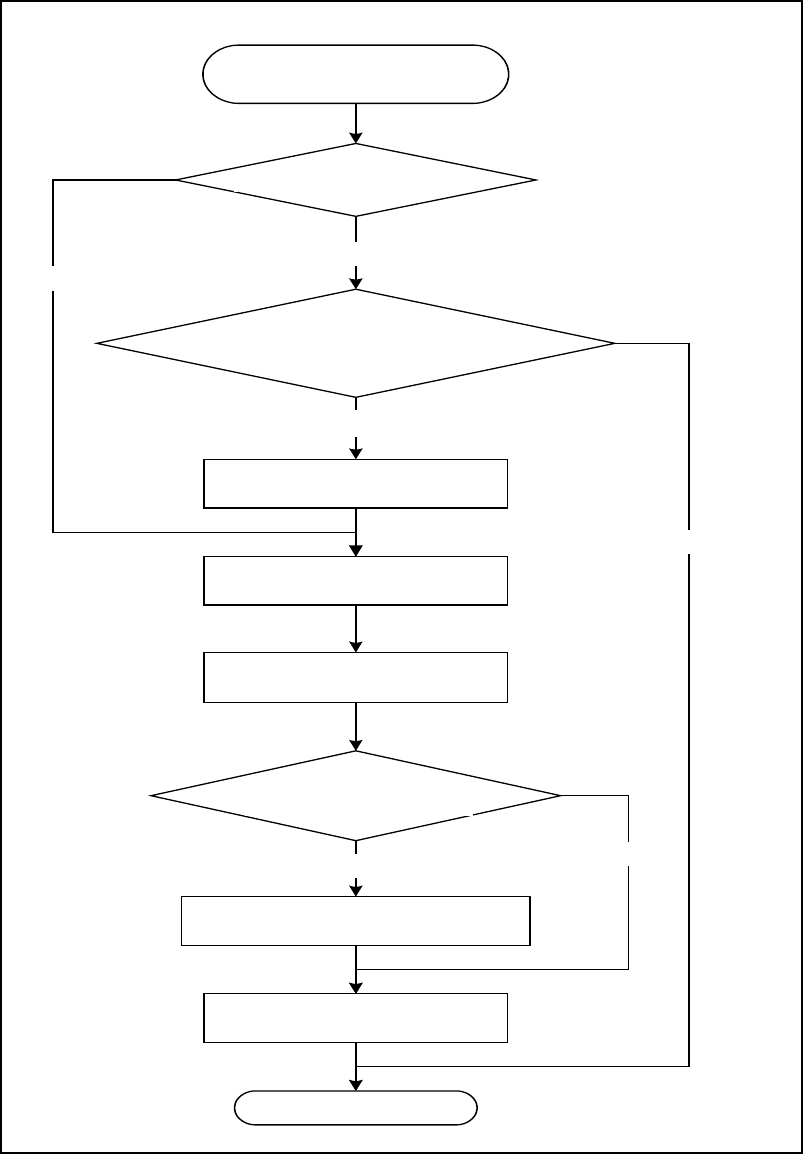
The following figure shows a conversion operation flow for using the CAD conversion
process:
入力フォーマットがあるか
CADデータの中身が
入力フォーマットを作成できる構成に
なっているか
入力フォーマットを作成する
はい
いいえ
ファイルの読み込み
データ変更ダイアログを
表示する設定である
データ変更ダイアログを表示する
はい
ない
いいえ
CADデータファイル
(基板・搭載・部品データ)
ある
終了
変換モードを選択する
ファイルを出力する
Figure 2-2 Conversion operation flowchart of Flexline CAD
End
Output a file
Display the data change dialog box
Yes
No
Read file
Select a conversion mode
No
Create an input format
Is an input format available?
CAD data file
(PWB, placement, and component data)
Are the contents of CAD data
configured to create an input format?
Is the setting intended to
display the data change
dialog box?
No
Yes
Yes
7
Chapter 3 Install
3.1 Environment required to use Flexline CAD
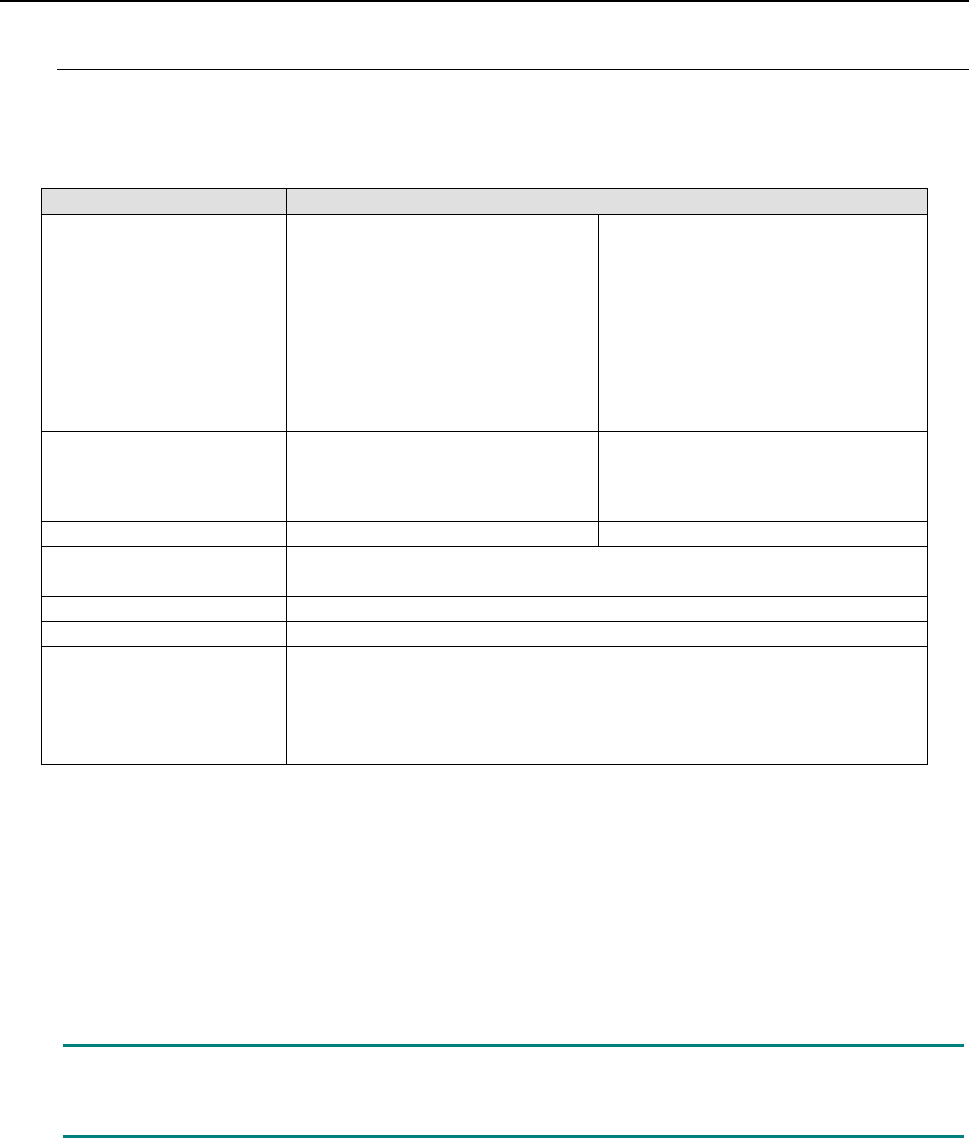
For using Flexline CAD, the following hardware devices and software are required.
Table 3.1-1 Operating environment
Recommended
Operating system
Microsoft Windows 95/98/NT *2
Microsoft Windows ME *5
Microsoft Windows 2000
Professional Service Pack 4 *5
Microsoft Windows XP Professional
Service Pack 2 or higher
Microsoft Windows Vista Business
Service Pack 1 or higher
Microsoft Windows 7 Professional
(32-bit version) *1
Microsoft Windows 7 Professional
(64-bit version)
Microsoft Windows 10 Pro (32-bit
version) *4
Microsoft Windows 10 Pro (64-bit
version) *4
Processor
Intel Pentium processor 3.2 GHz or
higher *1
(Intel Pentium Processor 1.3 GHz or
higher *2)
Intel Core2 Duo 2.40 GHz or higher
RAM
(256 MB or more *2)1 GB or more*1
(4 GB or more *3) 2 GB or more
Available hard-disk space
1 GB or more *1
(200 MB or more *2)
CD drive
Required
Display
Resolution of 1024 x 768 or more
Interface
Mouse
Keyboard
D-sub 25pin parallel port (conforming to Centronics) (*When using a parallel
type protect module)
USB 1/1/2.0/3.0 (*When using a USB type protect module)
* Intel, Pentium and Core2 Duo are trademarks of Intel Corporation in the U.S.A. and other countries.
* Microsoft, Windows 7, Windows Vista, Windows XP, Windows 2000, Windows ME, Windows NT, Windows 98 and
Windows 95 are trademarks of Microsoft Corporation in the U.S.A. and other countries.
*1 Enabled with the Version 6.00 or later only. (Some functions may be enabled with the latest version only.)
*2 Enabled with the Version 5.10 or earlier.
*3 When Microsoft Windows 7 Professional (64-bit version) or Microsoft Windows 10 Pro (64-bit version) is used
*4 Enabled with the Version 16.00 or later only. (Some functions may be enabled with the latest version only.)
*5 Enabled with the Version 15.00 or
earlier.
Note: If multiple applications are simultaneously started when using Flexline CAD,
operations may not be performed normally. Close applications other than Flexline CAD
in advance.
8
3.2 Deleting (uninstalling) old version Flexline CAD
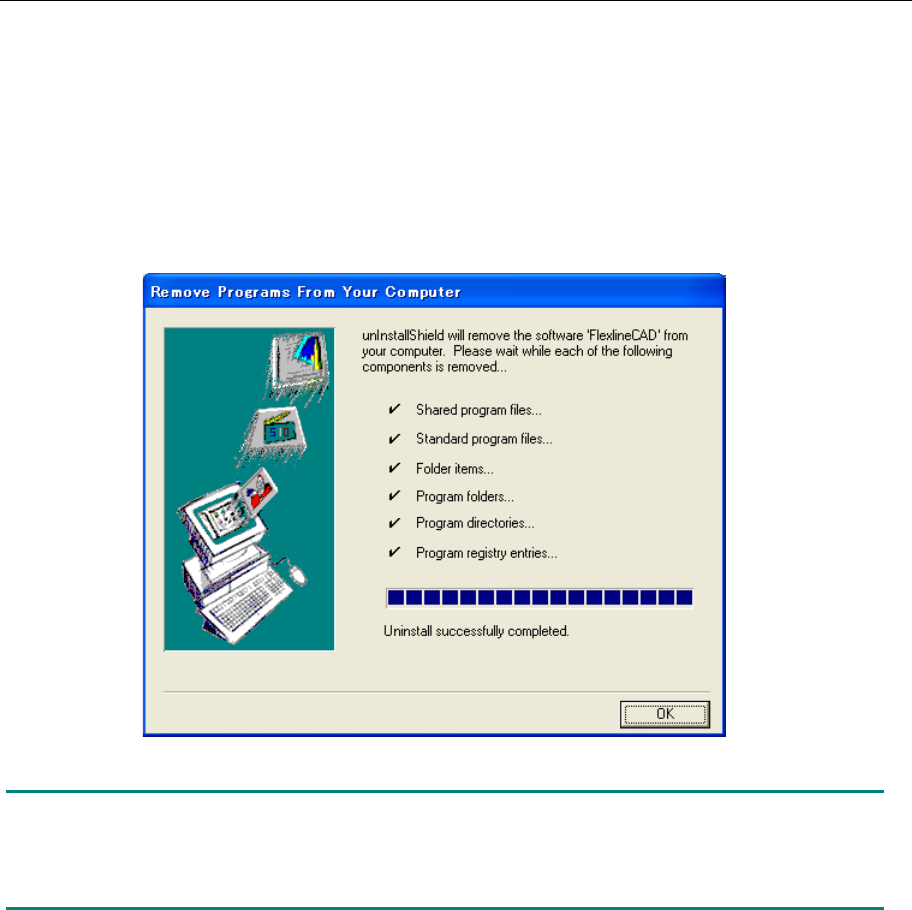
In case older Flexline CAD than Flexline CAD version 6.0 is installed on your PC, delete
(uninstall) the old version Flexline CAD according to the following procedure:
1. Select the "Add and delete program" command from the "Control panel" menu.
2. On the "Add and delete programs" screen, select "Flexline CAD" and click the "Delete"
button.
3. A message to confirm the deletion of Flexline CAD is displayed. Then, click the "Yes"
button.
4. The progress of deletion is displayed. After completing deletion, click the "OK" button.
Figure 3.2-1 Completion of Flexline CAD deletion
Note: The created user-defined format is not deleted but remains in the Formats folder of
Flexline CAD install folder. Install the new Flexline CAD in the same folder as the old version
Flexline CAD or install the new Flexline CAD in another folder, and then add the user-defined
format.