FLEXLINE-CAD_INM.pdf - 第34页
29 • Screen example where multiple files are selected: Figure 5. 2 - 3 Sectional conver sion file t able (for multipl e files) Regarding "Input file" or "Output file", dou ble - click the cell or text…
28
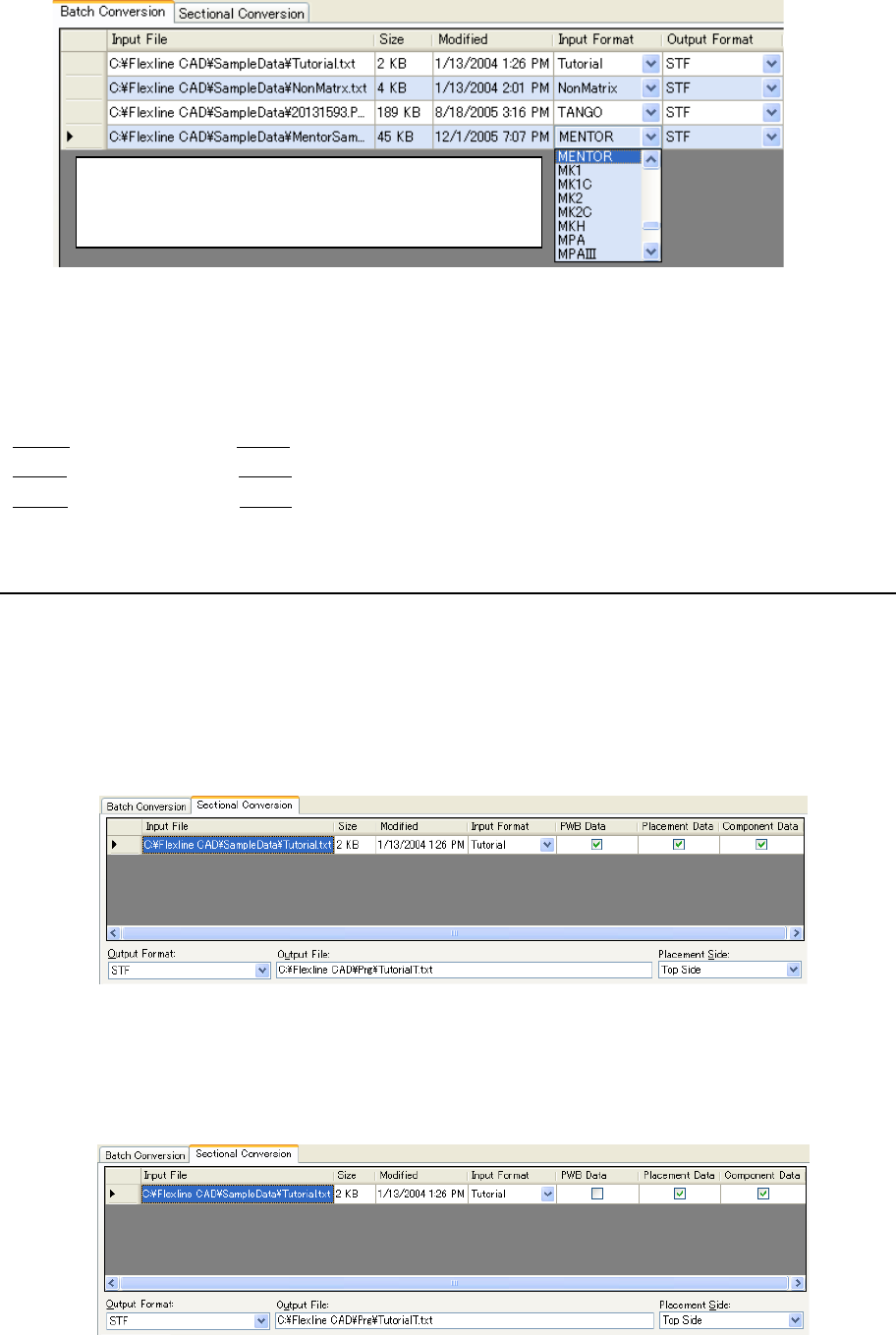
Figure 5.1-3 Setting change from the list
In the batch conversion mode, multiple files are converted collectively (individual setting can be
performed) according to its literal sense.
For example, conversion is performed as follows:
File A → Converted into File X
File B → Converted into File Y
File C → Converted into File Z
5.2 Sectional conversion mode
Select the "Sectional conversion" tab on the main screen. When PWB data, placement data,
and component data are distributed to multiple files, it is possible to create a single output file
through combination of each data.
It is also possible to convert only a part of PWB data, placement data, and component data from
one CAD data.
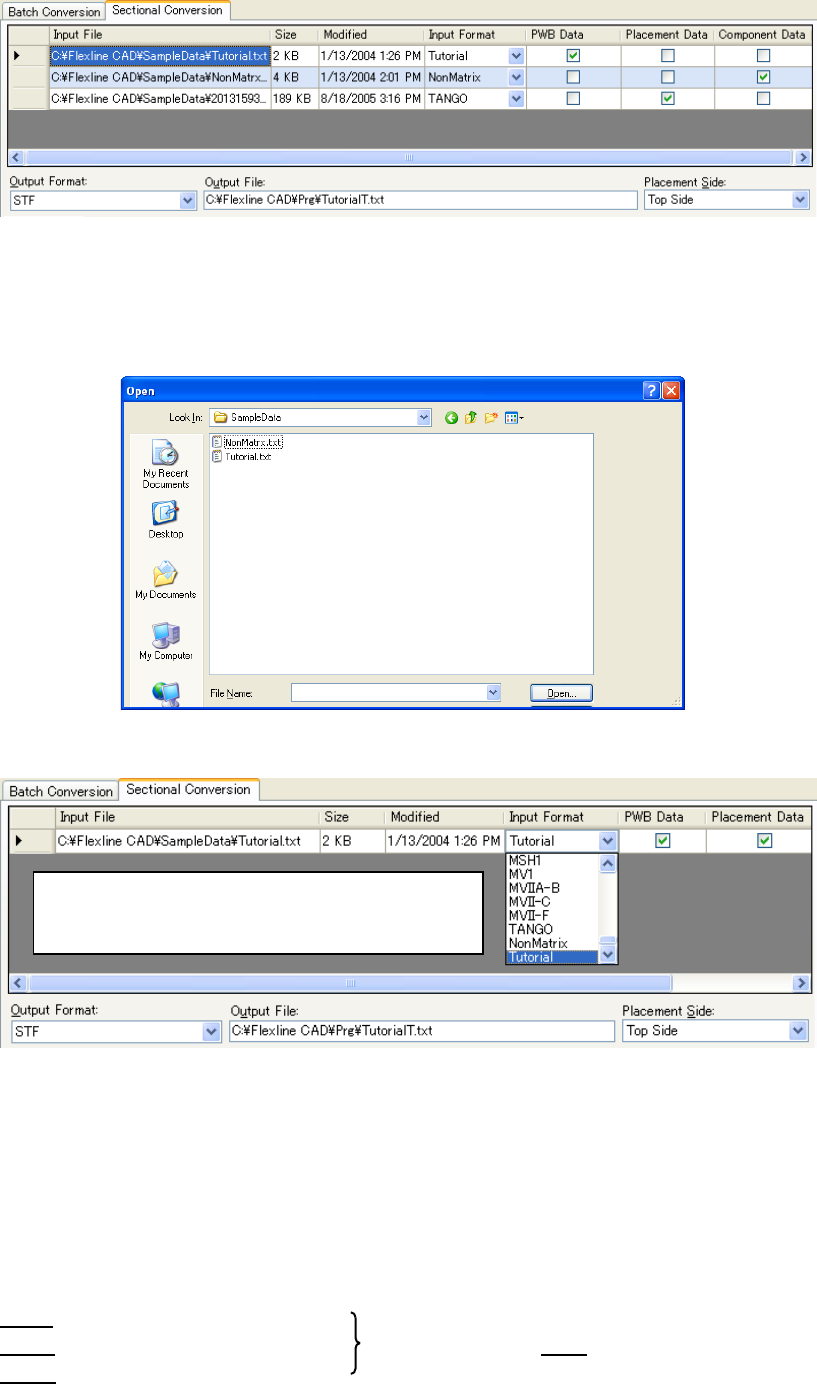
• Screen example where one file is selected:
Figure 5.2-1 Sectional conversion file table (for one file)
• Changing only a part from a single file:
In this example, placement and component data are converted but PWB data is not
converted.
Figure 5.2-2 Sectional conversion table
(only placement data and component data are selected)
Regarding "Input format", "Output format", and
"Placement side", click the cell to display a list and
then change values.
29
• Screen example where multiple files are selected:
Figure 5.2-3 Sectional conversion file table (for multiple files)
Regarding "Input file" or "Output file", double-click the cell or text box or select the cell or text
box and then press the "Enter" key. Then, the following dialog box is displayed to change the
file.
Figure 5.2-4 "Open file" dialog box
F
Figure 5.2-5 Setting change from the list
For "PWB data", "placement data", and "component data", only one can be checked off in each
column. If another cell is selected in the checked-off column, the later selected cell is checked
off.
In the sectional conversion mode, multiple partial files are converted into a single file.
Accordingly, even if multiple input files are added, they are always converted into a single file.
For example, conversion is performed as follows:
File A (file of PWB data only)
File B (file of placement data only) → Converted into file T
File C (file of component data only)
“Input format” ”Output format” “Placement side” are
appeared by clicking the cell. Then change the value
by selecting the list.

30
PART 2 OPERATION PART
Part 2 describes the basic operating procedures for Flexline CAD.
Chapter 6 Trying to perform conversion
Chapter 7 User-Defined Wizard
Chapter 8 Data modification dialog box
Chapter 9 Environment Setup
Chapter 10 Flexline CAD setting table