FLEXLINE-CAD_INM.pdf - 第56页
51 7.4.3 Field layout This defines how data is cont ained in each line. 7.4.3.4. Fixed lengt h The fixed length is used when the field length of each line i s fixed (the same item in the same row). Select the "Fixed…
50
7.4.2.2. Tag
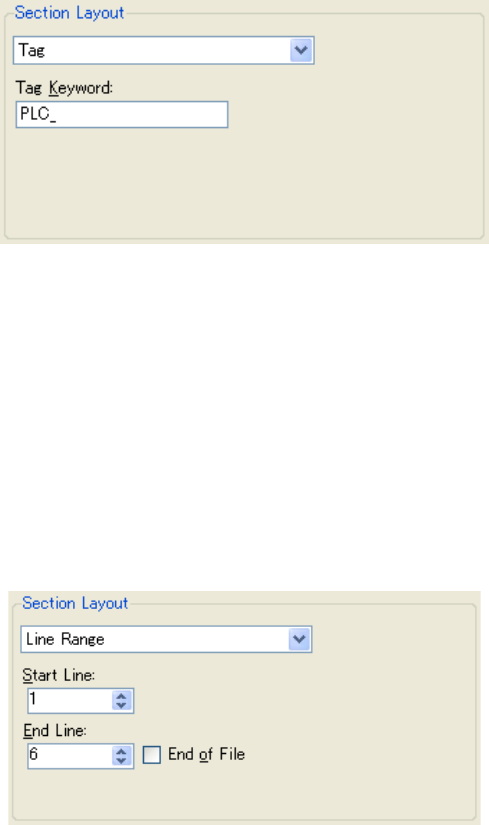
The tag is used when the same tag keyword exists in all the lines of data.
When the "Tag" is selected from the pull-down menu, the tag keyword input screen is displayed.
◊ All the lines containing the character entered by tag keyword are handled as data. The tag
keyword can be recognized regardless of its position.
Figure 7.4.2.2-1 Section Layout (Tag)
In the above example, all the lines containing the "PLC" are specified as placement data.
7.4.2.3. Line Range
This line range is used when the same keyword exists in all the lines of data.
When the "Line range" is selected from the pull-down menu, the start line/end line input screen
is displayed.
◊ The lines ranging from the "Start line" to "End line" are handled as data.
◊ When the "End of file" is checked off, the end line is automatically set.
Figure 7.4.2.3-1 Section Layout (Line Range)
In the above example, the section ranging from line 1 to line 6 is specified as PWB data.
51
7.4.3 Field layout
This defines how data is contained in each line.
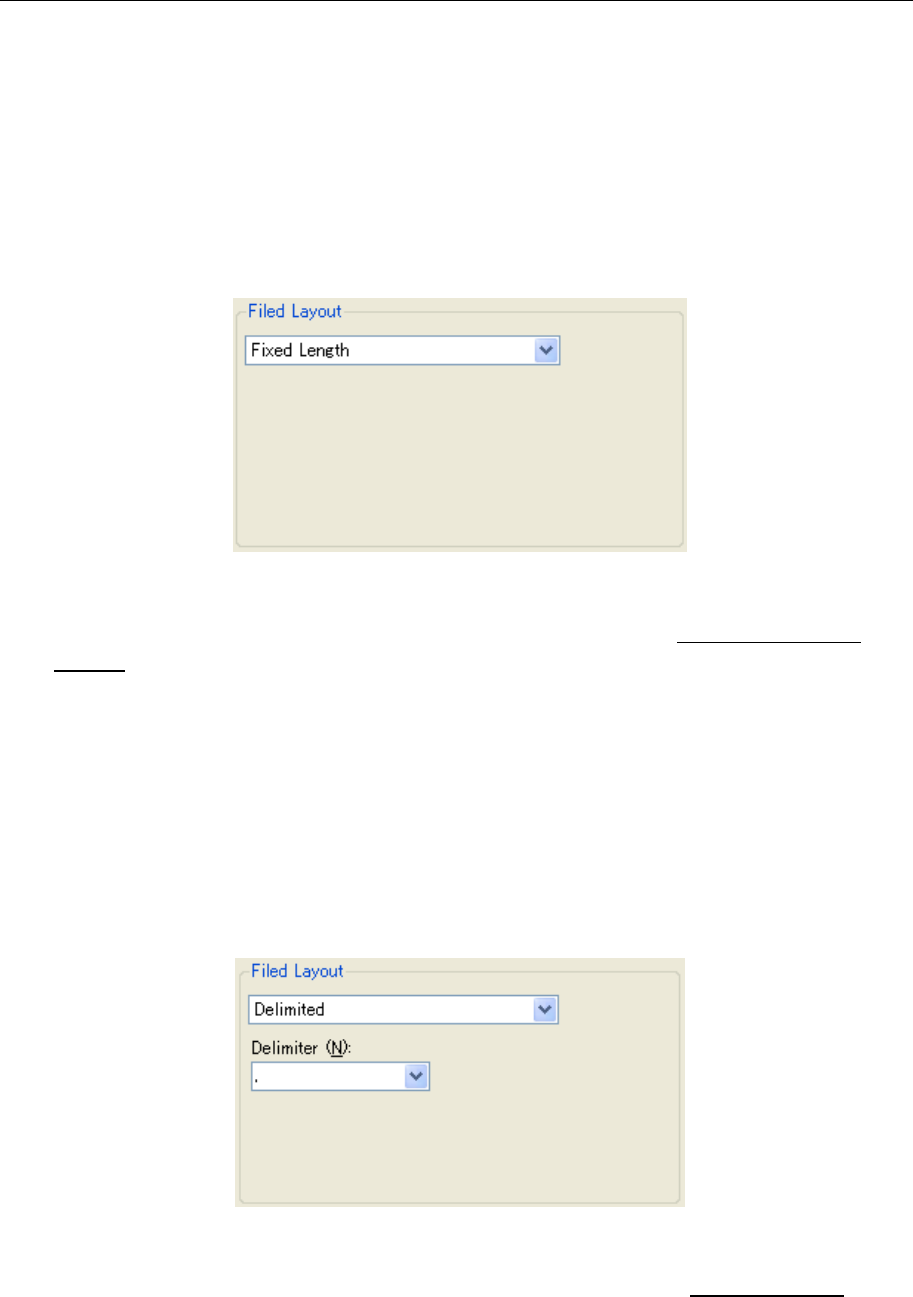
7.4.3.4. Fixed length
The fixed length is used when the field length of each line is fixed (the same item in the same
row).
Select the "Fixed Length" from the pull-down menu.
Figure 7.4.3.1-1 Field Layout (Fixed Length)
* For the field definition screen when the "Fixed Length" is selected, refer to "7.5.1 Fixed
length."
7.4.3.5. Delimited
The "Delimited" is used when all the data is separated by the same delimiter (comma, tab,
exclamation mark, etc.).
When the "Delimited" is selected from the pull-down menu, the delimiter setting screen is
displayed.
◊ After selecting the "Delimited", be sure to select the "Delimiter."
Figure 7.4.3.2-1 Field Layout (Delimiter)
* For the field definition screen when the "Delimited" is selected, refer to "7.5.2 Delimited."
52
7.4.3.6. Field
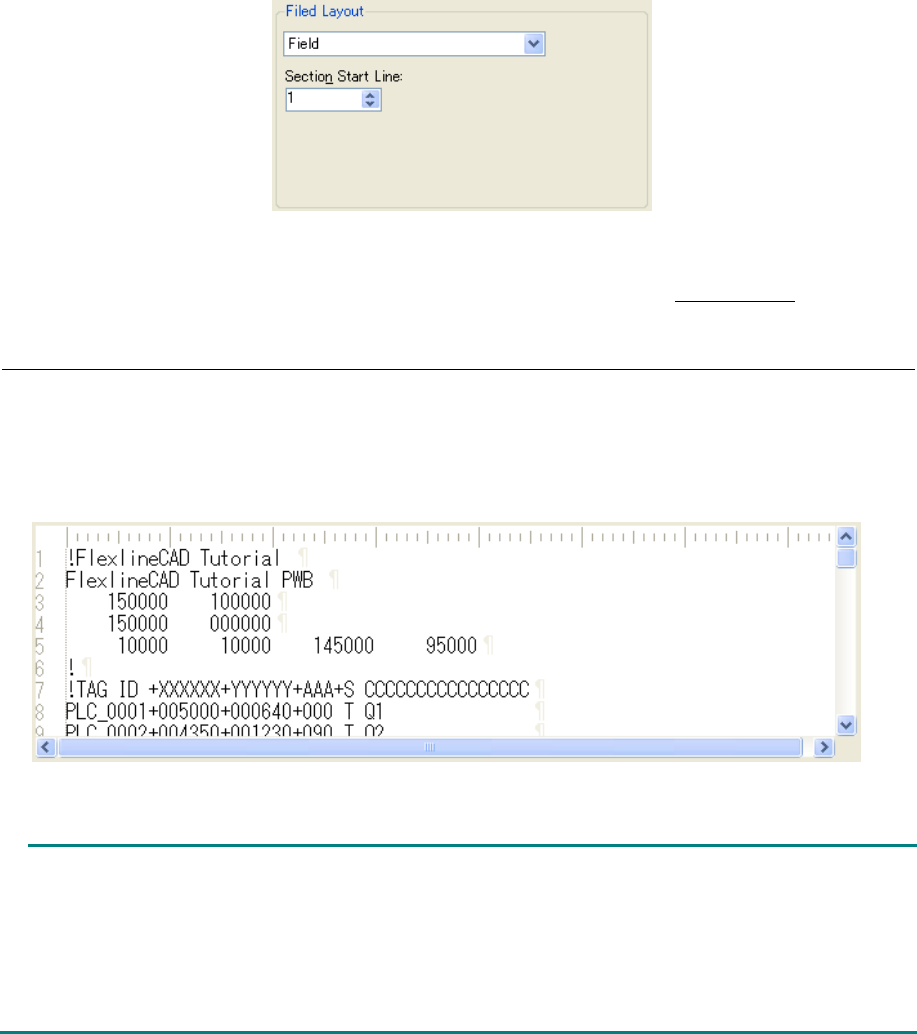
When the field has no regularity, this field is used. It can be selected only when the "Section" or
"Line range" is selected in the section layout.
Select the "Field" from the pull-down menu to display the section start line input screen.
◊ When the "Section" is selected in the section layout, the section start line can be set. Enter
the first line No. from the beginning of the file on the character entered as the section start
keyword. (If another line No. is entered, conversion cannot be performed correctly.)
Figure 7.4.3.3-1 Field Layout (Field)
* For the field definition screen when the "Field" is selected, refer to "7.5.3 Field."
7.4.4 File display
The contents of file are displayed so that the filed position can be known. However, the contents
of file cannot be changed.
* The displayed contents of file can be scrolled by using the vertical/horizontal cross bar.
Figure 7.4.4-1 File display
• When selecting the displayed bottom line provided at the file display, the text is shifted
upward if the column is in contact with the bottom frame.
• When selecting the displayed rightmost column, the text is shifted to the left if the column is
in contact with the right frame.
• When the "Add" button is pressed after selecting the field, a correct line/column No. is added
to the data field table.