FLEXLINE-CAD_INM.pdf - 第20页
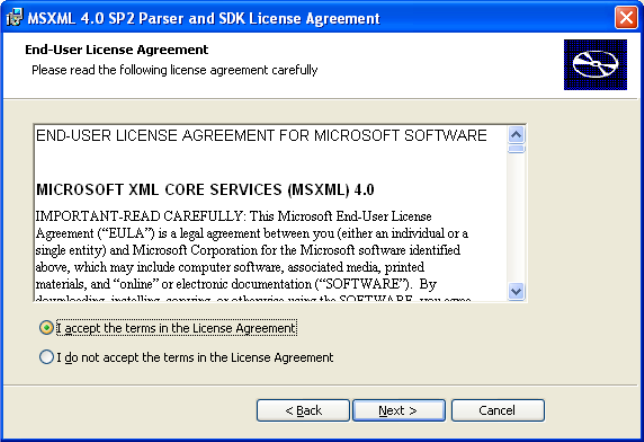
15 2. The License agreement is displayed. Check the check box for "I accept the terms of the License Agreement" and then click the [Next] butt on. Figure 3.4. 6- 2 Li cense agreement
14
3.4.1 Installing Microsoft .NET Framework 2.0
When this software is not yet installed, a message of "Do you want to install?" is displayed in
the process of installation. Click the [Yes] button to start installing Microsoft .NET Framework
2.0.
3.4.2 Installing Microsoft .NET Framework 4.0
When this software is not installed yet, Microsoft .NET Framework 4.0 is automatically installed.
3.4.3 Installing Microsoft Visual C++ 2005 package that can be distributed
again
When this software is not installed yet, Microsoft Visual C++ 2005 that can be distributed again is
automatically installed.
3.4.4 Installing Microsoft Visual C++ 2010 package that can be distributed
again
When this software is not installed yet, Microsoft Visual C++ 2010 that can be distributed again is
automatically installed.
3.4.5 Installing Microsoft Visual C++ 2013 package that can be distributed
again
When this software is not installed yet, Microsoft Visual C++ 2013 that can be distributed again is
automatically installed.
3.4.6 Installing MSXML 4.0 SP2 Parser and SDK
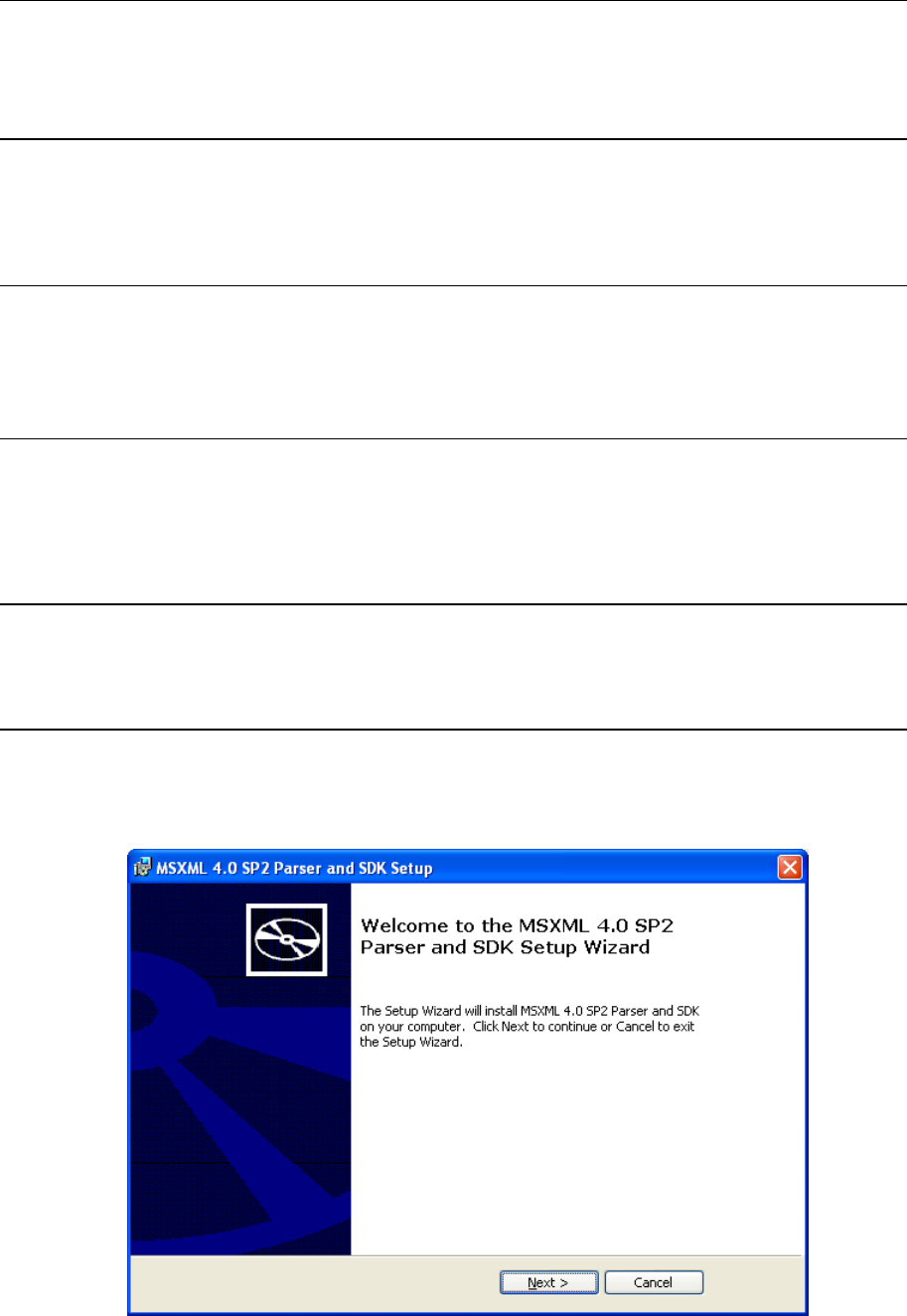
When this software is not yet installed, the following dialog box is displayed in the process of
installation.
1. Click the [Next] button to start installing MSXML 4.0 SP2 Parser and SDK.
Figure 3.4.6-1 Starting installation
15
2. The License agreement is displayed. Check the check box for "I accept the terms of the
License Agreement" and then click the [Next] button.
Figure 3.4.6-2 License agreement
16
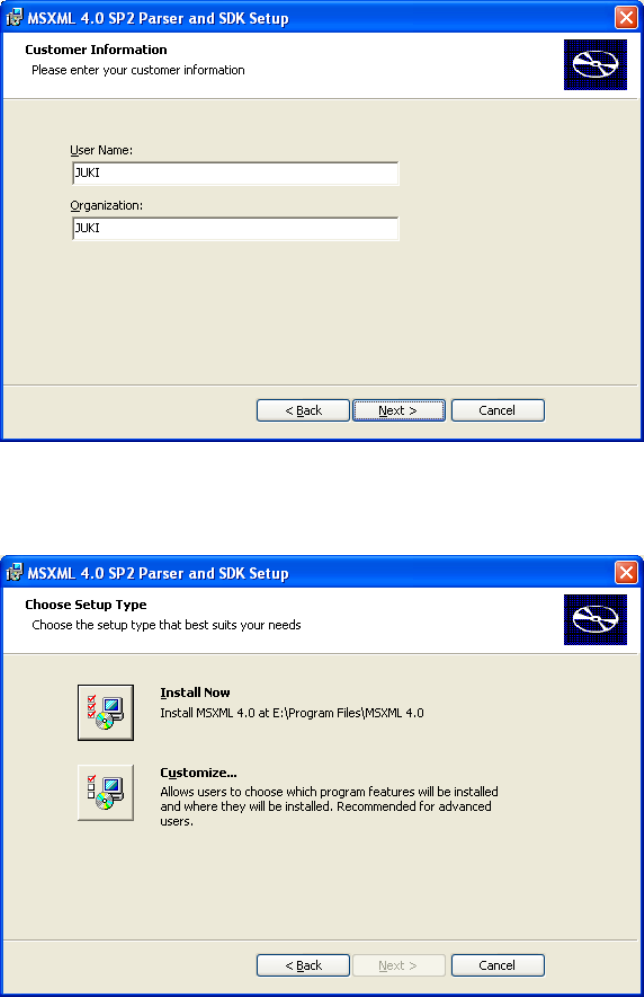
3. Enter or confirm the customer information, and click the [Next] button.
Fig. 3.4.6-3 Entering the customer information
4. Click the “Install Now” button as the setup type.
Fig. 3.4.6-4 Setup type