FLEXLINE-CAD_INM.pdf - 第15页
10 4. Cl ick the [Next] but ton to continu e ins tallin g Flexline CAD. Fig. 3.4 - 2 St artin g installation
9
3.3 Installing Flexline CAD
Install Flexline CAD according to the following procedure:
Before installation, quit all applications that are running.
To install Flexline CAD, the administrator privilege is required (you have to log in the system
with the user name having the user privilege, and only alphanumeric characters can be used as a
user name).
(If you create a new user name to which the administrator privilege is given, be sure to create it
with alphanumeric characters only.)
Check to see if there is no 2-byte character in the environment variable TEMP. (You can check
the environment variable by selecting the [System Properties] command, and then the [Advanced
settings] command.)
Before installing Flexline CAD, remove the Sentinel Super Pro USB key.
3.4 Installing Flexline CAD
*1
Install Flexline CAD according to the following procedure:
1. Insert the Flexline CAD install CD into the CD drive.
2. Open the "Flexline CAD" folder in the CD drive and execute "setup.exe" to start the
Flexline CAD installer.
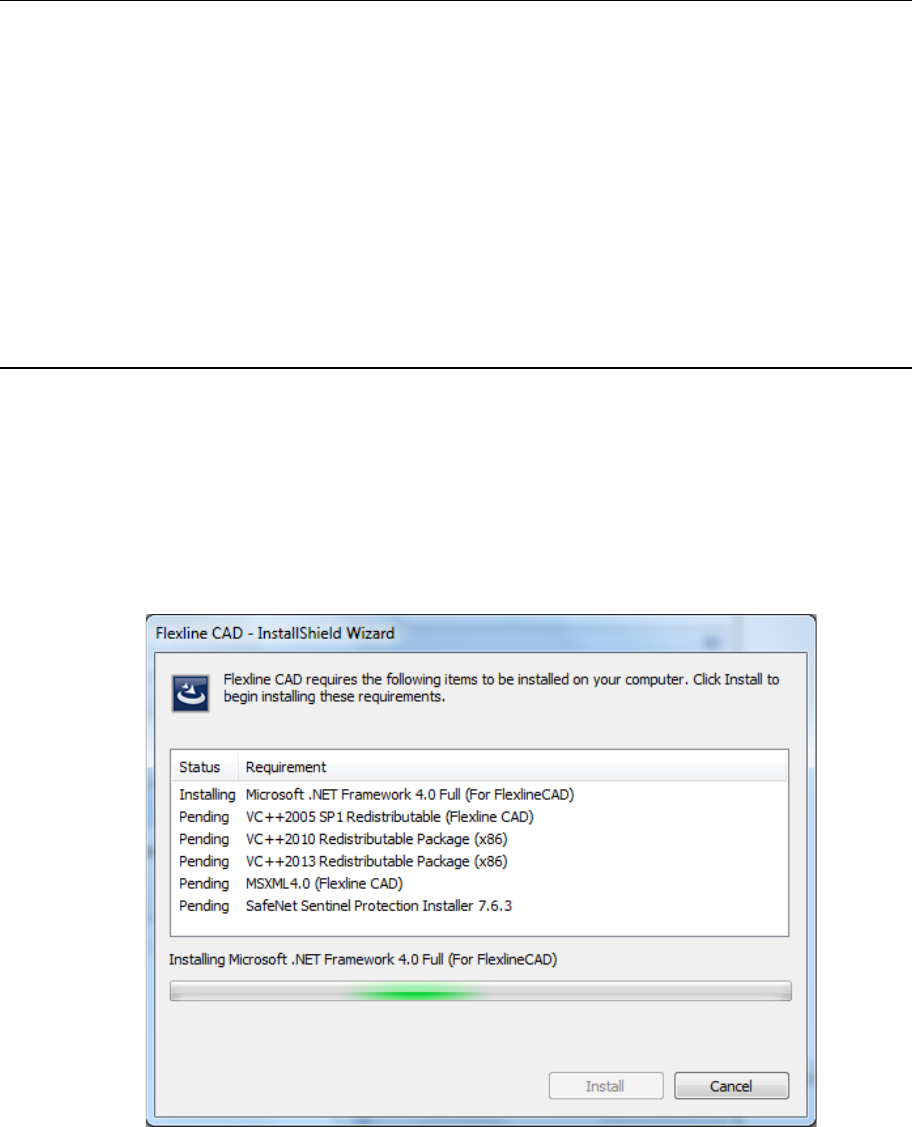
3. The following dialog box appears if your PC does not have installed the requirements.
Click the [OK] button to begin the installation. See the next page and following pages
for details.
Fig. 3.4-1 Requirements to be installed
*1 The screen displayed with the Version 5.10 or earlier is different from that with the Version
6.00 or later.
10
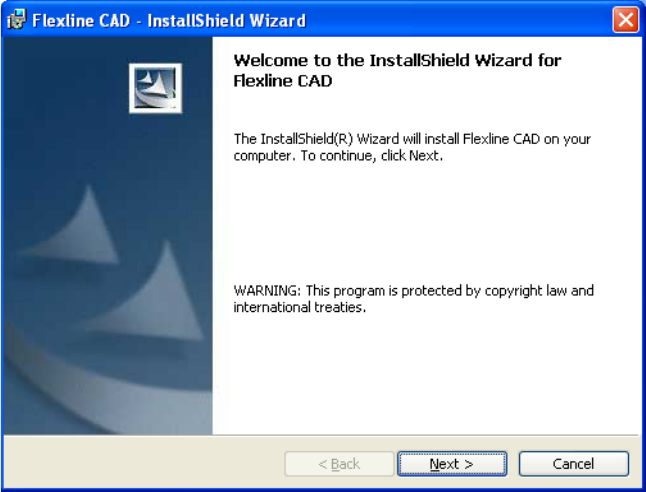
4. Click the [Next] button to continue installing Flexline CAD.
Fig. 3.4-2 Starting installation
11
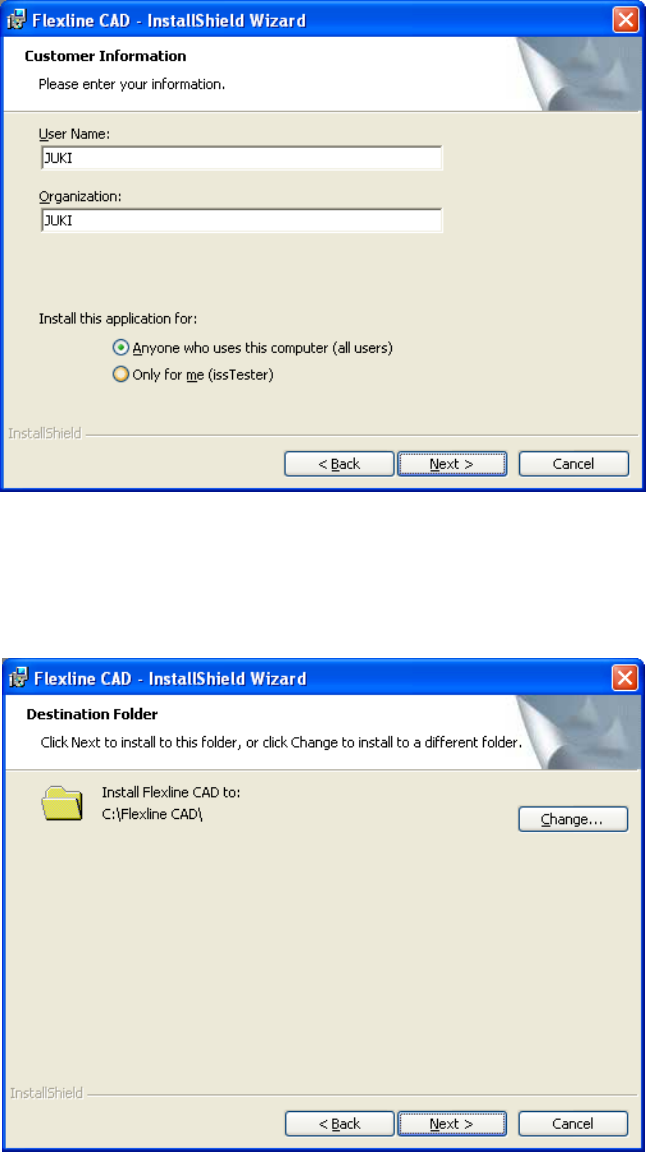
5. Enter or confirm the customer information, and click the [Next] button.
Fig. 3.4-3 Entering the customer information
6. Select an install destination of Flexline CAD and click the [Next] button. For changing
the install destination, click the [Change] button and then select another install
destination.
Figure 3.4-4 Selecting install destination