FLEXLINE-CAD_INM.pdf - 第112页
A- 15 9. Converti ng the fil e Convert a file by using the cr eated input format “ T utorial. ” ① On the “Default Format ” screen of “Set Environment s": select “T utori al” for the “Input format", and “IS , IS…
A-14
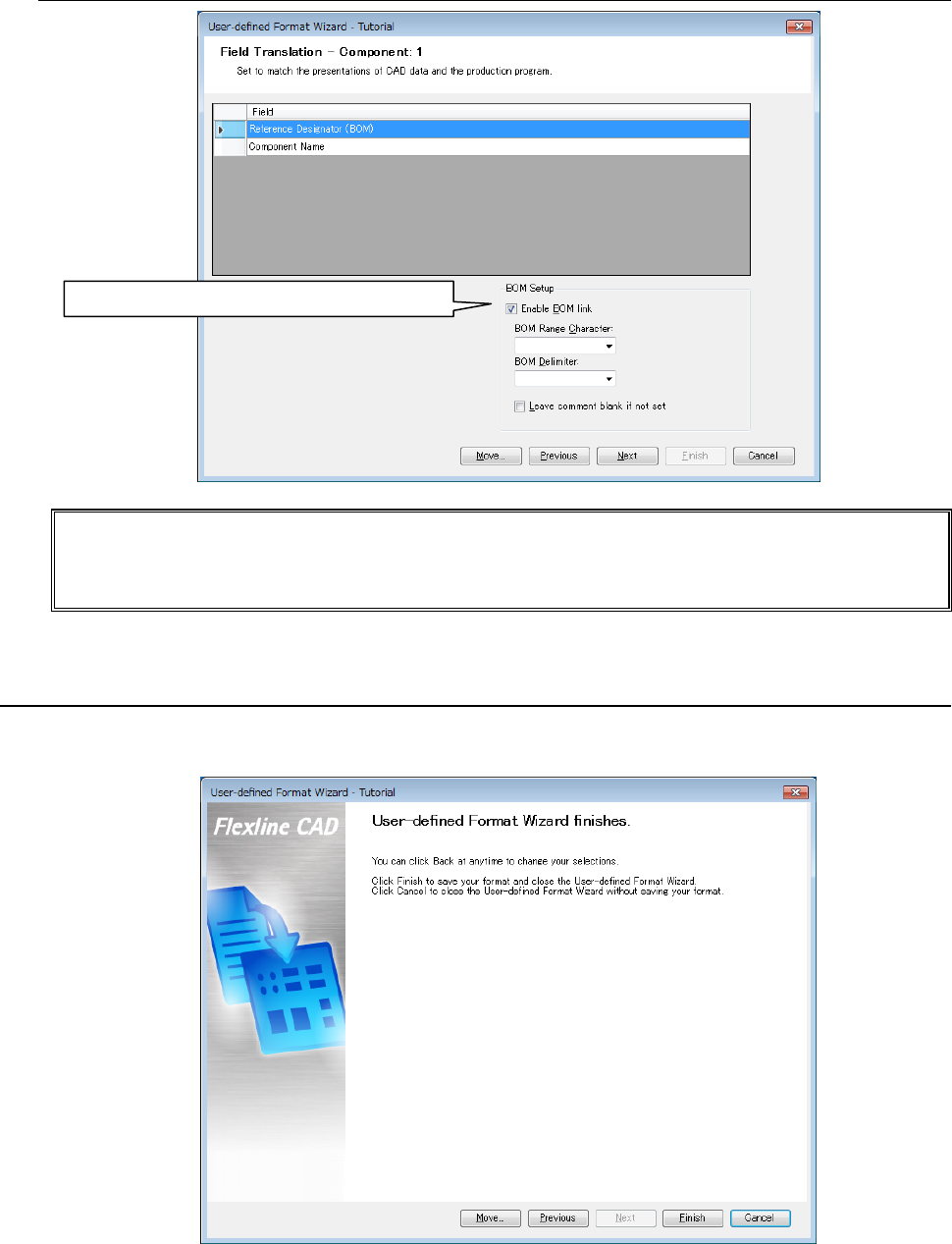
7.3 Field Translation screen
Figure A-19 Filed Translation screen (component)
* Leave "BOM range character" and "BOM delimiter" blank.
* "BOM" is a command to link "Reference designator (BOM)" with "Placement ID." (For
details, refer to 7.6.2.)
Click the "Next" button.
8. Finish screen
The following screen is displayed.
Click the "Finish" button to complete the definition.
Figure A-20 Finish screen for new creation
With this, a new user-defined format has been created for Tutorial.txt.
The created format is saved in the "{Flexline CAD install folder}\Formats" folder as a format file.
Place a check mark to "Enable BOM link."
A-15
9. Converting the file
Convert a file by using the created input format “Tutorial.”
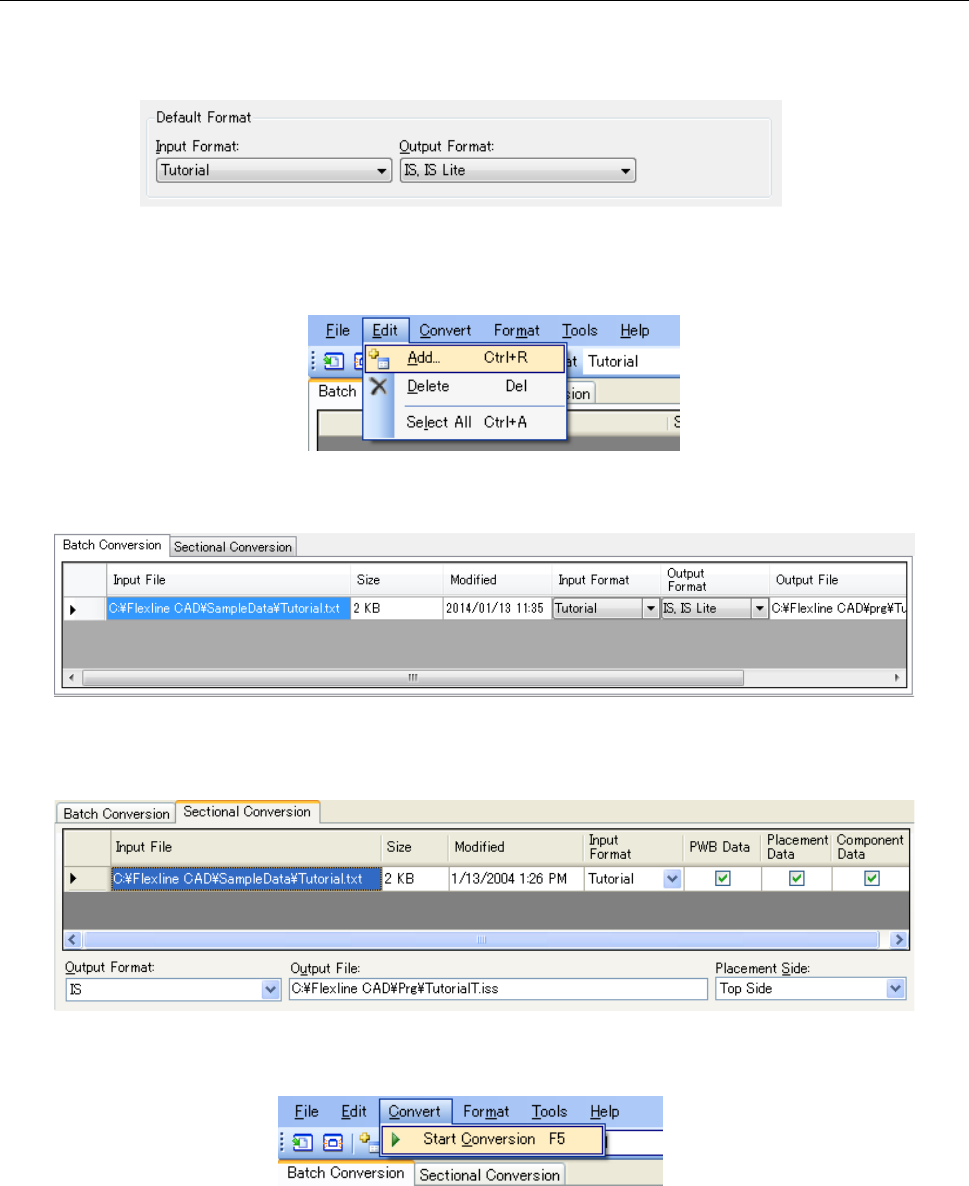
① On the “Default Format” screen of “Set Environments": select “Tutorial” for the “Input format",
and “IS,IS Lite” for the “Output format."
Figure A-21 Selection of formats
② Select the "Edit" - "Add" command or click the "Add" button of the tool bar to open the "Open"
dialog box.
Figure A-22 "Edit" - "Add" menu
③ In the "Open" dialog box, select the {Flexline CAD install folder}\SampleData\Tutorial.txt and
add the file to the file table.
Figure A-23 Batch conversion file table
* When the file table is the "Sectional conversion" screen, check off the "PWB," "Placement,"
and "Component."
Figure A-24 Sectional conversion file table
④ Select the "Convert" - "Start Conversion" command or click the "Start Conversion" button of
the tool bar to start the conversion.
Figure A-25 "Convert" - "Start Conversion" menu
⑤ The message "Conversion is completed" is displayed. This completes the conversion.
The converted files consist of two files: "TutorialT.iss" and "TutorialB.iss.”
"TutorialT.iss" → File created with the placement data of the top side of "Tutorial.txt"
TutorialB.iss" → File created with the placement data of the bottom side of "Tutorial.txt"
A-16
10. Checking the conversion result
As an example, check the contents of "TutorialT.iss" by using IS Version 2.0.
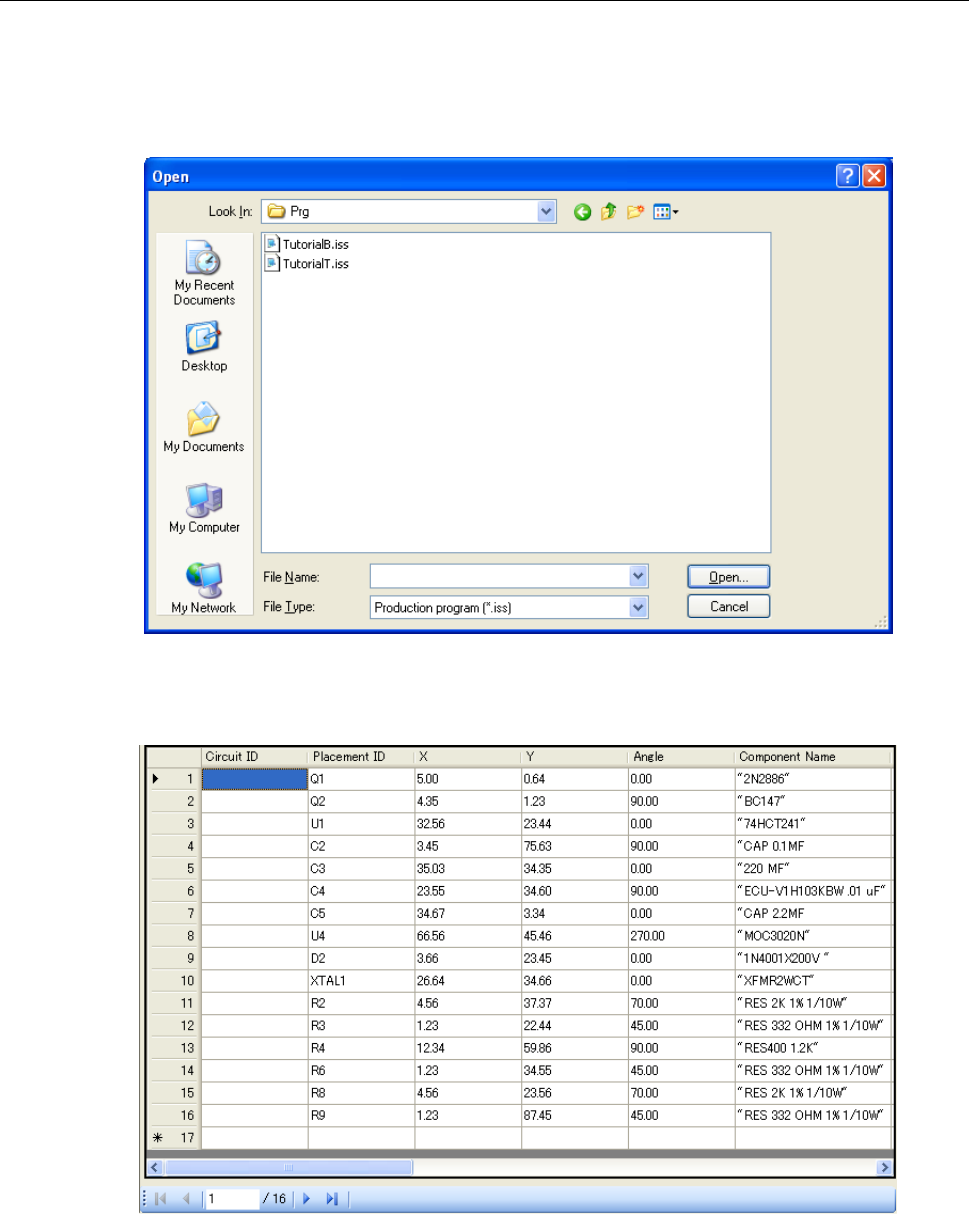
① Start the IS program editor and select the "File" - "Open" command. In the displayed "Open"
dialog box, select "TutorialT.iss."
Figure A-26 "Open" dialog box of the program editor
② Check the PWB data, placement data, and component data. The following figure shows a
screen of placement data.
Figure A-27 Placement data screen of the program editor
Some component names are enclosed with """. In this case, perform conversion by
specifying """ for "Quotation mark" on the "Global Setup" screen of the user-defined wizard.
Thus, """ is removed after conversion.