FLEXLINE-CAD_INM.pdf - 第84页
79 (1) W hen "Suffix a side identifier string to a file name" is selected and the top identifier string is T and t he bottom identifier string is B T op side: C: \ Flexline CAD \ Prg \ SampleD at aT .iss Bottom…
78
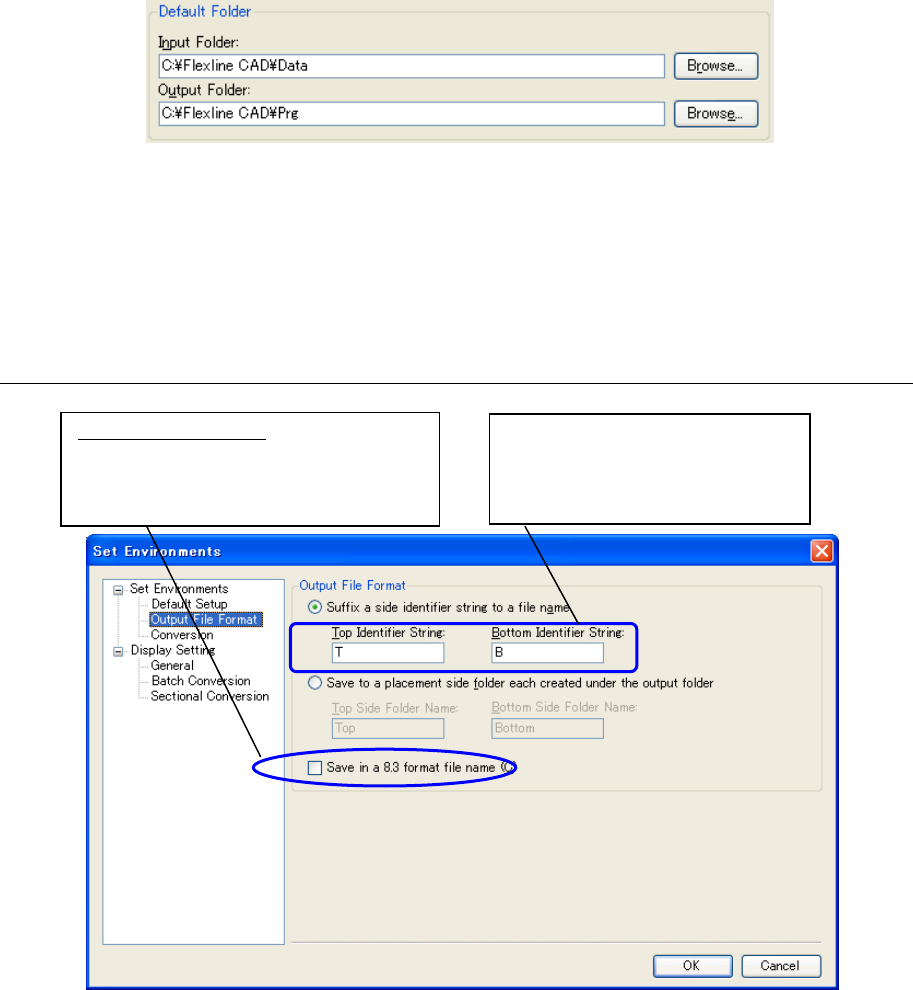
Default Folder
For the input folder, set the initial folder for referring to the input file. For the output folder, set the
initial folder for creating an output folder.
Figure 9.1.1-3 Default Folder
The " Browse For Folder" dialog box is displayed by pressing the " Browse" button provided by
the side of the text box. Then, select a folder and click the "OK" button. The path of the selected
folder is displayed in the text box. It is also possible to enter the path directly into each text box.
9.1.2 Output file format setting screen after conversion
Figure 9.1.2-1 "Set Environments" - "Output File Format"
When "Save in an 8.3 format file name" is checked off, the output file name is saved in the 8.3
format. In this case, the characters added as top identifier characters and bottom identifier
characters are not omitted but only the original file name is omitted.
(Example)
Input file name: SampleData.txt
Output folder: C\FlexlineCAD\Prg
Output format: IS,IS Lite
The number of characters that can
be entered is up to 7 characters. *
The same character string cannot
be entered.
What is the 8.3 format?
In this format, the file name is represented
by 8 characters (bytes) and the extension
is represented by 3 characters (bytes).

79
(1) When "Suffix a side identifier string to a file name" is selected and the top identifier string is
T and the bottom identifier string is B
Top side: C:\FlexlineCAD\Prg\SampleDataT.iss
Bottom side: C:\FlexlineCAD\Prg\SampleDataB.iss
When "Save in an 8.3 format file name" is checked off
Top side: C:\FlexlineCAD\Prg\SampleDT.iss
Bottom side: C:\FlexlineCAD\Prg\SampleDB.iss
(2) "Save to a placement side folder each created under the output folder" is selected and the
top folder name is Top and the bottom folder name is Bottom
Top side: C:\FlexlineCAD\Prg\Top\SampleData.iss
Bottom side: C:\FlexlineCAD\Prg\Bottom\SampleData.iss
When "Save in an 8.3 format file name" is checked off
Top side: C:\FlexlineCAD\Prg\Top\SampleDa.iss
Bottom side: C:\FlexlineCAD\Prg\Bottom\SampleDa.iss
In this format, the fine name is
represented by 8 characters
and the extension is
represented by 3 characters.
In this format, the fine name is
represented by 8 characters
and the extension is
represented by 3 characters.
80
9.1.3 Conversion setting screen
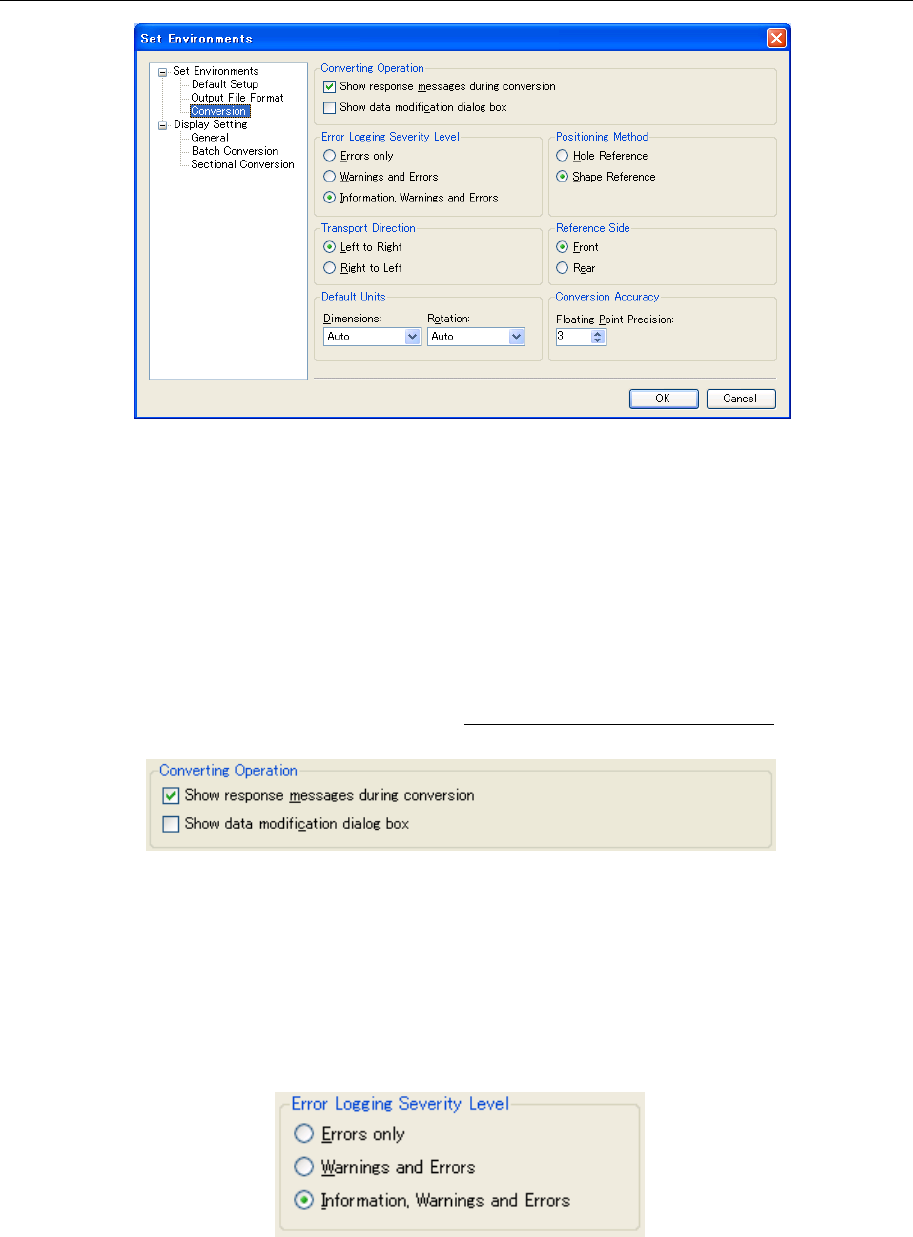
Figure 9.1.3-1 "Set Environments" - "Conversion"
Operations for conversion
When the "Show response message during conversion" is checked off, unimportant
messages such as a file overwrite check message to be displayed during conversion and a
conversion completion message are not displayed.
Accordingly, if the "OK" button is clicked each time a message is displayed, file conversion
can be performed without any response from the user.
When the "Show data modification dialog box" is checked off, the data modification dialog
box is displayed during conversion.
For the data modification dialog box, refer to "8. Data modification dialog box."
Figure 9.1.3-2 Operations for Conversion
Error logging severity level
Set the level of the log to be output to the conversion log.
The conversion log is output to {Flexline CAD install folder}\Log\Convert.log.
Each time Flexline CAD is started, a new conversion log is created.
Even if any warning or information log is output, conversion is normally performed.
Figure 9.1.3-3 Error Logging Severity Level