FLEXLINE-CAD_INM.pdf - 第43页
38 7.2 Global setup screen *1 Firs t, the " Global Setup" screen is di splayed. Figure 7. 2 - 1 User - define d Format W izard ( Global Set up) *1 The screen displayed with t he V ersion 5.10 or earlier is diff…
37
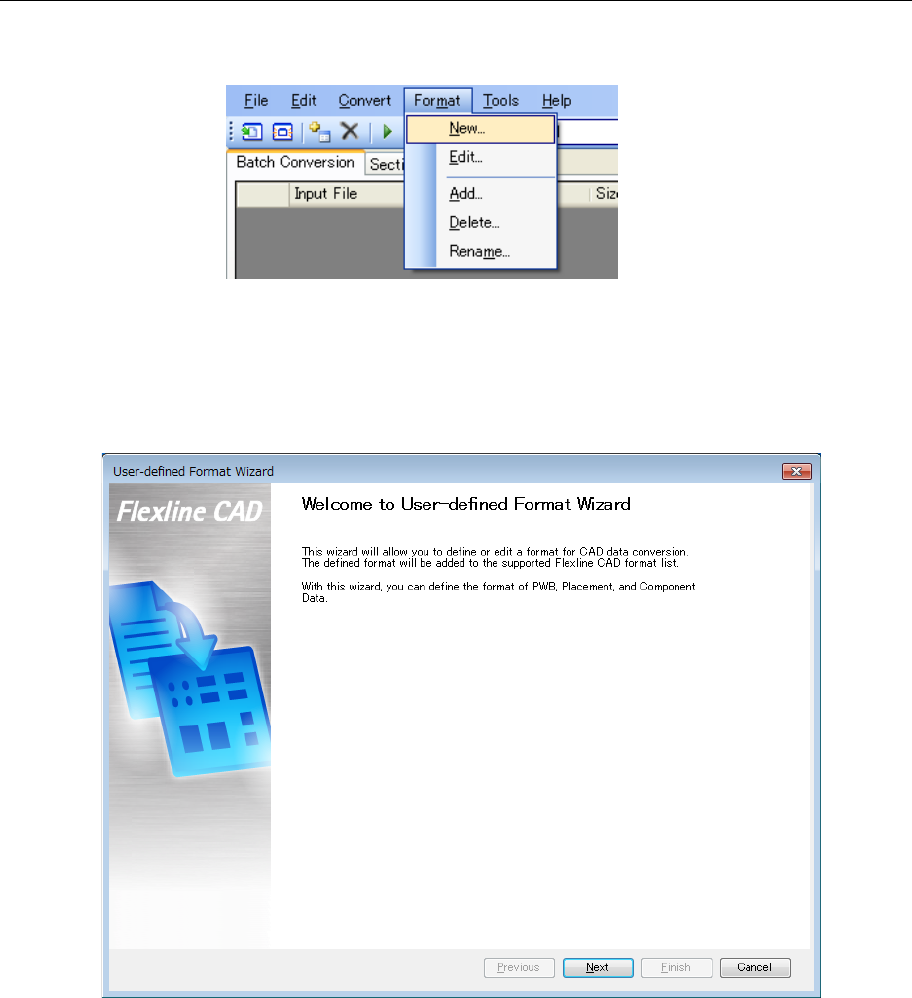
7.1 Starting up the new format creation screen *1
Select the "Format" - "New" menu.
Figure 7.1-1 "Format" - "New" menu
*1. The screen displayed with the Version 5.10 or earlier is different from that with the Version 6.00
or later.
The “User-defined Format Wizard” screen is displayed.
Figure 7.1-2 Start of User-defined Format Wizard
To go to the next screen, click the [Next] button.
38
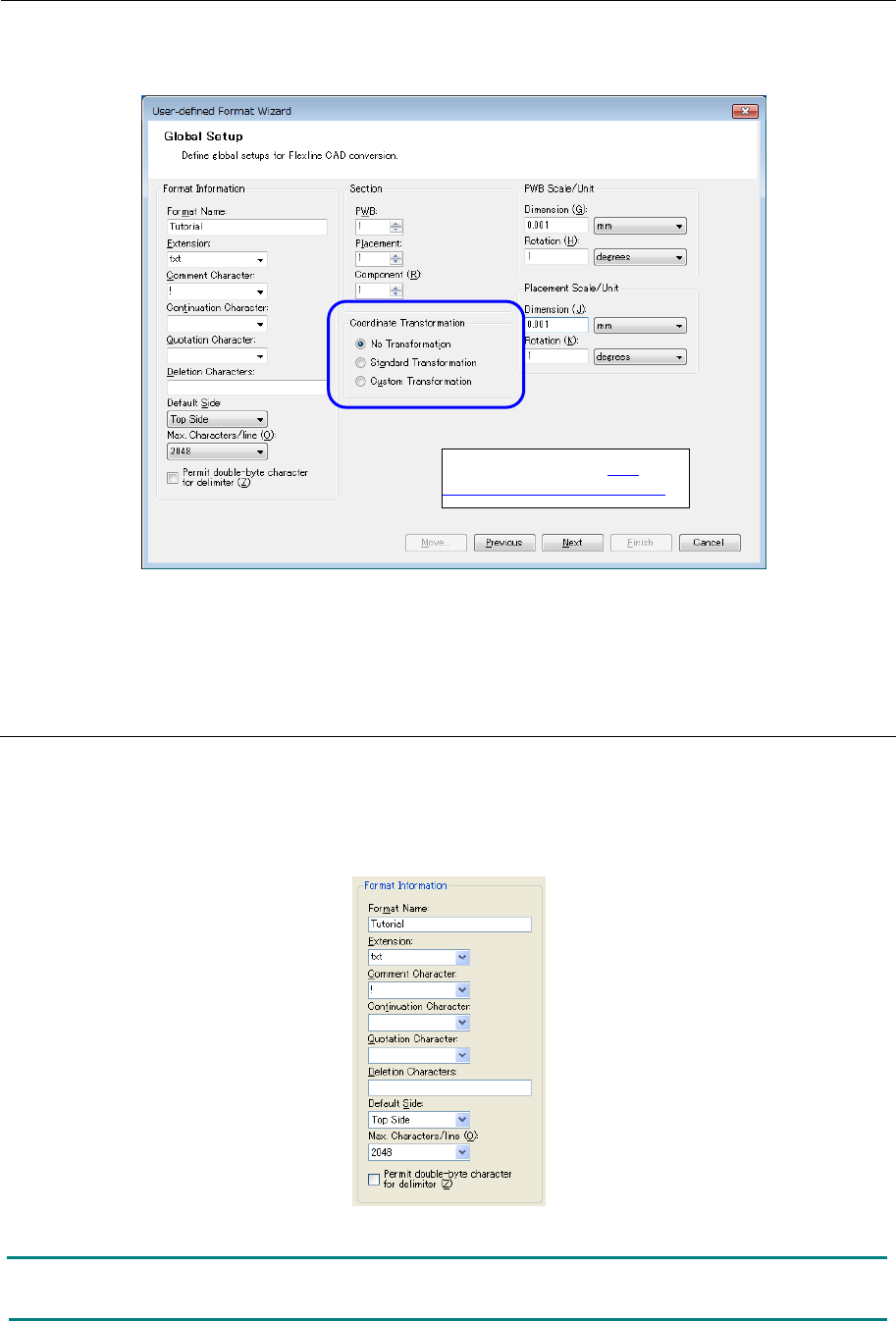
7.2 Global setup screen *1
First, the "Global Setup" screen is displayed.
Figure 7.2-1 User-defined Format Wizard (Global Setup)
*1 The screen displayed with the Version 5.10 or earlier is different from that with the Version
6.00 or later.
7.2.1 Format information
Enter the format name.
The characters available for the format name are alphanumeric characters, underline symbol
(_), and hyphen (−).
Regarding the other items (options), enter data as required.
Figure 7.2.1-1 Format Information
Note: In every character input field, optional characters can be entered in addition to the
characters indicated in the list.
Refer to the section "7.3
Coordinate transformation."
39
•
[Extension]
Specify extensions for the CAD data file.
Only the extensions specified here are displayed in the file list.
For the extensions that are displayed in the extension list, refer to "10.2 Data file
extensions."
•
[Comment Character]
This character is used for lines to be ignored, such as data comment lines.
When the characters selected here are at the beginning of the line, this line is ignored to
continue the processing.
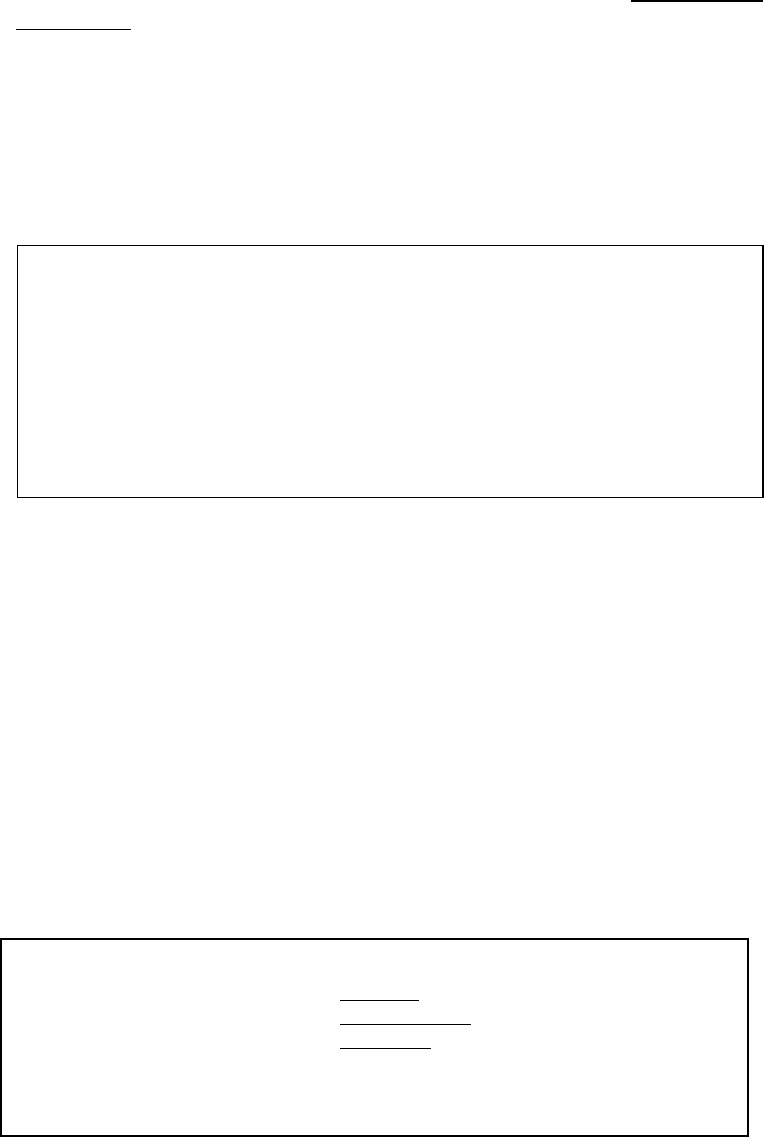
If the comment character is specified as "!" when the CAD data is as mentioned below, line
1, line 6, and line 7 will be ignored.
* In the character list, ";" (semi-colon), "//" (forward dash), "!" (exclamation mark), and " ' "
(apostrophe) are displayed.
•
[Continuation Character]
This character is used to handle multiple lines as a single line. If symbol specified here is
attached to the end, the next line is handled as the same line.
* In the character list, "_" (under-score), "\" (Backslash (Yen mark)), "/" (slash) are
displayed.
•
[Quotation Character]
Specify the character (first character and last character only) to be ignored.
In the following case, if """ is specified as quotation mark, the component names after
conversion are "SOT23", "QFP200P0.3", "PLCC84" without """.
* In the character list, """ (quotation mark) and "{}" (bracket) are displayed.
* The data in the quotation mark is converted as a single field.
Tag X-
coordinate
Y-
coordinate
Angle
Component name
before conversion
!Flexline CAD Tutorial
Flexline CAD Tutorial PWB
150000 100000
150000 000000
10000 10000 145000 95000
!
!TAG ID +XXXXXX+YYYYYY+AAA+S CCCCCCCCCCCCCCCC
PLC_0001+005000+000640+000 T Q1
PLC_0002+004350+001230+090 T Q2
!TAG ID +XXXXXX+YYYYYY+AAA+S CCCCCCCCCCCCCCCC
PLC_0001+005000+000640+000 T “SOT23”
PLC_0002+004350+001230+090 T “QFP200P0.3”
PLC_0003+032560+023440+000 T “PLCC84”
↑ ↑ ↑ ↑ ↑