FLEXLINE-CAD_INM.pdf - 第55页
50 7.4.2.2. Ta g The tag is used when t he same tag keyword exist s in al l the lines of d ata. W hen the "T ag" is selected from the pull - down menu, the tag key word input screen is displayed. ◊ All the line…
49
7.4.2 Section layout
Select a specifying method to specify the portion of PWB data, placement data, and component
data in the whole CAD data. As specifying methods, the "Section," "Tag," and "Line range" are
available.
In the following example, PWB data can be defined in the "Line range," placement data can be
defined in the "Tag," and component data can be defined in the "Section."
7.4.2.1. Section
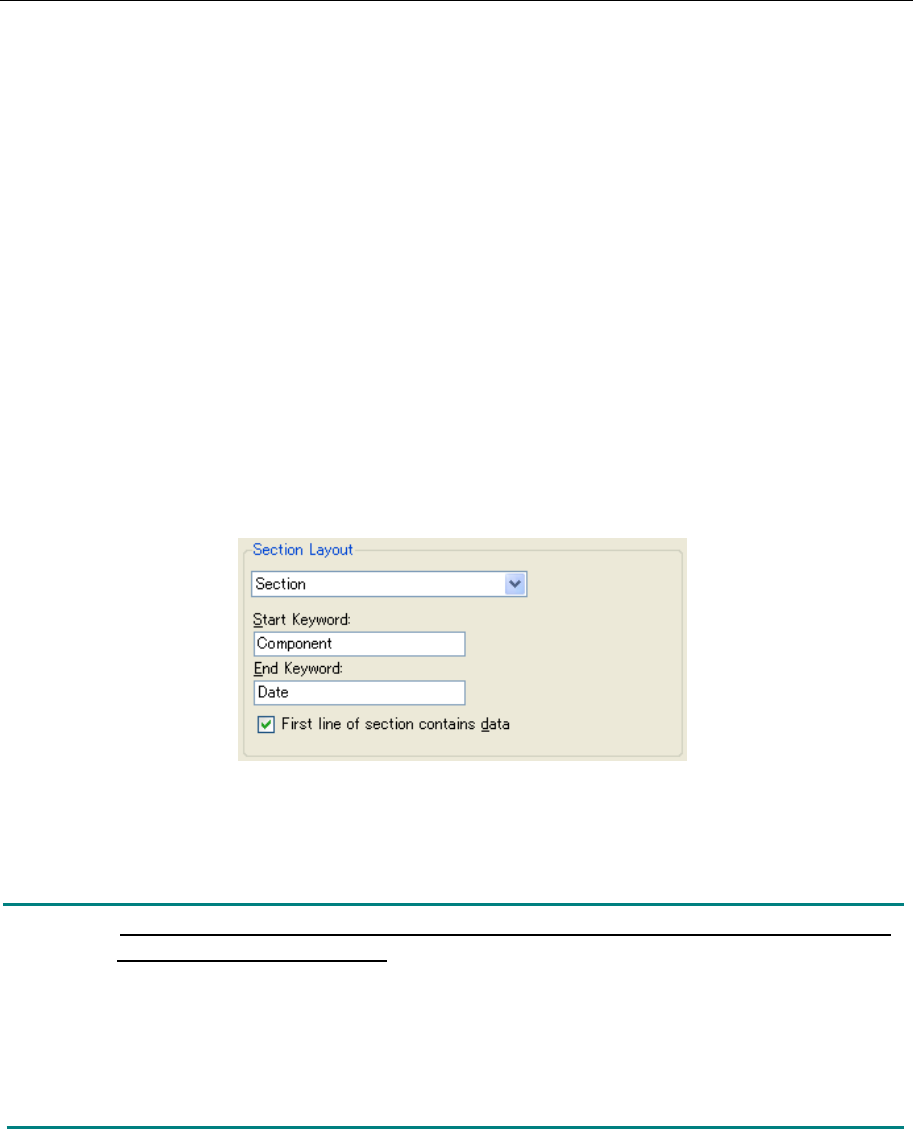
When data exists between the start keyword and the end keyword, this section is used.
When the "Section" is selected from the pull-down menu, the keyword input screen is displayed.
◊ The portion defined in the "Section" is read even if there are multiple portions in the
production program. When the end keyword is blank, all the portions subsequent to the
start keyword are converted.
◊ Regarding the option of "Data exists in the first line of the section," it can be selected when
the section layout is the "Section" and the field layout is the "Fixed length" or "Delimited." If
this is option is checked off, this prevents unnecessary data from being written into the
output file when no data exists in the first line of the section.
Figure 7.4.2-1 Section Layout (Section)
In this example, all the lines between the "Component" and "Date" are specified as component
data. (Both start line and end line are included.)
Note: Regarding the keyword, there is a distinction between upper-case characters
and lower-case characters.
Do not use the symbol specified as a comment character for the keyword.
(For the definition of comment character, refer to "7.2.1 Format information.")
Enter specific characters for the keyword. In the above example, when "PLC" is entered as
the start keyword, the first "PLC" appearing from the top of the file is used as the start
keyword though "PLC" appears repeatedly in the file. The keyword can be recognized
regardless of its position.
50
7.4.2.2. Tag
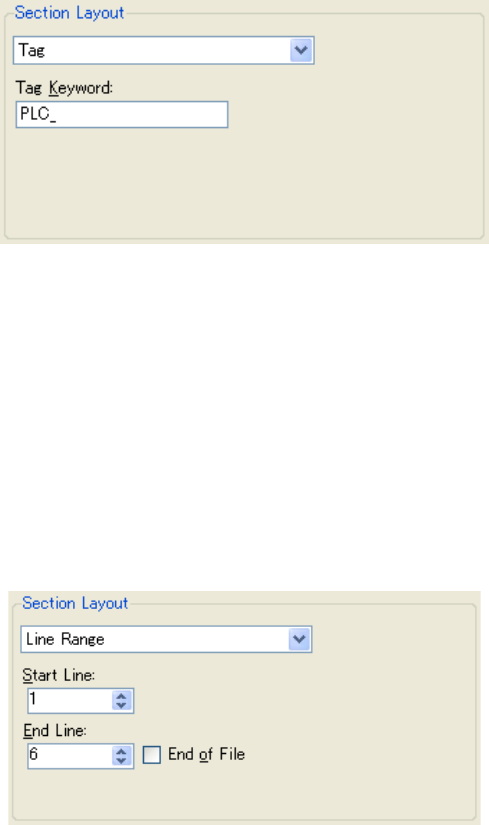
The tag is used when the same tag keyword exists in all the lines of data.
When the "Tag" is selected from the pull-down menu, the tag keyword input screen is displayed.
◊ All the lines containing the character entered by tag keyword are handled as data. The tag
keyword can be recognized regardless of its position.
Figure 7.4.2.2-1 Section Layout (Tag)
In the above example, all the lines containing the "PLC" are specified as placement data.
7.4.2.3. Line Range
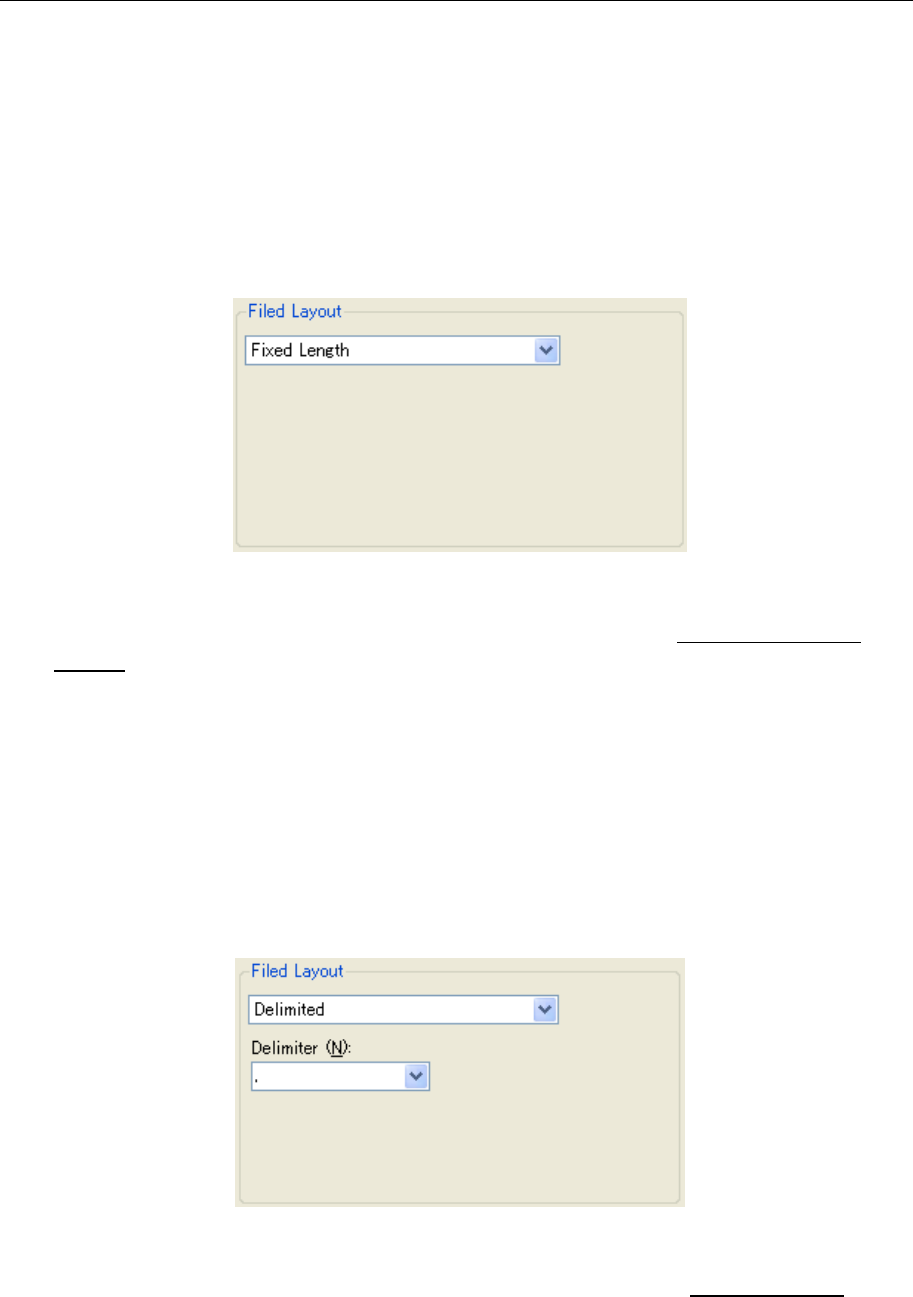
This line range is used when the same keyword exists in all the lines of data.
When the "Line range" is selected from the pull-down menu, the start line/end line input screen
is displayed.
◊ The lines ranging from the "Start line" to "End line" are handled as data.
◊ When the "End of file" is checked off, the end line is automatically set.
Figure 7.4.2.3-1 Section Layout (Line Range)
In the above example, the section ranging from line 1 to line 6 is specified as PWB data.
51
7.4.3 Field layout
This defines how data is contained in each line.
7.4.3.4. Fixed length
The fixed length is used when the field length of each line is fixed (the same item in the same
row).
Select the "Fixed Length" from the pull-down menu.
Figure 7.4.3.1-1 Field Layout (Fixed Length)
* For the field definition screen when the "Fixed Length" is selected, refer to "7.5.1 Fixed
length."
7.4.3.5. Delimited
The "Delimited" is used when all the data is separated by the same delimiter (comma, tab,
exclamation mark, etc.).
When the "Delimited" is selected from the pull-down menu, the delimiter setting screen is
displayed.
◊ After selecting the "Delimited", be sure to select the "Delimiter."
Figure 7.4.3.2-1 Field Layout (Delimiter)
* For the field definition screen when the "Delimited" is selected, refer to "7.5.2 Delimited."