FLEXLINE-CAD_INM.pdf - 第77页
72 8.2.5.2. Searching t he "Circuit Layout " Click the [Search] button on the circuit lay out screen of the PW B data to display the "Sear ch" screen. Enter t he character str ing to be searched and s…
71
8.2.5 Circuit Layout screen (Non-matrix Circuit)
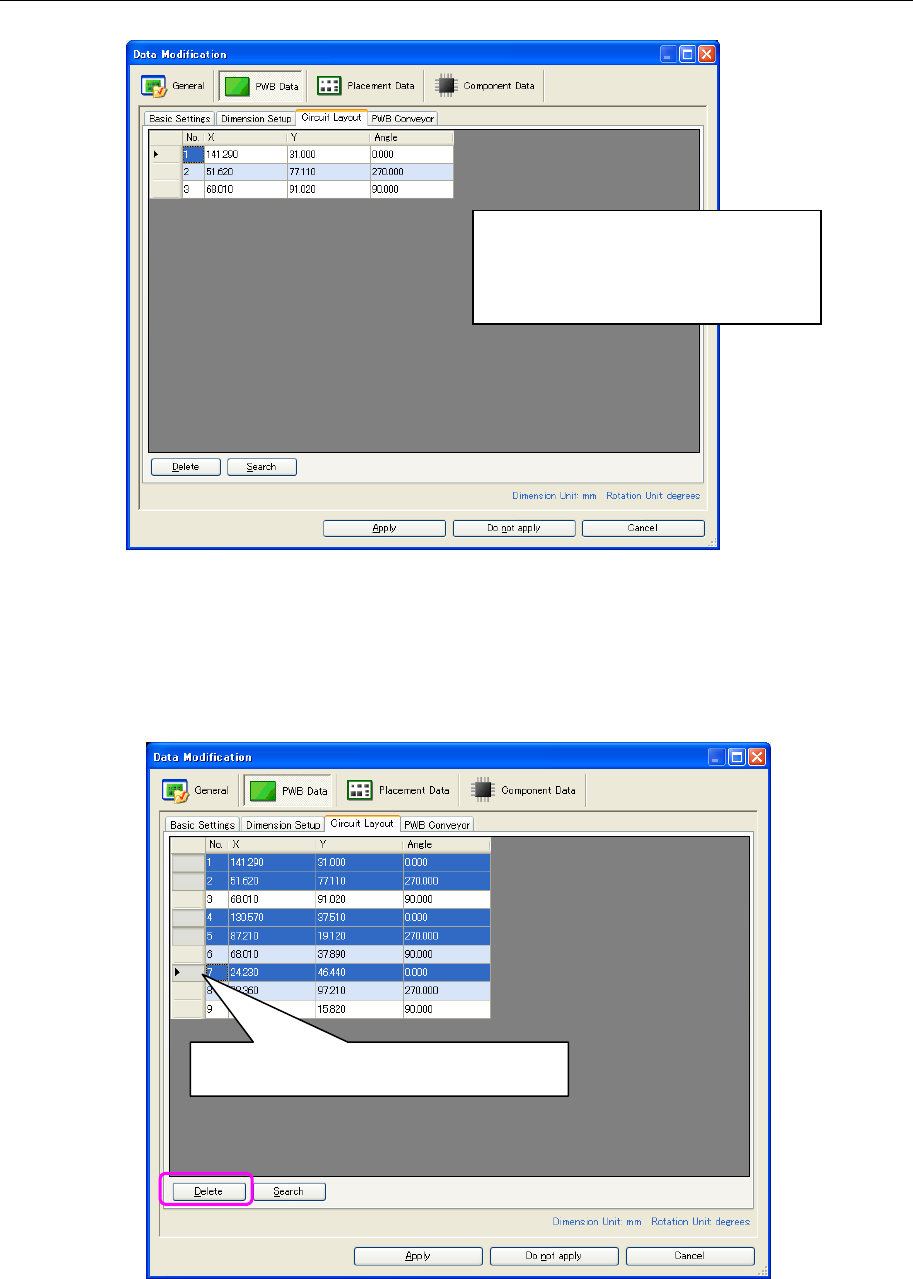
When the "Non-matrix Circuit" is selected, the "Circuit Layout" tab is displayed for selection.
Figure 8.2.5-1 Circuit Layout of PWB data
8.2.5.1. Deleting the "Circuit Layout"
Click the line header of the circuit layout table and select the data line (record) to be deleted.
Then, click the [Delete] button.
Figure 8.2.5.1-1 Deleting the "Circuit Layout"
When the number of circuits exceeds
the upper limit on the output format, the
circuit position and angle are displayed
in red.
* The "No." column cannot be edited.
To select multiple lines, click the line header
while pressing the Ctrl key or Shift key.
72
8.2.5.2. Searching the "Circuit Layout"
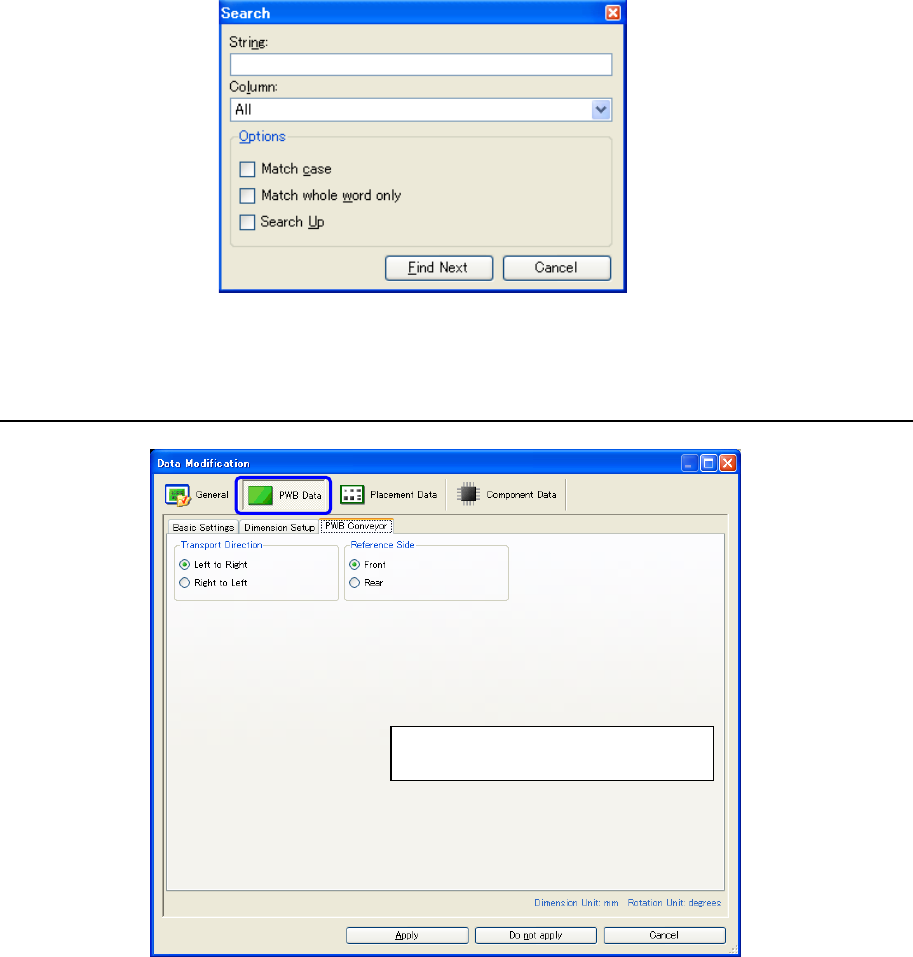
Click the [Search] button on the circuit layout screen of the PWB data to display the "Search"
screen. Enter the character string to be searched and select the column to be searched from the
"Column" combo box. To search all columns, select the "All."
.
Figure 8.2.5.2-1 "Search" screen
8.2.6 PWB conveyor screen
Figure 8.2.6-1 PWB conveyor of PWB data
Transport direction and reference
side settings
73
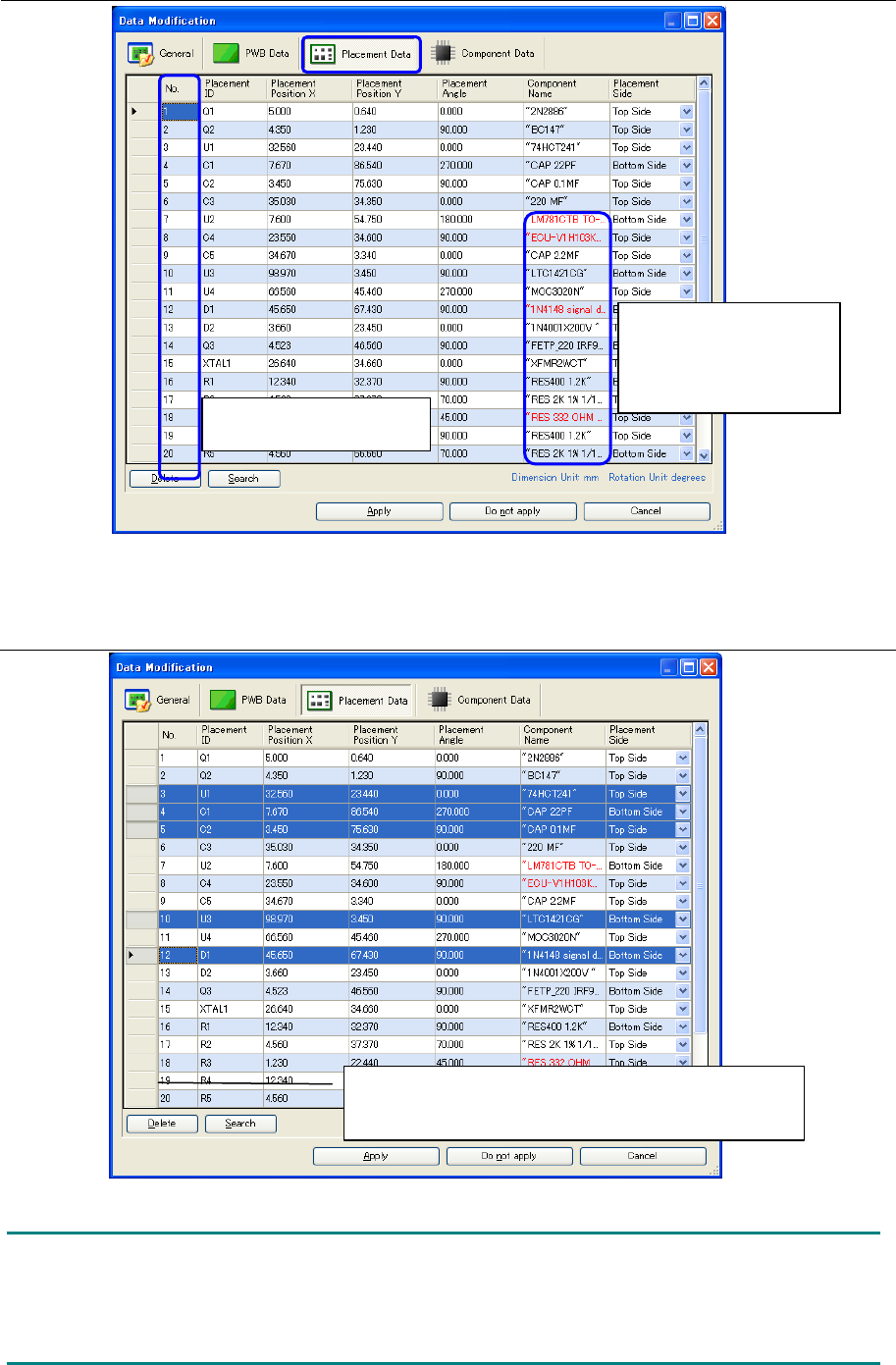
8.3 Placement data screen
Figure 8.3-1 Placement data
8.3.1 Deleting placement data
Figure 8.3.1-1 Deleting placement data
NOTE:
After deleting a placement record, the linked component data is not written into the output file
even if this data is not deleted. The reason is that only the component data provided in the
placement record is written into the output file.
The "No." column cannot
be edited.
When the component
name exceeds the
upper limit of the output
format, it is displayed in
red.
Click the line header pressing the Ctrl key or Shift key
to select multiple lines.
Then, click the "Delete" button.