FLEXLINE-CAD_INM.pdf - 第22页
17 5. The progress of installation is displayed. Figure 3.4. 6- 5 Progress of inst allation 6. Click the [Finish] button to complete the installation of MSXM L4.0 SP2 Parser and SDK. Figure 3.4. 6- 6 Com pletion of inst …
16
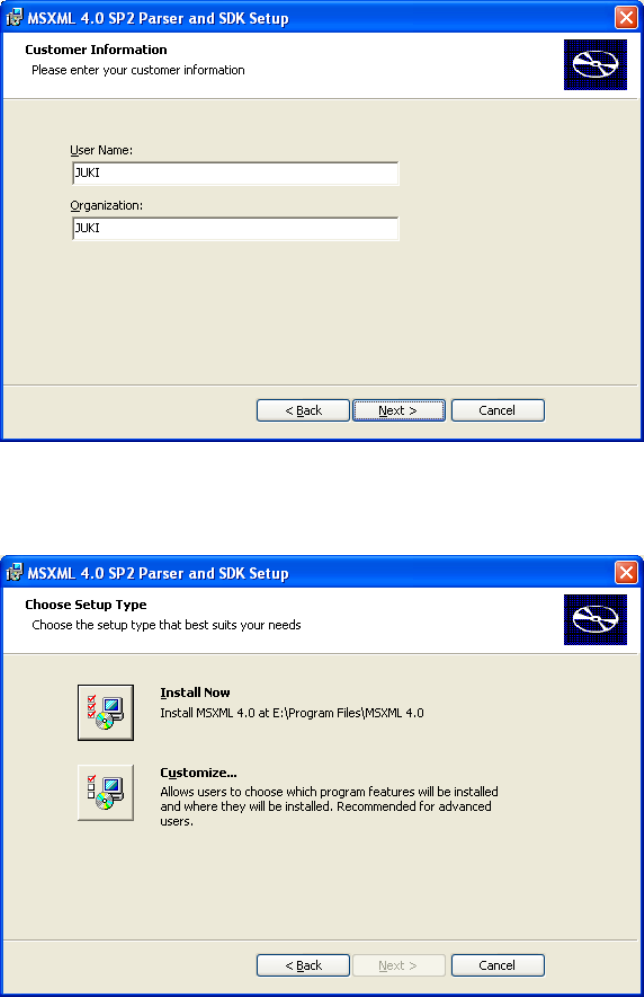
3. Enter or confirm the customer information, and click the [Next] button.
Fig. 3.4.6-3 Entering the customer information
4. Click the “Install Now” button as the setup type.
Fig. 3.4.6-4 Setup type
17
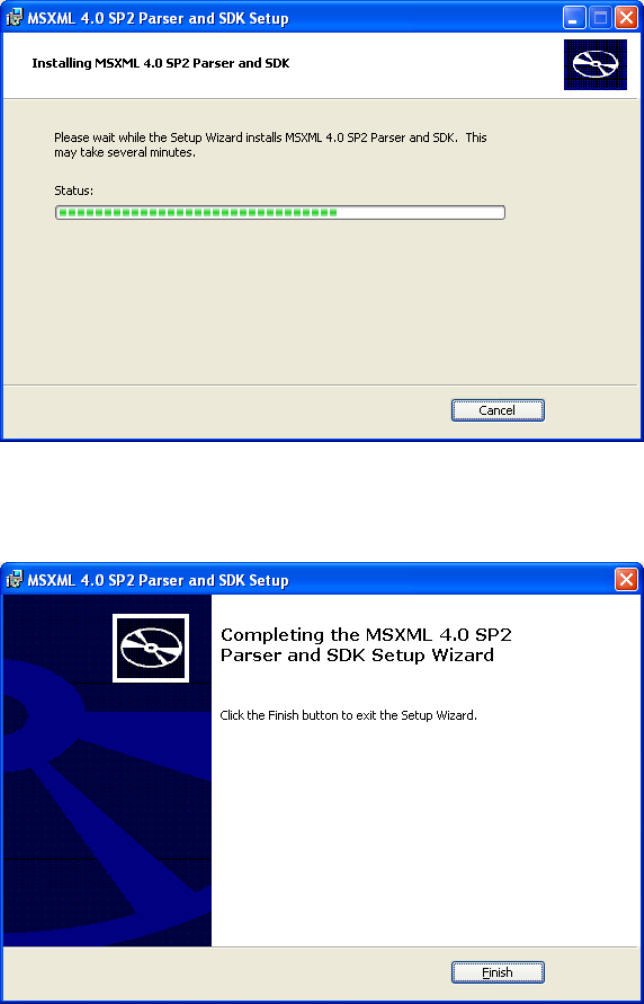
5. The progress of installation is displayed.
Figure 3.4.6-5 Progress of installation
6. Click the [Finish] button to complete the installation of MSXML4.0 SP2 Parser and SDK.
Figure 3.4.6-6 Completion of installation
18
3.4.7 Installing the driver for the protect module
When this driver is not yet installed, the following dialog box is displayed in the process of
installation.
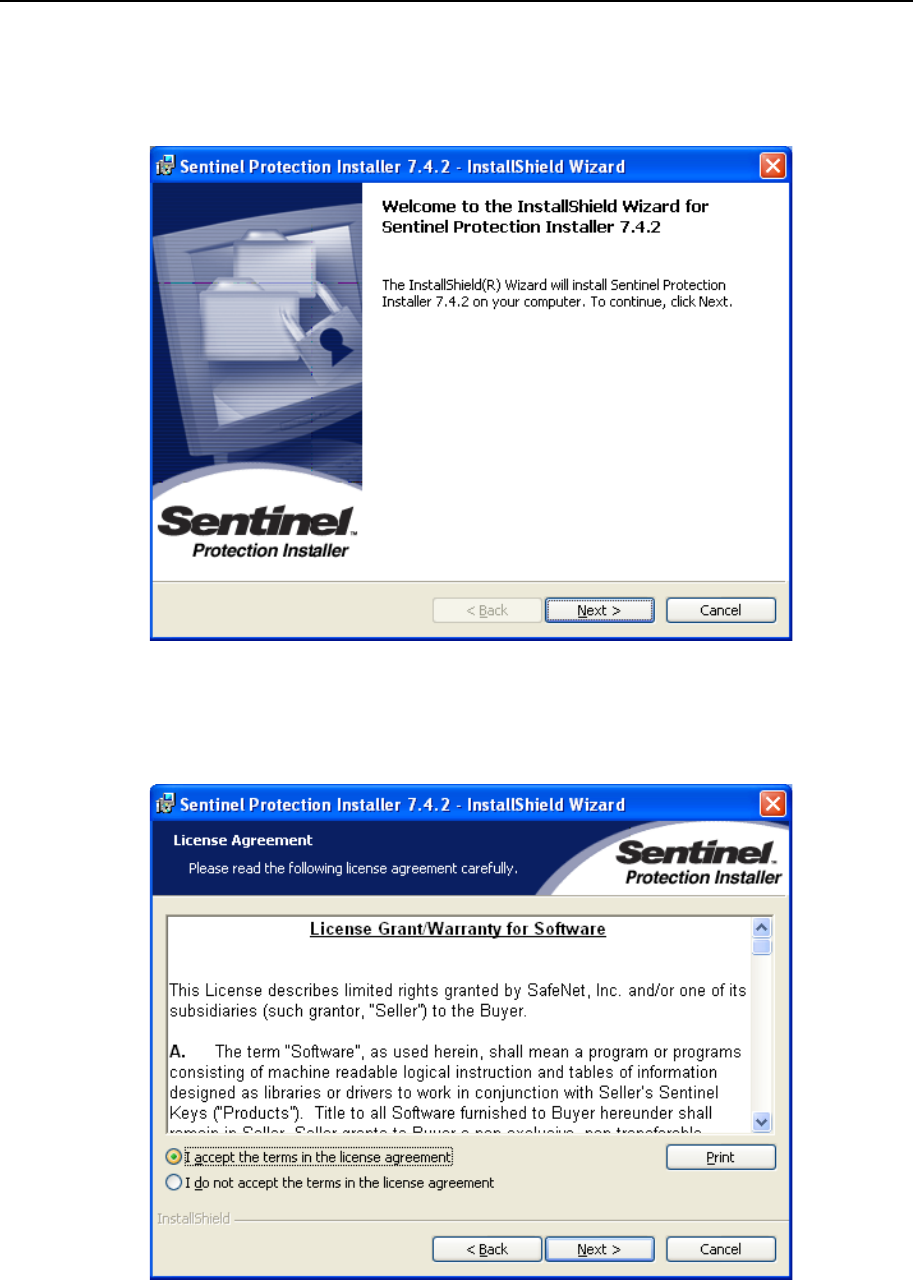
1. The install start screen of the driver for the protect module is displayed.
Click the [Next] button.
Figure 3.4.7-1 Start of installation
2. The license agreement is displayed. Select "I accept the terms in the license
agreement" and then click the [Next] button.
Figure 3.4.7-2 License agreement