YST15_Users_E.pdf - 第100页
2-72 2 Operation 8 Open "CL OSE" screen. Press [Close] button in "MANAGE" screen. [CLOSE] button [Close] button 24287-KMS-00 9 C ount the remaining items. 1. There are such as [Boards made] button, [I…
2-71
2
Operation
n
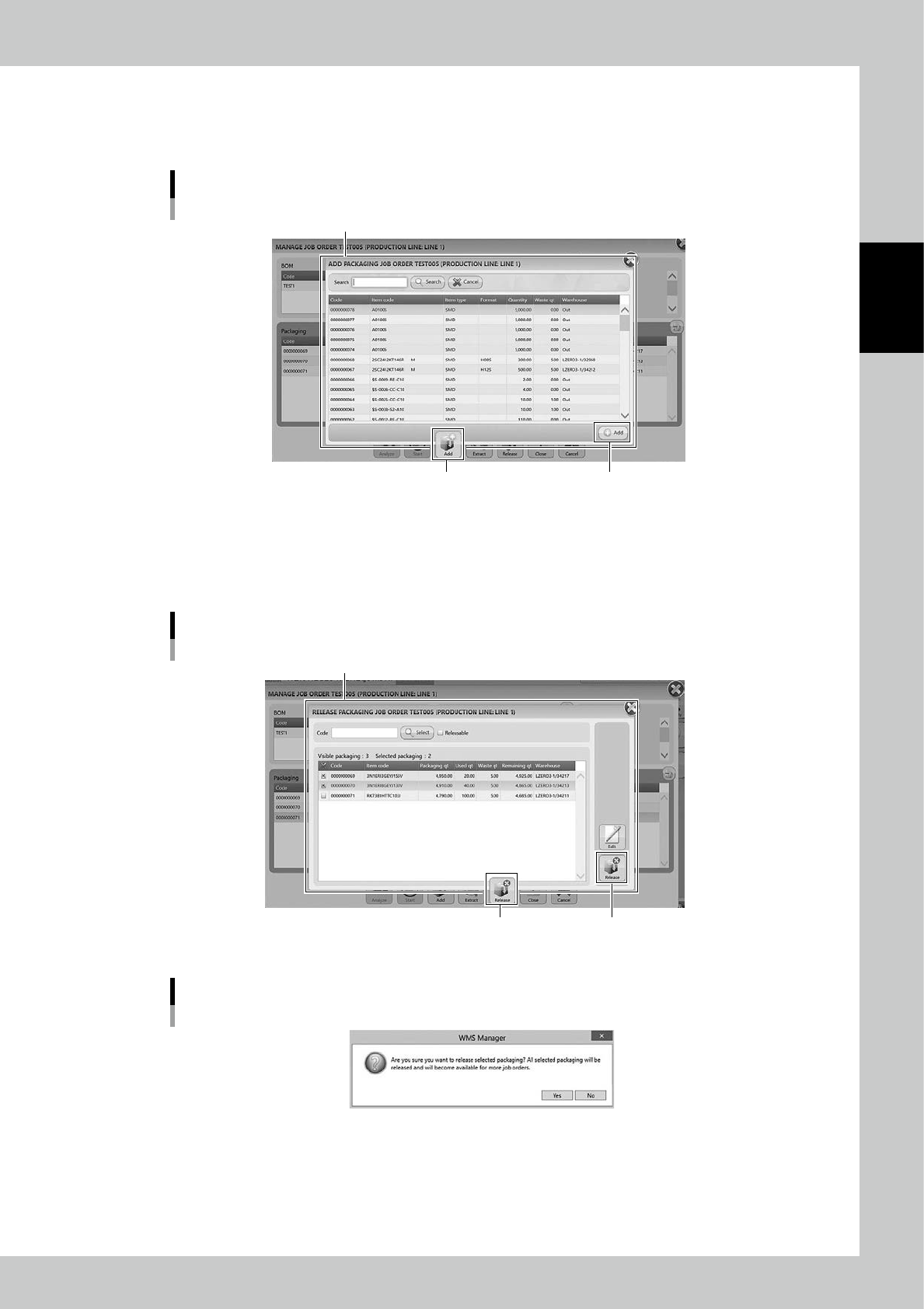
[Add] button and [Release] button
Press [Add] button at bottom in "Manage" screen then "ADD PACKAGING" screen appears.
Select the required packaging and press [Add] button, then the packaging to be unloaded are registered additionaly.
ADD PACKAGING screen
“ADD PACKAGING” screen
[Add] button[Add] button
24282-KMS-00
Press [Release] in "MANAGE" screen, then "RELASE PACKAGING" screen appears.
Select packagings and press [Release] at bottom right, then the message "Are you sure you want to release selected
packaging?" appears. Select [Yes], then the selected packagings are released from packagings which are pllanned to be
unloaded.
RELEASE PACKAGING screen
“RELEASE PACKAGING” screen
[Release] button[Release] button
24285-KMS-00
Message screen
24276-KMS-00
7
Start the production with the unloaded packagings.
Set the unloaded packagings on the mounter, then start the production.
2-72
2
Operation
8
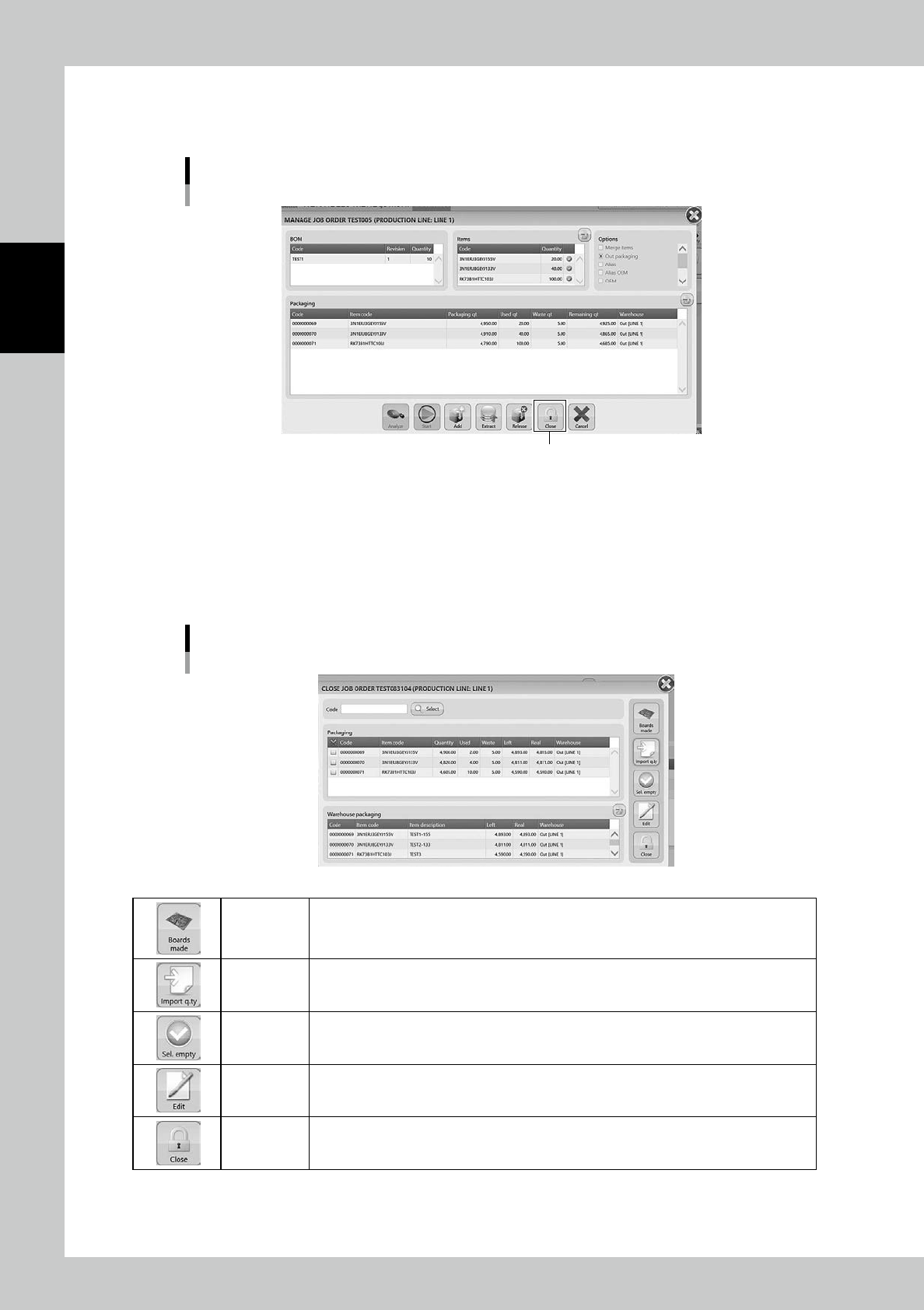
Open "CLOSE" screen.
Press [Close] button in "MANAGE" screen.
[CLOSE] button
[Close] button
24287-KMS-00
9
Count the remaining items.
1. There are such as [Boards made] button, [Import q.ty] button, and [Edit] button in "CLOSE" screen.
The remaining quantities of the packagings are managed here.
2. If some reels are empty, press [Sel. Empty] button to select them automatically, then press [CLOSE]
button.
CLOSE JOB ORDER screen
24288-KMS-00
Boards made
Able to input the actual quantities of the produced boards if their quantities are less than the
plan.
Import q.ty
Able to import the exact quantities of the items used in the production line.
(If there is no list, input "Left" value as "Real".
Sel. empty
Able to select all the empty packagings. The check boxes at left end of the packagings are
ticked.
Edit
Able to edit the packaging information such as used quantity by selecting the packaging and
pressing this.
Close
Able to make the job order closed and close "CLOSE" screen.
Once closing the job order, "Real" is filled with "Left" value.
2-73
2
Operation
0
Close the job order.
Press [CLOSE] button to close the job order.
n
NOTE
Closing a job order with ticking check boxes of some packagings disables them.
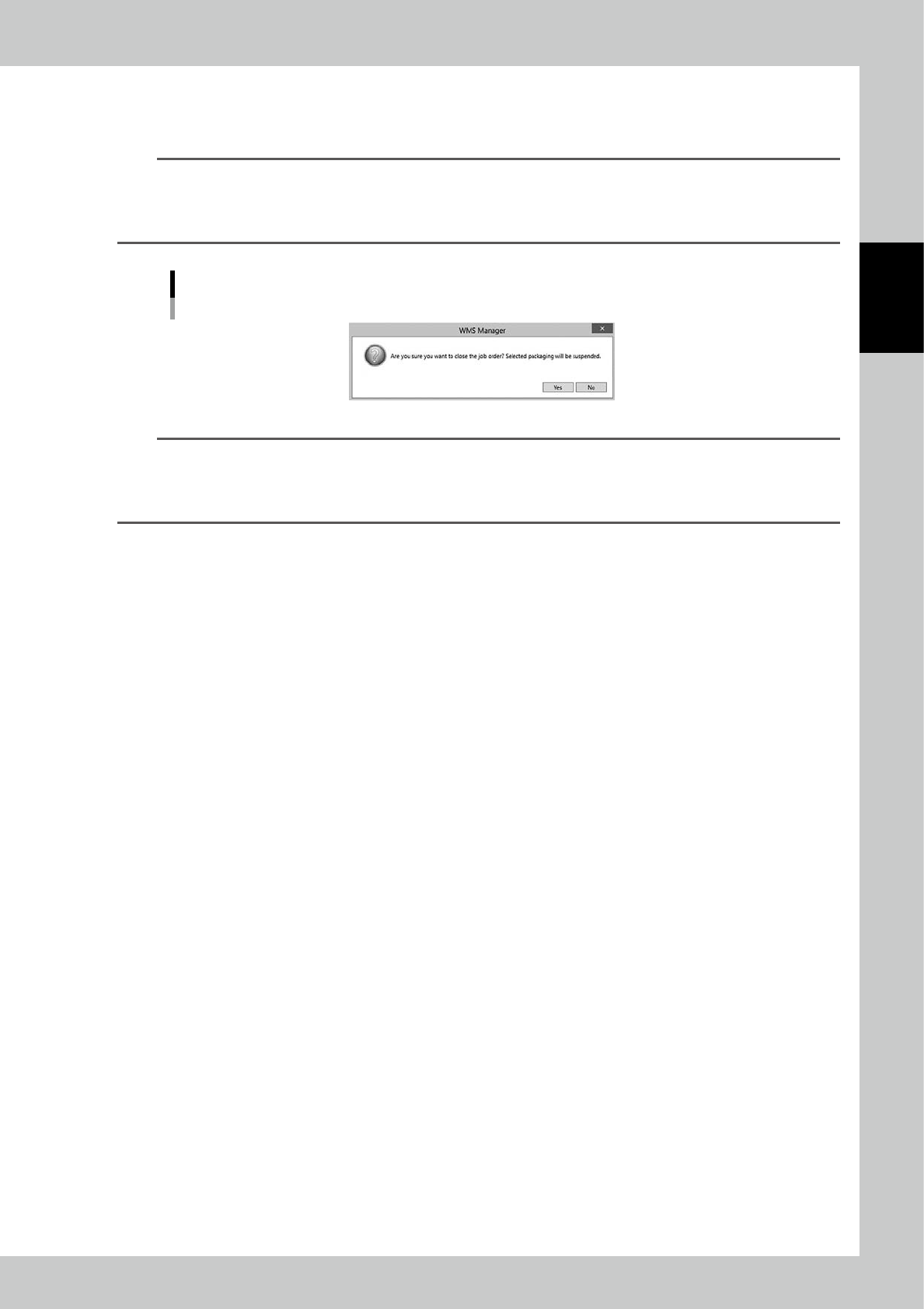
The message "Are you sure you want to close the job order? Selected packaging will be suspended." appears.
Confirm the message, then select [Yes]. Basically, tick the check boxes for only the empty packagings and close the
job order.
Warning at CLOSE
24289-KMS-00
TIP
Even before unloading packagings, it is possible to close job orders.
For example, it can be considered that packagings are unloaded by hands without WMS MANAGER control when the
machine gets in trouble.
Basically, close job orders after the packagings are unloaded.