YST15_Users_E.pdf - 第30页
2-2 2 Operation 4 T urn on the touch screen monitor . Press Power button at left of the touch screen monitor . Power button of touch screen monitor Power button 23202-KMS-00 5 L og in the computer . Windows starts, then …
2-1
2
Operation
1. Turning on/off the machine
1.1 Turning on the machine
1
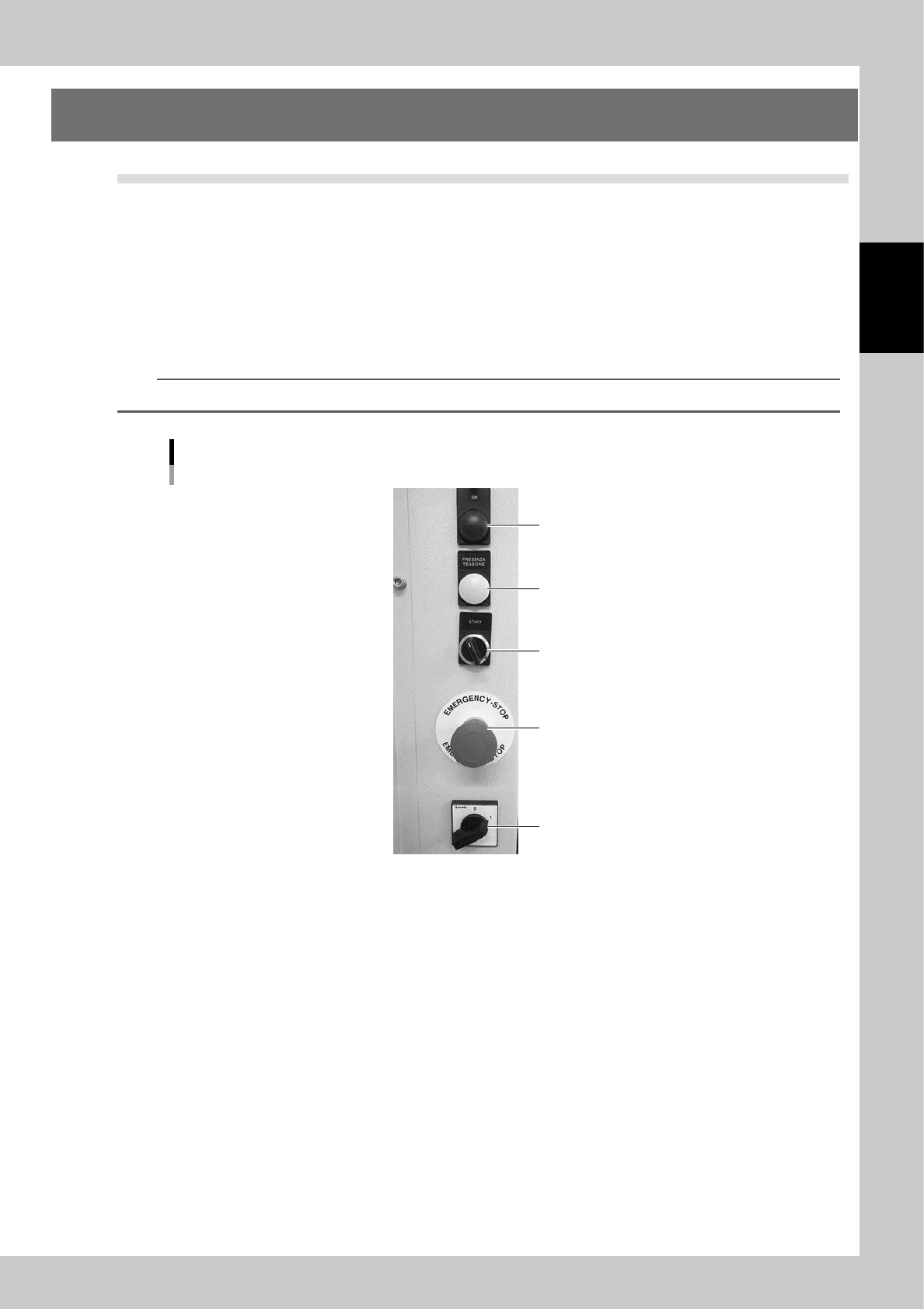
Confirm Emergency stop button is released.
If it remains pressed, turn it left to release.
2
Turn the main switch to 1 from 0 turn the machine on.
3
Turn the operation switch right.
Boards, axes and sensors are powered on, then Power indicator lights on.
Once boards are all powered on, Operation indicator lights green.
TIP
It takes five seconds until boards are powered on.
Operation buttons
Operation indicator
Power indicator
Operation switch
Emergency stop button
Main switch
23201-KMS-00
2-2
2
Operation
4
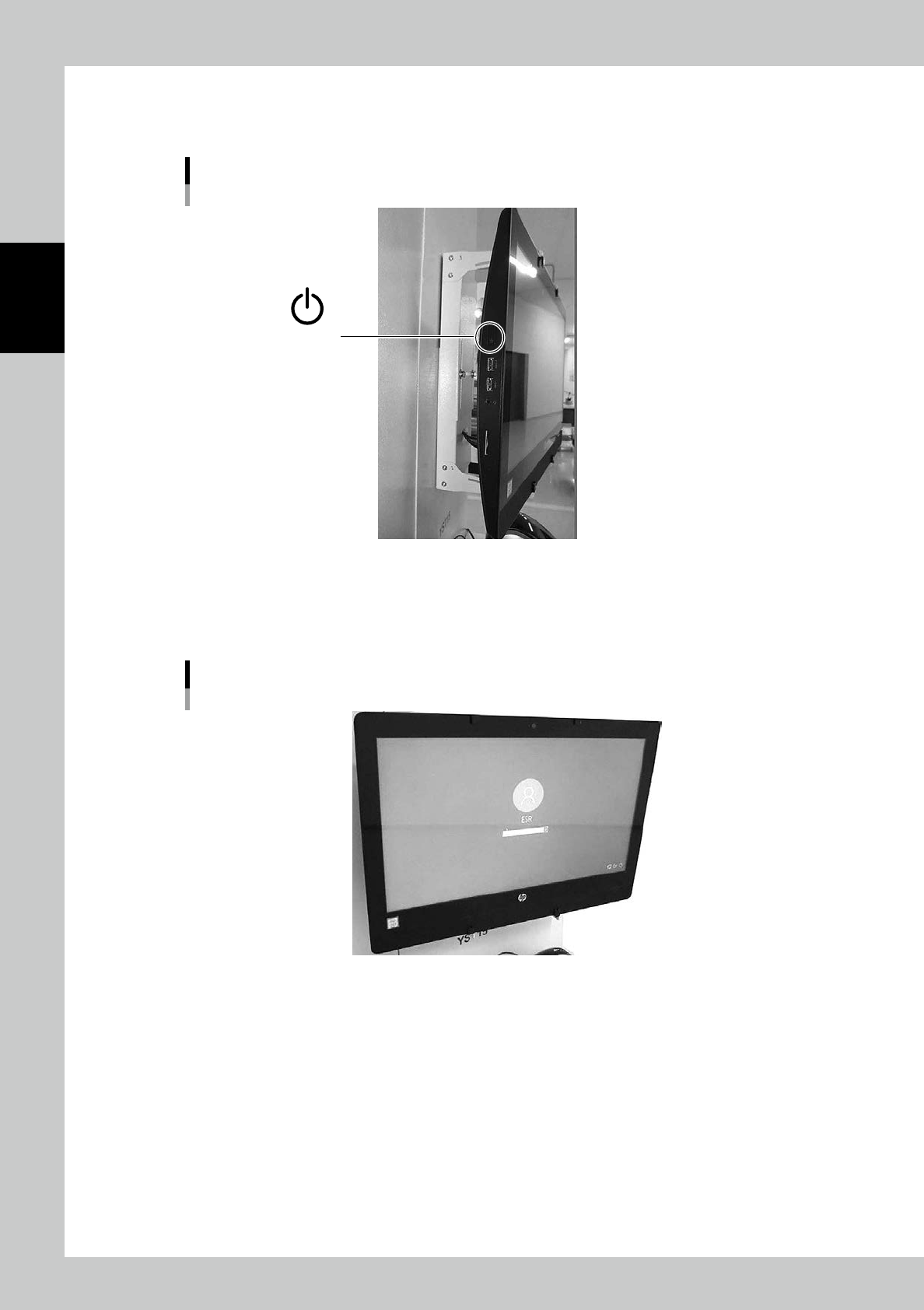
Turn on the touch screen monitor.
Press Power button at left of the touch screen monitor.
Power button of touch screen monitor
Power button
23202-KMS-00
5
Log in the computer.
Windows starts, then log-in screen appears.(User name: ESR)
Log in with the password "LZERO3", then "WMS MANAGER" starts automatically.
Log-in screen-1
23203-KMS-00
2-3
2
Operation
6
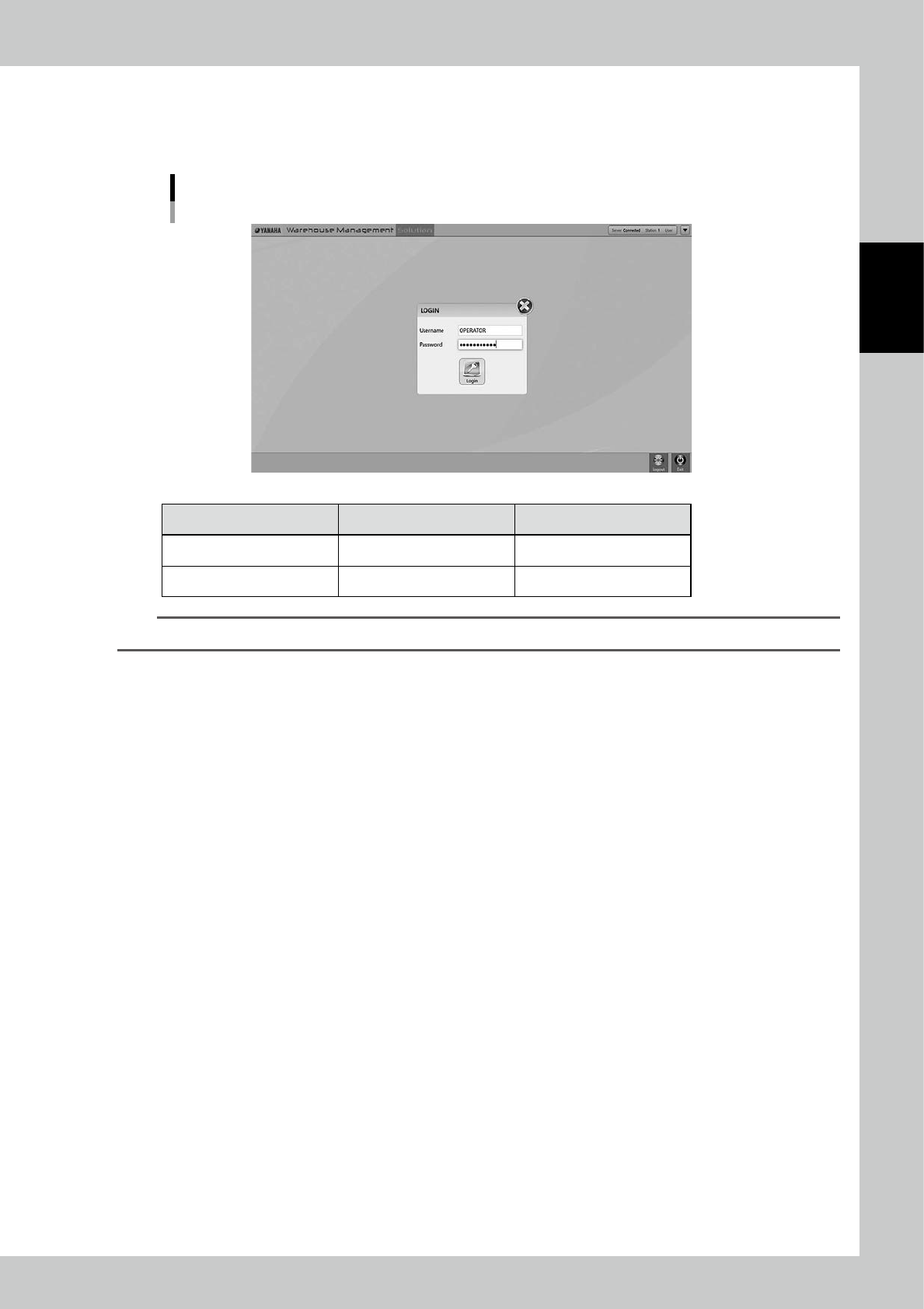
Log in "WMS WAREHOUSE MANAGER".
The software starts, then log-in screen appears.
Use either one below with its "Username" and "Password".
Log-in screen-2
24201-KMS-00
Username Password
Operator OPERATOR OPERATOR000
Administrator ADMIN Admin123
TIP
"Operator" can't use some function in Item/Packaging in according to authorization setting.