YST15_Users_E.pdf - 第105页
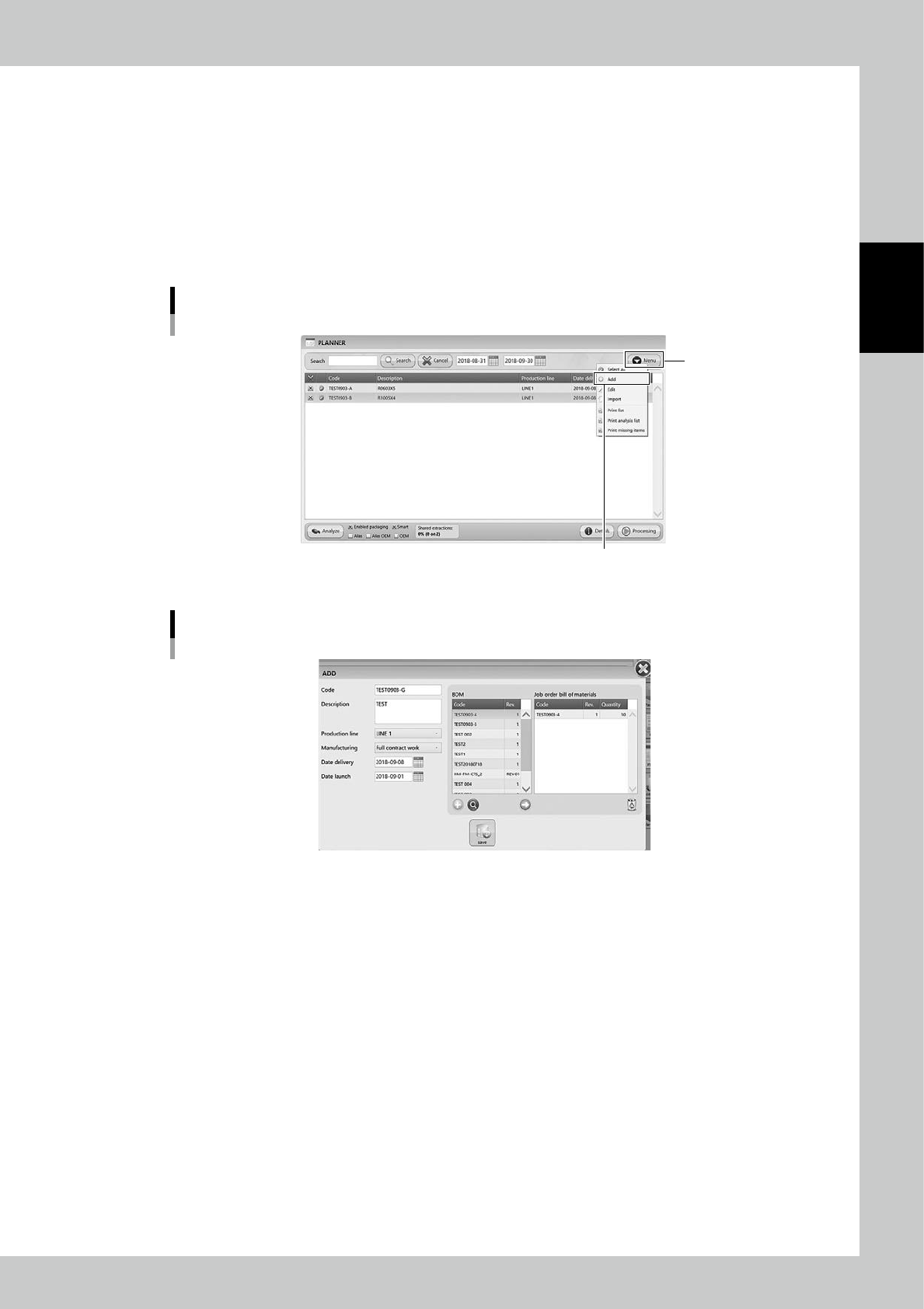
2-77 2 Operation 3.7.2 Create a job order in PLANNER Creating a job order in PLANNER is described.Step 3 and later are same as "3.6.2 Create a job order manually" 1 Open "PLANNNER" screen. 2 The job o…

2-76
2
Operation
4. [Analyze] button
Able to analyze the production feasibility based on the selected job order and the stock in the machine.
5. Analysis option
The settings to analyze job orders, such as Alias, OEM, and so on.See "3.7.4 Analyze in PLANNNER" for details.
6. Shared extraction
It is displayed after production analysis.If there are some packagings, which are common in multiple job orders, in the
selected job order, their quantity and ratio of the packagings are displayed.
7. [Detail] button
Able to use this button if production analysis fails.If there are no enough quantities of some packagings in YST15, it is
possible to make settings of Alias or OEM.
8. [Process] button
Able to move the selected job orders to "JOB ORDERS" screen.
2-77
2
Operation
3.7.2 Create a job order in PLANNER
Creating a job order in PLANNER is described.Step 3 and later are same as "3.6.2 Create a job order manually"
1
Open "PLANNNER" screen.
2
The job order creating screen appears.
3
The following procedure is same as "3.6.2 Create a job order manually".
Input necessary contents.
"PLANNER" screen
“Add”
[Menu] button
24293-KMS-00
Job order creating screen
24294-KMS-00
2-78
2
Operation
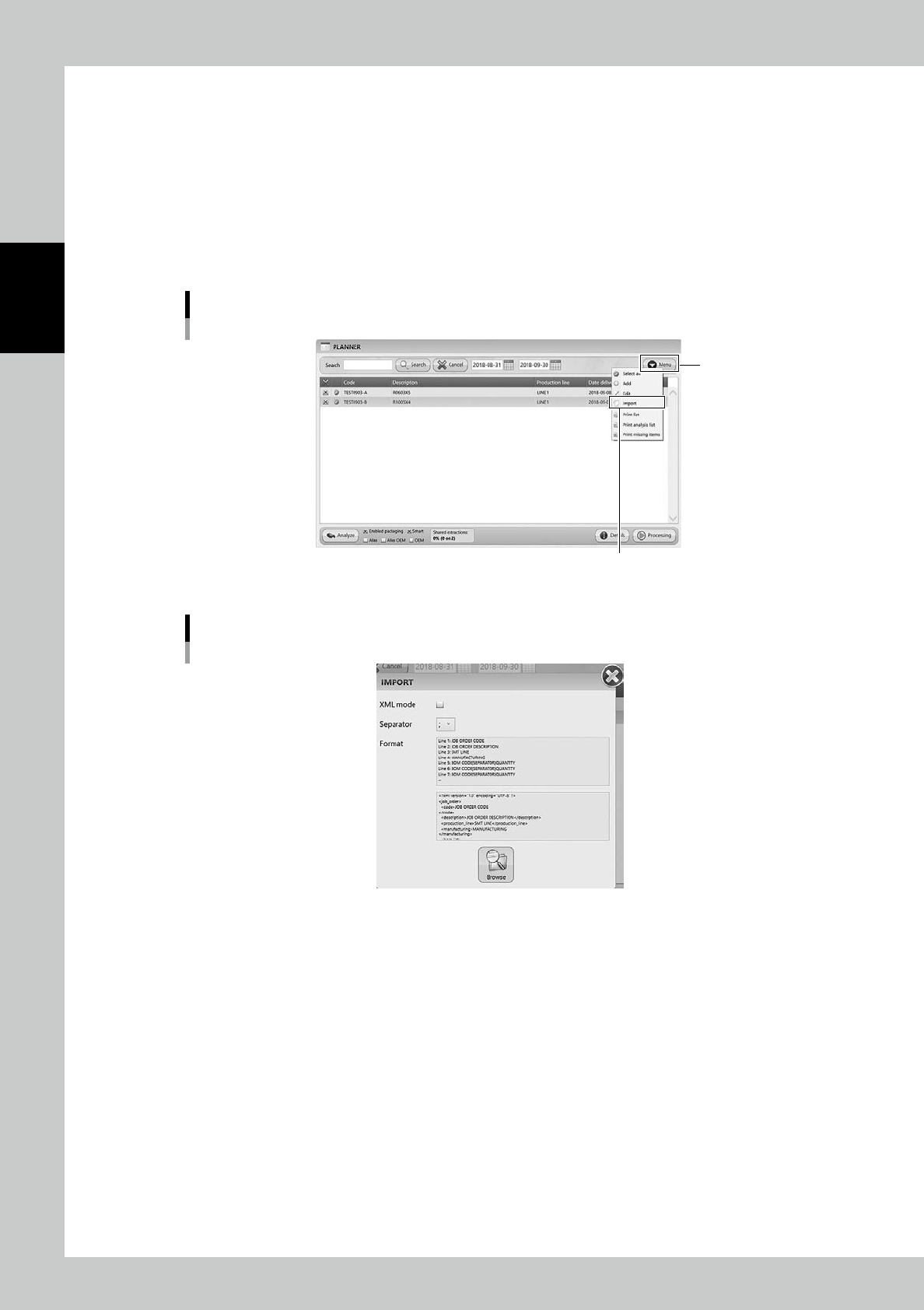
3.7.3 Create a job order by import function in PLANNER
Creating a job order by importing the file in PLANNER is described.Step 2 and later are same as "3.6.3 Create a
job order by import function"
1
Open "Import" screen.
Select "Import" in Menu, then "IMPORT" screen appears.
2
The following procedure is same as "3.6.3 Create a job order by import function".
Input necessary contents.
"PLANNER" screen
“Import”
[Menu] button
24295-KMS-00
"IMPORT" screen
24296-KMS-00