YST15_Users_E.pdf - 第85页
2-57 2 Operation 3.6 Job Orders Job Orders list the types of the pac kagings and their quantities required for the planned quantities of the products. YST15 is able to unload multiple packagings based on J ob orders. 3.6…

2-56
2
Operation
TIP
[Remove] button
[Remove] button is displayed only for engineer authority.
Select a BOM and press [Remove], then the BOM is removed.
BOMs which are removed once are not able to be registered again, and the histories of them are also removed in
traceability.
DO NOT remove any registered BOMs basically.
[Remove] button
[Remove] button
24263-KMS-00
2-57
2
Operation
3.6 Job Orders
Job Orders list the types of the packagings and their quantities required for the planned quantities of the
products.
YST15 is able to unload multiple packagings based on Job orders.
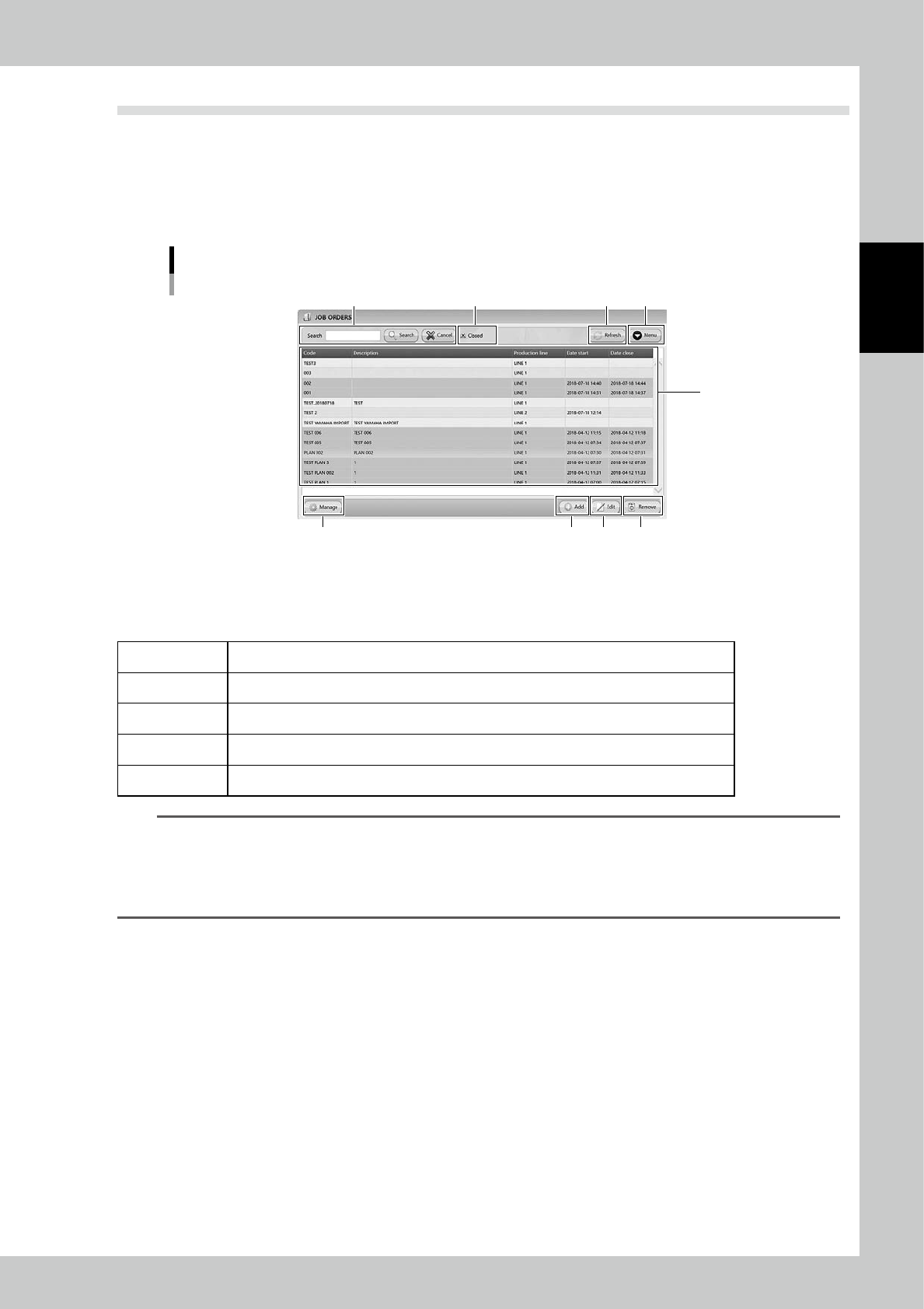
3.6.1 JOB ORDERS screen
"JOB ORDERS" screen
1
2 5
6 7 8 9
4
3
24264-KMS-00
1. Job order list
Registered job orders are listed. Pressing a content in the top line sorts them.
The details of contents are described in the following page, too.
Code Job order names.
Description Details of job orders.
Production Line Information of the production line.
Date Start Dates when the packagings are unloaded based on the job orders.
Date close Dates when the job orders close.
TIP
Job orders are colored depending on their status.
Light gray Before the production starts.
Green The production started but before completes.
Gray The production completed.
Orange Currently selected.
2. Search bar
Able to search based on Code or Description. Pressing [Search] button with words starts searching related packagings.
Pressing [Cancel] button stop searching.
3. "Closed" check box
Check this check box to show all job orders including those completed.
4. [Refresh] button
Able to update "Job orders" screen information manually.
2-58
2
Operation
5. [Menu] button
Able to go to each function.
Menu list
24265-KMS-00
Import Able to register by importing files such as txt or csv.
Tracking of rework and repair
Useful if some items are used due to some failure of product boards.
Able to add used items into closed job orders.
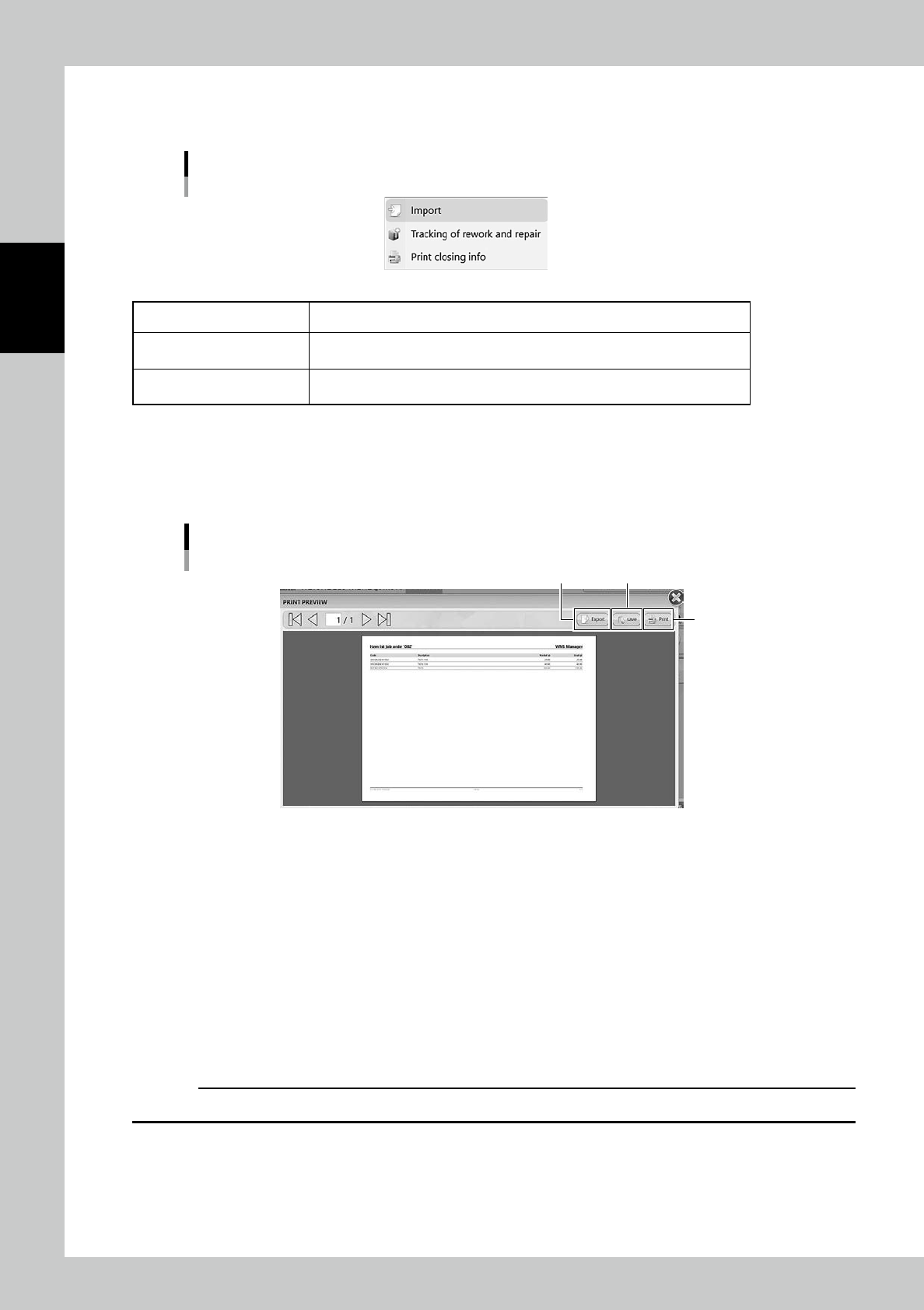
Print closing info
Select the completed job order and select "Print closing info", then "PRINT
PREVIEW" appears.
n
Print closing info
Select a completed job order, and select "Print closing info". Then, BOMs are listed in "PRINT PREVIEW" screen.
Press [Save] button to save the list in pdf format, press [Export] button to save the list in XML format.
If the machine is connected to a printer through an external network, pressing [Print] button prints the list.
"PRINT PREVIEW" screen
[Export] button [Save] button
[Print] button
24266-KMS-00
6. [Manage] button
"MANAGE" screen appears for the selected job order. The machine selects and loads the packagings required for the job
order in "MANAGE" screen.See "3.6.4 Extract packagings by a job order " for details.
7. [Add] button
Able to create a new job order.
8. [Edit] button
Able to edit a created job order.
9. [Remove] button, which is displayed only for engineer authority.
Able to remove created job orders, but job orders which are removed once are not able to be created again, and the
histories of them are also removed in traceability.
c
CAUTION
DO NOT remove any created items basically. Use "Disable" in Menu for useless job orders.