YST15_Users_E.pdf - 第67页
2-39 2 Operation TIP For example, two packagings are registered at once by importing the following file. e.g. T wo packagings are registered at once by importing the following file. • IMPORT screen setting • Packagings to…
2-38
2
Operation
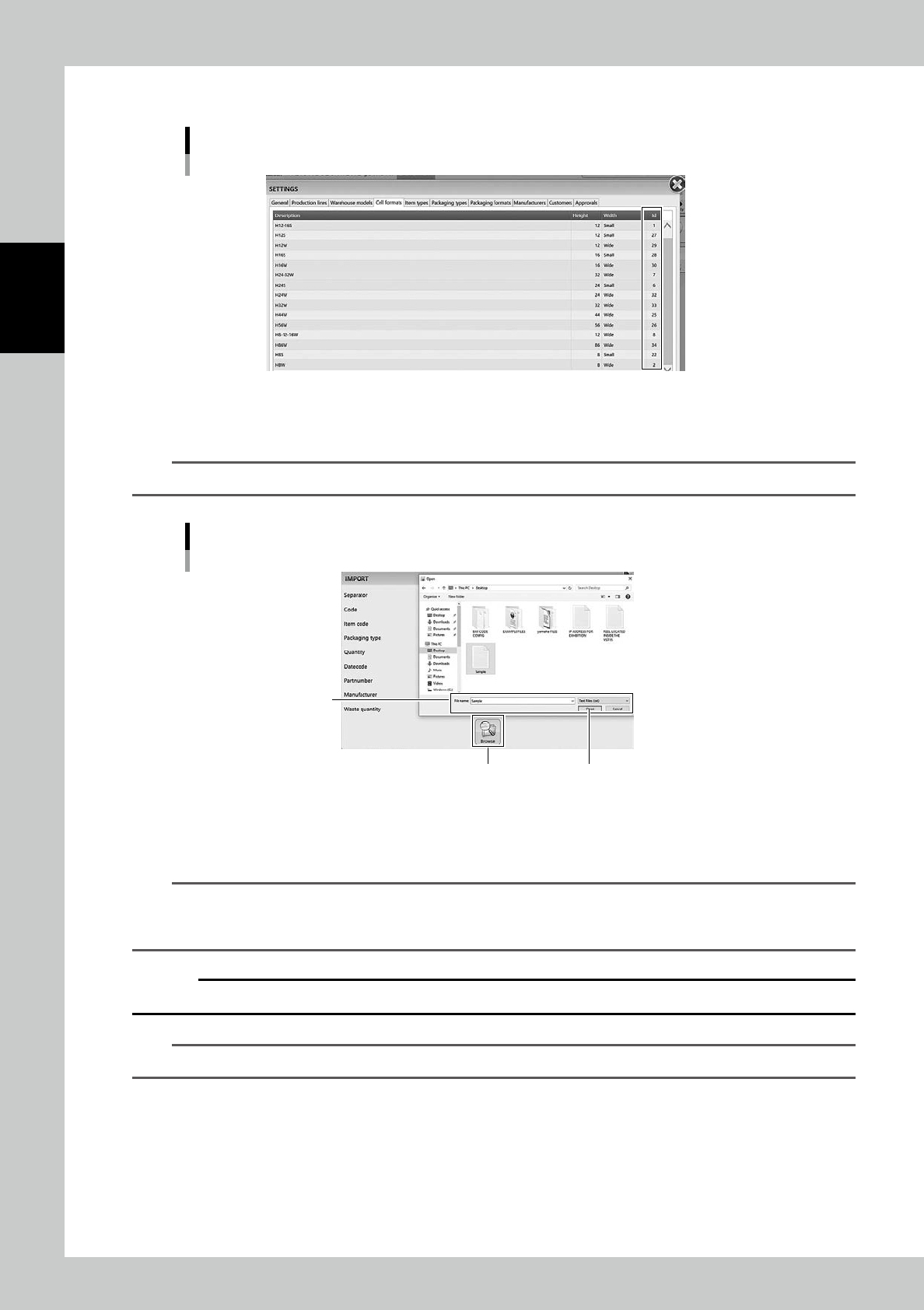
ID number can be checked in "SETTINGS" screen.
"SETTINGS" screen - "Cell formats"
24241-KMS-00
3
Press [Browse] button, then select the import file.
n
NOTE
Select the file format from txt, csv, or xml depending on the import file.
Select the file
[Browse] button [Open] button
Select the import file
24242-KNS-00
4
Press [Open] button to register the packaging, then registering the packaging
completes.
n
NOTE
When packagings are registered by import function, their bar code labels are not printed automatically.
After registering packaging completes, tick the left end of the packagings in "PACKAGING" screen and select "Print
labels" in Menu so that their labels are printed.
c
CAUTION
DO NOT paste the wrong label on a packaging. Make sure to paste the correct label on the correct packaging.
n
NOTE
When packagings are registered by import function, "ADD APPROVAL" screen doesn't appear.
2-39
2
Operation
TIP
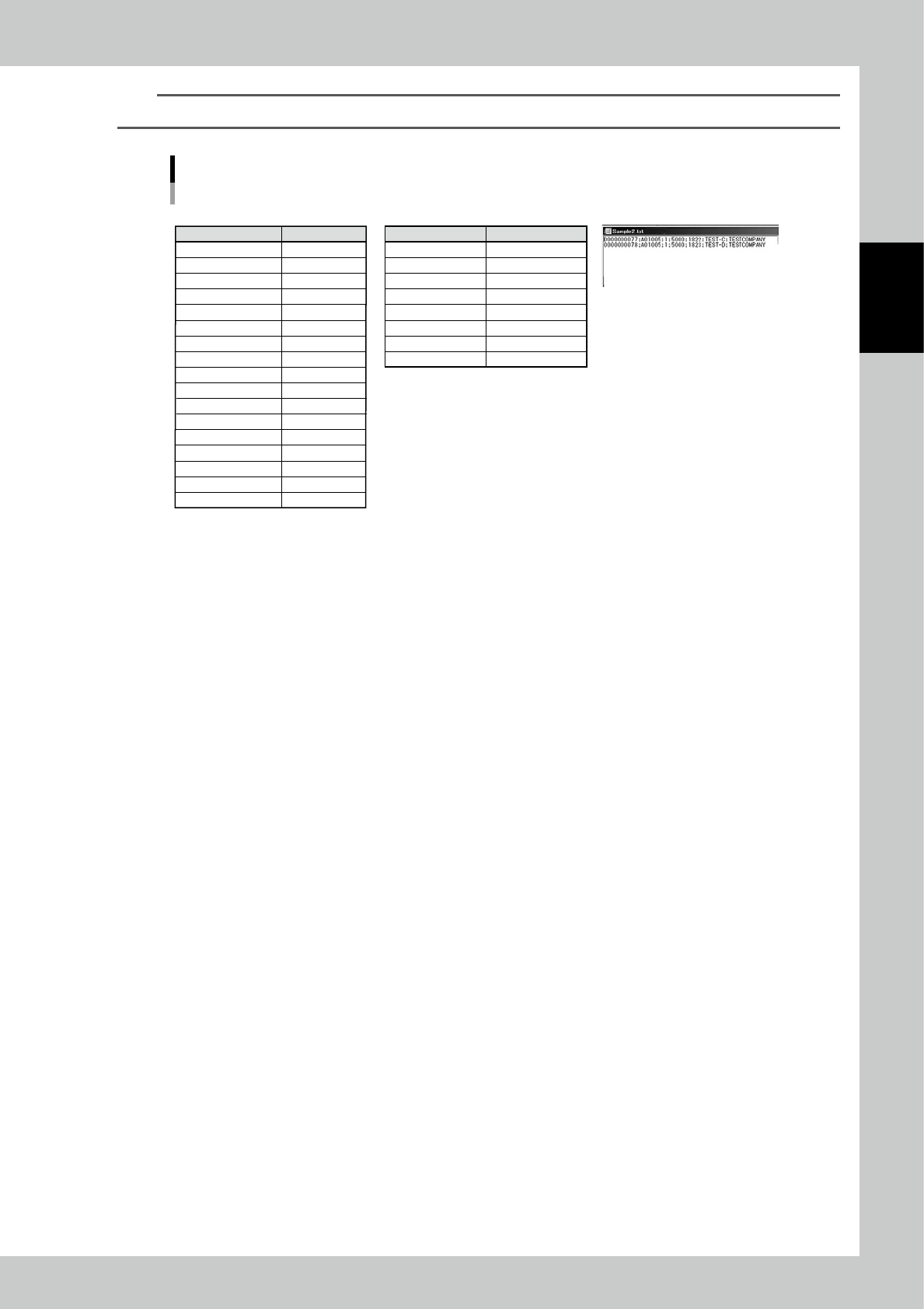
For example, two packagings are registered at once by importing the following file.
e.g. Two packagings are registered at once by importing the following file.
• IMPORT screen setting • Packagings to be registered • Import file in txt format
Content
Separator
Code
Item code
Packaging type
Quantity
Datecode
Partnumber
Manufacturer
Waste quantity
Lot number
Customer
Supplier
Delivery note
Phachase Order
Manufacturing
Expiration(months)
Packaging format
Column setting
;
Column 1
Column 2
Column 3
Column 4
Column 5
Column 6
Column 7
No import
No import
No import
No import
No import
No import
No import
No import
No import
Packaging A
;
0000000077
A01005
1
5000
1822
TEST-C
TESTCOMPANY
Packaging B
;
0000000078
A01005
1
5000
1823
TEST-D
TESTCOMPANY
23214-KMS-00
2-40
2
Operation
3.3.4 Disable and remove packagings
Setting "Disable" on packagings prevents the machine from unloading the packagings.
1
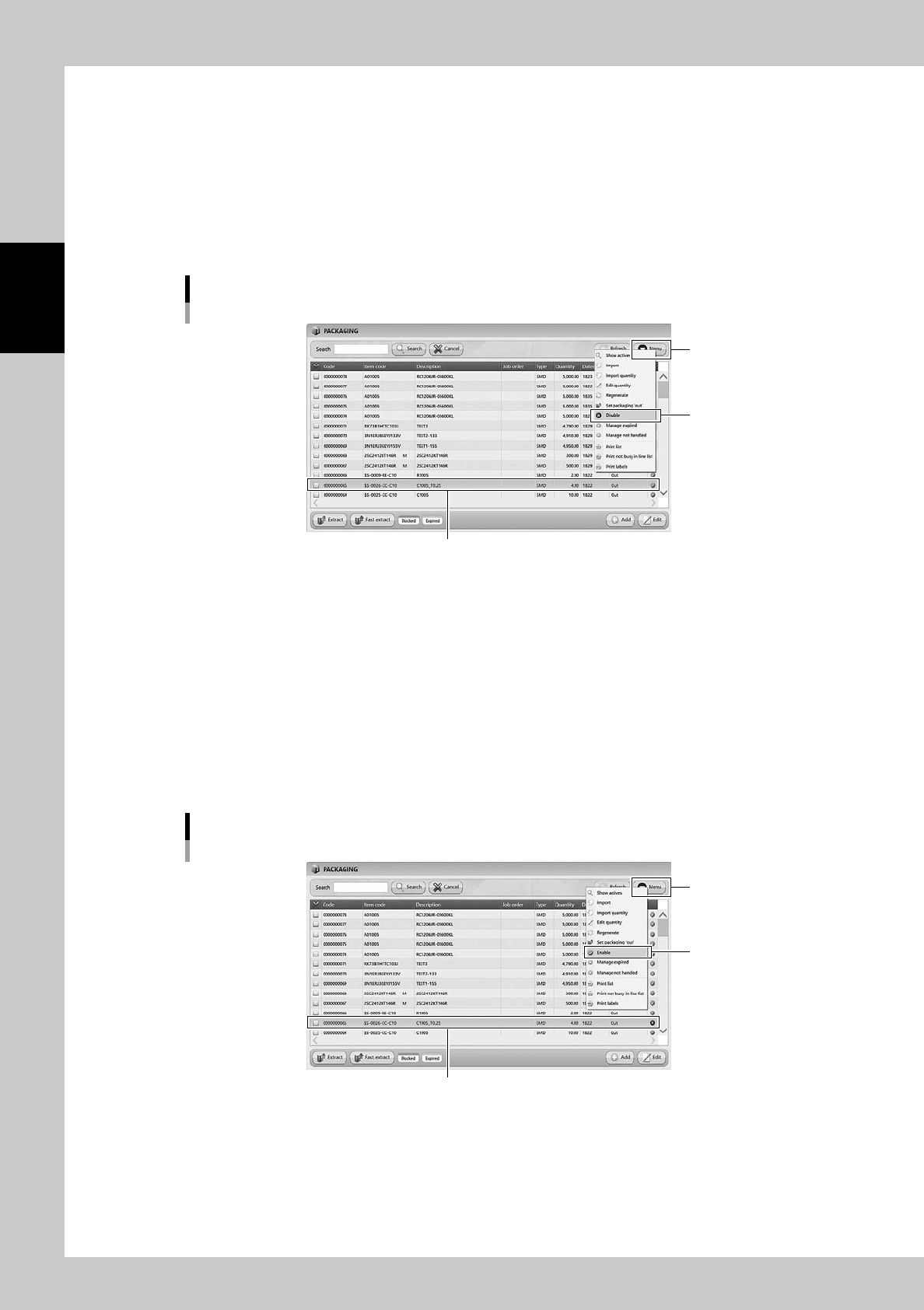
Select the packaging.
Select the packaging to be disabled.
2
Select "Disable".
Select "Disable" in Menu, then the selected packaging becomes "Disable" and hidden from the list.
Disable setting for packagings
[Menu] button
Select the packaging
“Disable”
24243-KMS-00
n
The case it is required to use the disabled packaging.
1
Display all the packagings.
Select "Show All" in Menu, then all the packagings including disabled packagings are displayed.
2
Select the packaging.
Select the required packaging.
3
Select "Enable".
Select "Enable" in Menu, then the selected packaging becomes enabled.
Enable setting for packagings
[Menu] button
Select the packaging
“Enable”
24244-KMS-00