YST15_Users_E.pdf - 第63页
2-35 2 Operation TIP Sometime the following message appears such as when the label is printed first time after machine is started. In that case, wait a seconds and press [OK], then the label is printed. Message screen 242…
2-34
2
Operation
n
NOTE
The dedicated case is required to store tray components in YST15.
Contact the sales distributer.
TIP
YST15 can not store stick components.
n
Format
The packaging types of tape components are classified as the following table depending on its tape width and reel size.
Check actual packagings to select correct setting.
Format Tape width Reel size
H08S
8mm
7 inch
H08W 13-15 inch
H12S
12mm
7 inch
H12W 13-15 inch
H16S
16mm
7 inch
H16W 13-15 inch
H24S
24mm
7 inch
H24W 13-15 inch
H32W 32mm 13-15 inch
H44W 44mm 13-15 inch
H52W 52mm 13-15 inch
c
CAUTION
If the setting is wrong, the machine may fail to store the packaging or Handler may interfere with the packaging.
TIP
It is possible only to register packagings of "H44W", but it is optional.
"H52W" can be stored only in the special ordered.
4
Press [Save] button.
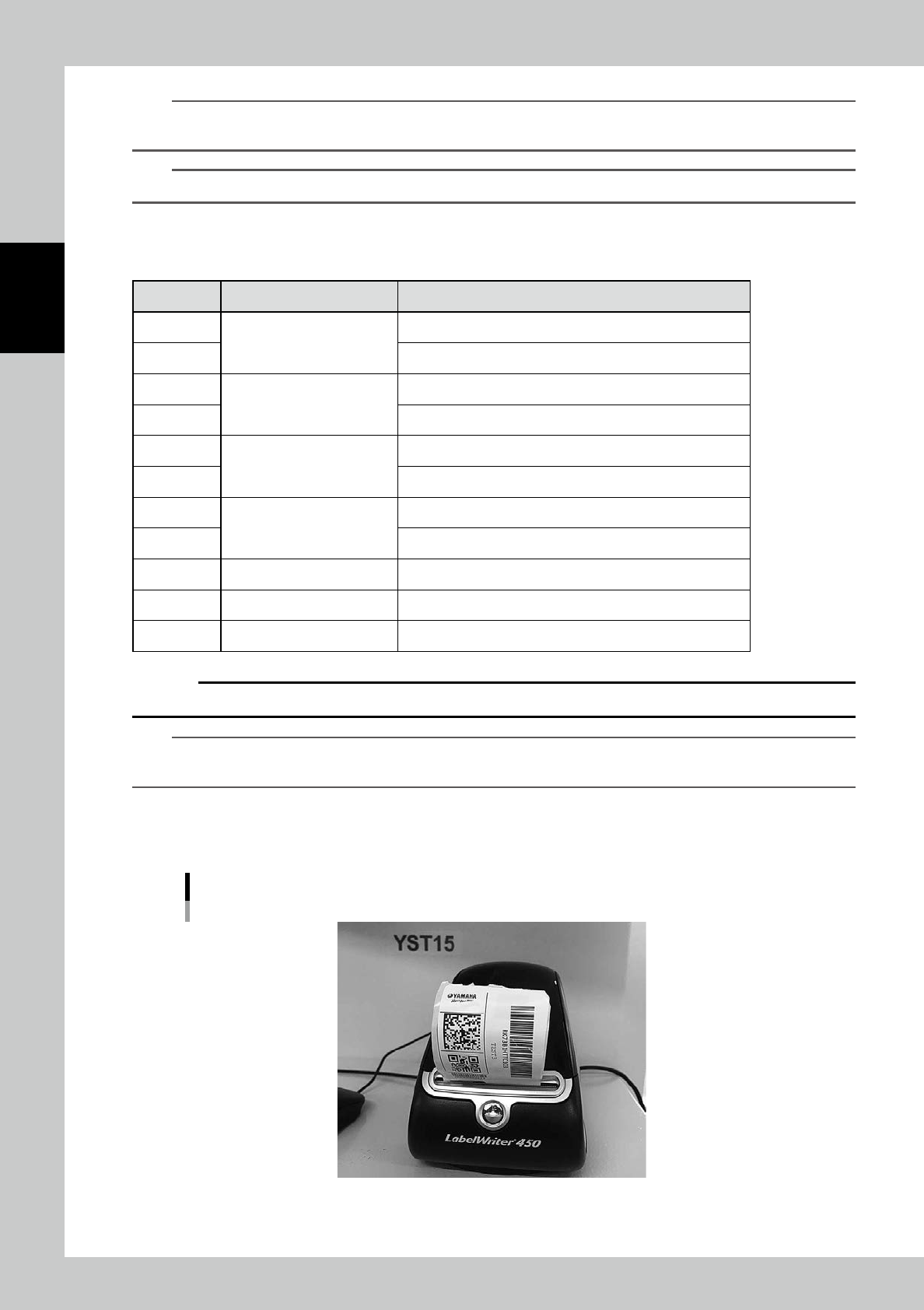
Press [Save] button, then the bar code label is printed from the label printer.
Bar code label printer
23212-KMS-00
2-35
2
Operation
TIP
Sometime the following message appears such as when the label is printed first time after machine is started.
In that case, wait a seconds and press [OK], then the label is printed.
Message screen
24236-KMS-00
5
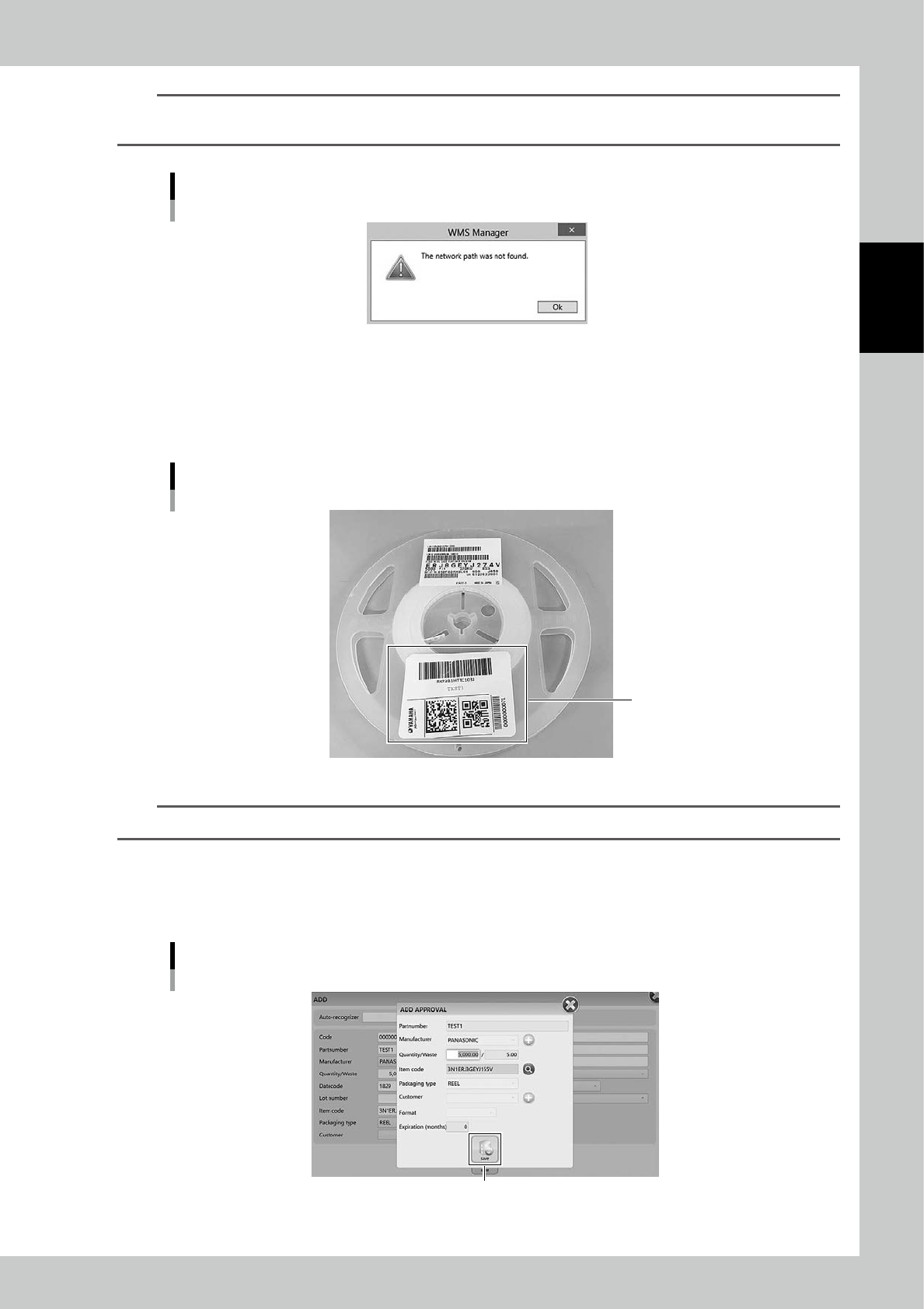
Paste the label on the packaging.
A bar code label requires to be close to outer circumference of the reel like the following figure.
If the label is too close to the center, the inner bar code reader of YST15 may fail to recognize the
packaging.
Where to paste a bar code label on a packaging
Label position
23213-KMS-00
n
NOTE
Do not paste the label printed here on a label existing on the packaging.
6
Check the registered contents.
Check the contents in "ADD APPROVAL" screen.
Check the packaging information, and press [Save] button, then registering the packaging completes.
"ADD APPROVAL" screen
[Save] button
24237-KMS-00
2-36
2
Operation
3.3.3 Register packagings by import function.
Registering packagings at once by import function is described.
1
Open "IMPORT" screen.
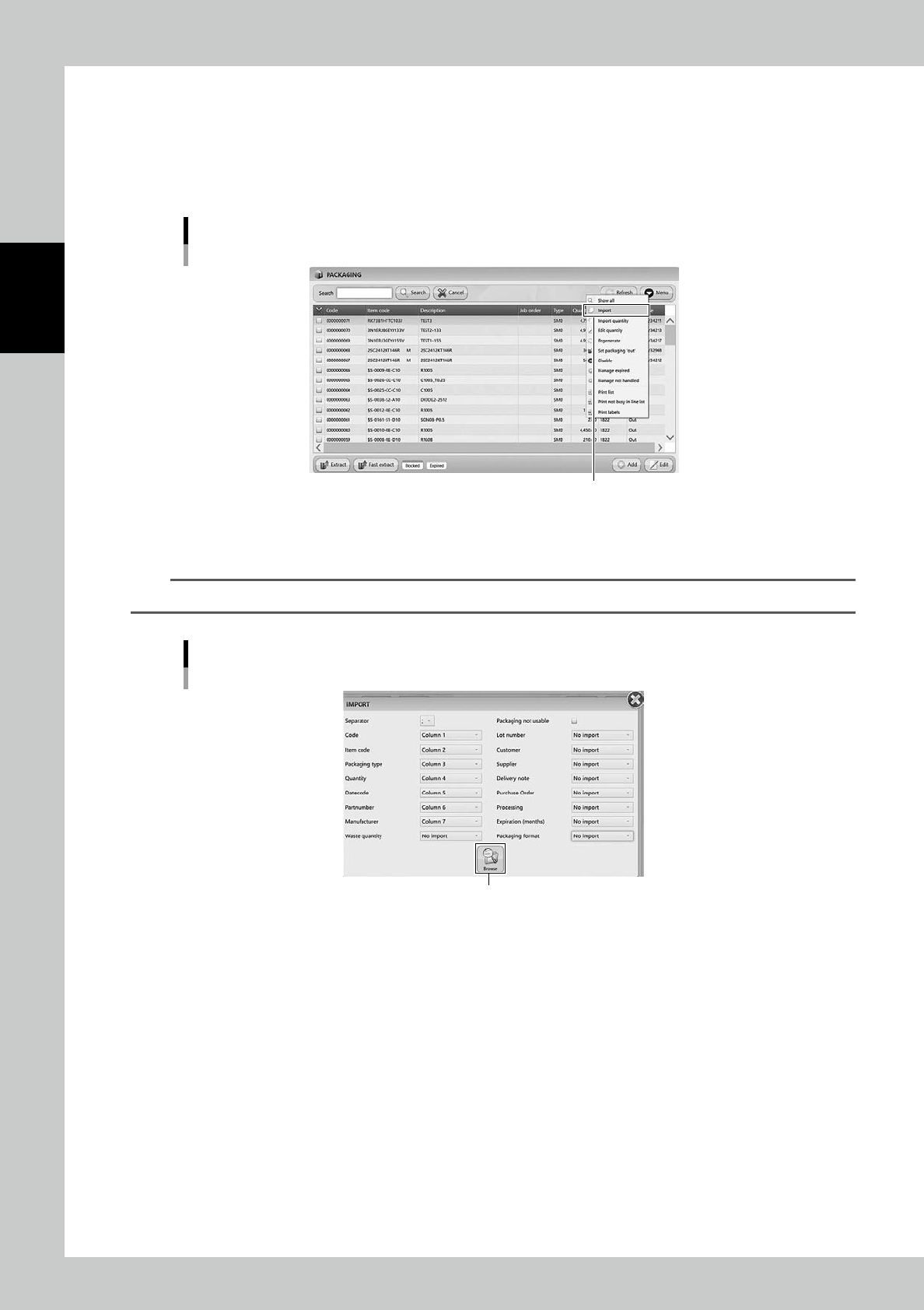
Select "Import" in Menu, then "IMPORT" screen appears.
Import menu
“Import”
24238-KMS-00
2
Select the file format in "IMPORT" screen.
n
NOTE
See "3.3.2
Register a packaging manually" for details of contents.
"IMPORT" screen
[Browse] button
24239-KMS-00