YST15_Users_E.pdf - 第65页
2-37 2 Operation Content Setting Separator Set separator , in ";", ":", "," or ".". Code Select which column is corresponded to each content for registration. Item code Packaging t…
2-36
2
Operation
3.3.3 Register packagings by import function.
Registering packagings at once by import function is described.
1
Open "IMPORT" screen.
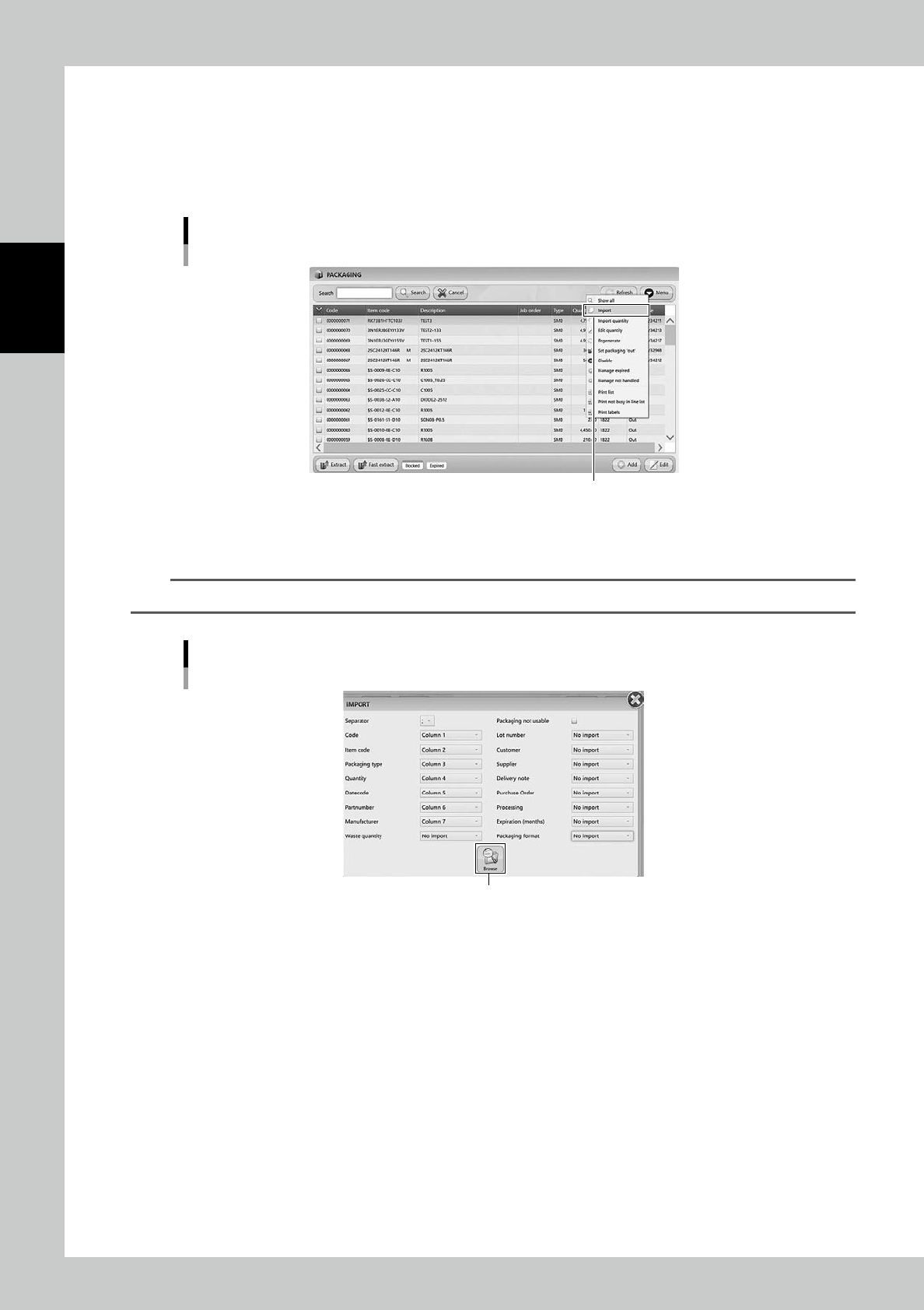
Select "Import" in Menu, then "IMPORT" screen appears.
Import menu
“Import”
24238-KMS-00
2
Select the file format in "IMPORT" screen.
n
NOTE
See "3.3.2
Register a packaging manually" for details of contents.
"IMPORT" screen
[Browse] button
24239-KMS-00
2-37
2
Operation
Content Setting
Separator Set separator, in ";", ":", "," or ".".
Code
Select which column is corresponded to each content for registration.
Item code
Packaging type
Quantity
Datecode
Partnumber
Manufacturer
Waste quantity
Lot number
Customer
Supplier
Delivery note
Phachase Order
Manufacturing
Expiration(months)
Packaging format
Packaging not usable If this is ticked, the packagings are registered with setting "Disable".
n
NOTE
"Packaging type" of import files
Input 1 to 5 in "Packaging type". Input 1 for reel components, input 3 for tray components.
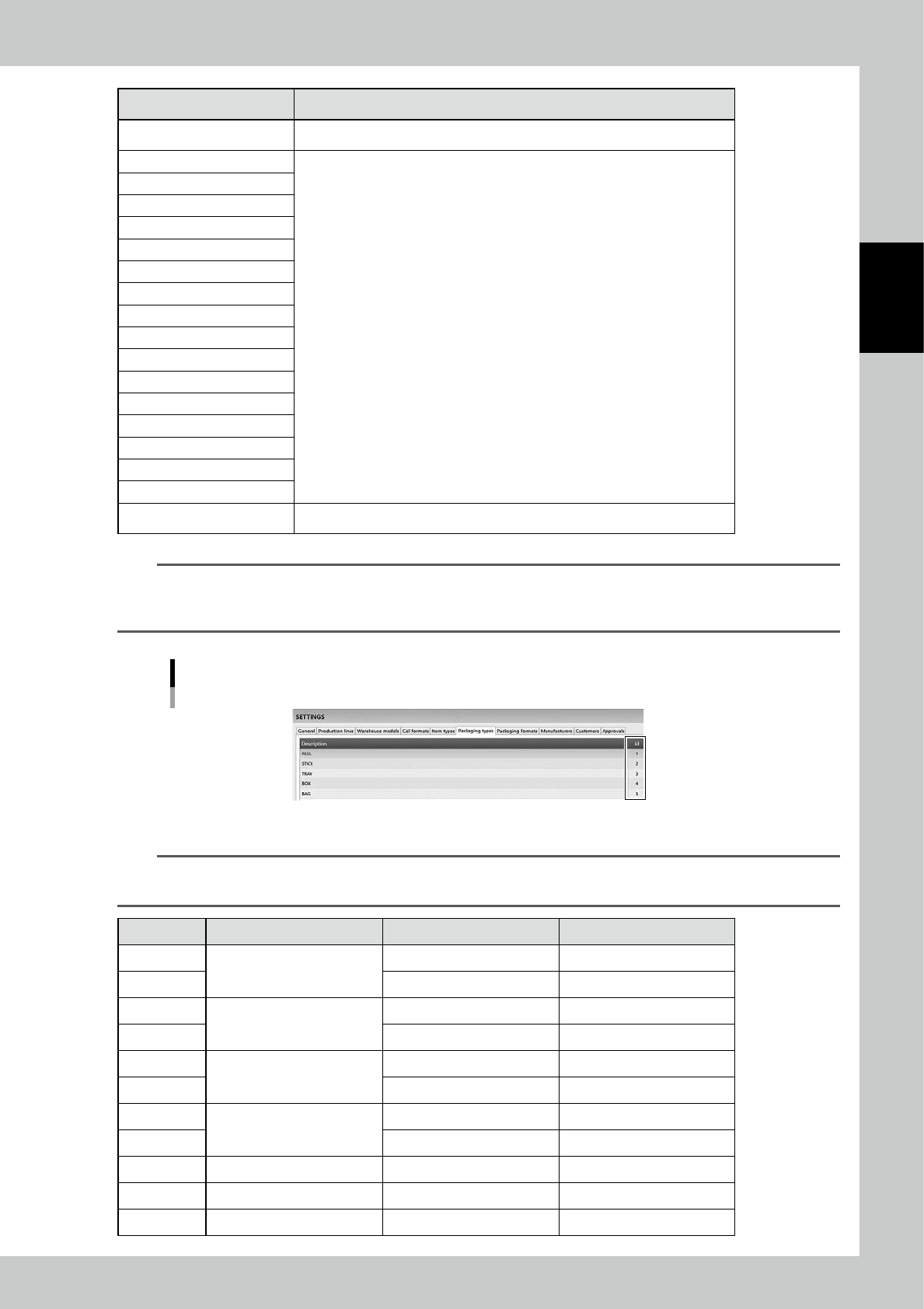
ID number can be checked in "SETTINGS" screen.
"SETTINGS" screen - "Packaging types"
24240-KMS-00
n
NOTE
"Packaging format" of import files
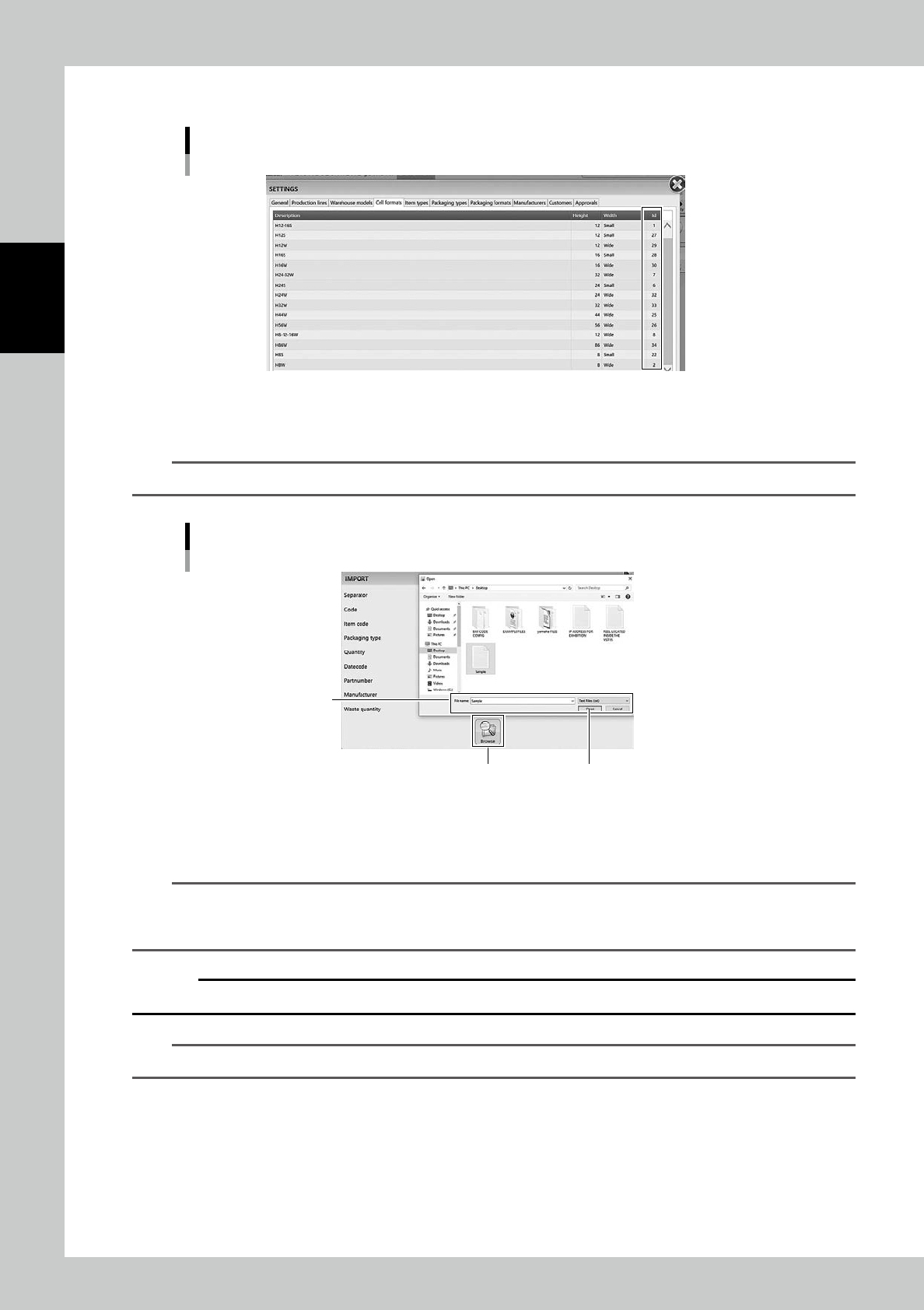
Input ID number for "Packaging format" depending on the reel size. See the table below.
Format Tape width Reel size ID number
H08S
8mm
7 inch 22
H08W 13-15 inch 2
H12S
12mm
7 inch 27
H12W 13-15 inch 29
H16S
16mm
7 inch 28
H16W 13-15 inch 30
H24S
24mm
7 inch 6
H24W 13-15 inch 32
H32W 32mm 13-15 inch 33
H44W 44mm 13-15 inch 25
H52W 52mm 13-15 inch 26
2-38
2
Operation
ID number can be checked in "SETTINGS" screen.
"SETTINGS" screen - "Cell formats"
24241-KMS-00
3
Press [Browse] button, then select the import file.
n
NOTE
Select the file format from txt, csv, or xml depending on the import file.
Select the file
[Browse] button [Open] button
Select the import file
24242-KNS-00
4
Press [Open] button to register the packaging, then registering the packaging
completes.
n
NOTE
When packagings are registered by import function, their bar code labels are not printed automatically.
After registering packaging completes, tick the left end of the packagings in "PACKAGING" screen and select "Print
labels" in Menu so that their labels are printed.
c
CAUTION
DO NOT paste the wrong label on a packaging. Make sure to paste the correct label on the correct packaging.
n
NOTE
When packagings are registered by import function, "ADD APPROVAL" screen doesn't appear.