YST15_Users_E.pdf - 第73页
2-45 2 Operation 3.5 BOM BOM, Bill Of Materials, lists the necessary items and quantities of them. T he machine selects the packagings in Job orders based on this information. 3.5.1 B.O.M "BOM" screen 1 2 4 8 5…
2-44
2
Operation
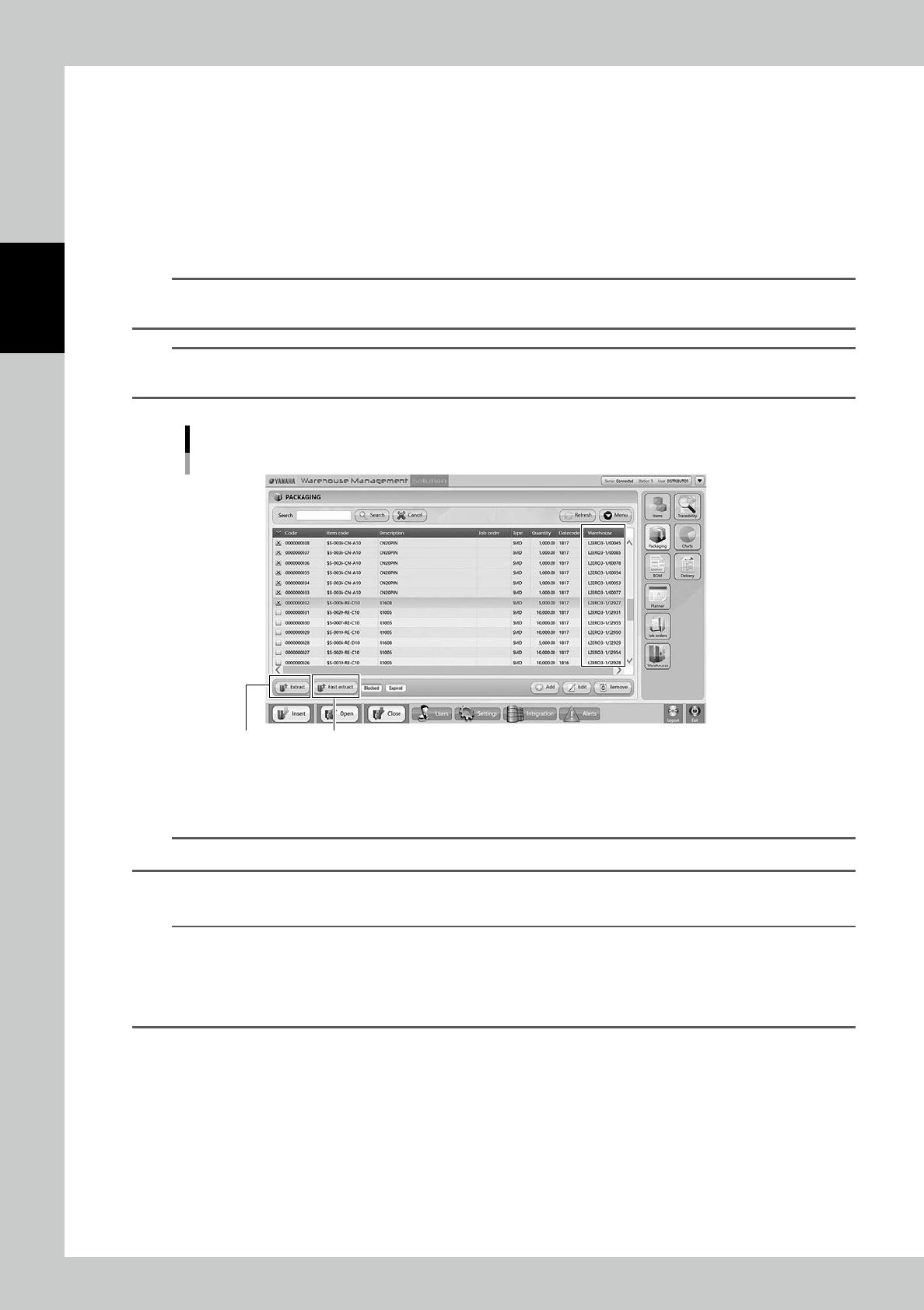
3.4.2 Unload packagings manually
The process of unloading packagings manually is described.
See "3.6 Job Orders" for the procedure to unload a group of packagings.
1
Open "PACKAGING" screen.
2
Tick the check boxes at left end of the packagings to be unloaded.
3
Press [Extract] button to unload the selected packagings.
TIP
Packagings stored in the machine have their cell numbers in "Warehouse" column.
Unloaded packagings have indication of "Out".
TIP
While unloading packagings, the tower signal lights green and yellow.
Once the machine completes unloading the packagings, the tower signal lights only yellow.
"PACKAGING" screen
[Extract] button [Fast Extract] button
24247-KMS-00
4
Confirm the tower signal lights only yellow, which means unloading completes,
then open the front door to take out the packagings.
TIP
Once the packagings are taken out, the tower signal lights green instead of yellow.
5
Close the front door.
TIP
[Fast extract] button
If a certain packaging requires to be unloaded as soon as possible while the machine is unloading packagings, use
this button so that the desired packaging can be unloaded earlier than the others.
Tick the check box at left end of the packagings which require to be unloaded soon, and press [Fast extract] button,
then the ticked packaging is unloaded.
2-45
2
Operation
3.5 BOM
BOM, Bill Of Materials, lists the necessary items and quantities of them.
The machine selects the packagings in Job orders based on this information.
3.5.1 B.O.M
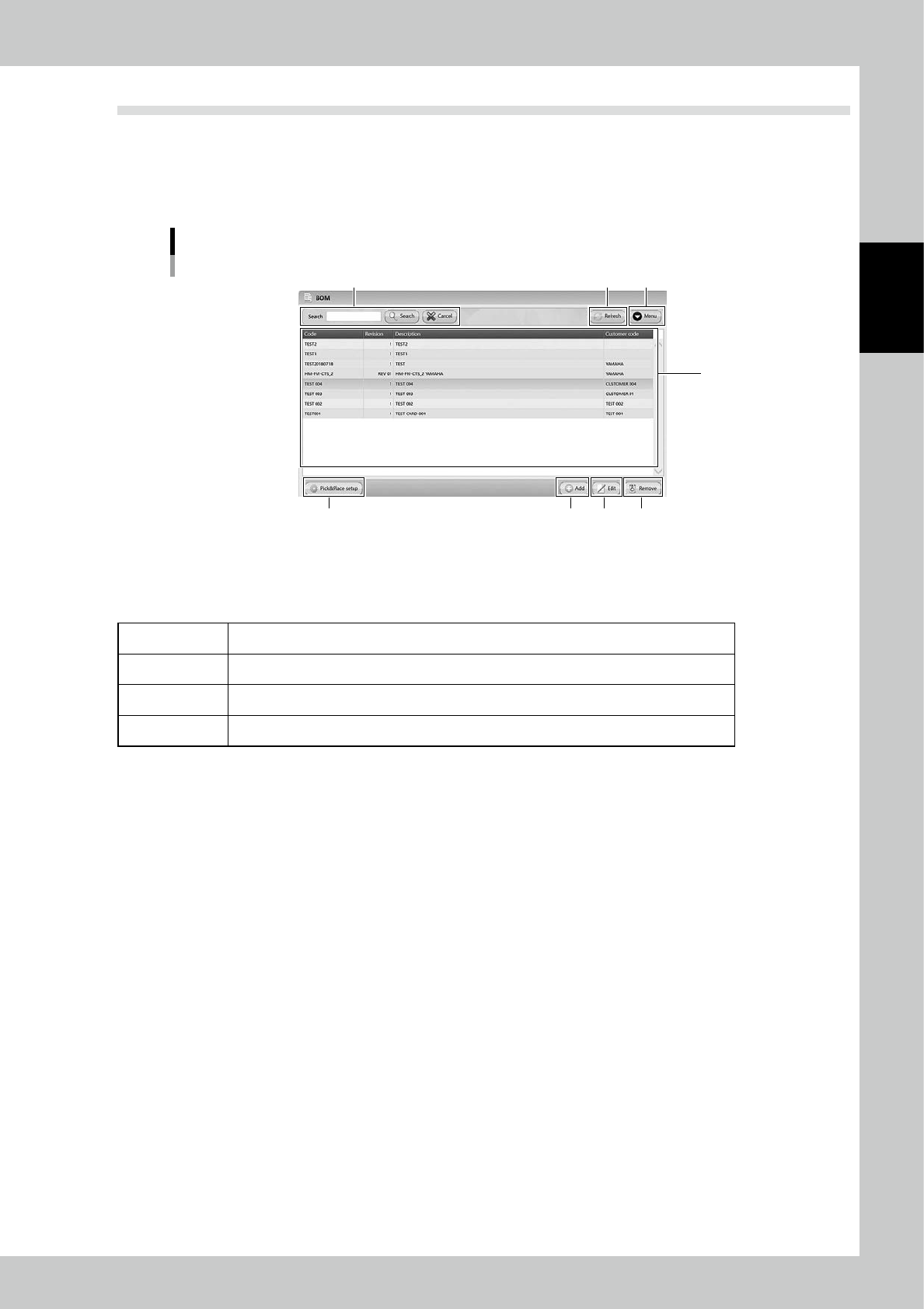
"BOM" screen
1
2 4
8 5 6 7
3
24248-KMS-00
1. BOM list
Registered BOMs are listed. Pressing a content in the top line sorts BOMs.
The details of contents are described in the following page, too.
Code BOM names in the machine. It is possible to determine them as desired.
Revision If BOMs are revised, the information about it is displayed.
Descriptio Details of BOMs.
Customer code Customer codes or customer information if there are.
2. Search bar
Able to search based on Code or Description. Pressing [Search] button with words starts searching related packagings.
Pressing [Cancel] button stop searching.
3. [Refresh] button
Able to update BOM screen information manually.
2-46
2
Operation
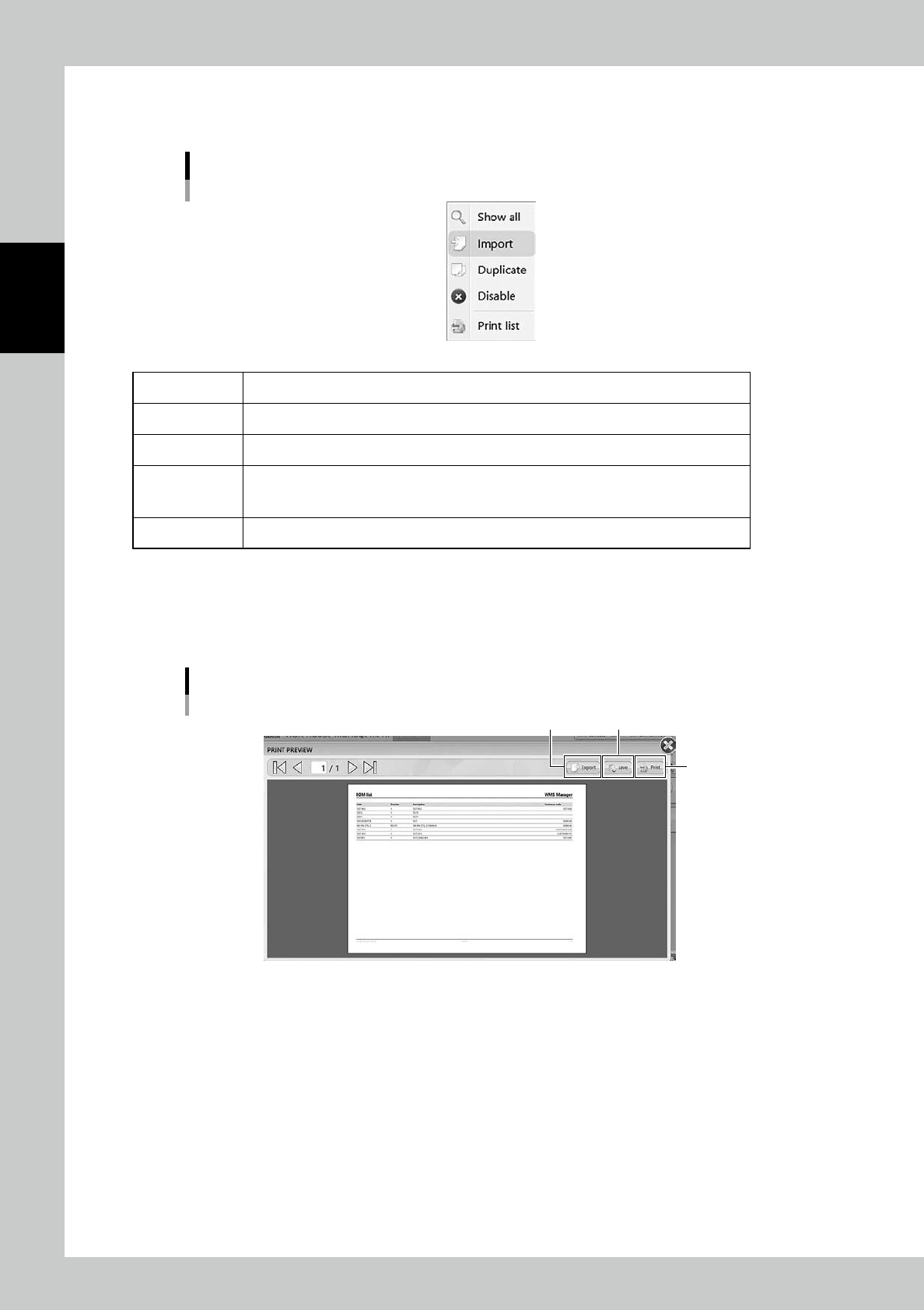
4. [Menu] button
Able to go to each function.
Menu list
24249-KMS-00
Show All All BOMs are displayed.
Import Able to register BOM by its import file such as txt and csv format.
Duplicate Copy a BOM and register new BOM same as the copied one.
Disable/Enable
Able to set the selected BOM not to be used.
Job orders can't select the BOMs which are disabled here.
The disabled BOMs become useful by setting back to Enable.
Printlist BOMs are listed.
n
Print List
Select [Print list], then BOMs are listed in "PRINT PREVIEW" screen.
Press [Save] button to save the list in pdf format, press [Export] button to save the list in XML format.
If the machine is connected to a printer through an external network, pressing [Print] button prints the list.
“PRINT PREVIEW” screen
[Export] button [Save] button
[Print] button
24250-KMS-00