YST15_Users_E.pdf - 第80页
2-52 2 Operation 3.5.3 Register a BOM by impor t function. Registering a BOM by import function. n NOTE The import function for BOM can't register multiple BOMs at once but can register only a BOM one by one. 1 Open…
2-51
2
Operation
n
"Duplicate" function to register a BOM
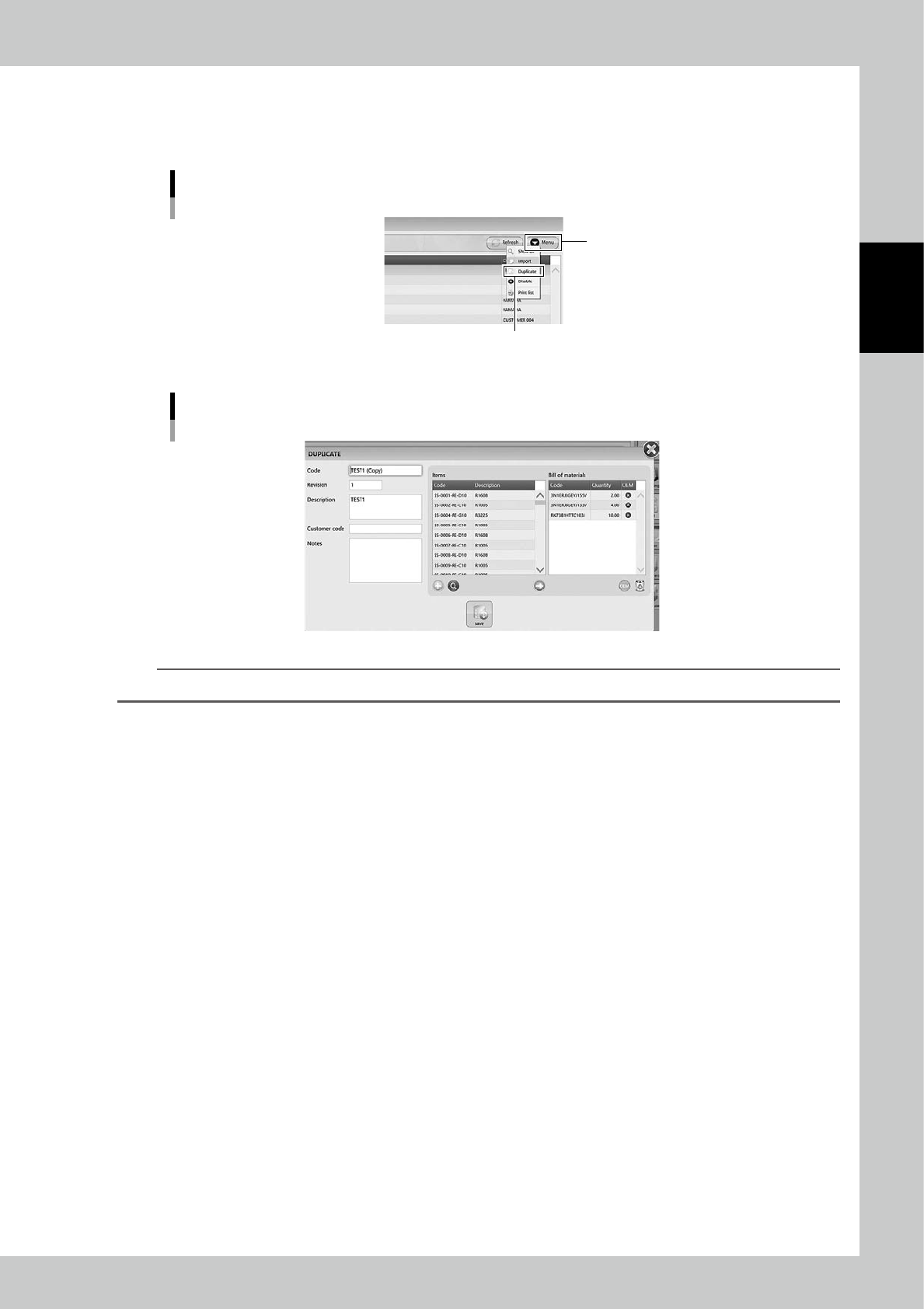
Select a BOM in "BOM" screen and select "Duplicate" in Menu, then "DUPLICATE" screen appears
A new BOM is registered by duplicating the selected BOM in this screen.
[Menu] button - "Duplicate"
[Menu] button
“Duplicate”
24256-KMS-00
"DUPLICATE" screen
24257-KMS-00
TIP
BOMs which are registered by "Duplicate" function have thier BOM codes with "Copy" indication.
2-52
2
Operation
3.5.3 Register a BOM by import function.
Registering a BOM by import function.
n
NOTE
The import function for BOM can't register multiple BOMs at once but can register only a BOM one by one.
1
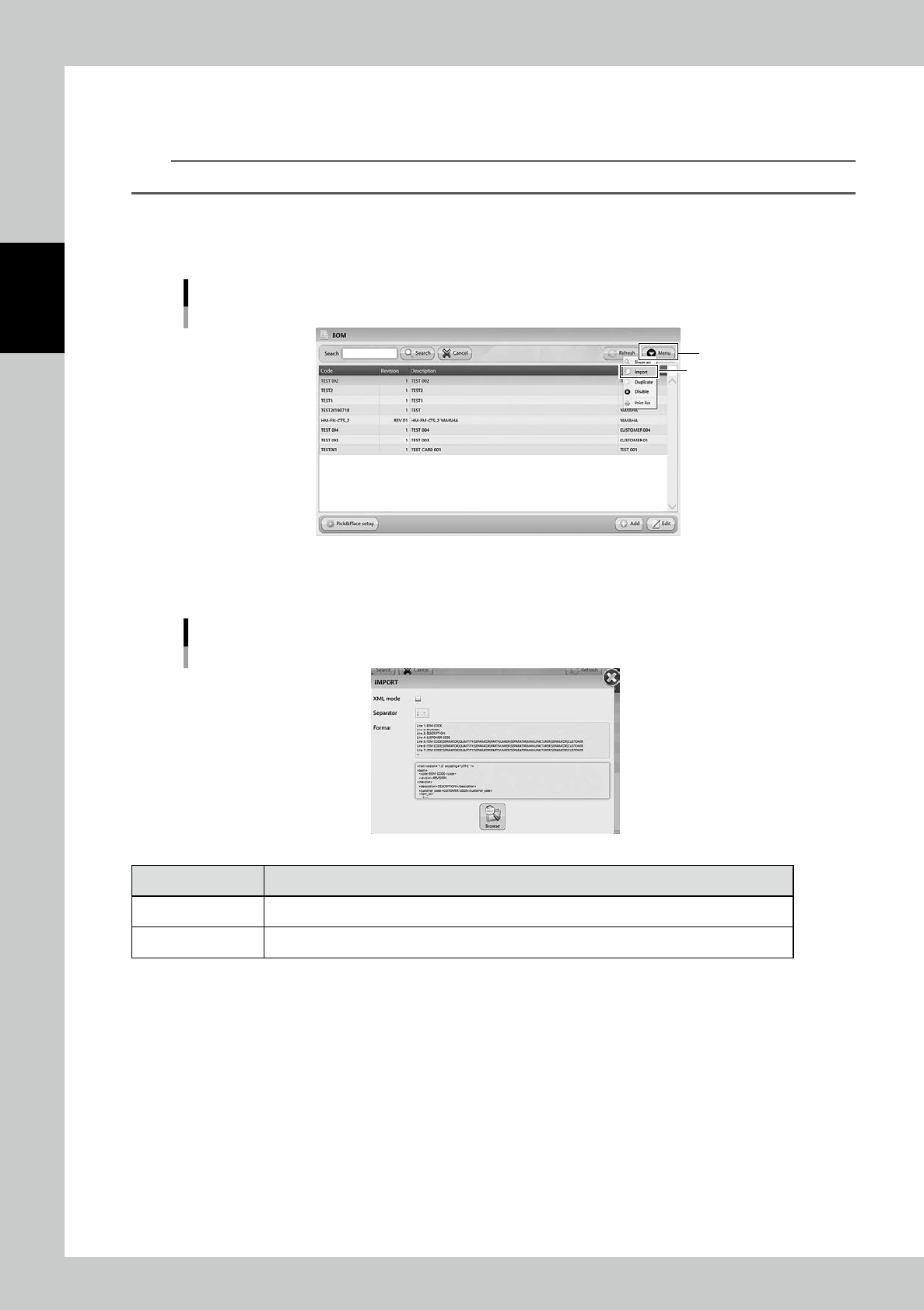
Open "IMPORT" screen.
Select "Import" in Menu, then "IMPORT" screen appears.
Import menu
“Import”
[Menu] button
24258-KMS-00
2
Select the file format in "IMPORT" screen.
"IMPORT" screen
24259-KMS-00
Content Description
XML Mode Normally import files are txt or csv format. If the import file is xml format, tick this.
Separator Select the separator from " ; ", " : ", " , ", or " . ".
2-53
2
Operation
The file format of txt or csv
Line 1 Code
Line 2 Revision
Line 3 Description
Line 4 Customer Code
Line 5 and later ITEM CODE{SEPARATOR}QUANTITY{SEPARATOR}
The file format of xml
<?xml version="1.0" encoding="UTF-8" ?>
<bom>
<code>BOM CODE</code>
<revision>REVISION
</revision>
<description>DESCRIPTION</description>
<customer_code>CUSTOMER CODE</customer_code>
<item_list>
<item>
<code>ITEM CODE</code>
<qty>QUANTITY</qty>
</customer>
</item>
...
</item_list>
</bom>
The file format of XML
23217-KMS-00
3
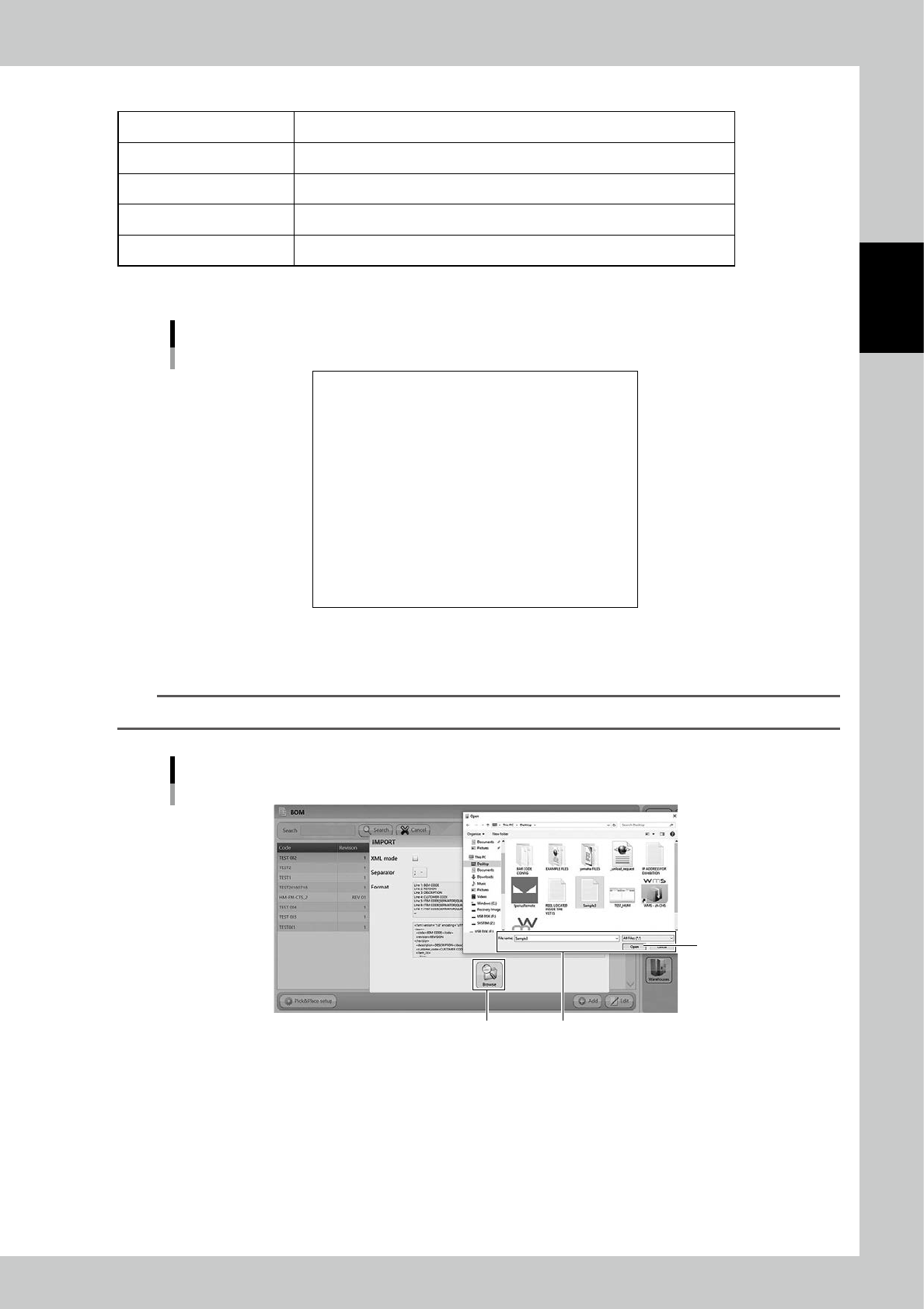
Press [Browse] button and select the import file.
n
NOTE
Select the file format depending on the import file.
Select the file
Select the import file
[Open] button
[Browse] button
24260-KMS-00