YST15_Users_E.pdf - 第56页
2-28 2 Operation 4. [Menu] button Able to go to each function. Menu list 24228-KMS-00 Show All All packagings are displayed. Import Able to register packagings at once by importing files such as txt and csv format. Impor…
2-27
2
Operation
3.3 Packaging
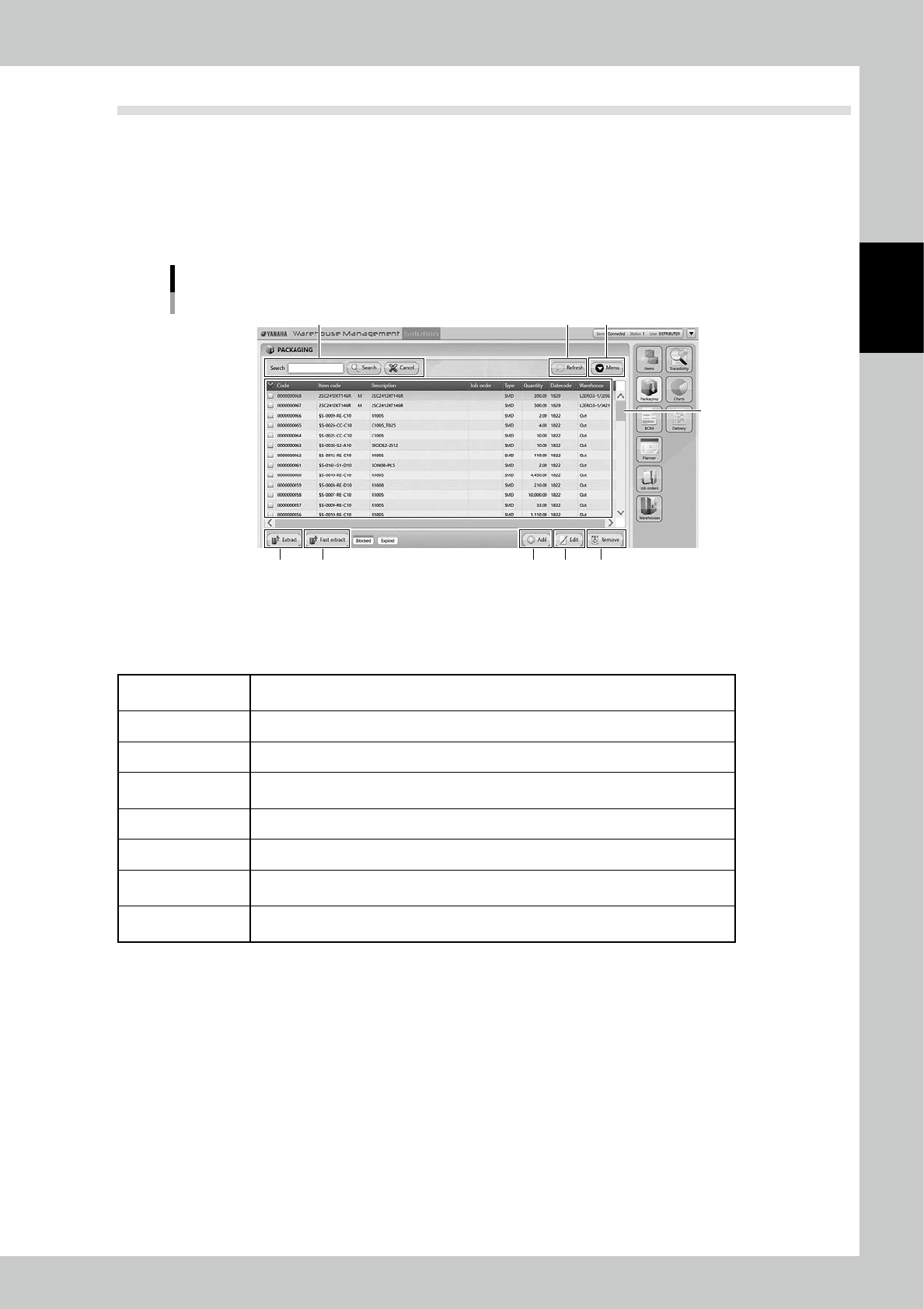
Item quantities and types of packagings stored in YST15 are registered in "PACKAGING" screen.
Bar code labels to manage packagings in the machine are printed based on this information.
There are two ways for registration. One is to register single packaging one by one. The other is to register
packagings at once by import function.
3.3.1 PACKAGING screen
"PACKAGING" screen
1
2 4
5 6 7 8 9
3
24227-KMS-00
1. Packaging list
Registered packagings are listed. Pressing a content in the top line sorts items.
The details of contents are described in the following page, too.
Code
Packaging numbers in the machine. The machine gives the numbers automatically when
the packagings are registered.
Item code The item codes, which are registered in "ITEM" screen, including in the packagings.
Description Details of items including the packagings. They are registered in "ITEM" screen.
Job Order
Job orders which are related to the packagings.The packagings which are reserved for
job orders are colored with red.
Type SMD, surface mount device, or TH, through hole, which is registered in "ITEM" screen.
Quantity The remaining quantities of the packagings.
Date code
Manufacture dates of the items included in the packaging. For example, "1829" means
29th week of year 2018.
Warehouse
The place where the packaging are stored. For example, "LZERO3-1.32968" means the
cell 32968 in 1st LZERP3, "Out" means out of the machine.
2. Search bar
Able to search based on Code or Description. Pressing [Search] button with words starts searching related packagings.
Pressing [Cancel] button stop searching.
3. [Refresh] button
Able to update stocks manually after production and re-loading packagings which include remaining items.
2-28
2
Operation
4. [Menu] button
Able to go to each function.
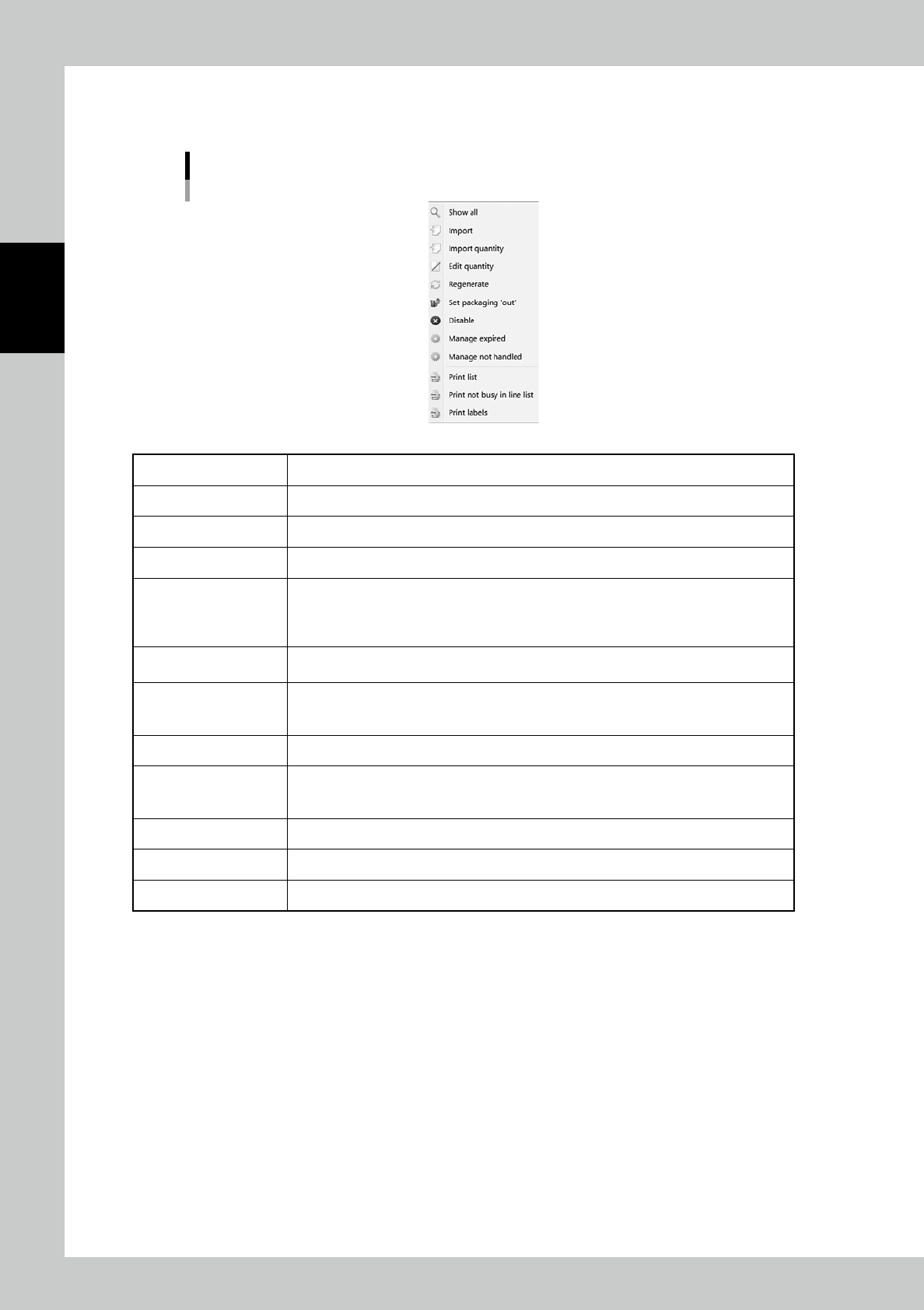
Menu list
24228-KMS-00
Show All All packagings are displayed.
Import Able to register packagings at once by importing files such as txt and csv format.
Import quantity Able to input remaining quantities of packagings by importing files such as txt and csv format.
Edit quantity Able to edit theremaining quantity of the selected packaging.
Regenerate
Packagings which are expired about MSL are colored blue to indicate expired so that they
can't be used.
If an expired packaging requires to become useful with treated baking processing, use this
function to enable the packaging.
Set packaging 'out'
Able to set the place for the selected packaging "Out". If some packagings are taken away
manually, use this function..
Disable/Enable
Able to set the selected packaging not to be used. Job Order can't select the packagings
which are disabled here.
The disabled packagings become useful by setting back to Enable.
Manage Expired Expired packagings about MSL are listed.
Manage not handled
Packagings defined as "not handled" which are not often used are listed.
Packagings which are not unloaded in 365 days after loaded are defined as "not handled" as
default.
Print list Packagings are listed.
Print not busy in line list Packagings defined as "not busy" which are not reserved for any Job Orders are listed.
Print labels Able to print bar code labels for packagings which are ticked on the columns in left end.
2-29
2
Operation
n
Manage Expired
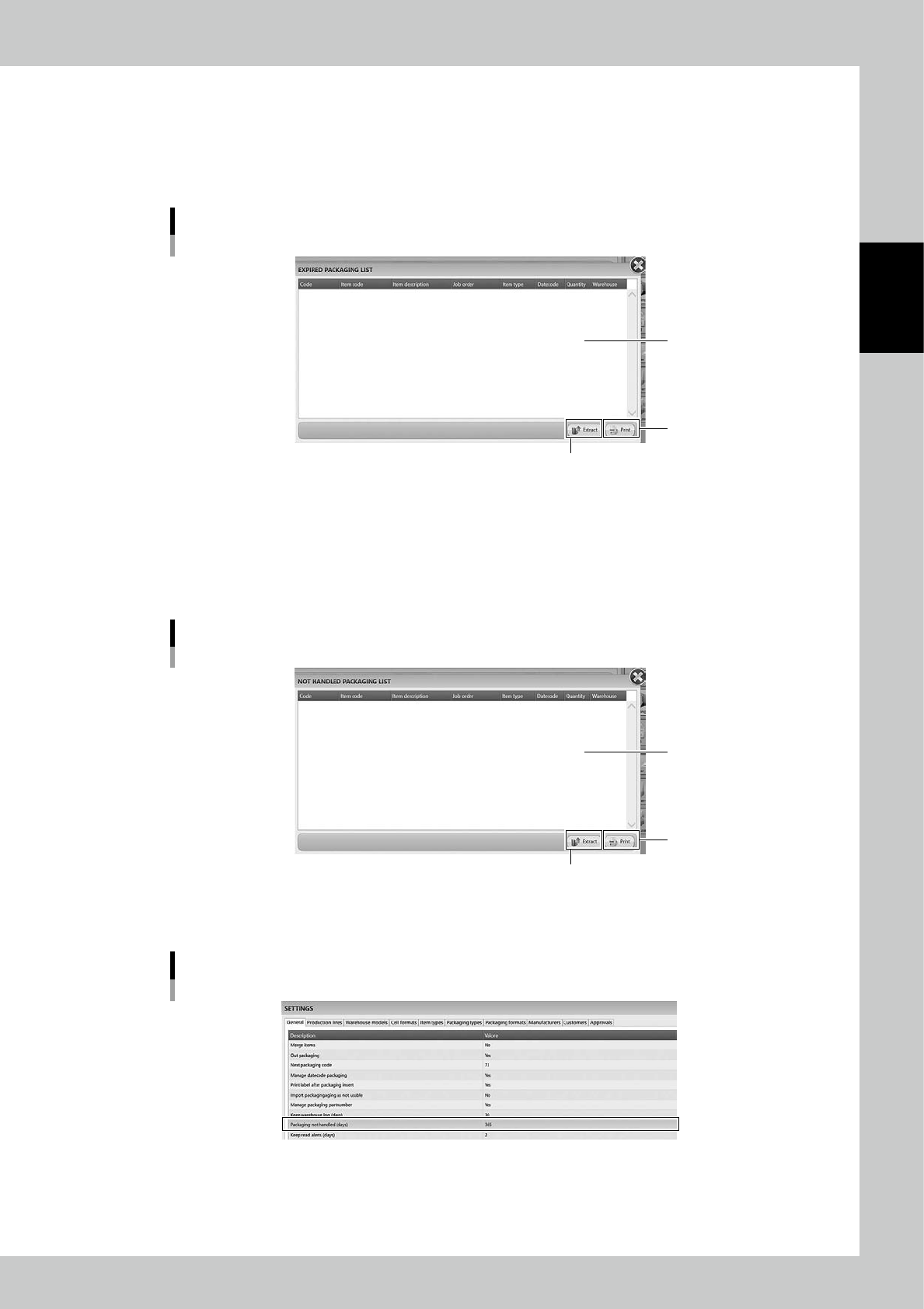
Select "Manage Expired", then "EXPIRED PACKAGING LIST" is displayed.
Select a packaging and press [Extract], then the selected packaging is unloaded.
Pressing [Print] button lists the expired packagings in "PRINT PREVIEW" screen.
Data can be saved in PDF or XML format. The details are described in the section below named "Print".
"EXPIRED PACKAGING LIST" screen
List
[Print] button
[Extract] button
24229-KMS-00
n
Manage not handled
Select "Manage not handled", then "NOT HANDLED PACKAGIMG LIST" is displayed.
Select a packaging and press [Extract], then the selected packaging is unloaded.
Pressing [Print] button lists the packaging of "not handled", then the list can be saved in PDF/XML format.
The details are described in the section below named "Print".
"NOT HANDLED PACKAGING LIST" screen
List
[Print] button
[Extract] button
24230-KMS-00
TIP
Setting of "not handled" duration in SETTING screen
24231-KMS-00