YST15_Users_E.pdf - 第46页
2-18 2 Operation 5. [Add] button Able to register items. 6. [Edit] button Able to edit a registered item. 7. [Remove] button, which is displayed only for engineer authority . Able to remove registered items, but items w …
2-17
2
Operation
4. [Menu] button
Able to go to each function.
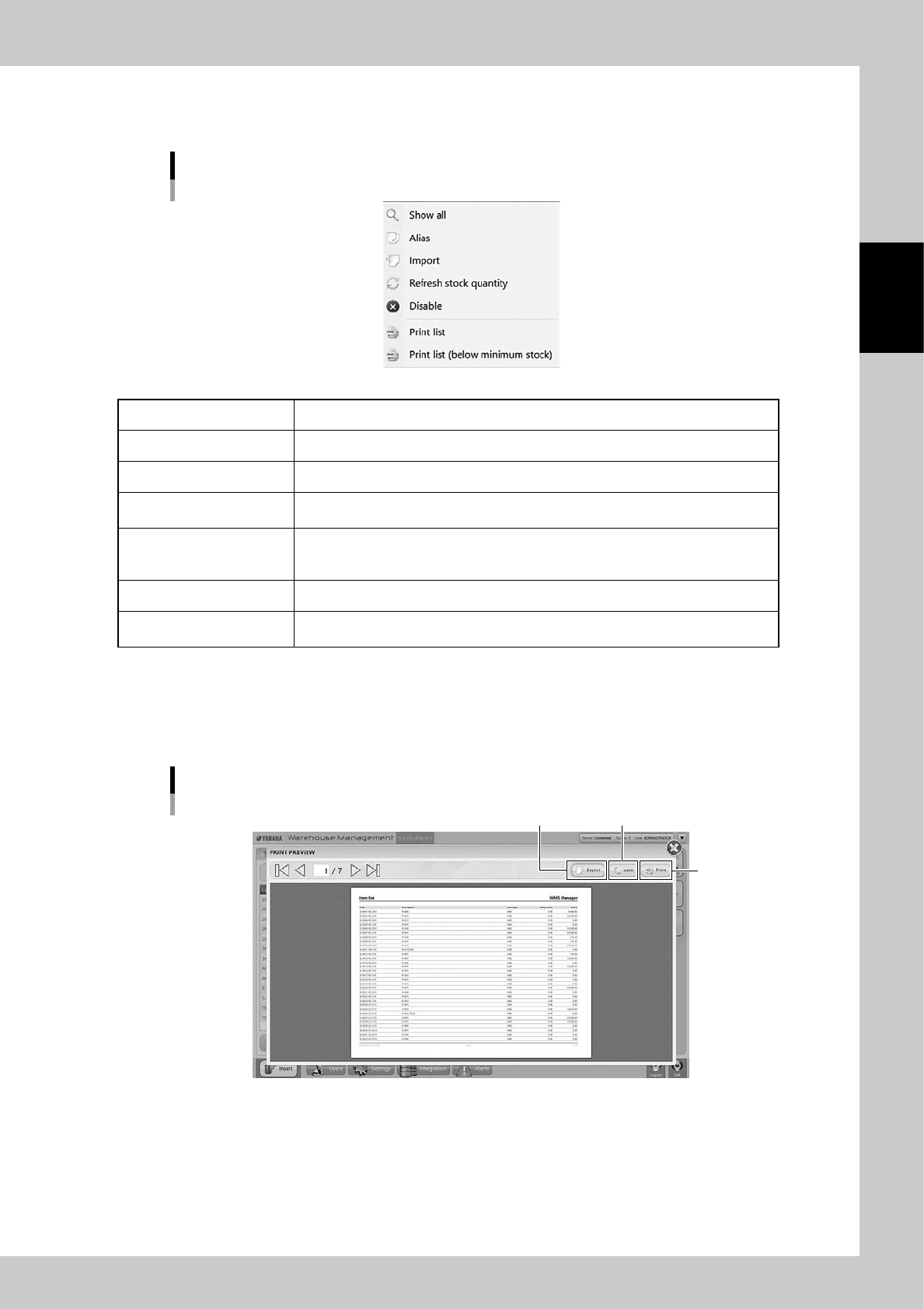
Menu list
24213-KMS-00
Show All All items are displayed.
Alias Able to make the alias setting for the selected item.
Import Able to register items at once by importing files such as txt and csv format.
Refresh Stock Quantity
After production and re-loading packagings which includes remaining items, stocks are
updated manually
Disable/Enable
Able to set the selected items not to be used. Disabled items are not available for
analyze in Job order. Set disabled items back to "Enable" if it is required to use the
items.
Print list Items are listed.
Print list
(below minimum stock)
The items whose quantities are below minimum stock of them are listed.
n
Print list
Select [Print List], then the item list is displayed in "PRINT PREVIEW" screen.
Press [Save] button to save it as a PDF file, or press [Export] button to save it as a XML file.
If a printer is connected to the machine through an external network, [Print] button is able to print lists.
"PRINT PREVIEW" screen
[Print] button
[Save] button[Export] button
24214-KMS-00
2-18
2
Operation
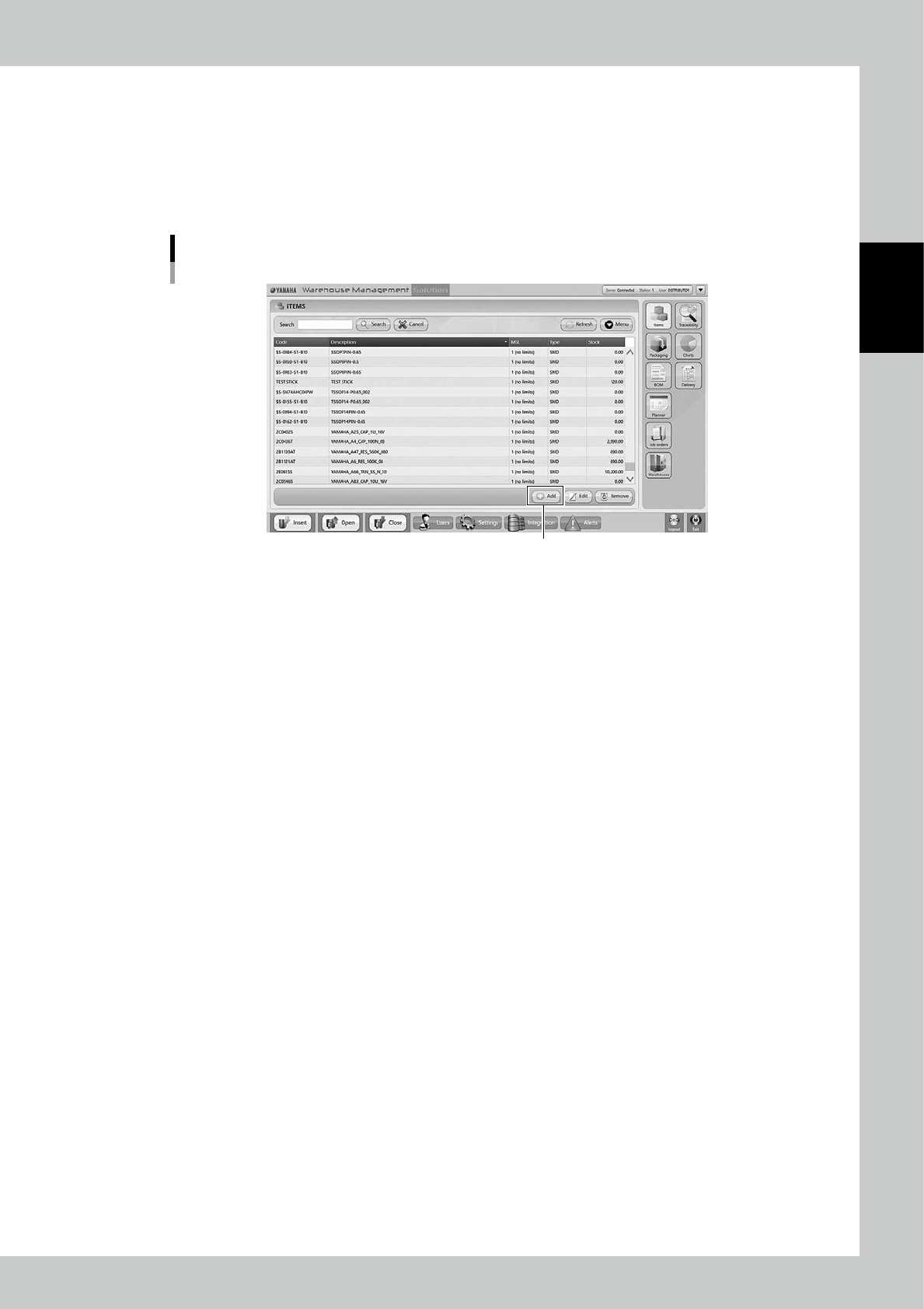
5. [Add] button
Able to register items.
6. [Edit] button
Able to edit a registered item.
7. [Remove] button, which is displayed only for engineer authority.
Able to remove registered items, but items which are removed once are not able to be registered again, and the histories
of them are also removed in traceability.
c
CAUTION
DO NOT remove any registered items basically. Once an item code is registered, it is recorded and remained in the
machine even if it's removed. Even if an operator tries to register the removed item code, the item is not able to be
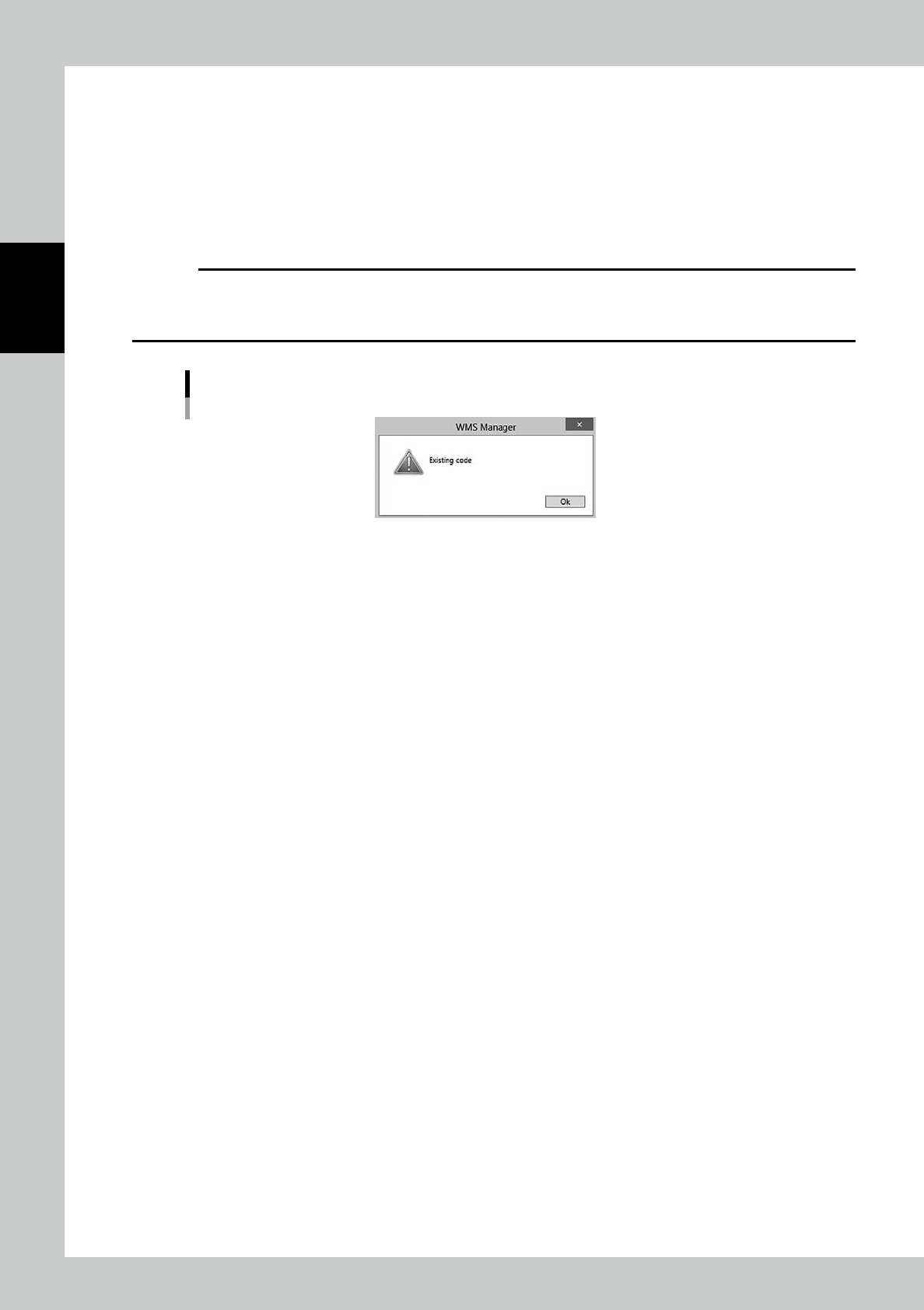
registered with the following message. Use "Disable" in Menu for useless items.
Existing Code
24215-KMS-00
2-19
2
Operation
3.2.2 Register an item manually
1
Open "ITEM" screen.
2
Open the item registration screen.
Press [Add] button at bottom right to open the item registration screen.
"ITEMS" screen
[Add] button
24216-KMS-00