YST15_Users_E.pdf - 第83页
2-55 2 Operation 3.5.4 Disable and remove BOMs Setting "Disable" on BOMs prevents the mac hine from unloading some packagings. 1 Select the BOM. Select the BOM to be disabled. 2 Select "Disable". Sele…
2-54
2
Operation
4
Press [Open] button to register the BOM.
TIP
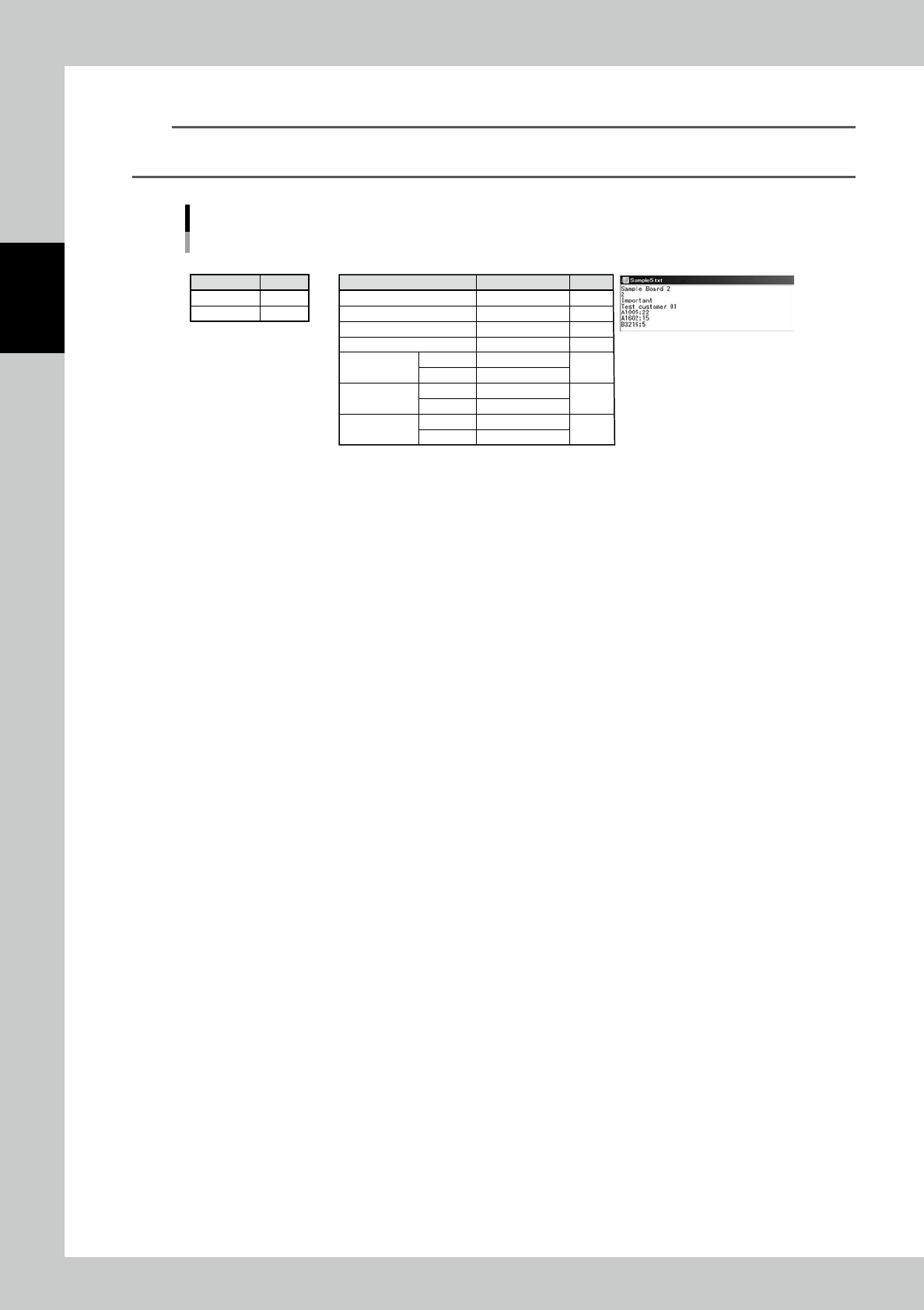
For example, a BOM, which includes three types of items, is registered by importing the following file.
It is possible to input only "Item code" registered in Items.
e.g. BOM which includes three items is registered by importing the following file.
• Setting in "IMPORT" screen • BOM to be registered • Import file in txt format
Content
XML files
Separator
Setting
N/A
;
Content
Code
Revision
Description
Customer code
"Item
information1"
"Item
information2"
"Item
information3"
Item code
Quantity
Item code
Quantity
Item code
Quantity
Setting
Sample Board 2
2
Important
Test Customer 01
A1005
22
A1602
15
B3216
5
Line
Line1
Line2
Line3
Line4
Line5
Line6
Line7
23218-KMS-00
2-55
2
Operation
3.5.4 Disable and remove BOMs
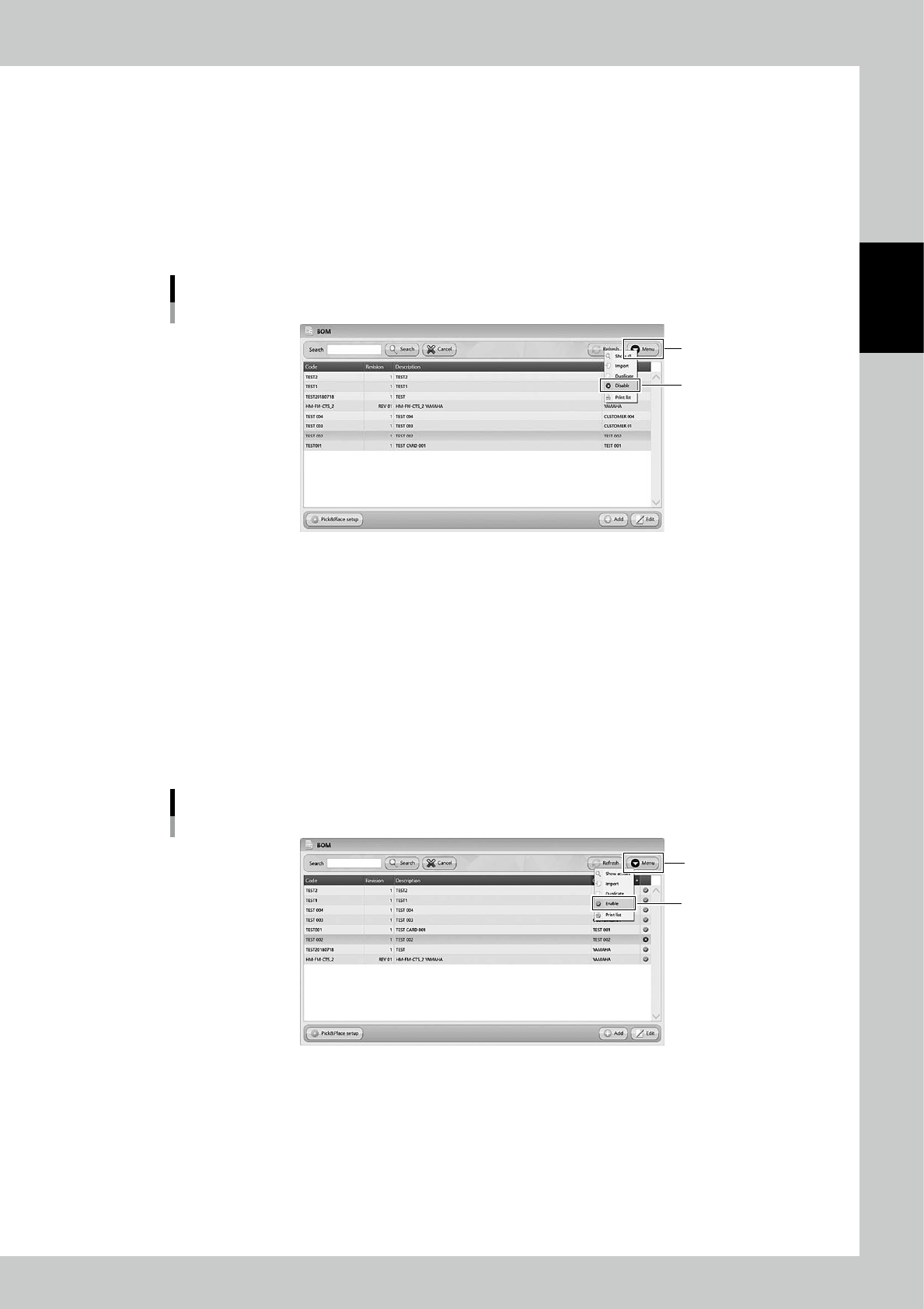
Setting "Disable" on BOMs prevents the machine from unloading some packagings.
1
Select the BOM.
Select the BOM to be disabled.
2
Select "Disable".
Select "Disable" in Menu, then the selected BOM becomes "Disable" and hidden from the list.
Disable setting for BOMs
“Disable”
[Menu] button
24261-KMS-00
n
The case it is required to use the disabled BOM.
1
Display all the BOMs.
Select "Show All" in Menu, then all the BOMS including disabled BOMs are displayed.
2
Select the BOM.
Select the required BOM.
3
Select "Enable"
Select "Enable" in Menu, then the selected BOM becomes enabled.
Enable setting for BOMs
“Enable”
[Menu] button
24262-KMS-00

2-56
2
Operation
TIP
[Remove] button
[Remove] button is displayed only for engineer authority.
Select a BOM and press [Remove], then the BOM is removed.
BOMs which are removed once are not able to be registered again, and the histories of them are also removed in
traceability.
DO NOT remove any registered BOMs basically.
[Remove] button
[Remove] button
24263-KMS-00