YST15_Users_E.pdf - 第120页
2-92 2 Operation 6. [Detail] button Able to display the detail of a deli very order by selecting the delivery order and pressing this button. DELIVER Y ORDERS DET AILS 242C7-KMS-00 7. [Extract] button Normally unloading …
2-91
2
Operation
3.11 DELIVERY ORDERS
YST15 has a function to manage remaining item quantities and traceability.
The function procedure is like the following.
1. Register packagings
→
2. Register BOMs
→
3. Create Job orders
→
4. Unload packagings
→
5.Close job orders
In some case, an external system like IT-system manages remaining item quantities and traceability.
In such a case, the machine doesn't manage remaining item quantities and traceability, but only unloads
packagings as a "SLAVE" machine. This function is called "Delivery order".
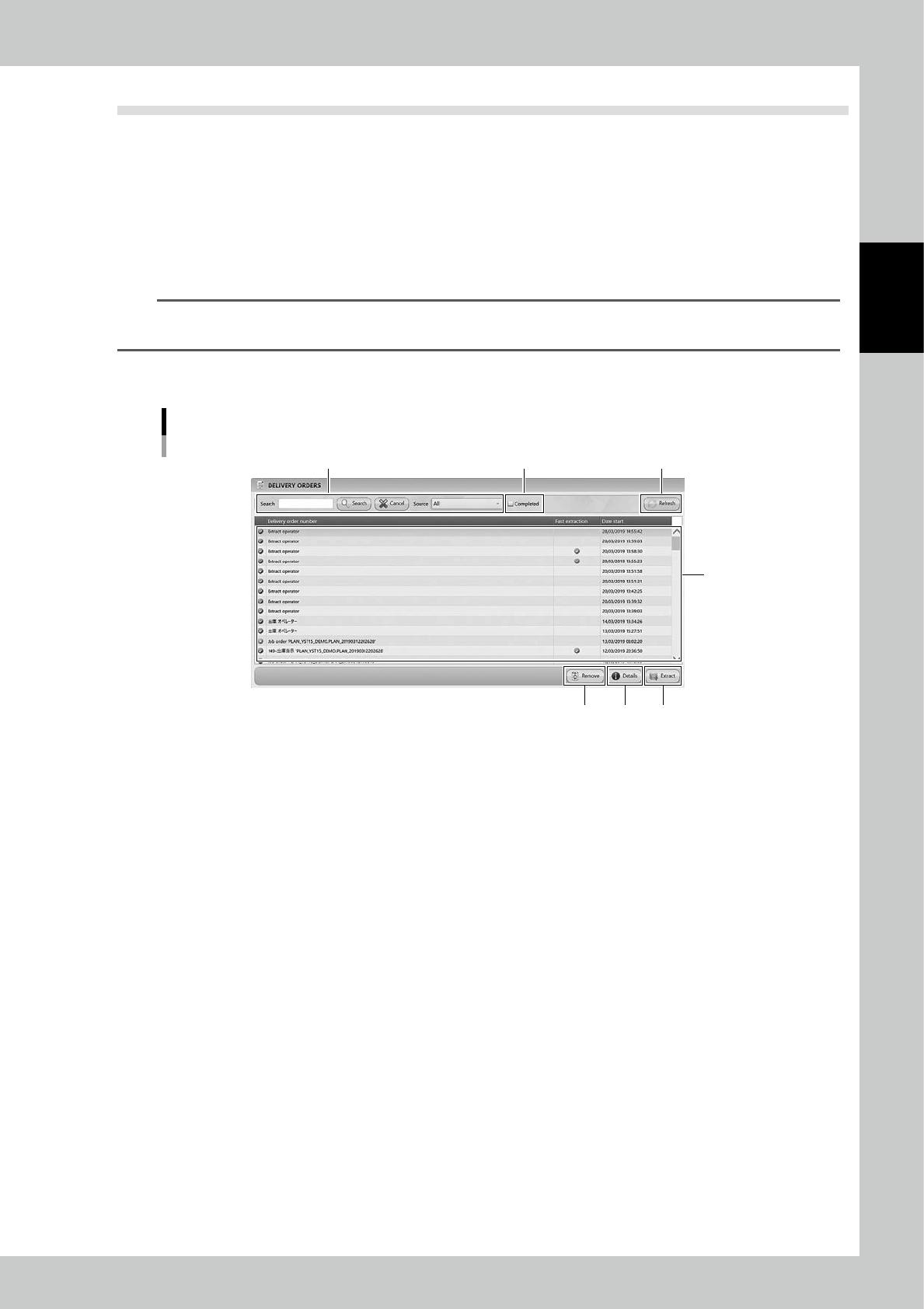
"DELIVERY ORDERS" screen lists the history of the delivery orders and other extractions.
n
NOTE
It is not required to create BOMs and job orders if packagings are unloaded by delivery orders.
It is only required to register items and packagings for unloading packagings.
3.11.1 DELIVERY ORDERS screen
"DELIVERY ORDERS" screen
1
3 2
5 6 7
4
242C6-KMS-10
1. Delivery Order list
Delivery orders are listed. Normally, unclosed delivery orders are listed.
2. "Completed" tick box
Ticking it shows delivery orders which are unclosed as well as closed.
3. "Search" bar and "Source" pull-down
Able to search for now and closed delivery orders or other extractions.
Pressing [Search] button with words starts searching related extractions.
Pressing [Cancel] button stop searching.
On the "Source" pull-down, "external software" "Pick & Place" "Job order" "Extraction by operator", view each extraction
history.
4. [Refresh] button
Able to update the delivery orders list.
5. [Remove] button
Able to delete delivery orders by selecting the delivery orders and pressing this button.
2-92
2
Operation
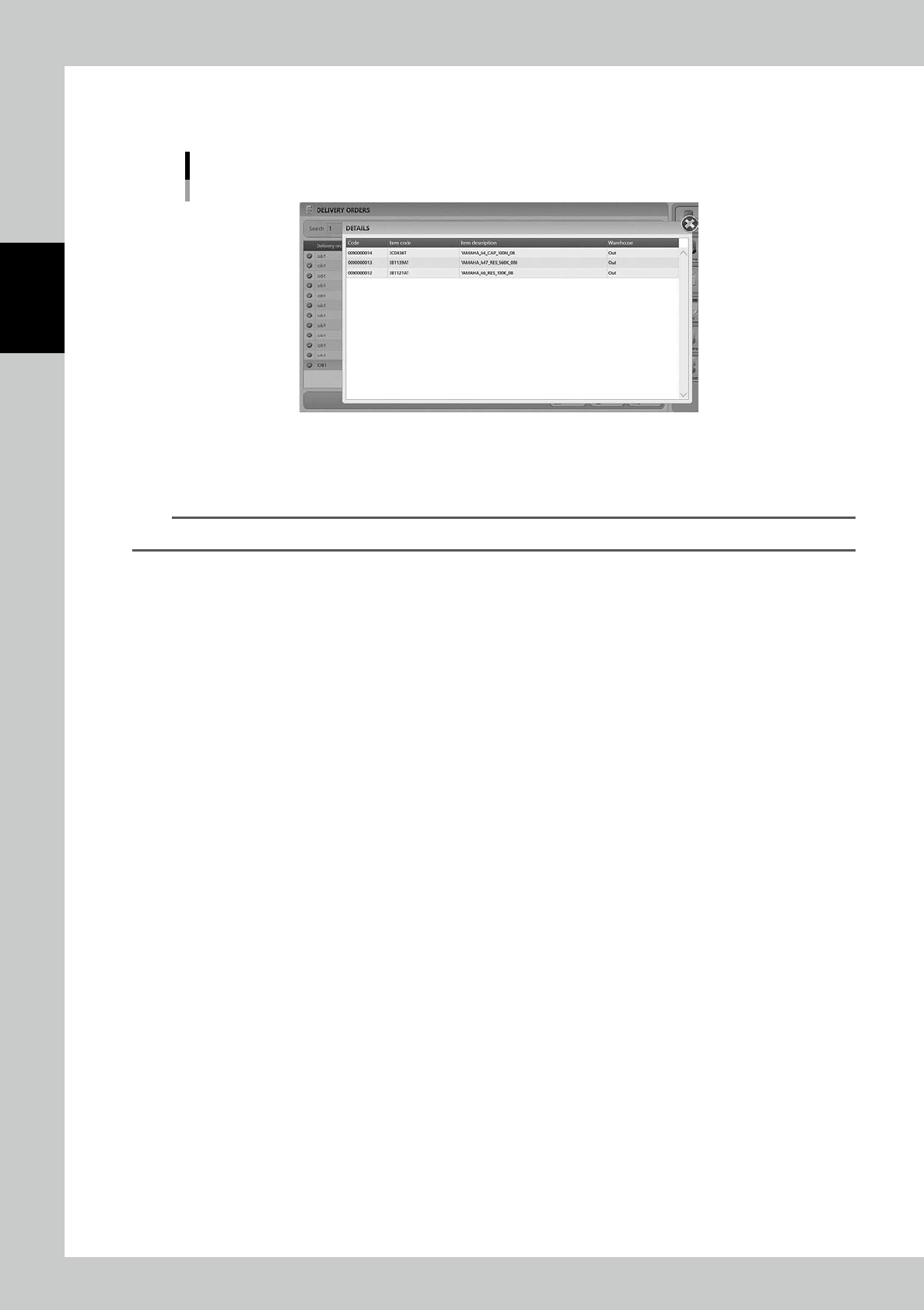
6. [Detail] button
Able to display the detail of a delivery order by selecting the delivery order and pressing this button.
DELIVERY ORDERS DETAILS
242C7-KMS-00
7. [Extract] button
Normally unloading packagings by delivery orders are performed according to the order they are input,
but, it is possible to prioritize to start a delivery order by selecting it and pressing [Extract] button manually.
TIP
Completed delivery orders can't be extracted and even deleted.
2-93
2
Operation
3.11.2 Delivery orders setting
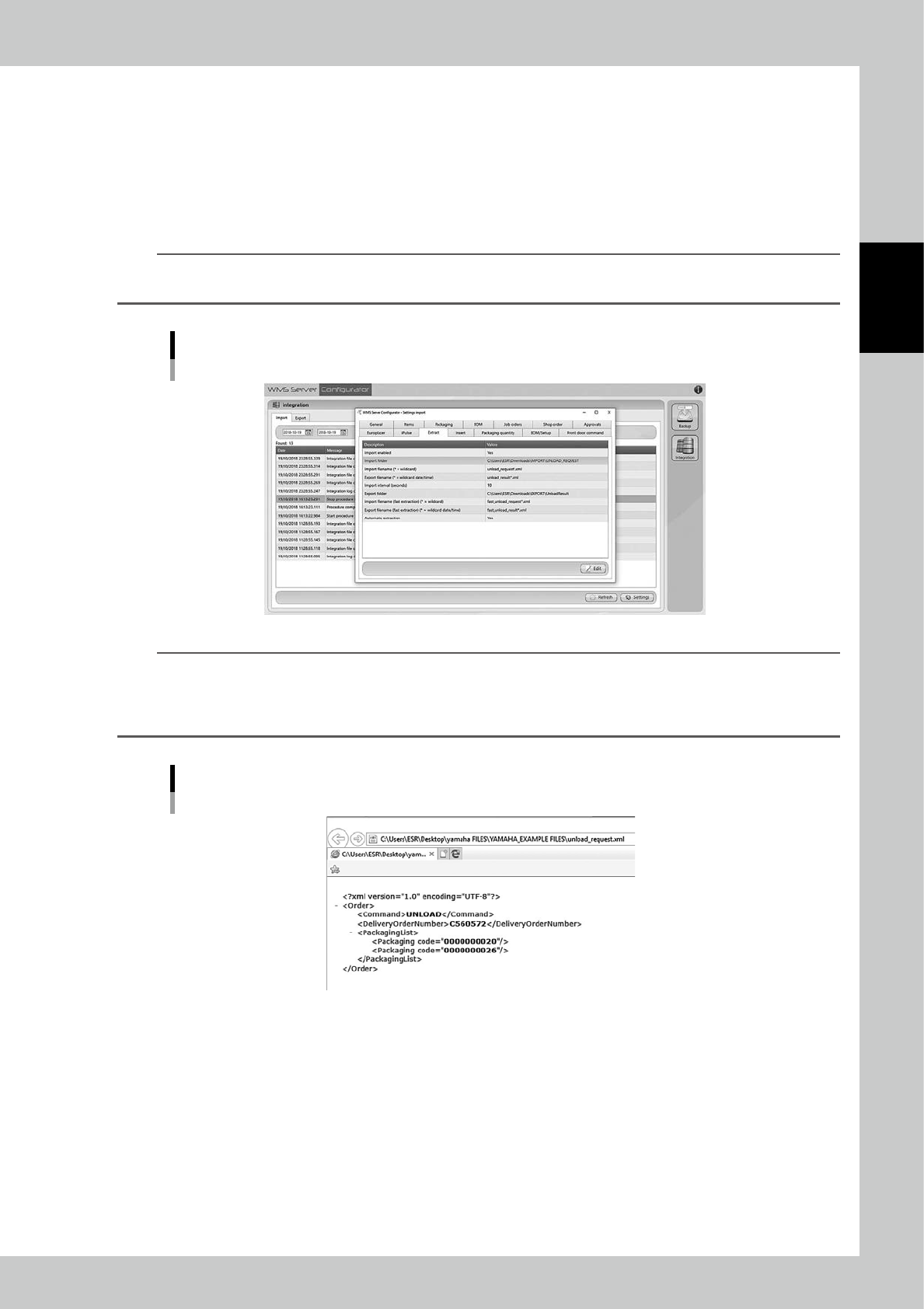
Delivery orders setting is configured by WMS
Server Configurator which is another application software
installed in YST15.
Import a file, whose name is "unload request*.xml" (any words can be in *) for delivery orders, into a certain
folder from the external system.
And then, YST15 automatically imports the file and starts unloading specified packagings.
YST15 checks the files every 10 seconds as the default setting.
n
NOTE
The delivery orders setting is configured by a serviceman during the machine installation.
If it is required to change the setting, contact the sales distributer.
WMS Server Configurator "Extract" setting screen
242C8-KMS-00
TIP
About a delivery order file "unload_request*.xml"
Delivery order files "unload_request*.xml" can be applied only in xml format.
For example, the following delivery order file "C560572" unloads packagings coded with "0000000020", and
"0000000026".
A delivery order file "unload_request*.xml": C560572
242C9-KMS-00